When a Contact is created
When a Contact is created runs once for each new contact, usually the first time someone messages you on any connected channel or when a team member adds a contact. Use it to welcome new people, tag them by channel or route the chat to the right team member.
Conditions
Conditions are optional. Click Add Condition, then pick a Field, an Operator and a value. Choose All (AND) or Any (OR) under Condition Type to decide whether every condition or just one must match.
| Condition | Operators | Values |
|---|---|---|
| Contact Group | is part of all, is part of any, is not part of all | Your contact groups |
| Contact Tags | includes any, does not include all, is part of all, is part of any, is not part of all | Your contact tags |
| Contact Stage | equals, not equals | Subscriber, Lead, Engaged, Marketing qualified lead (MQL), Sales qualified lead (SQL), Opportunity, Follow-up Required, Customer, Evangelist, Other, Lost, Inactive |
| Channel | equals, not equals | WhatsApp, Instagram, Facebook Messenger, Telegram, Live Chat, SMS |
| Last Contact activity time | is between, is on, is before, is after, is less than X period ago (past), is more than X period ago (past) | A time of day, weekdays or a period |
Use Channel to send the welcome on the channel the person used: WhatsApp, Instagram, Facebook Messenger, Telegram, Live Chat or SMS (contacts from two-way SMS conversations and SMS contacts your team adds).
Actions
Click Add Action and choose from Select Action. Actions run in order; use the arrows to reorder them. To delay an action, click Add wait time (or Add wait & Schedule time on template and email actions). Wait times count from the trigger event, not from the previous action.
| Action | What it does | Wait time |
|---|---|---|
| Notify Staff via WhatsApp | Sends a WhatsApp template message to the team members you choose. | Minutes to months |
| Send a WhatsApp Template Message | Sends an approved WhatsApp template. Works outside the 24-hour session, so use it for reminders, follow-ups and anything sent later. | Minutes to months |
| Send Customer Satisfaction Survey (CSAT) | Sends a customer satisfaction (CSAT) survey. | Minutes to months |
| Add the Contact to Group | Adds the contact to a contact group, which you can check in later conditions. | Minutes to months |
| Remove the Contact from Group | Removes the contact from a contact group, for example so a rule does not run twice. | Minutes to months |
| Add Contact Tags | Adds tags to the contact. | Minutes to months |
| Remove Contact Tags | Removes tags from the contact. | Minutes to months |
| Update Contact Stage | Moves the contact to a stage, such as Lead or Customer. | Minutes to months |
| Assign Chat to Unassigned Queue | Moves the chat to the unassigned queue so a team member can pick it up (bot-to-human handover). | Up to 1 day |
| Assign Chat to Staff | Assigns the chat to the team member you choose. | Up to 1 day |
| Auto-Assign Chat to Staff - Round Robin | Assigns the chat to team members in turn (round robin). | Up to 1 day |
| Auto Close Conversation | Closes the conversation, so automations answer again the next time the person writes. | Minutes to months |
| Send WhatsApp Message | Sends a WhatsApp text reply. Only delivered while the 24-hour WhatsApp session is open. | Up to 1 day |
| Send WhatsApp Interactive Message - Buttons | Sends a WhatsApp message with reply buttons. | Up to 1 day |
| Send WhatsApp Interactive Message - List Options | Sends a WhatsApp message with a list of options to choose from. | Up to 1 day |
| Send WhatsApp Interactive Message - CTA URL | Sends a WhatsApp message with a button that opens a link. | Up to 1 day |
| Send WhatsApp Interactive Message - Flow | Sends a WhatsApp Flow, a form that opens inside WhatsApp. | Up to 1 day |
| Send WhatsApp Media | Sends an image, video or document. | Up to 1 day |
| Send WhatsApp Audio | Sends an audio file or voice note. | Up to 1 day |
| Send WhatsApp Location Message | Sends a map location, such as your address. | Up to 1 day |
| Request WhatsApp Location Message | Asks the contact to share their location. | Up to 1 day |
| Request WhatsApp Phone Number | Asks the contact to share their phone number. Useful when someone writes from a WhatsApp username and their number is not known yet. | Up to 1 day |
| Request Permission to Call on WhatsApp | Asks the contact for permission to call them on WhatsApp. Skipped when permission is already in place. WhatsApp allows one request every 24 hours and two every 7 days. | Up to 1 day |
| Send Instagram Text Message | Sends an Instagram text reply while the messaging window is open. | Up to 1 day |
| Send Instagram Media | Sends an image, video or file on Instagram. | Up to 1 day |
| Send Instagram Audio | Sends an audio message on Instagram. | Up to 1 day |
| Send Instagram Generic Template | Sends an Instagram card with buttons, or a carousel of cards. | Up to 1 day |
| Send Instagram Quick Replies | Sends an Instagram message with up to 13 quick reply buttons. | Up to 1 day |
| Send Messenger Text Message | Sends a Messenger text reply while the messaging window is open. | Up to 1 day |
| Send Messenger Media | Sends an image, video or file on Messenger. | Up to 1 day |
| Send Messenger Audio | Sends an audio message on Messenger. | Up to 1 day |
| Send Messenger Generic Template | Sends a Messenger card with buttons, or a carousel of cards. | Up to 1 day |
| Send Messenger Utility Template Message | Sends an approved Messenger utility template. Works outside the 24-hour window. | Minutes to months |
| Send Messenger Quick Replies | Sends a Messenger message with up to 13 quick reply buttons. | Up to 1 day |
| Send Telegram Text Message | Sends a Telegram text reply. | Up to 1 day |
| Send Telegram Template Message | Sends a Telegram message with buttons. | Up to 1 day |
| Send Telegram Media | Sends an image, video or file on Telegram. | Up to 1 day |
| Send Telegram Audio | Sends an audio message on Telegram. | Up to 1 day |
| Send Website Text Message | Sends a live chat text reply. | Minutes to months |
| Send Website Media | Sends an image, video or file in live chat. | Minutes to months |
| Send Website Interactive Template Message | Sends a live chat message with buttons. | Minutes to months |
| Webhooks by Whautomate | Sends the event data to your own URL (webhook). | Minutes to months |
| Add Contact Notes | Adds a note to the contact. | Minutes to months |
| Send SMS | Sends an SMS through your SMS provider (Integrations > SMS). In an SMS conversation it goes to that contact, otherwise to the client's phone number. Skipped when no provider is connected, the client has no phone number or the number opted out (STOP). | Up to 1 day |
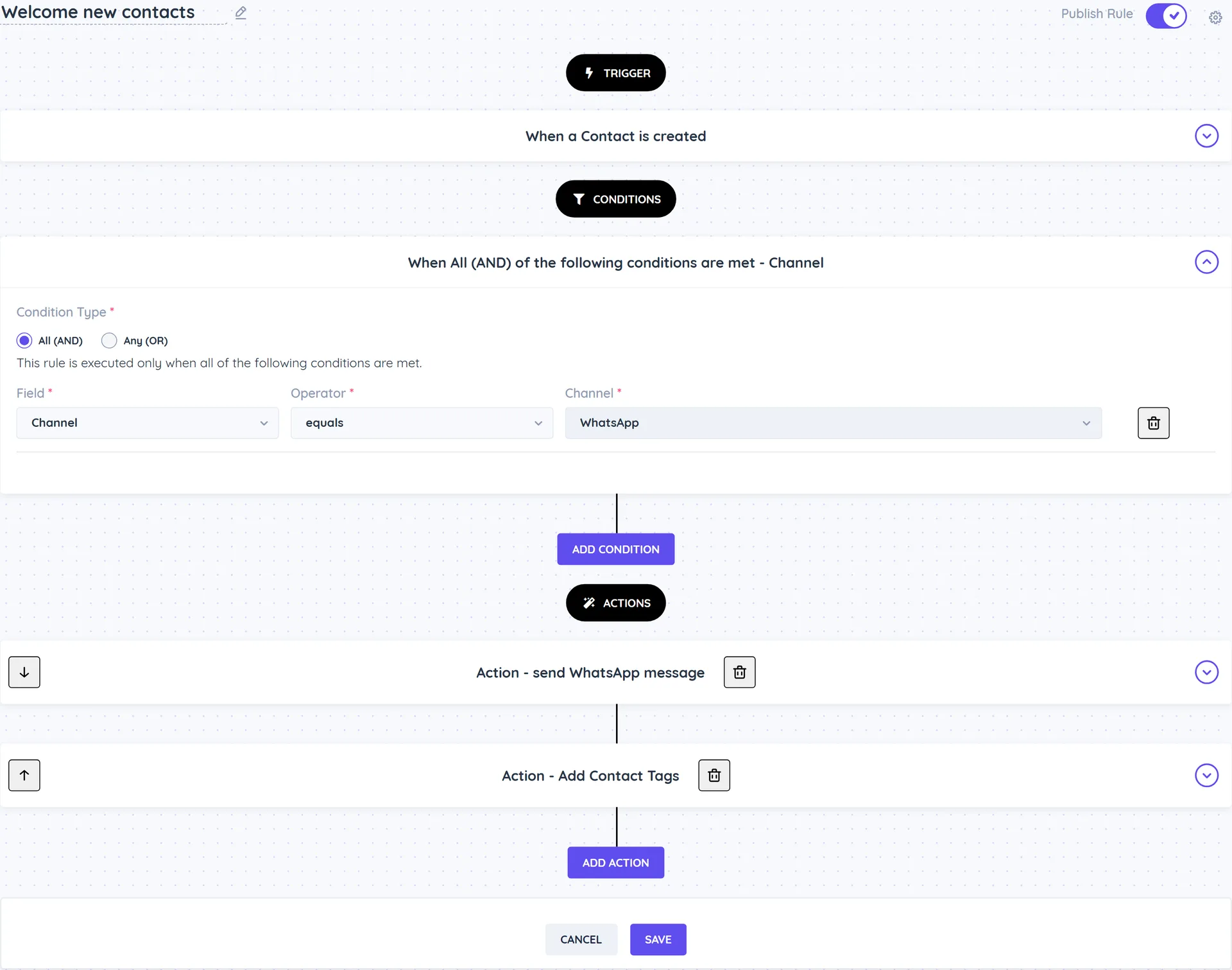
Example
Welcome new WhatsApp contacts
- Create a rule named "Welcome new contacts" with the When a Contact is created trigger.
- Add the condition Channel equals WhatsApp.
- Add the action Send WhatsApp Message: "Hi! Thanks for getting in touch. How can we help you today?"
- Add a second action Add Contact Tags with the tag "New lead".
Good to know
- Contacts added by a bulk import do not run this rule. To message imported contacts, use a broadcast.
- Pick the send action that matches the channel, for example Send WhatsApp Message for WhatsApp contacts. A message on another channel cannot reach them.