Happy Birthday Automation
Happy Birthday Automation checks your client list once a day and runs for every client whose birthday is coming up, based on the date of birth on their client record. By default it runs the day before the birthday, so add a 1 day wait to deliver your message on the day.
To run it more days in advance, change Birthday Automation in Automation Schedule.
Conditions
Conditions are optional. Click Add Condition, then pick a Field, an Operator and a value. Choose All (AND) or Any (OR) under Condition Type to decide whether every condition or just one must match.
| Condition | Operators | Values |
|---|---|---|
| Client Age | equals, not equals, lesser than, greater than, lesser than equal to, greater than equal to | A number |
| Client Tags | includes any, does not include all, is part of all, is part of any, is not part of all | Your client tags |
| Contact Group | is part of all, is part of any, is not part of all | Your contact groups |
| Contact Tags | includes any, does not include all, is part of all, is part of any, is not part of all | Your contact tags |
| Contact Stage | equals, not equals | Subscriber, Lead, Engaged, Marketing qualified lead (MQL), Sales qualified lead (SQL), Opportunity, Follow-up Required, Customer, Evangelist, Other, Lost, Inactive |
| Client Receives Updates On | is part of all, is part of any, is not part of all | WhatsApp, Telegram, SMS, Email, Not set |
Use Client Age to send a special message for milestone birthdays, for example equals 50.
Actions
Click Add Action and choose from Select Action. Actions run in order; use the arrows to reorder them. To delay an action, click Add wait time (or Add wait & Schedule time on template and email actions). Wait times count from the trigger event, not from the previous action.
Every action on this trigger can wait minutes to months.
| Action | What it does |
|---|---|
| Send Email | Sends an email to the client, team members or a custom list. Marketing emails need CRM Suite; Transactional emails do not. |
| Notify Staff via WhatsApp | Sends a WhatsApp template message to the team members you choose. |
| Send a WhatsApp Template Message | Sends an approved WhatsApp template. Works outside the 24-hour session, so use it for reminders, follow-ups and anything sent later. |
| Send Customer Satisfaction Survey (CSAT) | Sends a customer satisfaction (CSAT) survey. |
| Add the Contact to Group | Adds the contact to a contact group, which you can check in later conditions. |
| Remove the Contact from Group | Removes the contact from a contact group, for example so a rule does not run twice. |
| Add Client Tags | Adds tags to the client record. |
| Remove Client Tags | Removes tags from the client record. |
| Add Contact Tags | Adds tags to the contact. |
| Remove Contact Tags | Removes tags from the contact. |
| Update Contact Stage | Moves the contact to a stage, such as Lead or Customer. |
| Notify Client's Primary Staff via WhatsApp | Sends a WhatsApp template message to the client's primary team member. |
| Add Text Client Notes | Adds a text note to the client record. |
| Add Document Client Notes | Attaches a document to the client record as a note. |
| Add or Update Client Custom Attributes | Adds or updates custom fields on the client record. |
| Send Telegram Text Message | Sends a Telegram text reply. |
| Send Telegram Template Message | Sends a Telegram message with buttons. |
| Send Telegram Media | Sends an image, video or file on Telegram. |
| Send Telegram Audio | Sends an audio message on Telegram. |
| Send SMS | Sends an SMS through your SMS provider (Integrations > SMS). In an SMS conversation it goes to that contact, otherwise to the client's phone number. Skipped when no provider is connected, the client has no phone number or the number opted out (STOP). |
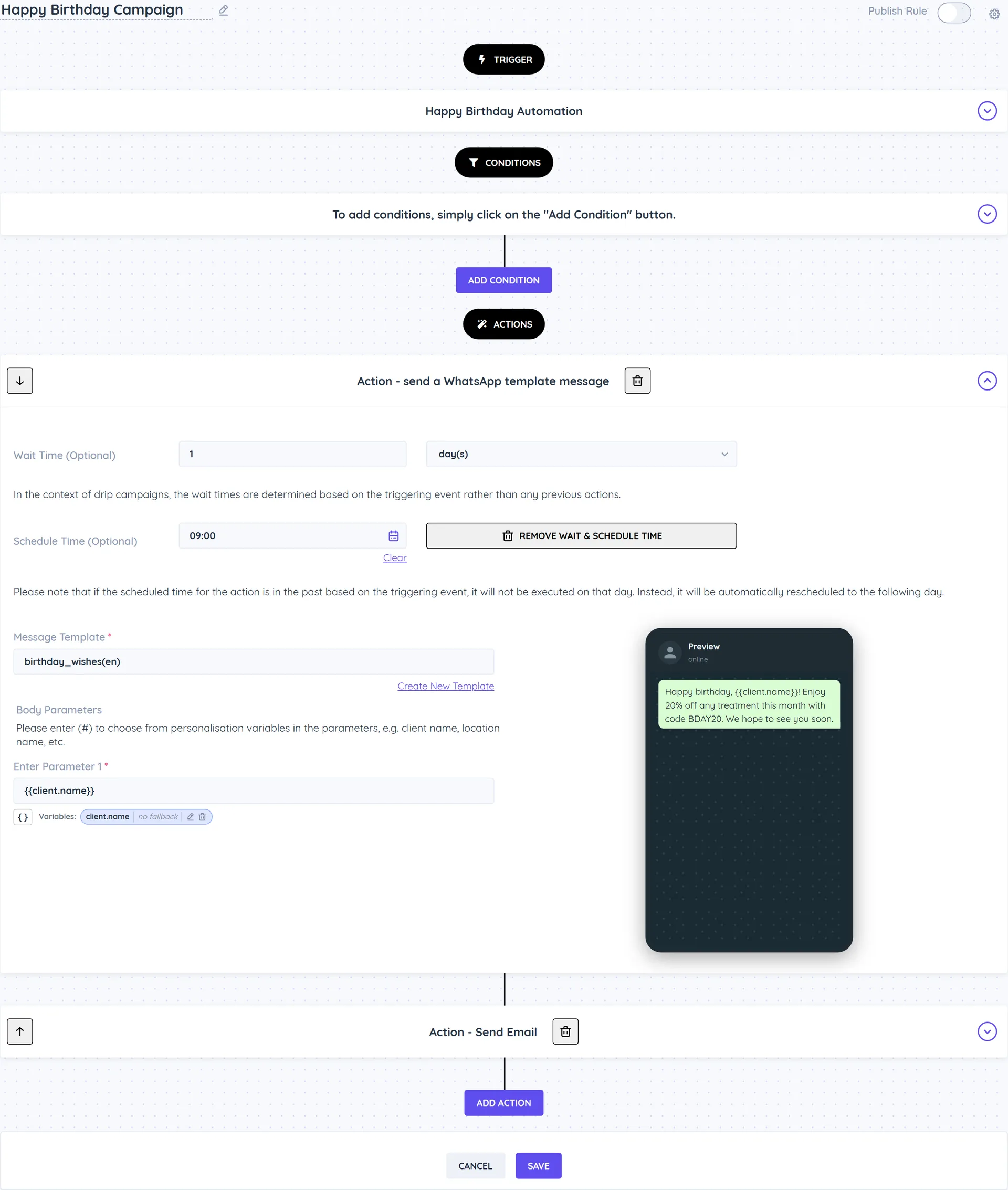
Example
Send birthday wishes at 9am on the day
- Create a rule with the Happy Birthday Automation trigger.
- Add the action Send a WhatsApp Template Message and choose your birthday template.
- Click Add wait & Schedule time, set Wait Time (Optional) to 1 day(s) and Schedule Time (Optional) to 9:00 AM.
- Publish and save.
Good to know
- Clients without a date of birth are skipped.
- The rule looks at clients whose primary location is this location.
- Use Send a WhatsApp Template Message: a birthday message usually starts a new conversation, so a normal text message would not be delivered.
- The Automate Birthday wishes Campaign template sets this up for you. See Birthday wishes campaign.
- Besides WhatsApp templates and email, client rules can reach the client on Telegram (Send Telegram Text Message, Send Telegram Template Message, Send Telegram Media, Send Telegram Audio) and by SMS (Send SMS). Telegram goes to the chat linked to the client, or the chat whose shared phone number is the client's; SMS goes through your own SMS provider to the client's phone number. When there is no chat, no provider, no phone number or the number replied STOP, the action is skipped and the log says "Skipped:". Use Client Receives Updates On to send each client the update on the channel they chose: one rule per channel, each with its own condition (Not set matches clients who made no choice).