Connect Instagram to answer direct messages, story replies and mentions in the Team Inbox together with your other channels. You can also reply automatically with chatbots and automations (see Incoming Instagram messages).
Before you start
- An Instagram professional account set to Business. In the Instagram app, switch to a professional account if needed.
- The Instagram account must be linked to a Facebook Page that you manage.
- In the Instagram app, allow access to messages: go to Settings and privacy > Messages and story replies > Message controls and turn on Allow access to messages.
- You need to be an admin in Whautomate and have admin access to the Facebook Page.
Connect Instagram
-
Go to Settings > Integrations and click Connect on the Instagram card.
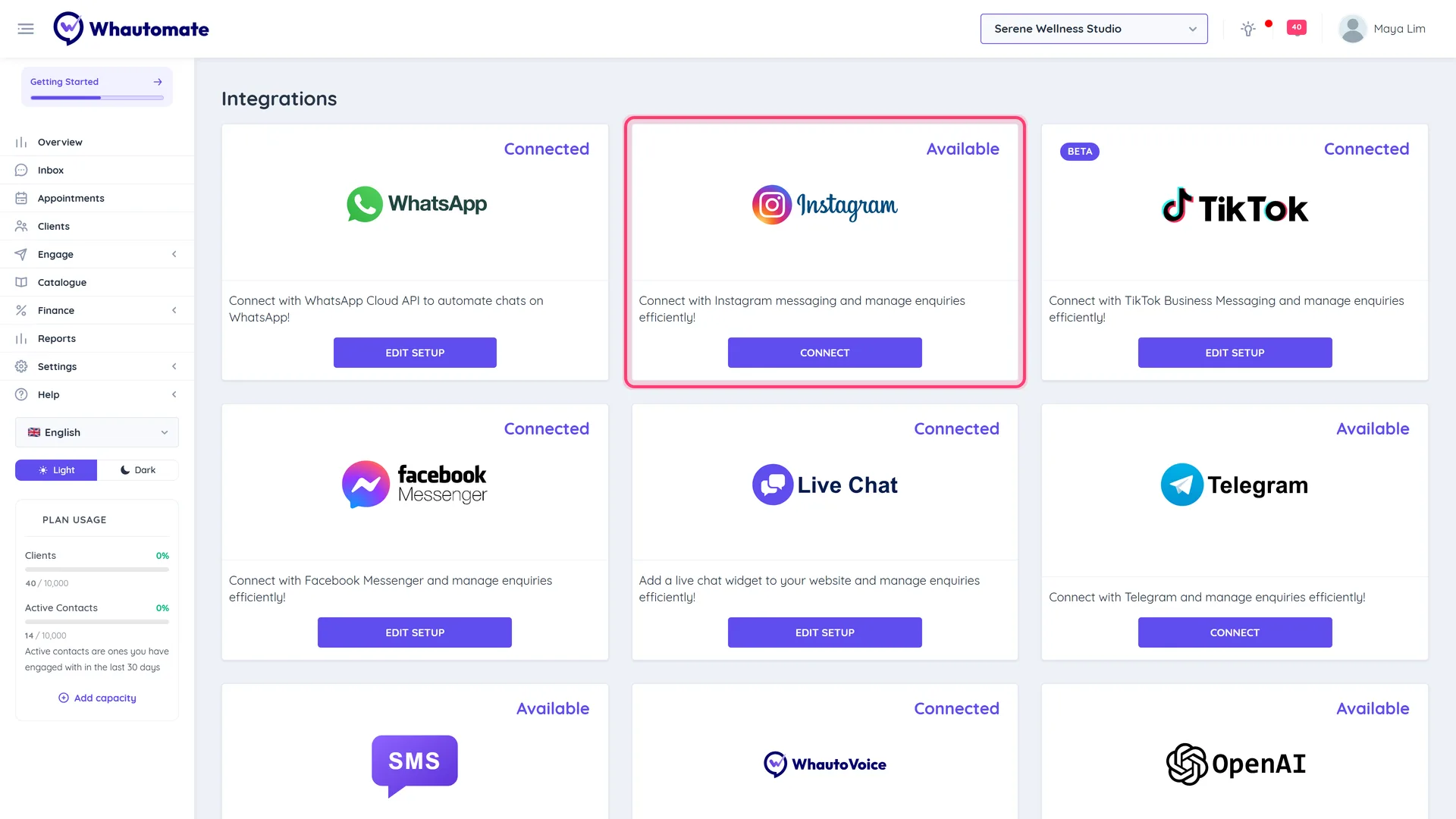
-
Under Connect Instagram Account, click Connect with Instagram.
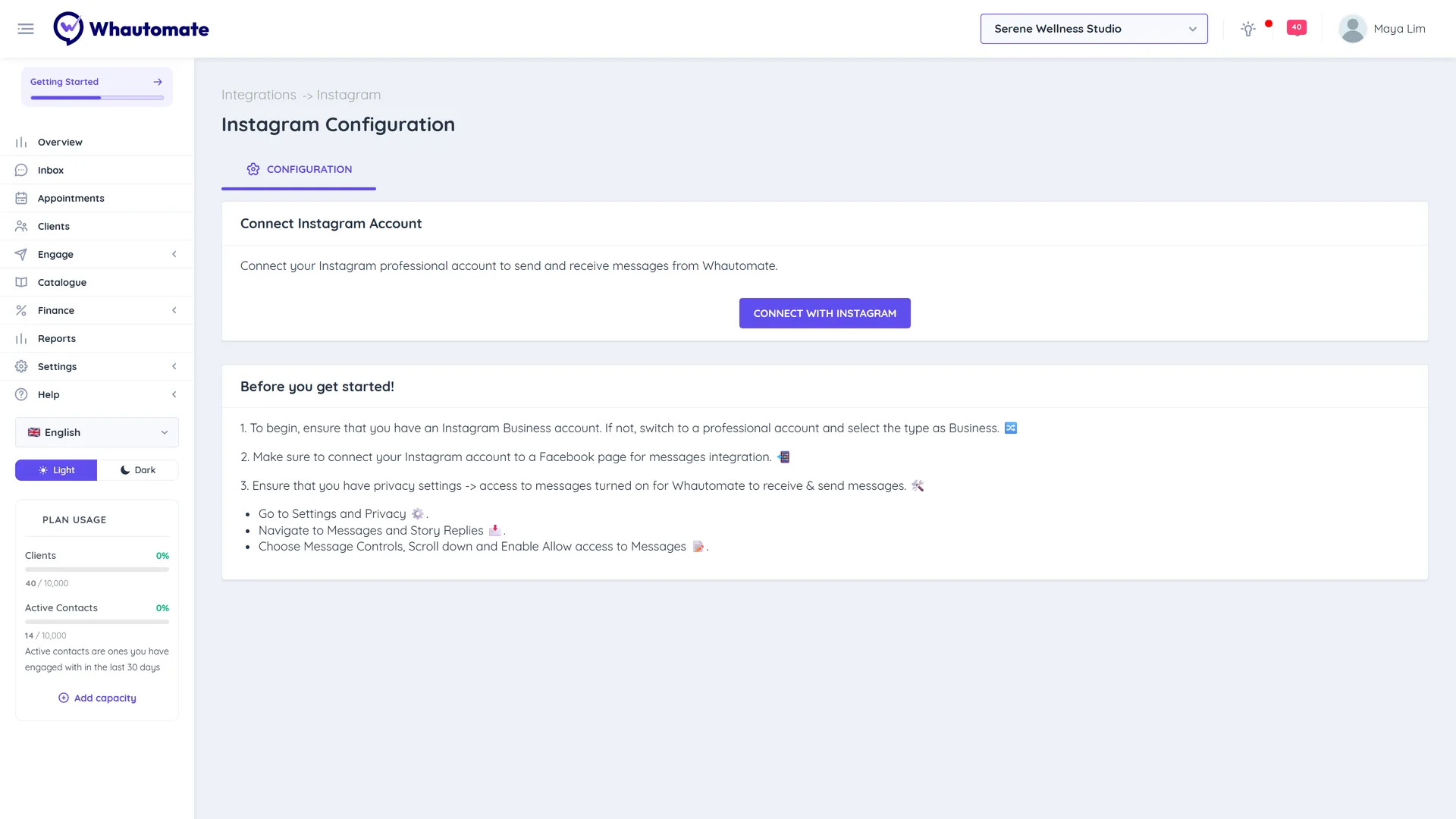
-
Log in with Facebook in the window that opens and allow access to your Instagram account and its Facebook Page.
-
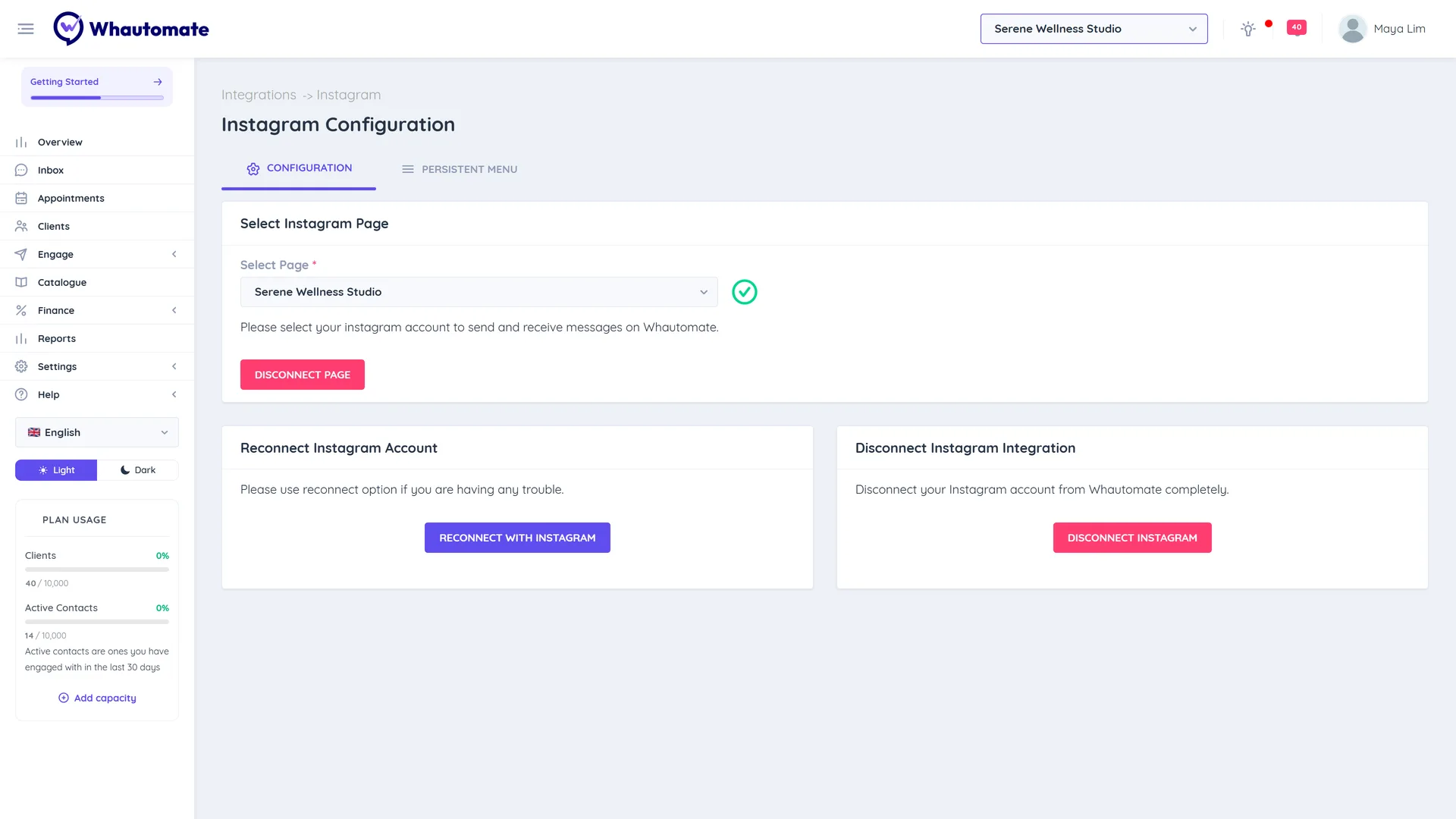
Back in Whautomate, under Select Instagram Page, choose your account in Select Page and click Connect Page. You see Your Instagram account is connected successfully!
Send a direct message to your Instagram account from another account to check it arrives in the Team Inbox.
Persistent menu and ice breakers
Open the Persistent Menu tab to set what people see in your Instagram chat:
- Persistent Menu: buttons that are always available in the conversation. For each Locale (for example en_US), add buttons with a Button Type of Web URL (opens a link) or Postback (sends a reply your automations can act on). Click Add New Localised Menu for other languages.
- Ice Breakers: questions people can tap to start a conversation. Add a Question for each, and Add New Localised Ice Breaker for other languages.
Click Save. Use Delete Persistent Menu or Delete Ice Breakers to remove them.
Reconnect or disconnect
- Reconnect with Instagram: use this if messages stop arriving, for example after you changed your Facebook password or permissions.
- Disconnect Page: stops using the selected account but keeps the login, so you can pick another account.
- Disconnect Instagram: removes the connection completely. Type CONFIRM and click Yes, Disconnect.
Tips
- Meta only lets businesses reply on Instagram within a limited time after the customer's last message (24 hours for most messages). Reply promptly.
- To show a WhatsApp button on your Instagram profile, see How to add a WhatsApp button to your Instagram account.