Team Inbox
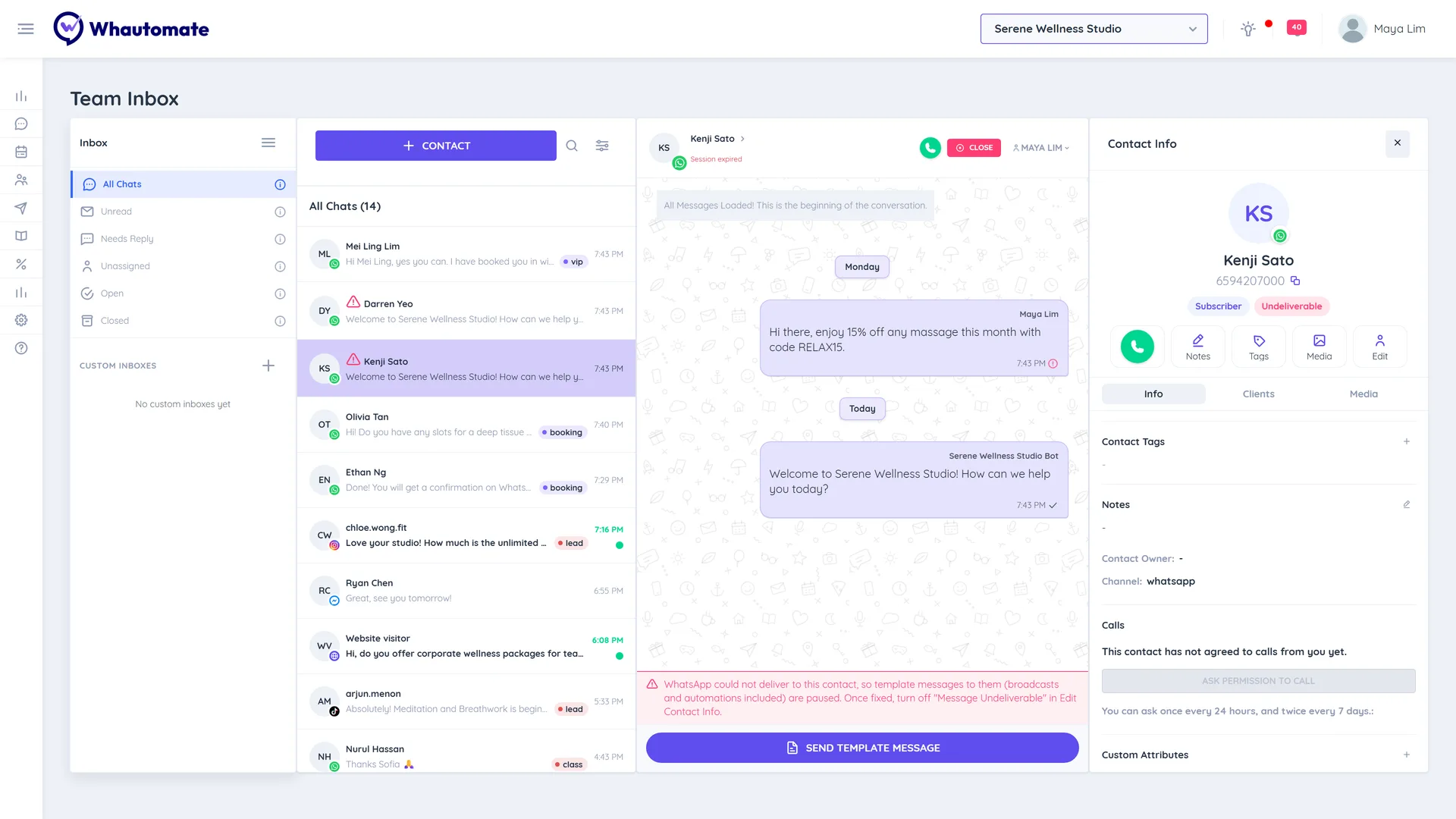
The Team Inbox is where your whole team reads and answers customer messages from every connected channel: WhatsApp, Instagram, Messenger, Telegram, TikTok, two-way SMS and the live chat on your website. Each conversation shows which channel it came from, who it is assigned to and whether a bot or a person is handling it. Use it every day to answer customers, hand chats to the right team member and step in when a chatbot cannot help.
Before you start
- Connect at least one channel in Settings > Integrations. See Connect a Communication Channel. Any one of these opens the inbox: WhatsApp, Telegram, Instagram, Messenger, TikTok, or an SMS provider in two-way mode (so a TikTok-only or SMS-only account works too).
- Until one is connected, Team Inbox opens as a Sample inbox with practice chats. Open a chat and reply to see how it works: assigning, closing, notes, tags and replies all work, but nothing is sent and the sample starts fresh each time. Admins see a Connect a channel button; other team members are asked to have an admin connect one.
- If your workspace uses a WhatsApp number that is configured in another workspace (shared configuration), read and reply to those chats from the workspace where WhatsApp is configured.
Open the inbox
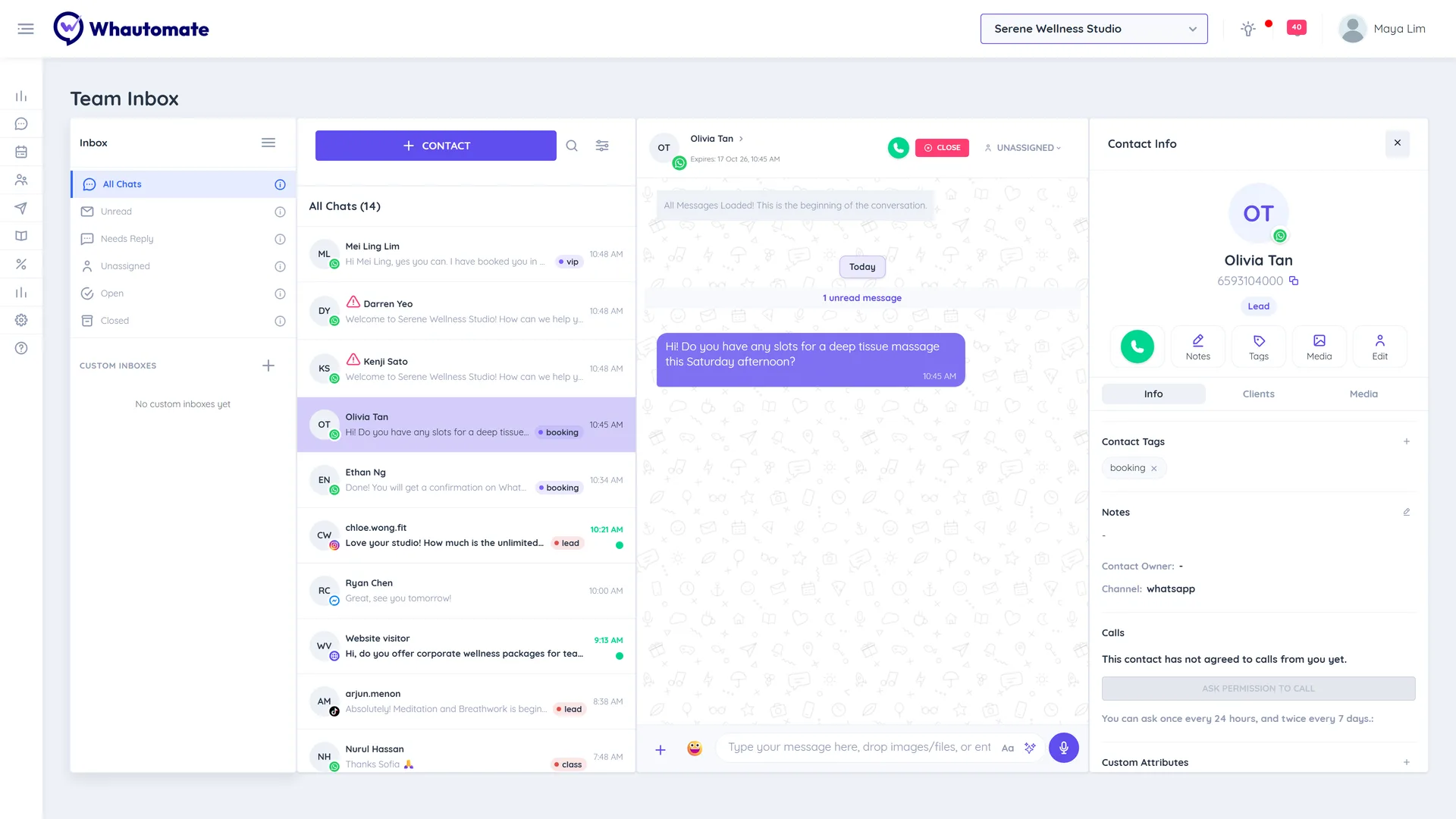
Click Inbox in the left menu. The page has up to four columns:
- Inbox filters on the left (hide or show them with the menu icon).
- The conversation list, with the Contact button to start a new conversation, search and filters.
- The open conversation and the message box.
- Contact Info on the right (on smaller screens, click the contact's name to open it).
How open, closed and unassigned work
Every conversation is in one of three states. They decide whether your chatbots reply or stay quiet.
| State | What it means |
|---|---|
| Closed | Bots are handling it automatically. No staff action needed. New conversations start here, and bots only reply while a conversation is closed. |
| Open | A team member is handling it, so bots stay quiet. Replying by hand moves a chat to Open and assigns it to you. Close it when you are done so the bots take over again. |
| Unassigned | The customer asked for a person, so the bot stopped. It waits for a team member to pick it up. |
Find a conversation
Use the filters under Inbox:
- All Chats: admins see every chat. Other team members see their own open and closed chats, plus anything unassigned.
- Unread: chats with messages you have not read yet.
- Needs Reply: chats where the customer sent the last message and no one has replied yet.
- Unassigned, Open and Closed: chats in that state.
Admins can choose which of these filters everyone sees in Team Inbox Settings.
To narrow the list further, click the filter icon next to search and choose Contact Tags (admins can also use Filter Assigned to).
To search, click the search icon, type at least 3 characters and press Enter. Results are split into CONTACTS (matching names, numbers and tags) and MESSAGES (matching text). Click a message result to jump to it in the conversation.
Reply to a customer
- Click a conversation in the list.
- Type in the message box and press Enter or click the send button.
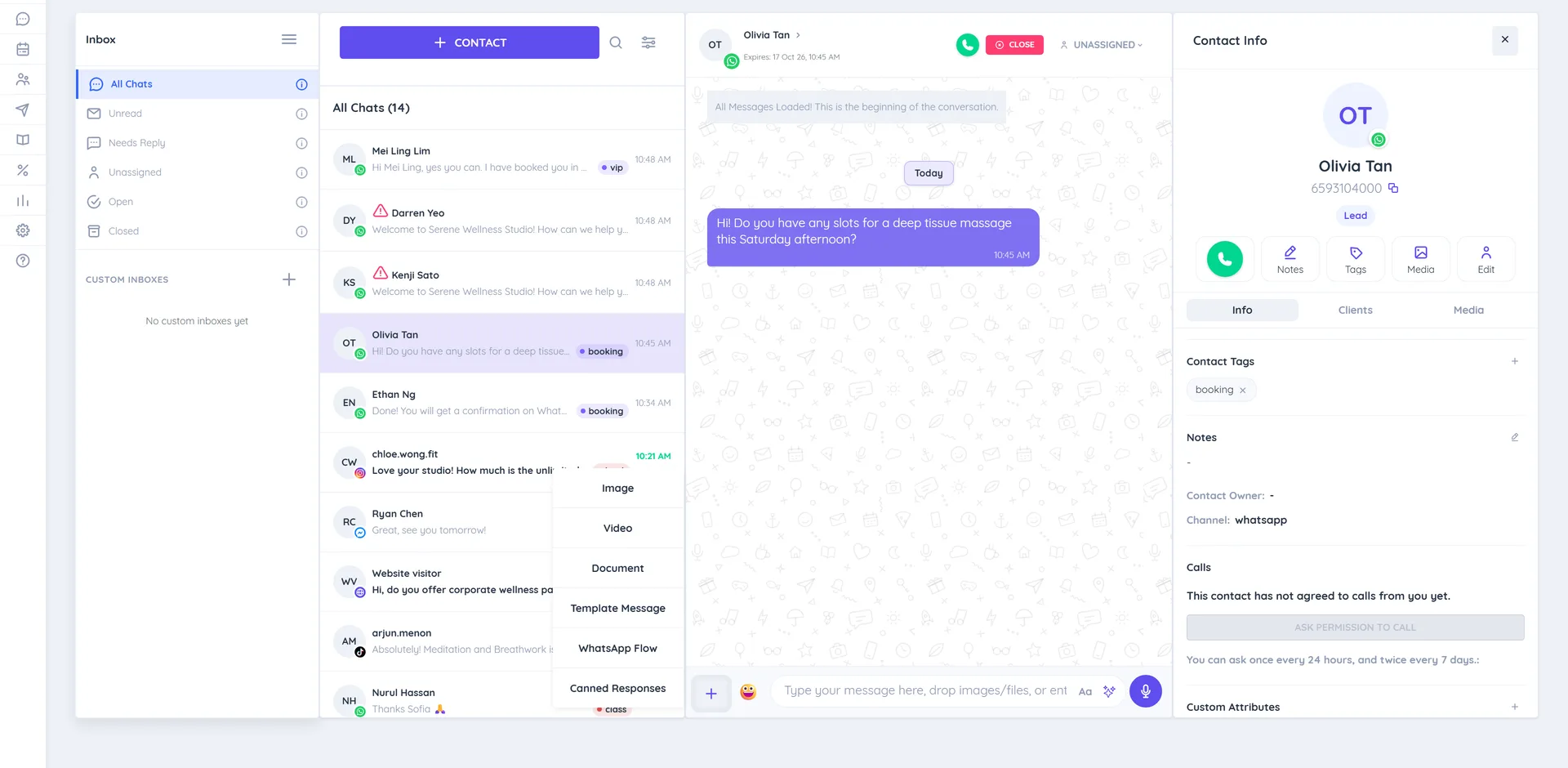
- To add more, click + next to the message box:
- Image, Video and Document (Instagram and TikTok do not accept documents, and TikTok accepts images only). You can also drag files onto the conversation or paste an image.
- Template Message (WhatsApp): send an approved template.
- WhatsApp Flow (WhatsApp): send a form. See Send a WhatsApp Flow from the inbox.
- Canned Responses: pick a saved reply. You can also type # in the message box. See Canned Responses.
- Click the emoji button to add emoji, or Aa for bold, italic, strikethrough and code formatting.
- When the box is empty, the send button becomes a microphone. Click it to record a voice note, stop, then send.
To reply to a specific message, hover over it and click Reply. Hover actions also let you copy the text, Translate it, Transcribe a voice note, or Copy message link!
Write with AI
Click the sparkle icon inside the message box (Generate with AI). Describe the reply you want under Ask AI to write a reply…, or, when you have a draft, use Improve, Shorter, Friendlier, More formal or Fix grammar. The result replaces the text in the box, and Undo brings your draft back. AI writing uses AI credits; your balance shows as AI Credits. Always check the text before you send it.
The 24 hour WhatsApp window
WhatsApp lets businesses send free-form messages only within 24 hours of the customer's last message. The conversation header shows Expires: with the date and time the window closes. The window resets every time the customer replies.
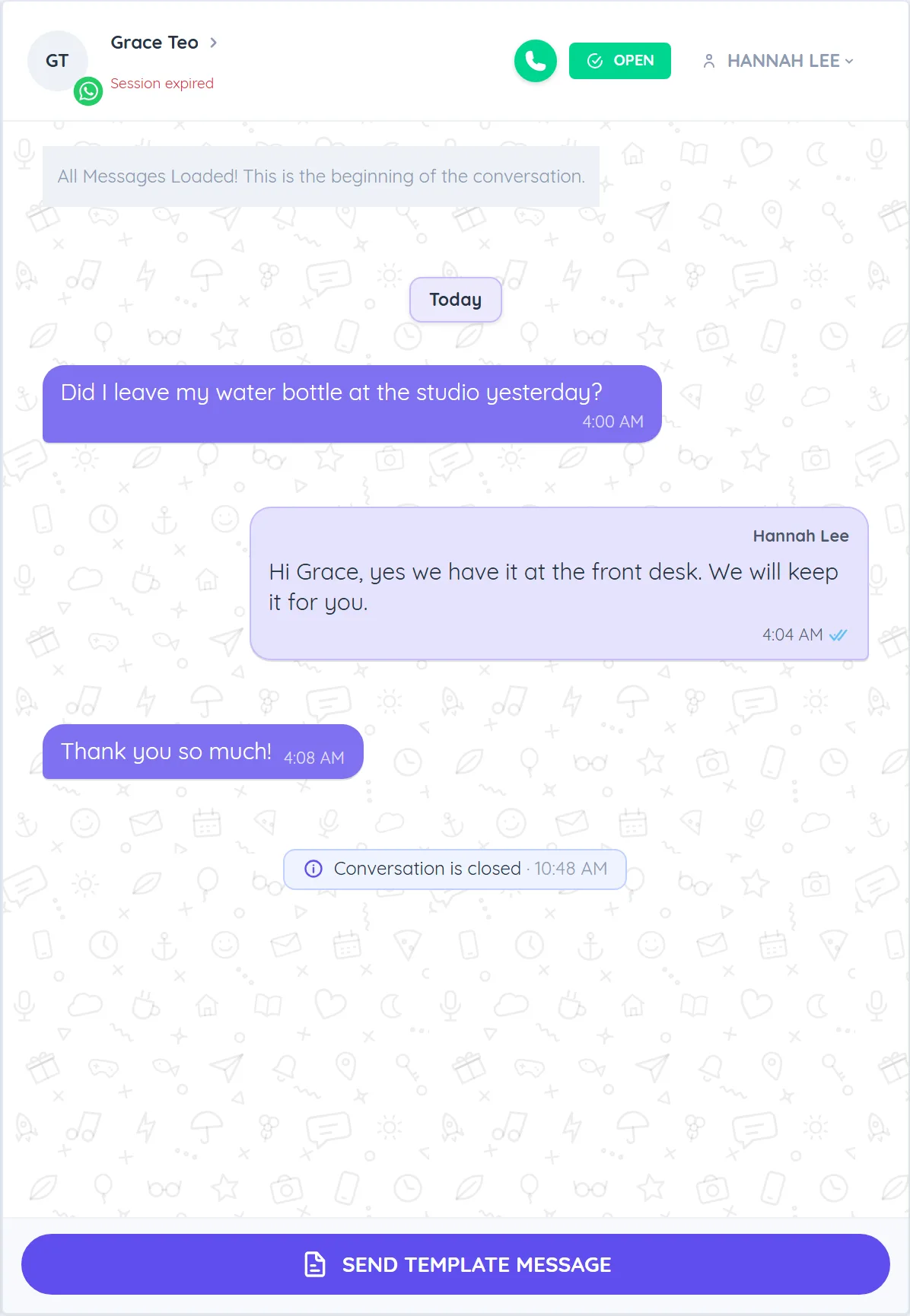
When the window has closed, the header shows Session expired and the message box is replaced by a Send Template Message button. You can only send an approved WhatsApp template until the customer replies.
- Click Send Template Message.
- Search under Search Templates and pick an approved template. Fill in any variables and check the Preview.
- Send it. When the customer replies, the window opens again and you can type freely.
Need a new template? Click Create New Template, or see WhatsApp Message Templates. Templates must be approved by Meta before you can use them.
SMS conversations
With an SMS provider connected in Two-way mode, incoming SMS become conversations here and you reply by SMS from your provider number. Your provider bills each message.
- SMS sends text only: SMS sends text only. Files and images cannot be sent by SMS.
- Under the message box a counter shows the length and how many SMS it splits into, for example 120 characters, 1 SMS. Emoji and other special characters fit 70 characters per SMS.
- Customers who reply STOP are marked Opted out of SMS in Contact Info, and you cannot send to them until they reply START.
- In One-way mode, existing SMS chats show SMS is set to one-way for this location, so replies cannot be sent here. Switch to two-way in Integrations > SMS.
To start an SMS conversation, click Contact, choose SMS under Channel and enter the number. The Channel choice shows only when SMS is two-way.
Assign, open and close conversations
- Assign: click the assignee name (or Unassigned) in the conversation header, choose a team member under Staff and click Save. You see Chat assigned successfully.
- Open: click Open to take over from the bot.
- Close: click Close when you are done. The bot takes over again.
- Close several at once: in the Open or Unassigned view, click the menu next to the list title and choose Close All Chats. This closes up to 100 chats at a time.
Sending a reply yourself assigns the conversation to you and moves it to Open.
Contact Info, tags and notes
Click the contact's name in the conversation header to see Contact Info. It has three tabs:
- Info: name, number, Channel, User name (Instagram, TikTok, Telegram and WhatsApp usernames), Contact Tags, Notes, Contact Owner, Custom Attributes, the ad or post the customer came from (Source: Ads/Posts), and call permission if you use WhatsApp calling.
- Clients: client records that match this contact's phone number, with their appointments, classes and orders. Sections that need a module your plan does not include show a lock. Team members without access to clients do not see this tab.
- Media: every photo, video and document shared in the conversation.
Add tags here to organise chats. Tags show as small chips in the conversation list and can be used in filters, custom inboxes, contact segments and automations.
Start a new conversation
- Click Contact above the conversation list.
- In New Message, search an existing client under Search Clients or a contact under Search Contacts, or enter a name and phone number with country code under Or Add new Contact.
- Click New Message. On WhatsApp, the first message to a new contact must be an approved template. When SMS is set up in two-way mode, pick WhatsApp or SMS under Channel first.
Custom inboxes
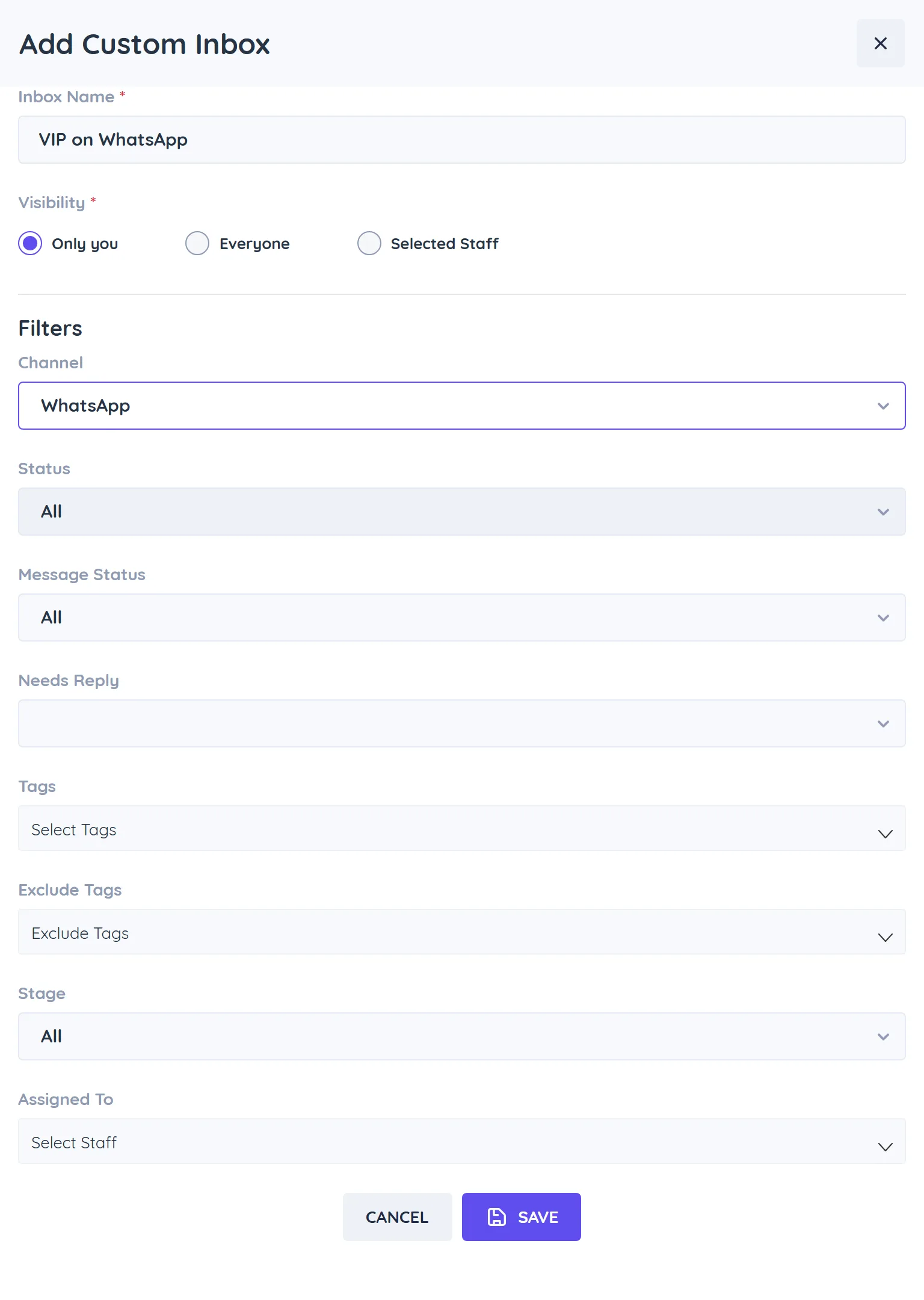
A custom inbox is a saved view, for example "VIP clients on WhatsApp" or "Leads assigned to Sofia".
- Under Custom Inboxes, click + (Add Custom Inbox).
- Enter an Inbox Name.
- Choose Visibility: Only you, Everyone, or Selected Staff (then choose people under Share With).
- Set Filters: Channel, Status, Message Status, Needs Reply, Tags, Exclude Tags, Stage and Assigned To.
- Save. The inbox appears under Custom Inboxes. Hover over it to edit or delete it.
Active contact limit
Your plan includes a number of active contacts (contacts you engaged with in the last 30 days). When the account reaches the limit:
- Every page shows a banner: You've reached your active contact limit (used/limit). New conversations are locked and get no automated replies. Upgrade now to continue. Owners and admins go to the upgrade page from Upgrade now.
- Chats with contacts who already hold a place carry on as normal, automations included.
- A new contact who messages in still appears at the top of the list, but locked: the list shows Upgrade to see this conversation and the chat shows Conversation locked instead of the messages and message box. No chatbot or automation replies to them, and nothing can be sent to them.
- This applies to every channel, live chat visitors included. The mobile team inbox app shows these chats locked too; upgrade from the web app.
A locked chat unlocks on the contact's next message once you are under the limit again, for example after you upgrade or add more active contacts. See Upgrade your subscription.
WhatsApp usernames and number changes
Some WhatsApp users message you with a username instead of sharing their phone number. Their chat works like any other, shows the username under User name in Contact Info, and can be found by searching the username. If the customer changes their username, the contact follows the new one. When a WhatsApp user changes their phone number, the existing contact moves to the new number, so the conversation history stays in one chat.
Tips
-
Messages that fail show a red icon. Contacts whose WhatsApp number cannot receive messages are marked with a warning triangle (Message Undeliverable). Their chat shows WhatsApp could not deliver to this contact, so template messages to them (broadcasts and automations included) are paused. Once fixed, turn off "Message Undeliverable" in Edit Contact Info. above the message box, and Contact Info shows an Undeliverable chip.
-
Close conversations when you finish so bots and automations can run again.
-
Your team can also reply from their phones with the mobile team inbox app.