Telegram Mini App
The Telegram mini app opens your booking site inside Telegram, in a Telegram-style screen. Customers book appointments, classes and events, shop, buy memberships and pay without leaving the chat, then see their bookings, orders, credits and memberships in the same app.
Booking targets need Bookings, the store, memberships and orders need Sales, and My bookings and Profile need CRM Suite. Targets your plan does not include are not offered.
Before you start
- Connect your Telegram bot. See Telegram.
- Your booking site needs an https address.
- Customers must have chatted with your bot first. The mini app never creates contacts: if someone opens it before messaging the bot, they see Say hi to us in the chat first.
Set up a mini app chatbot
The quickest way is a ready-made chatbot template:
-
Go to Engage > Automations, click Add Rule and choose the Telegram filter.
-
Click Install Rule on one of the mini app templates:
Template Opens Needs Appointment Booking Chatbot (Telegram) Appointments at this location Bookings Multi-Location Appointment Booking Chatbot (Telegram) Appointments; the customer picks a location first Bookings Class Booking Chatbot (Telegram) This location's class schedule Bookings Multi-Location Class Booking Chatbot (Telegram) Classes; the customer picks a location first Bookings Event Booking Chatbot (Telegram) Your upcoming events Bookings Ecommerce Shop Chatbot (Telegram) Your products and memberships Sales -
Installing checks that the bot is connected and the booking site has an https address, and sets the bot's menu button to open the mini app.
The chatbot asks for the customer's phone first, then shows a menu with a button that opens the mini app, a My bookings (or My orders) button and Talk to our staff, which hands the chat to your team. Every message is an automation rule in the language of the person who installed it, so you can edit or translate it. The template also installs the chat linking messages.
Single or multi-location
Single-location templates book only at the location whose bot it is. Multi-location templates let customers book at any active location of your account: install them at the location whose bot customers use, typically a bot shared with your other locations. The template you install last decides which applies to that bot.
Open the mini app from anywhere
The mini app opens from any of these:
- The menu button next to the message box, set under Integrations > Telegram > Menu button. See Menu button.
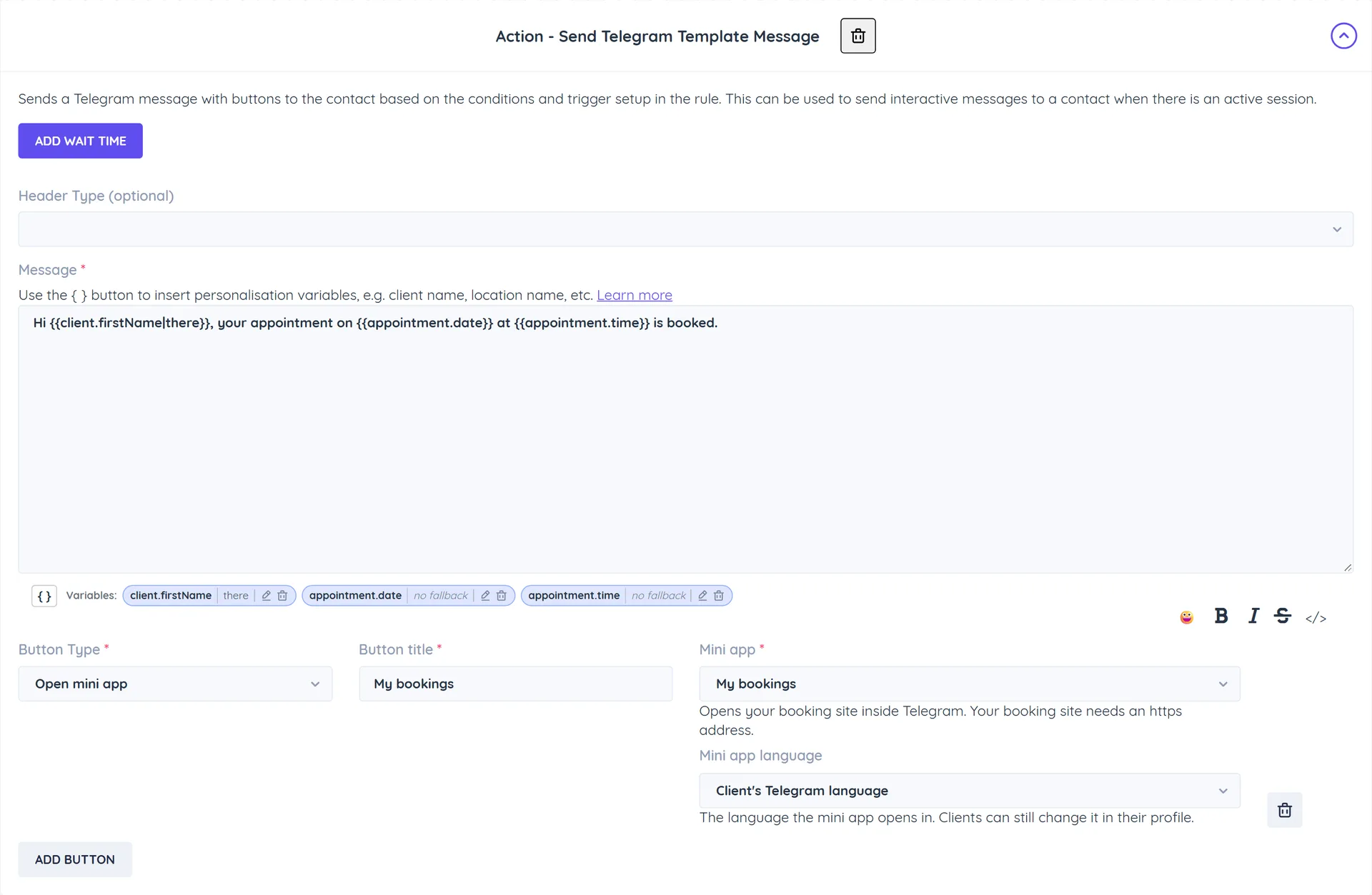
- An Open mini app button in the Send Telegram Template Message automation action, for example a reminder with a My bookings button.
- An Open mini app button in a Telegram campaign.
For a button, choose Open mini app as the Button Type, then the Mini app it opens and, optionally, the Mini app language:
| Mini app | What the customer sees |
|---|---|
| Book appointments | Services, staff and times |
| Book classes | The class schedule |
| Book events | Upcoming events |
| Online store | Products and memberships |
| Memberships | The store on its memberships list |
| My bookings | Their upcoming and past bookings |
| My orders | Their orders |
| Profile | Their profiles, credits and memberships |
What customers see
- Share your phone: on first open the mini app asks the customer to Share phone number. It finds their bookings and fills in their details from that verified number.
- Book: they pick a location (multi-location only), a service, class or product, a time, and Who is this booking for?: themselves, another profile on their phone, Someone new or Someone else with a different phone number. Booking fields, coupons, credits, memberships and deposits work as on your booking site.
- Pay: when payment is due, on Telegram for phones the checkout opens inside the mini app and comes back to the result. On Telegram Desktop or web it opens in the browser, and the mini app shows Finish the payment with an I've paid button.
- Confirmation: the result screen says You are booked (or You are on the waitlist, Order placed), and the details are sent in the chat.
The bottom bar has three tabs:
- Book: back to booking.
- My bookings: upcoming and past bookings. Customers can open a booking, reschedule it (paying any difference) or cancel it with a reason, within your cancellation cut-off.
- Profile: the customer's profiles on their phone, with Change to switch, their details, Language and which channels they receive updates on, plus Credits, Memberships and Orders when you sell them. You can hide credits or memberships from customers in your online store settings.
The mini app uses the customer's Telegram light or dark theme, with your brand colour on buttons and links. A small Powered by Whautomate line shows at the bottom of every screen.
Opened outside Telegram, the page only shows Open this page in Telegram. If a session has been open too long, the customer sees Please reopen the app and opens it again from the chat.
Language
The mini app opens in:
- The Language the customer picked under Profile, if any.
- Otherwise the Mini app language of the button or menu button that opened it (the link carries
?lang=, for example?lang=fr). - Otherwise the customer's Telegram language.
Languages: English, Arabic, Spanish, Portuguese (Brazil), Portuguese (Portugal), French, Chinese and Malay. Unsupported languages fall back to the next choice.
Confirmation messages
There is no separate mini app booking trigger. Mini app bookings and orders run your usual Appointment Updates, Class Participant Updates and Order Updates rules, which send confirmations for every booking, waitlist place and order. For rules that should only apply to the mini app, add the condition Appointment Booked From, Class Participant Booked From or Ordered From is Telegram. Bookings and orders made in the mini app show Telegram as their source in reports.
A mini app booking also links the chat to the client it was made for, so later reminders reach them on Telegram.