SMS
Whautomate sends SMS through your own SMS provider account: Twilio, Vonage or Telnyx. Once connected, appointment reminders, receipts, invoices, automations and SMS campaigns go out from your number or sender ID, and in Two-way mode customers' replies arrive in the Team Inbox.
Your provider bills every SMS directly to your account with them. Whautomate has no SMS sender of its own and no SMS credits: a location with no SMS provider connected sends no SMS at all.
Before you start
- An account with Twilio, Vonage or Telnyx, with at least one SMS-capable phone number or an approved sender ID.
- For Two-way SMS you need a phone number: customers cannot reply to a sender ID.
- You need to be an admin. SMS is set up per location: each location connects its own provider.
Connect your SMS provider
-
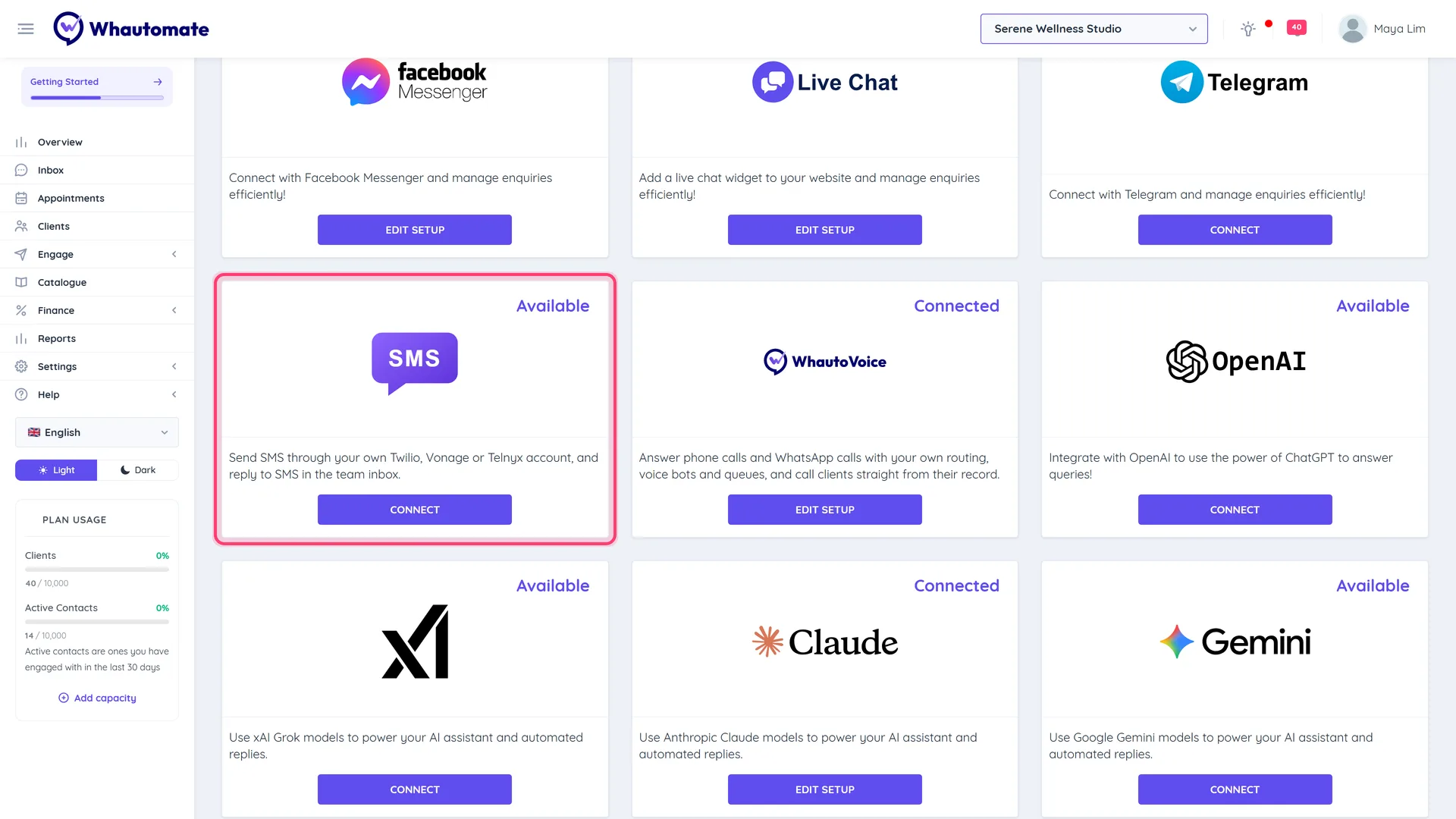
Go to Settings > Integrations and click Connect on the SMS card.
-
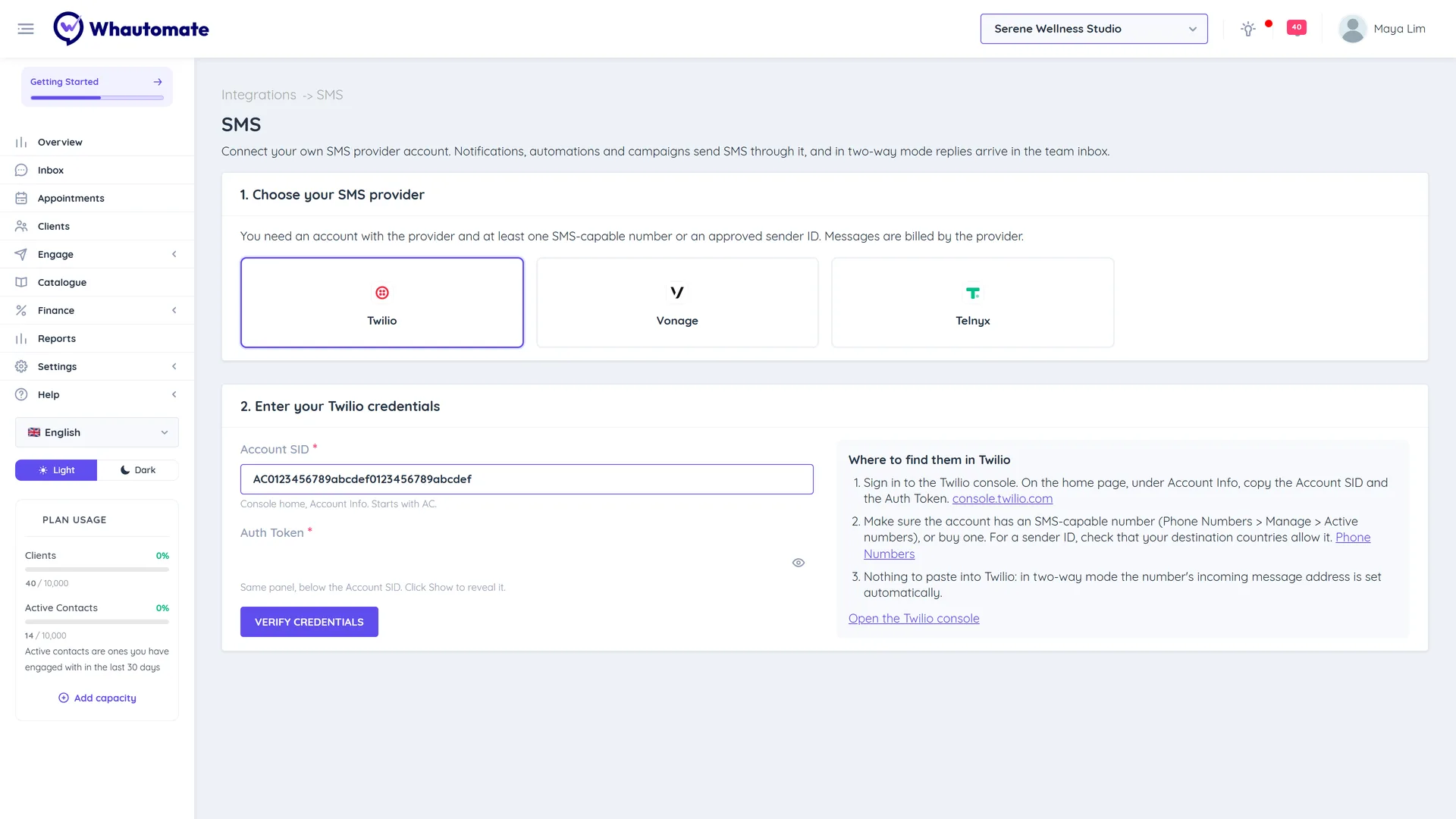
Under 1. Choose your SMS provider, click Twilio, Vonage or Telnyx.
-
Under 2. Enter your ... credentials, paste the keys from your provider. The panel Where to find them in ... on the right lists the exact steps and links to the provider console:
Provider Fields Twilio Account SID and Auth Token (console home, Account Info) Vonage API Key, API Secret and the optional Signature Secret (API Settings). Leave Signature Secret empty unless Vonage support has turned on signed inbound SMS for your account. Telnyx API Key and Public Key (recommended) (Account Settings > API Keys). The public key lets Whautomate check that incoming messages really come from Telnyx. -
Click Verify credentials. You see Credentials verified and the numbers in your provider account are loaded.
-
Under 3. Mode and sender, choose the Mode and the Sender (see below).
-
Click Connect. You see SMS provider connected.
You do not need to paste anything into your provider console. In two-way mode the number's incoming message address is set up automatically (on Telnyx, a messaging profile for the location is created and linked to the number).
If a number already sends its incoming messages somewhere else, the page warns you. In two-way mode, incoming messages for that number will come to Whautomate instead.
One-way or two-way
| Mode | What it does |
|---|---|
| One-way | Send only. Notifications, automations and campaigns go out as SMS. Replies are not received. You can send from a Phone number or a Sender ID (name). |
| Two-way | Send and receive. Incoming SMS become Team Inbox conversations, your team replies by SMS, and the SMS automation triggers are available. Needs a phone number. |
A Sender ID is up to 11 letters or digits (with at least one letter), for example your brand name. Some countries require the sender ID to be registered with your provider first, and customers cannot reply to it.
After connecting
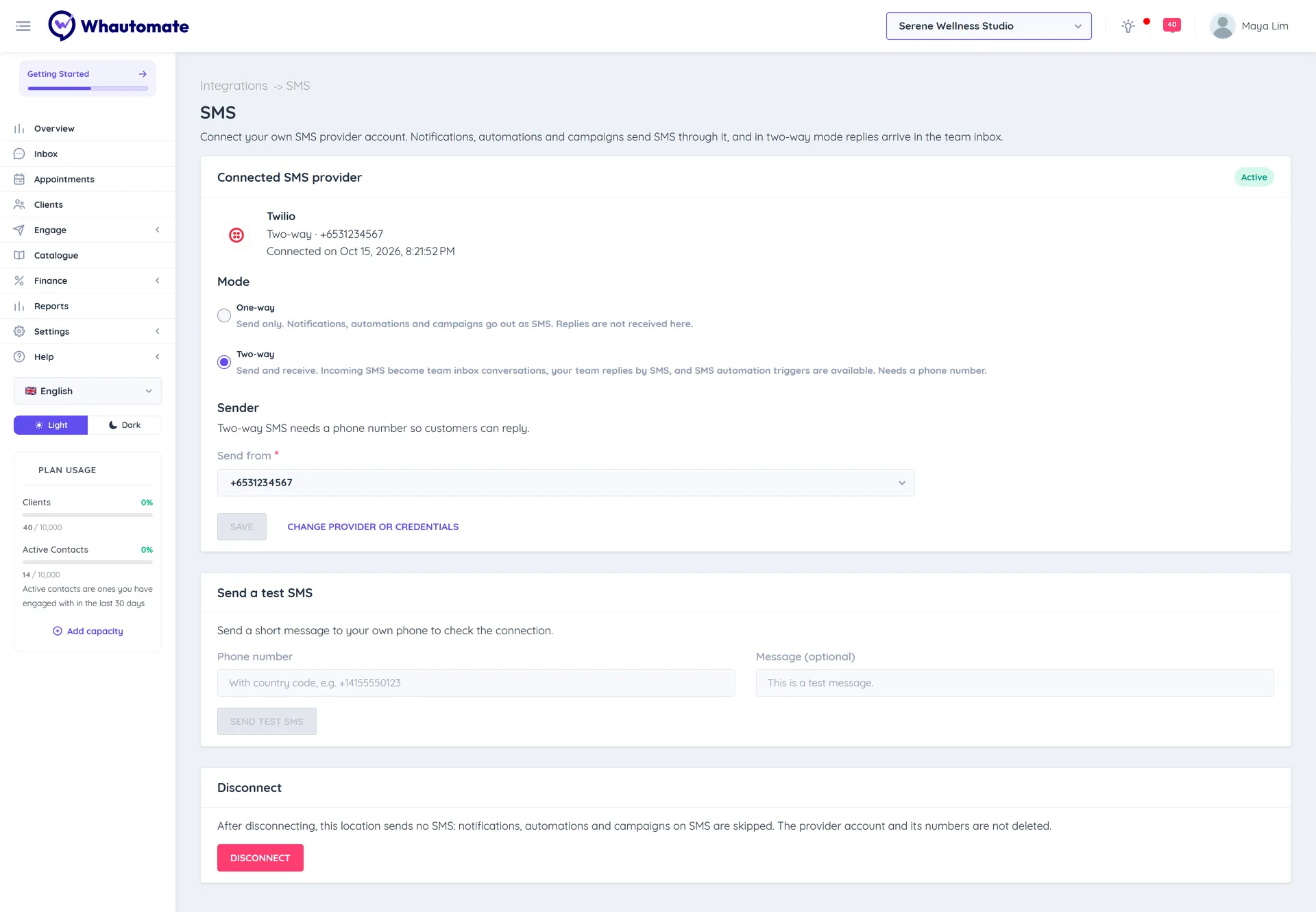
The SMS page shows Connected SMS provider with the provider, mode, sender and the Connected on date. The status reads Active, or Needs attention with the Last error: when the provider refused a message.
- Change the mode or sender and click Save.
- Click Change provider or credentials to switch provider or paste new keys. Connecting again replaces the current SMS connection for this location.
- Under Send a test SMS, enter your own Phone number with country code and click Send test SMS. The test is a real SMS, billed by your provider.
What sends SMS
Everything below goes through the provider connected at the location:
- Notifications and documents: options such as Send receipt via SMS, Send Invoice via SMS, Request payment via SMS, Send Statement via SMS and Send Letter via SMS, and appointment notifications set up in your notification settings.
- Automations: the Send SMS action on client, booking, sales and contact triggers. In an SMS conversation it replies to that contact; otherwise it goes to the client's phone number. It is skipped, with a "Skipped:" reason in the rule's log, when no provider is connected, the client has no phone number or the number replied STOP. See Create an automation rule.
- Campaigns: choose SMS as the Channel of a broadcast. See SMS campaigns.
- Verification codes: login and booking codes go by WhatsApp, with SMS as the backup when the sending location has an SMS provider. See Contact verification.
Each SMS is also listed in Communication Logs.
Two-way SMS in the Team Inbox
In Two-way mode:
- Incoming SMS open a conversation in the Team Inbox, and your replies go out from your number. SMS is text only. See SMS conversations.
- The Incoming SMS Messages and Outgoing SMS Messages automation triggers run on these conversations. See Incoming SMS Messages.
- Customers who reply STOP (or STOPALL, UNSUBSCRIBE, CANCEL, END, QUIT, OPTOUT) are marked Opted out of SMS and receive no more SMS from this location. START (or UNSTOP, OPTIN) opts them back in. These keywords never run your incoming message rules.
- Away messages are not sent on SMS.
Add SMS contacts
With two-way SMS, you can create SMS contacts yourself:
- New Contact: in Engage > Contacts, click New Contact and choose SMS under Channel. Messages to this contact go out as SMS from your SMS number, and replies come back to the inbox.
- Bulk Import: choose SMS under Import as. Every row becomes an SMS contact.
The number must include the country code. A location has one SMS contact per phone number.
SMS campaigns
Choose SMS as the Channel in Engage > Broadcasts to send a text campaign to clients, class participants or SMS contacts through this provider. See SMS broadcasts.
Disconnect
Under Disconnect, click Disconnect, type CONFIRM and confirm. After disconnecting, this location sends no SMS: notifications, automations and campaigns on SMS are skipped, and incoming SMS no longer reach the Team Inbox. Your provider account and its numbers are not deleted.