Contact Segments
A segment is a saved group of people, defined by rules such as "has the tag VIP" or "no activity for 90 days". Use segments to choose who receives a WhatsApp broadcast, an email campaign, a Telegram campaign or an SMS campaign. Segments are dynamic: Whautomate works out who matches each time you preview, open or send to the segment, so new contacts who match are included automatically.
There are two types:
- Contact segments group people from your contacts list who chat with you on one channel: WhatsApp, Telegram or SMS. Available on every plan.
- Client segments group clients from your client list (CRM Suite).
The badge above applies to Client segments only. Contact segments are included in every plan.
Before you start
- Tag your contacts and set their stage, so you have something to filter on. See Contacts.
- Segments are available to owners, administrators, receptionists, finance managers and team members with access to Engage.
Create a segment
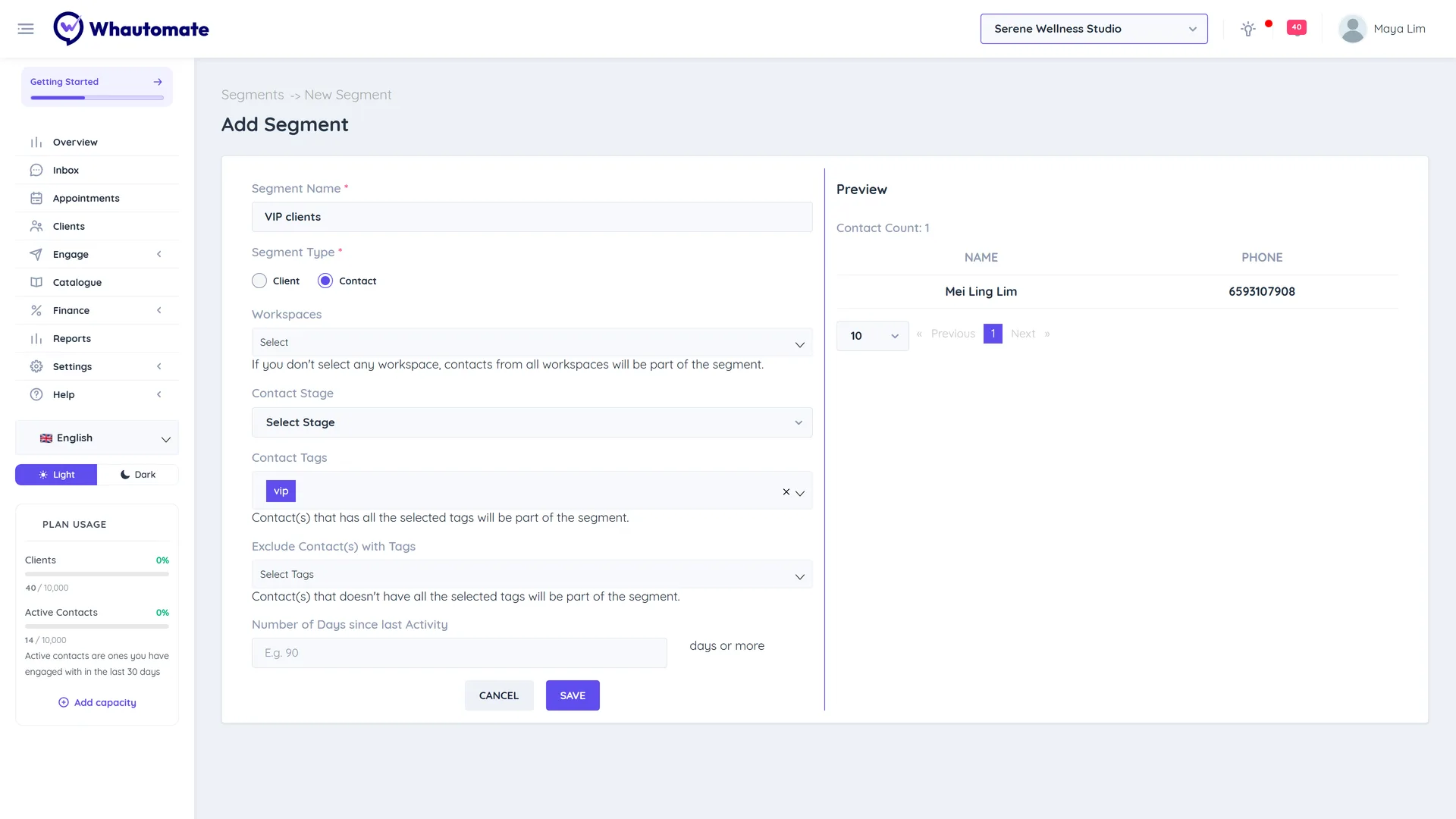
- Go to Engage > Segments and click + Add Segment.
- Enter a Segment Name, for example "VIP clients".
- Choose the Segment Type: Client or Contact.
- For a Contact segment, choose the Channel: WhatsApp, Telegram or SMS. SMS shows only when the location has two-way SMS, since only two-way SMS chats create contacts.
- Under Workspaces, choose the workspaces to include. Leave it empty to include people from all workspaces.
- Set the filters:
- For a Contact segment: Contact Stage, Contact Tags, Exclude Contact(s) with Tags and Number of Days since last Activity.
- For a Client segment: Gender, Client Tags, Exclude Client(s) with Tags, Age Range, Number of Days since last Activity and Send updates on (optional): only clients who ticked any of the chosen channels (WhatsApp, Telegram, SMS, Email) under Send updates on their profile. Leave it empty for all clients.
- Check the Preview on the right. It shows the Contact Count or Client Count and a list of who matches right now.
- Click Save. You see Segment saved successfully!
How the filters match
- Tags: a person must have all of the tags you choose.
- Exclude tags: a person with any of these tags is left out. Use this with the Unsubscribe tag to respect opt-outs. See Marketing opt-out management.
- Number of Days since last Activity: for contacts, their last message was at least this many days ago. For clients, they have had no invoice in this many days. Use it to win back inactive customers.
- Age Range: the starting age must be lower than the ending age.
Which campaigns use which segment
A campaign only takes segments of its own channel:
| Campaign | Contact segments | Client segments |
|---|---|---|
| WhatsApp broadcast | Yes | |
| Telegram campaign | Telegram | Yes (clients whose Telegram chat is linked) |
| SMS campaign | SMS | Yes (clients with a phone number) |
| Email campaign | Not available | Yes |
A segment's channel is fixed once saved. To reach the same people on another channel, create a segment for that channel.
View and delete segments
The Segments page has a Contacts tab and, with CRM Suite, a Clients tab. Each row shows the filters used, including the Channel of contact segments and the Send updates on filter of client segments.
- Click the eye icon (View Segment) to see everyone who matches now. From a contact segment you can click Start Chat to message someone.
- Click the bin icon (Delete Segment) and confirm to delete it.
You cannot edit a saved segment. To change the rules, create a new segment and delete the old one.
Without CRM Suite
On a plan without CRM Suite, the Client option is locked with Needs the CRM Suite add-on, the Clients tab is hidden and new segments are contact segments. Client segments you created before are kept and come back when CRM Suite is added.
Tips
- A broadcast can use several segments. Someone who is in more than one segment receives the message once.
- Create one evergreen segment per channel, such as "All WhatsApp contacts", that excludes the Unsubscribe tag, and reuse it for every campaign.