TikTok
Connect your TikTok Business account so direct messages from TikTok arrive in the Team Inbox next to WhatsApp, Instagram and your other channels. The TikTok integration is in Beta.
Before you start
- A TikTok Business Account.
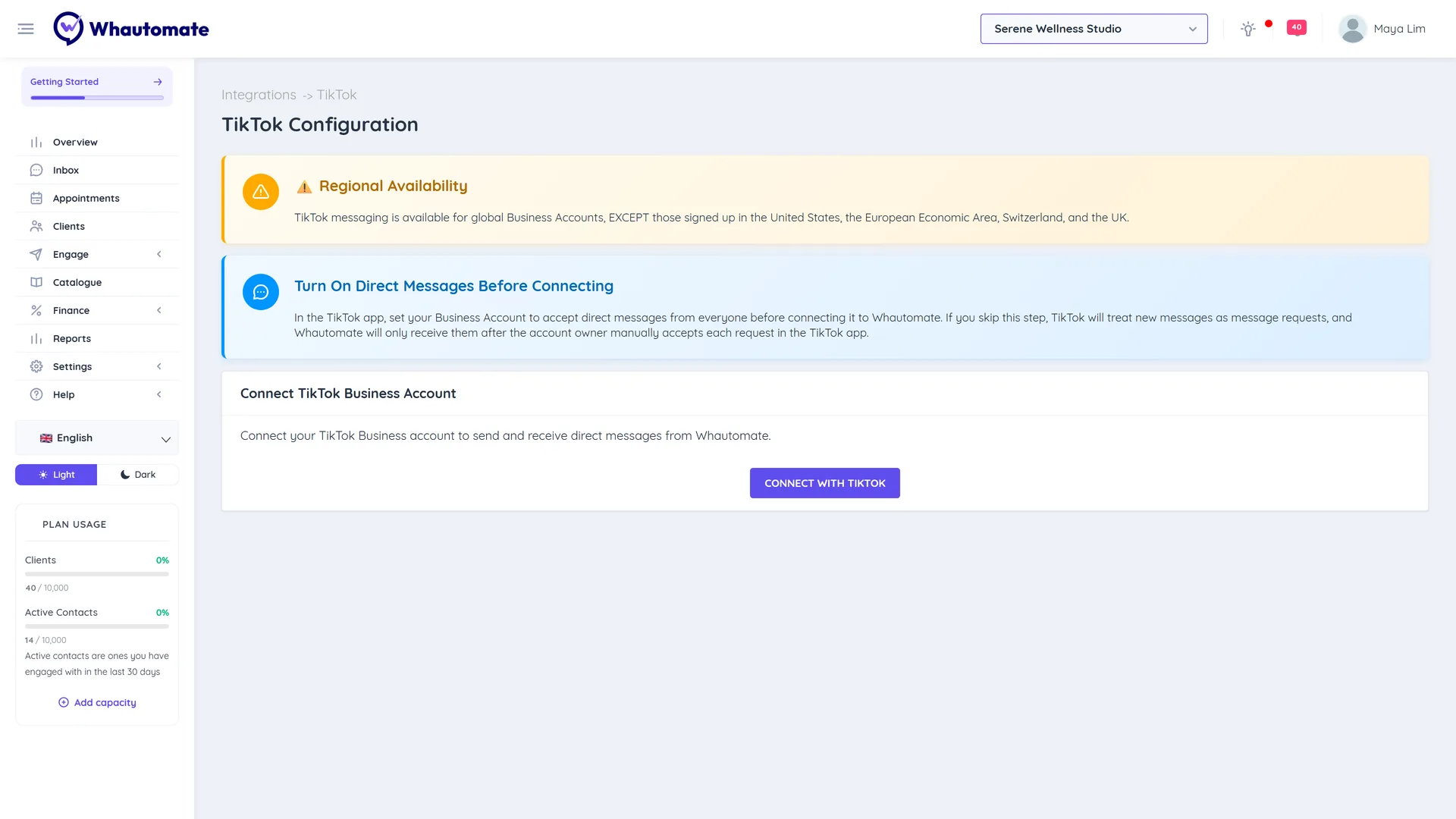
- Regional availability: TikTok messaging is available for business accounts worldwide, except accounts signed up in the United States, the European Economic Area, Switzerland and the UK. The TikTok card is not shown on accounts hosted in India.
- Turn on direct messages first: in the TikTok app, set your Business Account to accept direct messages from everyone. Otherwise TikTok treats new messages as message requests, and they only reach Whautomate after you accept each request in the TikTok app.
- You need to be an admin.
Connect TikTok
-
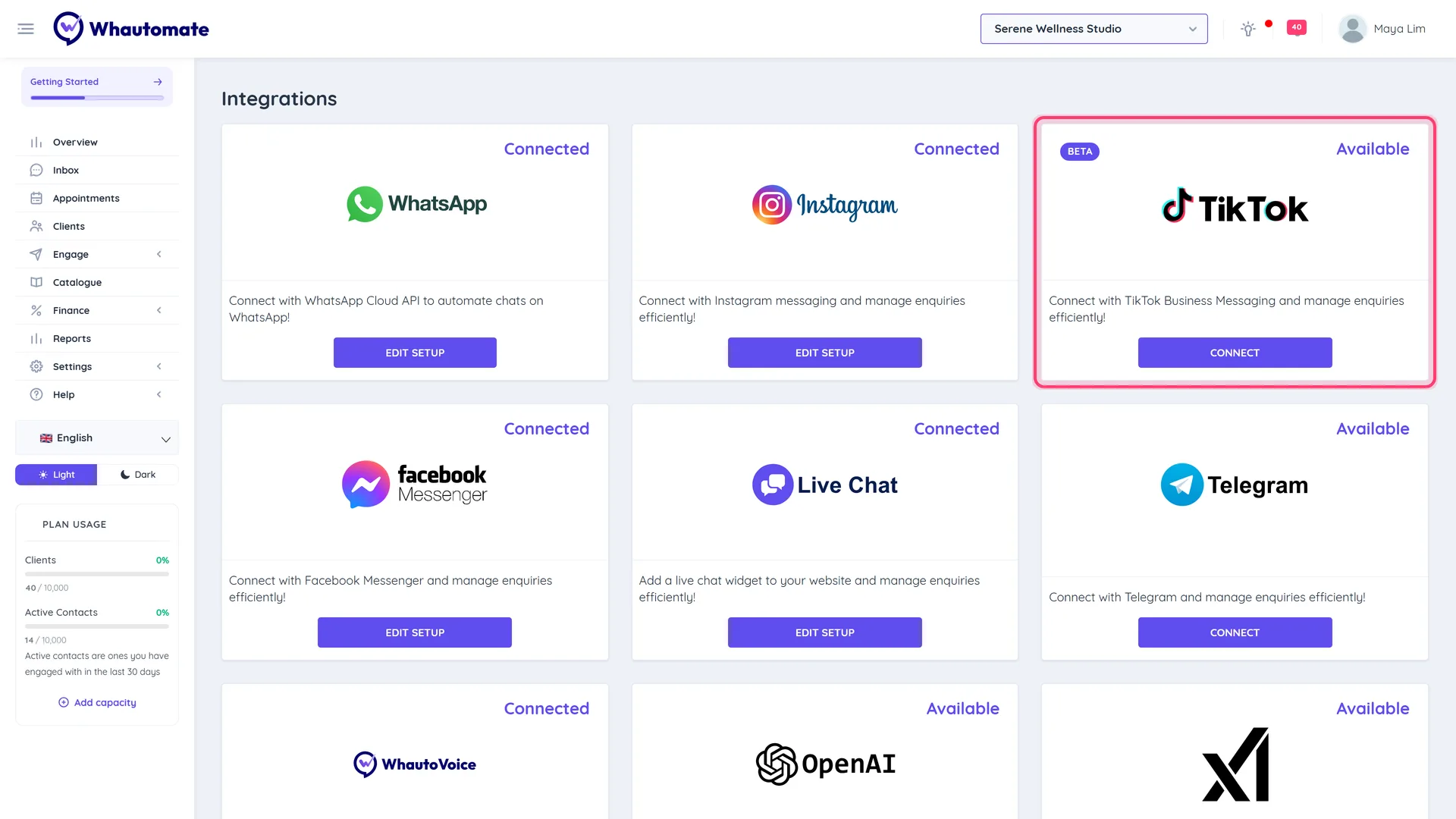
Go to Settings > Integrations and click Connect on the TikTok card.
-
Under Connect TikTok Business Account, click Connect with TikTok.
-
Log in to TikTok and approve access.
-
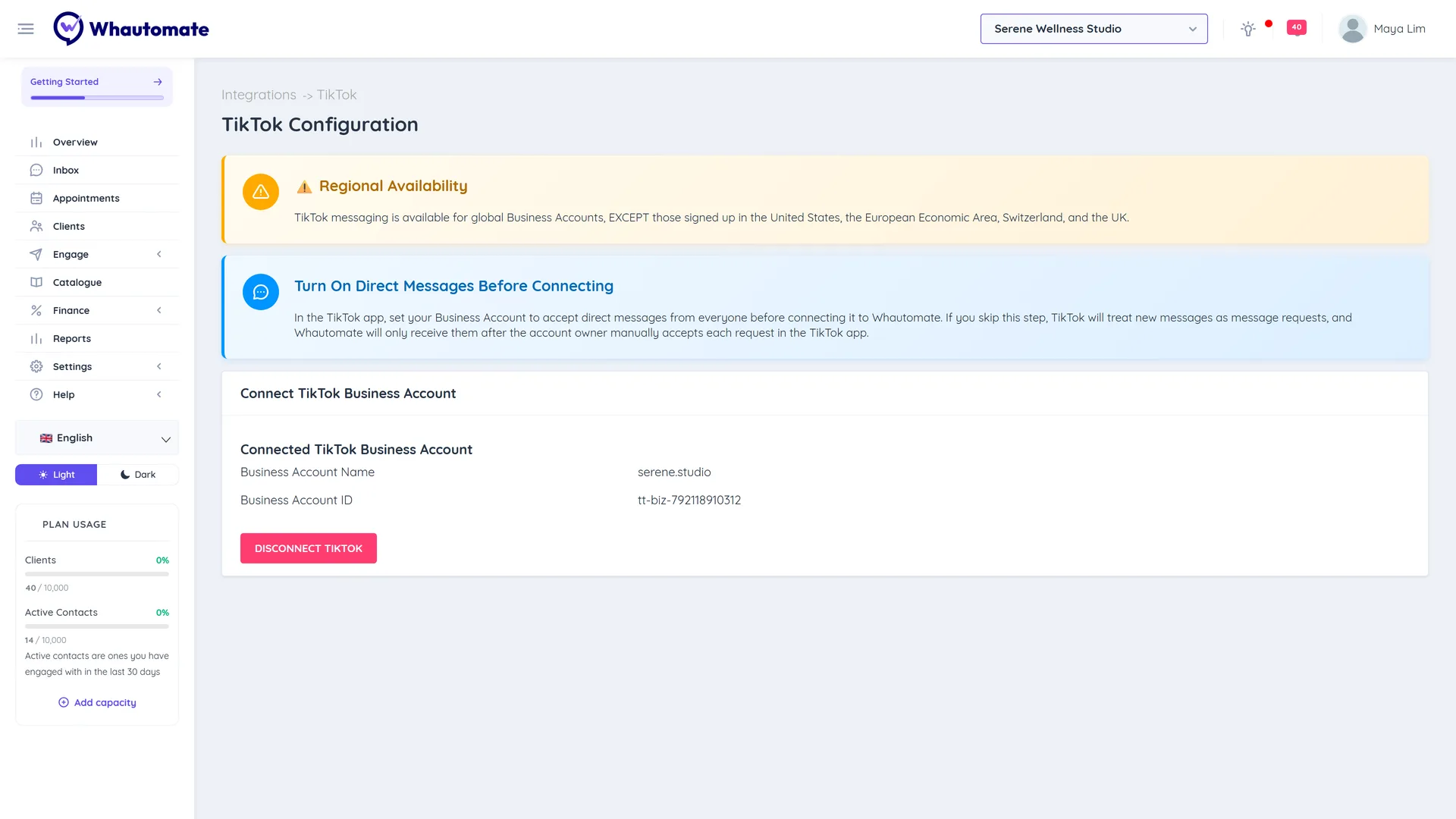
You return to Whautomate. Connected TikTok Business Account shows the Business Account Name and Business Account ID.
Send a direct message to your TikTok account from another account to check it arrives in the Team Inbox.
Use TikTok messages
- Reply from the Team Inbox with text and media.
- Trigger automations and chatbots on incoming TikTok messages, and send Incoming TikTok Messages and Outgoing TikTok Messages to your systems with webhooks.
- Developers can send TikTok messages through the REST API.
Disconnect
Click Disconnect TikTok, type CONFIRM and click Yes, Disconnect. You will no longer send or receive TikTok messages.