Print Settings
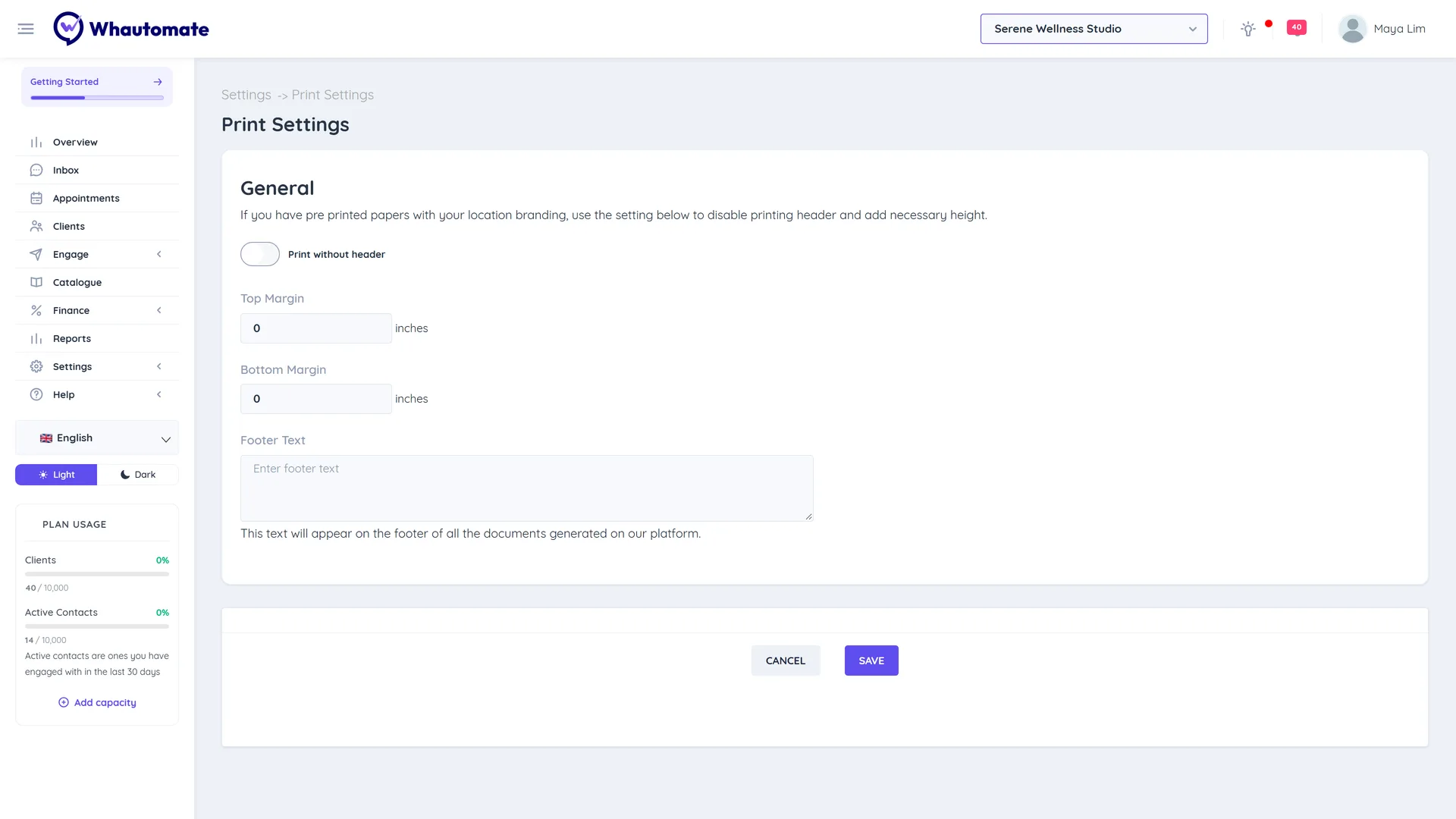
Print Settings controls how the documents Whautomate generates look on paper: the top and bottom margins, whether the header with your logo and details is printed, and a footer line. Use it if you print on letterhead, or if you want a line such as your registration number at the bottom of every document.
Before you start
- Print settings belong to a workspace. Switch to the right workspace first. See Workspaces.
- The Scheduler and Accountant/Finance Manager roles cannot open Print Settings.
Set up printing
- Go to Settings > All Settings and, under Templates, click Print Settings.
- Under General:
- Switch on Print without header if you print on pre-printed paper that already has your branding.
- Set the Top Margin and Bottom Margin in inches, to leave room for your letterhead.
- Enter the Footer Text. It appears at the bottom of every document generated for this workspace.
- Click Save (or Update if you saved before). You see Print settings saved.
Healthcare businesses
Accounts in healthcare categories see two more sections:
- Label: the Height and Width (mm) and Font Size (px) of labels, to match your label printer.
- Prescription: switch on Include diagnosis to add the diagnosis to prescriptions.