User Notifications
Whautomate notifies you in the web app (the bell at the top right) and on your phone through the mobile app. Notification Settings lets you pick which of these alerts you get, so you only hear about what matters to you. Each team member sets their own, and the settings apply to the workspace you are in.
These are notifications to your team. Messages to clients, such as booking confirmations and reminders, are set up separately. See Setup Appointment Notifications.
Open Notification Settings
- Click your profile picture at the top right and choose Notification Settings.
- Or go to Settings > All Settings and click Notifications. It is under My Profile, or under Schedule for owners and administrators.
Owners and administrators open a page with two tabs. Your own alerts are on the Whautomate Notifications tab. The External Notifications tab sets the SMS, WhatsApp and email notifications this workspace sends, for everyone. See Setup Appointment Notifications for Staffs.
Choose your notifications
- Make sure you are in the workspace you want to set up. To set up another workspace, switch to it first. See Workspaces.
- Under Notification sound, pick Classic, Chime, Ping, Soft or Off. You hear the sound when you pick it. It only changes what you hear.
- For each alert, tick where you want to receive it: Web (the bell in the web app) and Mobile (push notifications in the mobile app).
- Click Update. You see Notification Settings saved successfully!
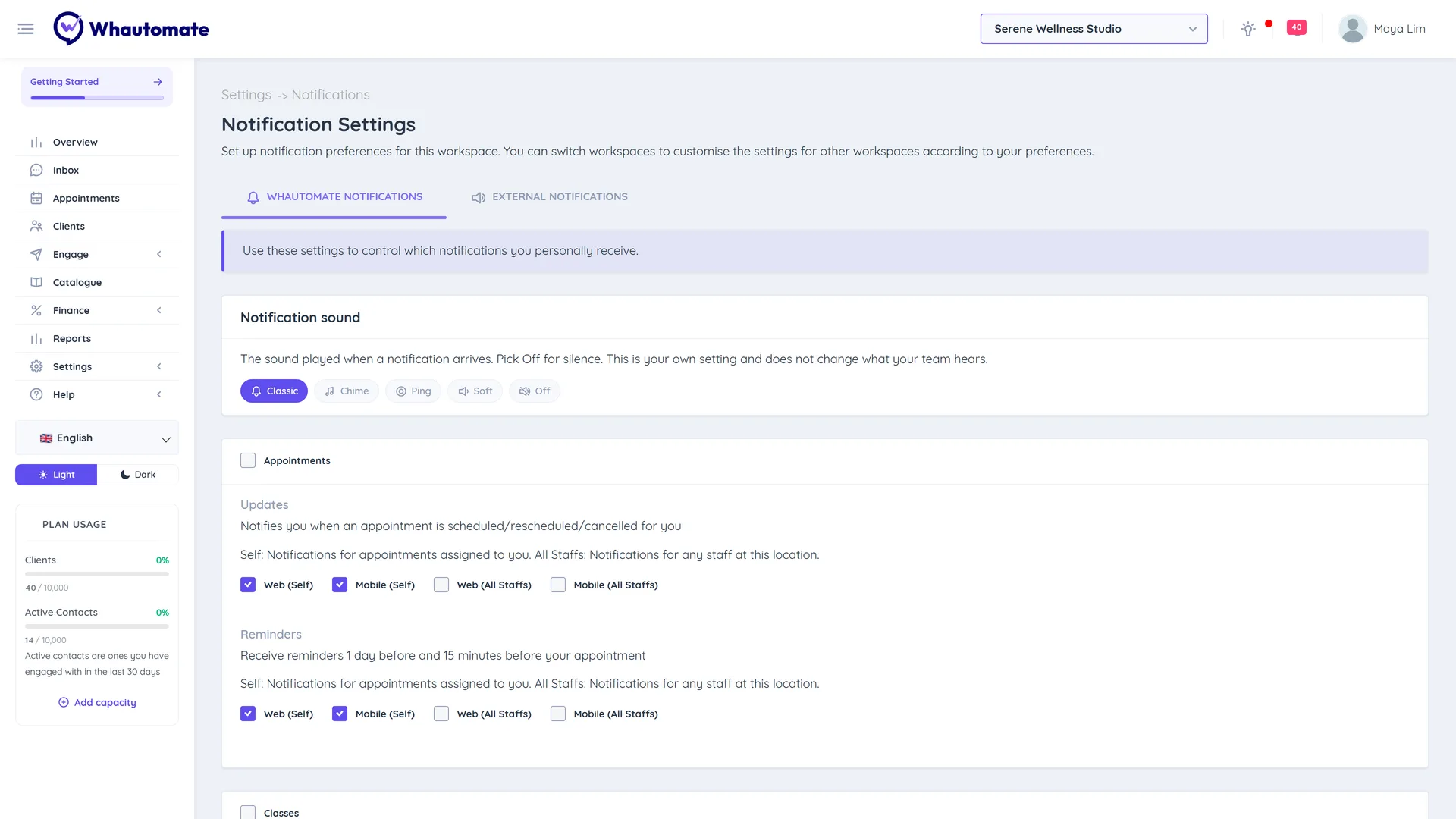
Alerts you can choose
| Section | Alert | When you get it |
|---|---|---|
| Appointments | Updates | An appointment is scheduled, rescheduled or cancelled for you |
| Appointments | Reminders | 1 day and 15 minutes before your appointment |
| Classes | Updates | A class is scheduled, rescheduled or cancelled for you |
| Classes | Reminders | 1 day and 15 minutes before your class starts |
| Invoice | Invoice Paid | An invoice is paid |
| Order | Order Placed | A new order is placed |
| Team Inbox | New Conversation | A contact starts a new conversation |
| Team Inbox | Chat Unassigned | A chat is waiting in the unassigned queue for a person |
| Team Inbox | Chat Assigned | A chat is assigned to you |
| Team Inbox | Chat Reply | A contact replies in an ongoing conversation |
Owners and administrators
For appointments and classes, owners and administrators see two pairs of checkboxes:
- Web (Self) and Mobile (Self): for appointments and classes assigned to you.
- Web (All Staffs) and Mobile (All Staffs): for any team member in this workspace.
Too many notifications?
If your bell is always full, Whautomate may suggest Too many notifications? under the bell. Click Choose notifications to open this page, or Not now to hide the tip.