Deactivate a Workspace
If you no longer need one of your workspaces (locations), you can deactivate it. If you want to stop using Whautomate altogether, see Delete Your Account. They are very different:
| Deactivate a workspace | Delete your account | |
|---|---|---|
| What it affects | One workspace | Your whole account and every workspace |
| Your data | Kept | Permanently deleted |
| Can you undo it? | Yes, reactivate any time | No |
| Your subscription | Keeps running | Cancel it yourself first |
Only the account Owner can deactivate a workspace. The option is under Settings > Account & Team.
Deactivate a workspace
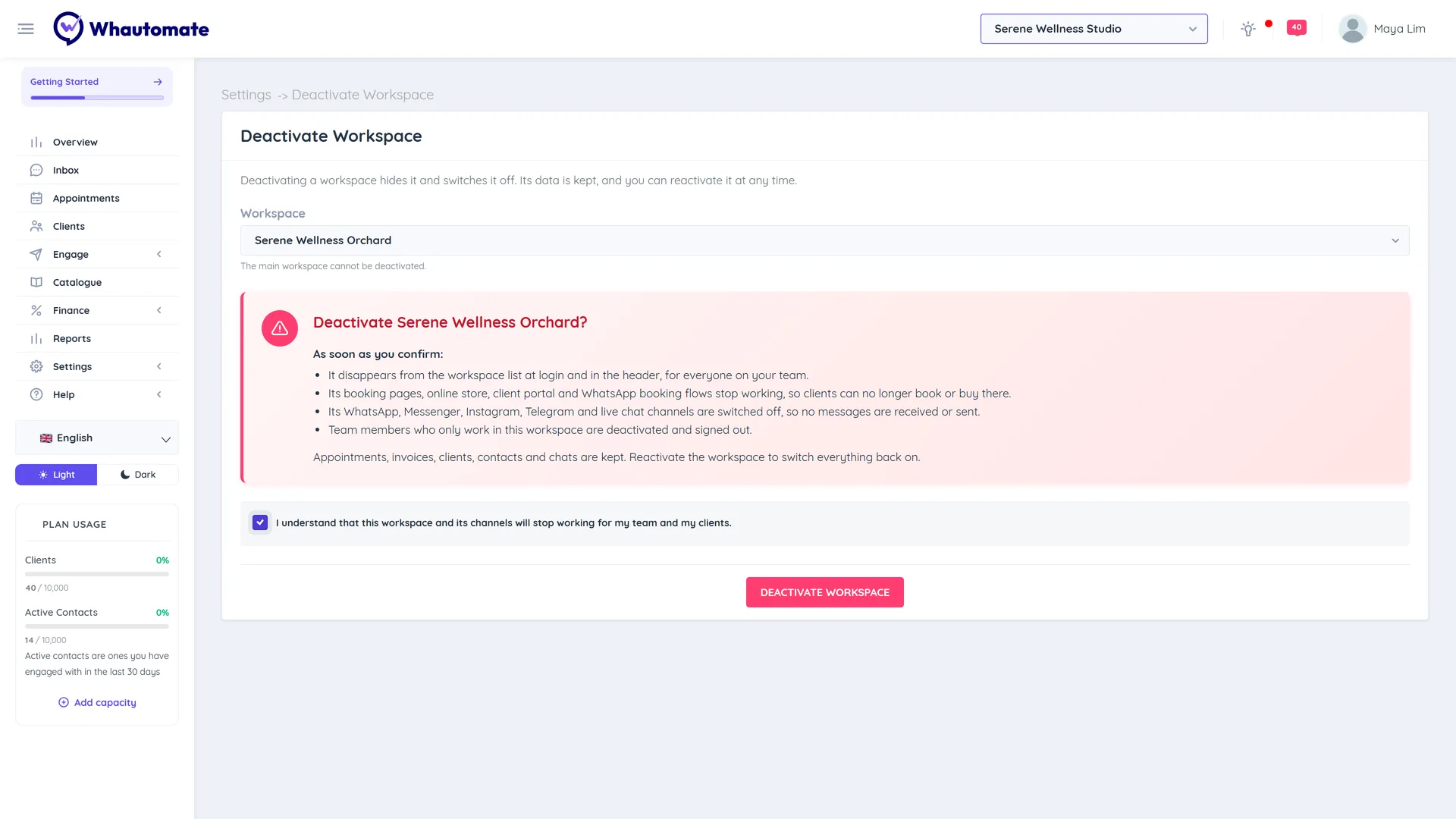
Deactivating a workspace hides it and switches it off. Its data is kept, and you can reactivate it at any time.
As soon as you confirm:
- It disappears from the workspace list at login and in the header, for everyone on your team.
- Its booking pages, online store, client portal and WhatsApp booking flows stop working, so clients can no longer book or buy there.
- Its WhatsApp, Messenger, Instagram, Telegram, TikTok, live chat and SMS channels are switched off, so no messages are received or sent.
- Team members who only work in this workspace are deactivated and signed out.
Appointments, invoices, clients, contacts and chats are kept.
- The main workspace cannot be deactivated. If it is your only workspace, there is nothing to deactivate.
- You cannot deactivate a workspace while other workspaces send messages through its WhatsApp number, or use its Telegram bot. Connect their own number or bot, or stop sharing it, first.
Steps
- Go to Settings, and under Account & Team click Deactivate Workspace.
- Under Workspace, choose the workspace you want to deactivate.
- Read the warning, then tick I understand that this workspace and its channels will stop working for my team and my clients.
- Click Deactivate workspace.
- Enter your password and click Deactivate workspace again.
You see Workspace deactivated. If you were working in that workspace, Whautomate switches you to the main workspace.
Reactivate a workspace
Deactivated workspaces are listed under Deactivated workspaces on the same page, with the date they were switched off.
- Click Reactivate next to the workspace.
- Its channels and team members are switched back on.
You can reactivate a workspace as long as your plan has room for another location. If you need more, add an Extra location. See Whautomate Add-ons.
When your plan switches a workspace off
If you move to a plan with fewer locations, the newest workspaces over the new limit are deactivated in the same way. They show the note Switched off when your plan changed. Upgrade your plan and it comes back on by itself.