Incoming SMS Messages
Incoming SMS Messages runs every time a customer sends an SMS to your two-way SMS number. Use it for keyword auto-replies, out-of-hours replies, tagging and routing SMS conversations to your team.
This trigger needs an SMS provider connected in Two-way mode under Integrations > SMS. In One-way mode no SMS is received, so the rule never runs. See SMS.
Conditions
Conditions are optional. Click Add Condition, then pick a Field, an Operator and a value. Choose All (AND) or Any (OR) under Condition Type to decide whether every condition or just one must match.
| Condition | Operators | Values |
|---|---|---|
| Incoming Message | includes any, does not include all, is a valid date, is not a valid date, matches regex pattern, does not match regex pattern, equals, not equals | Keywords, a regex pattern or exact text |
| Message received time | is between, is on, is before, is after, is less than X period ago (past), is more than X period ago (past), is within business hours, is outside business hours (after hours or holiday), is after hours (not a holiday), is on a holiday | A time of day, weekdays or a period |
| Last Contact activity time | is between, is on, is before, is after, is less than X period ago (past), is more than X period ago (past) | A time of day, weekdays or a period |
| Contact | is an existing client, is not an existing client | No value needed |
| Client Tags | includes any, does not include all, is part of all, is part of any, is not part of all | Your client tags |
| Contact Group | is part of all, is part of any, is not part of all | Your contact groups |
| Contact Tags | includes any, does not include all, is part of all, is part of any, is not part of all | Your contact tags |
| Contact Stage | equals, not equals | Subscriber, Lead, Engaged, Marketing qualified lead (MQL), Sales qualified lead (SQL), Opportunity, Follow-up Required, Customer, Evangelist, Other, Lost, Inactive |
| Phone Number | includes any, does not include all, matches regex pattern, does not match regex pattern, equals, not equals, exists, does not exist | Phone numbers or a regex pattern |
Incoming Message with includes any matches if the message contains any of your keywords anywhere, ignoring upper and lower case. Use equals for an exact reply or matches regex pattern for precise matching, for example /^stop$/i.
Message received time is checked in your location's time zone. is between takes a Time and an End Time and works across midnight (for example 19:00 to 09:00). is on takes one or more weekdays. To follow your business hours instead of fixed times, pick is within business hours, is outside business hours (after hours or holiday), is after hours (not a holiday) or is on a holiday: these read the location's business hours and holidays, so they need no value.
Actions
Click Add Action and choose from Select Action. Actions run in order; use the arrows to reorder them. To delay an action, click Add wait time (or Add wait & Schedule time on template and email actions). Wait times count from the trigger event, not from the previous action.
| Action | What it does | Wait time |
|---|---|---|
| Send SMS | Sends an SMS through your SMS provider (Integrations > SMS). In an SMS conversation it goes to that contact, otherwise to the client's phone number. Skipped when no provider is connected, the client has no phone number or the number opted out (STOP). | Minutes to months |
| Add the Contact to Group | Adds the contact to a contact group, which you can check in later conditions. | Minutes to months |
| Remove the Contact from Group | Removes the contact from a contact group, for example so a rule does not run twice. | Minutes to months |
| Add Contact Tags | Adds tags to the contact. | Minutes to months |
| Remove Contact Tags | Removes tags from the contact. | Minutes to months |
| Update Contact Stage | Moves the contact to a stage, such as Lead or Customer. | Minutes to months |
| Send Email | Sends an email to the client, team members or a custom list. Marketing emails need CRM Suite; Transactional emails do not. | Minutes to months |
| Assign Chat to Unassigned Queue | Moves the chat to the unassigned queue so a team member can pick it up (bot-to-human handover). | Up to 1 day |
| Assign Chat to Staff | Assigns the chat to the team member you choose. | Up to 1 day |
| Auto-Assign Chat to Staff - Round Robin | Assigns the chat to team members in turn (round robin). | Up to 1 day |
| Auto Close Conversation | Closes the conversation, so automations answer again the next time the person writes. | Up to 1 day |
| Notify Staff via WhatsApp | Sends a WhatsApp template message to the team members you choose. | Minutes to months |
| Save the Message Response | Saves the contact's reply into their name, notes or a custom field (use variables.fieldname for a custom field). | Up to 1 day |
| Add Contact Notes | Adds a note to the contact. | Minutes to months |
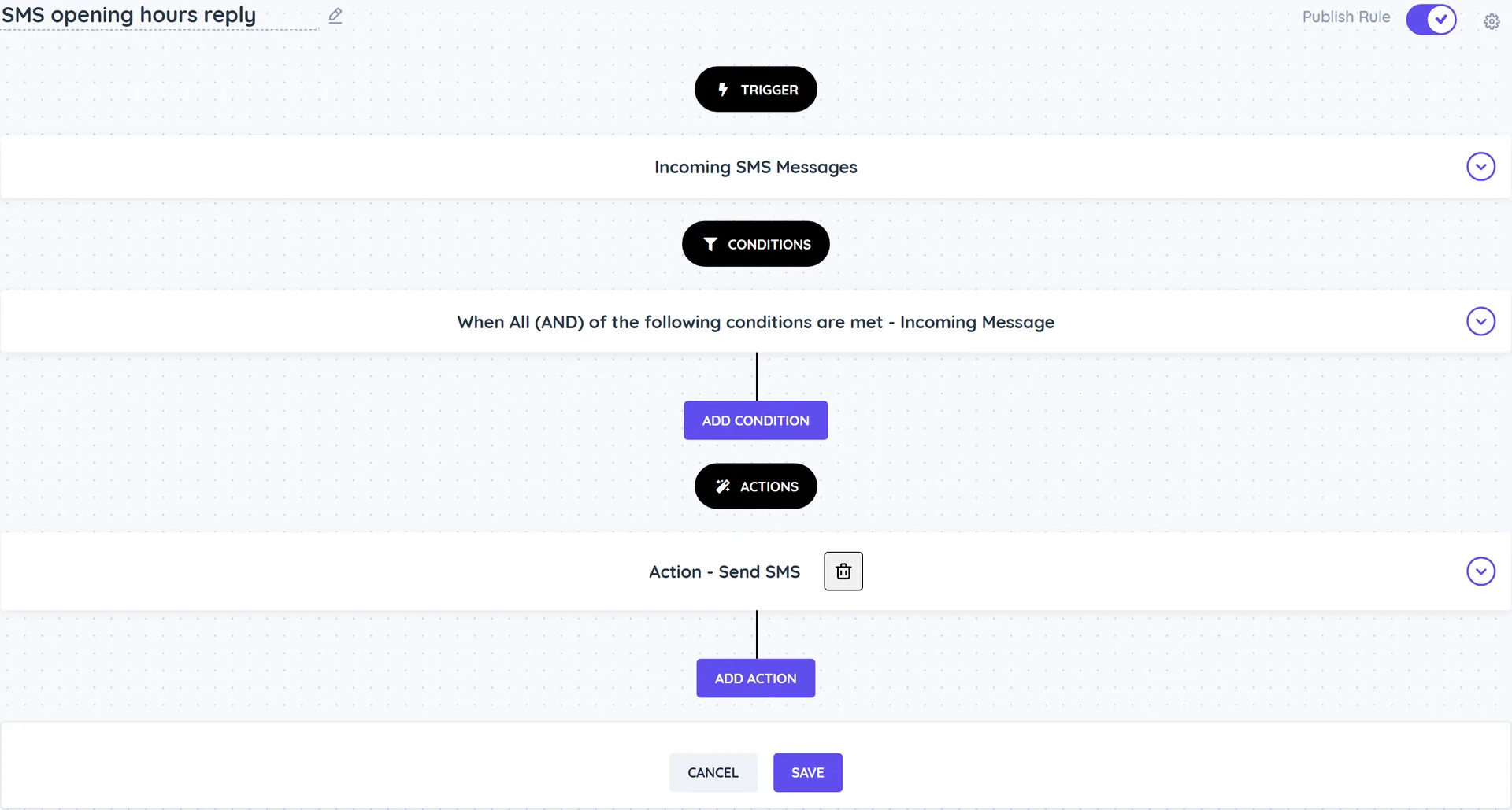
Example
Reply to opening-hours questions by SMS
- Create a rule with the Incoming SMS Messages trigger.
- Add the condition Incoming Message includes any
hours,open. - Add the action Send SMS: "We are open Monday to Saturday, 9am to 7pm. Reply BOOK to get our booking link."
- Turn on Publish Rule and click Save.
Good to know
- While a team member has the conversation Open, message rules do not run, so the bot does not talk over a person. Turn on Override Human Agent in the trigger section to run this rule anyway (for example for an opt-out keyword).
- Opt-out keywords (STOP, STOPALL, UNSUBSCRIBE, CANCEL, END, QUIT, OPTOUT) and opt-in keywords (START, UNSTOP, OPTIN) are handled automatically and do not run this rule. A number that replied STOP gets no more SMS until it sends START.
- SMS carries text only: messages without text (MMS pictures) are not received.
- Send SMS sends text only, through the SMS provider connected under Integrations > SMS. Long messages are split and billed per SMS by your provider; the action shows the characters and SMS count as you type.