WhatsApp AI Chatbot - Customer Service
An AI customer service chatbot answers your customers' questions on WhatsApp in natural language, using the information you give it: services, prices, opening hours, policies and FAQs. When it cannot help, or the customer asks for a person, it passes the chat to your team.
It is part of every plan. You connect your own AI provider account (OpenAI, Google Gemini, xAI Grok or Anthropic Claude) and pay the provider for usage.
Before you start
- Connect your WhatsApp number. See WhatsApp Cloud API.
- Get an API key from your AI provider. The template is set up for OpenAI; you can switch provider later.
- Prepare your business information as documents (PDF, Word or text): services and prices, opening hours, location, policies, frequent questions.
Step 1: Connect your AI provider
- Go to Integrations and open OpenAI (or another AI provider).
- On the Configuration tab, paste your API Secret Key and save.
- Open the Vector Stores/Datasets tab and click Add Vector Store. Give it a Name, for example "Customer FAQ", and save.
- Click View & Add Files on the new knowledge base and upload your documents.
See OpenAI for screenshots of the provider setup.
Step 2: Install the template
- Go to Engage > Automations and click Add Rule.
- Find Customer Service GPT for your business - AI Chatbot (WhatsApp) and click Install Rule.
- The rules are created on the WhatsApp tab and switched on:
- one that asks for the customer's phone number if they message from a WhatsApp username, and
- the AI rule itself, on Incoming WhatsApp Messages, for text, voice notes and images.
If Install Rule is greyed out, another WhatsApp chatbot is active. See one chatbot per channel.
Step 3: Finish the setup
Open the AI rule and expand the AI Conversation action:
- Prompt tab: the System Message (Prompt) already tells the assistant to answer only from your documents and to hand over when unsure. Add your business name, tone and anything it must never do (for example quote prices not in the documents).
- Configuration tab: check the AI Provider and Model.
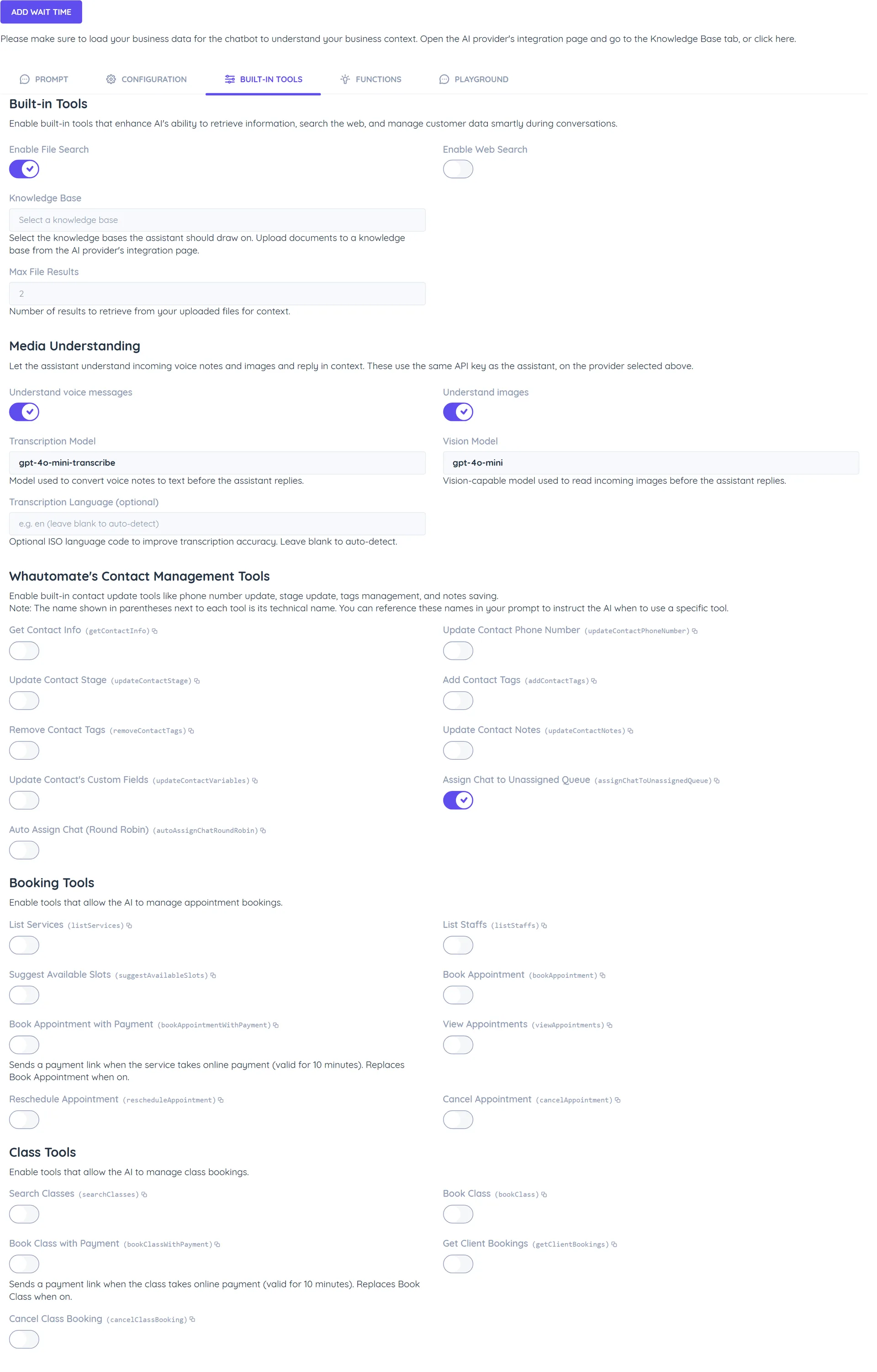
- Built-in Tools tab: under Enable File Search, choose your Knowledge Base. The template already turns on Assign Chat to Unassigned Queue for handover, and voice and image understanding.
- Click Save.
Step 4: Test it
- Open the Playground tab in the action and ask a few real customer questions.
- Then message your business number from a personal WhatsApp account and check the replies in the Team Inbox.
- Ask for a person and check that the chat moves to the unassigned queue.
How handover works
When the AI hands over, the conversation is assigned to your team and the bot stops replying while the chat is Open. When your team closes the conversation, the bot takes over again the next time the customer writes.
Tips
- Keep documents short and factual; one topic per document works best.
- Update the knowledge base whenever prices or hours change.
- Want it to take bookings too? Turn on the Booking Tools (needs Bookings) or install an AI booking template. See AI booking chatbot.