Manage Automation Rules
The Automations page lists every automation rule in your location. From here you add rules, turn them on and off, organise them in folders and copy or export them.
Go to Engage > Automations.
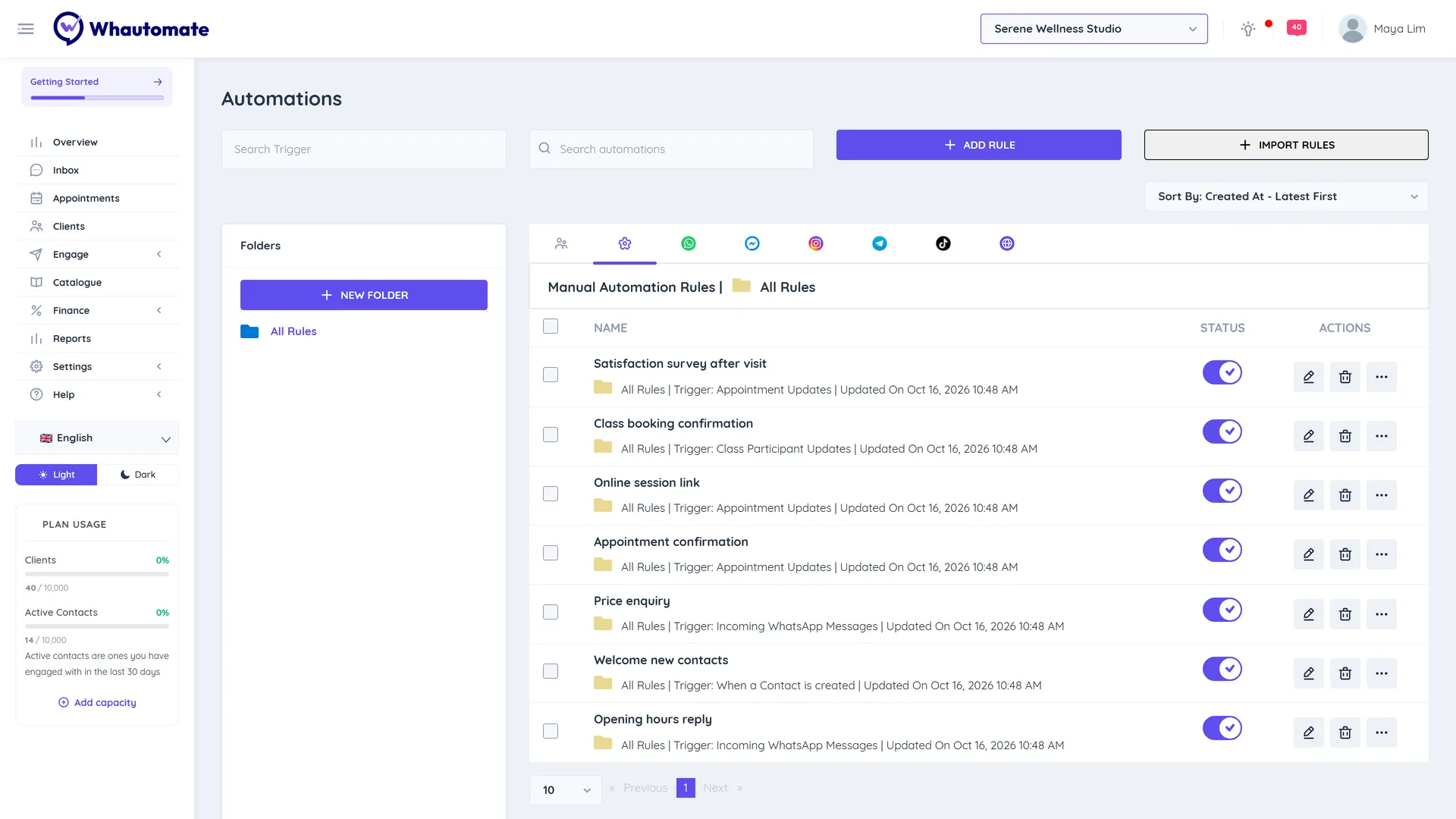
Find a rule
- Tabs: rules are grouped by category: Customer Experience, Manual, WhatsApp, Messenger, Instagram, Telegram, SMS, TikTok and Web. Chatbot templates land on the tab of their channel. You set a rule's category in Rule Settings when you edit it. The page remembers the tab you last opened.
- Folders: pick a folder on the left to see only its rules, or All Rules. Click New Folder to create one.
- Search Trigger: show only rules with a given trigger, for example Incoming WhatsApp Messages.
- Search automations: search by rule name.
- Sort By: Created At, Updated At or Name, in either order.
Each row shows the rule name, its folder, its Trigger and when it was last updated.
Shopify and WooCommerce rules are not on this page. Find them under Integrations > Shopify or WooCommerce.
Turn a rule on or off
Use the switch in the Status column. You see Automation rule activated. or Automation rule deactivated. A rule that is off never runs, but stays saved.
Actions the rule scheduled before you turned it off, such as a reminder due tomorrow, can still go out.
Edit, clone or delete a rule
- Click the rule name or the pencil (Edit Rule) to open it in the editor. See Create an automation rule.
- Click ... and choose Clone Rule to make a copy, for example to build a similar rule for another channel.
- Click ... and choose Move to Folder.
- Click the bin (Delete Rule) and confirm to delete the rule.
Bulk actions
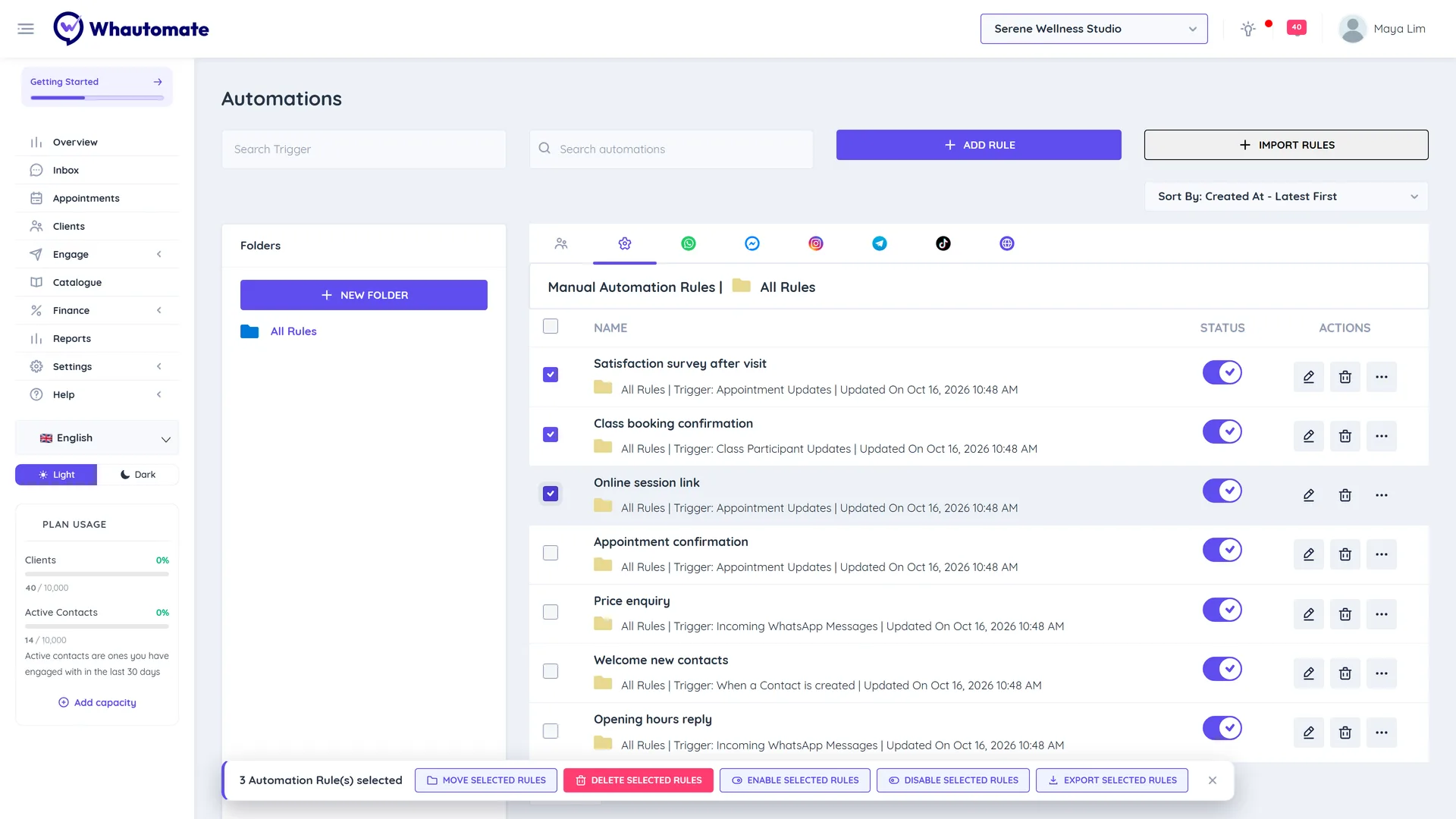
Tick the checkbox next to several rules (or the one in the header to select the whole page). A bar shows ... Automation Rule(s) selected with:
- Move Selected Rules to a folder
- Delete Selected Rules
- Enable Selected Rules or Disable Selected Rules
- Export Selected Rules to download them as a file. See Import and export rules.
Loop protection
A rule can accidentally call itself, for example a rule on Outgoing WhatsApp Messages that sends a WhatsApp message, or a rule that adds the tag it listens for. To protect your contacts and your WhatsApp quality rating, Whautomate watches for this.
If one rule runs the same action for the same contact around 30 times within a minute, Whautomate:
- Turns the rule off.
- Marks it with a red warning icon (Anomaly Detected) in the list.
- Emails the account owner and administrators with the rule name.
To fix it, open the rule, remove the cause of the loop (usually add a condition such as Message Sender equals Human Agent, or remove the action that re-triggers the rule), save it, then turn it back on. The warning clears when you turn the rule on again.
Good to know
- Rules belong to one location. To use the same rules in another location, export and import them.
- Automation rules are in every plan. Rules on a trigger your plan does not include stay in the list but do not run. See Plan modules.