Setup WhatsApp Chatbot
A WhatsApp chatbot answers customers on your WhatsApp number around the clock: it greets them, answers questions, takes bookings or orders, and passes the chat to your team when a person is needed. The fastest way to get one is to install a chatbot template.
Chatbots are part of every plan. Booking chatbots need Bookings, and the shop chatbot needs Sales.
Before you start
- Connect your WhatsApp number. See WhatsApp Cloud API.
- For an AI chatbot: connect an AI provider and upload your business information. See AI Conversation.
- For a Flow based chatbot: get your business verified by Meta (Meta business verification) and set up what it sells: services and team members for appointments, classes, events or store products.
Choose a chatbot
| You want to | Install |
|---|---|
| Answer questions about your business in natural language | Customer Service GPT for your business - AI Chatbot (WhatsApp) |
| Qualify leads and update their stage and tags | Lead Qualification GPT for your Business - AI Chatbot (WhatsApp) |
| Take appointment bookings in conversation | AI Appointment Booking Chatbot for your business (WhatsApp) (Bookings) |
| Take class bookings in conversation | AI Class Booking Chatbot for your business (WhatsApp) (Bookings) |
| Offer a menu with booking forms inside WhatsApp | Flow Based Appointment Chatbot V2 (WhatsApp), Flow Based Class Booking Chatbot V2(WhatsApp) or Flow Based Event Booking Chatbot(WhatsApp) (Bookings) |
| The same across several branches | The Multi-Location Flow Based versions (Bookings) |
| Sell products inside WhatsApp | Flow Based Ecommerce Shop Chatbot V2 (WhatsApp) (Sales) |
AI chatbots understand free text and voice notes. Flow based chatbots show a menu (book, view bookings, business details, opening hours, talk to the team) and open WhatsApp Flow forms for the booking steps, so customers tap rather than type.
Install it
- Go to Engage > Automations and click Add Rule.
- Set the filter to WhatsApp.
- On the chatbot you want, click Install Rule.
- You land on the WhatsApp tab of the Automations page (or in the rule editor, for single-rule bots). The chatbot's rules are switched on.
- For an AI chatbot, open the rule, go to the AI Conversation action and choose your AI Provider, Model and Knowledge Base. Adjust the System Message (Prompt) with your business name and tone. Click Save.
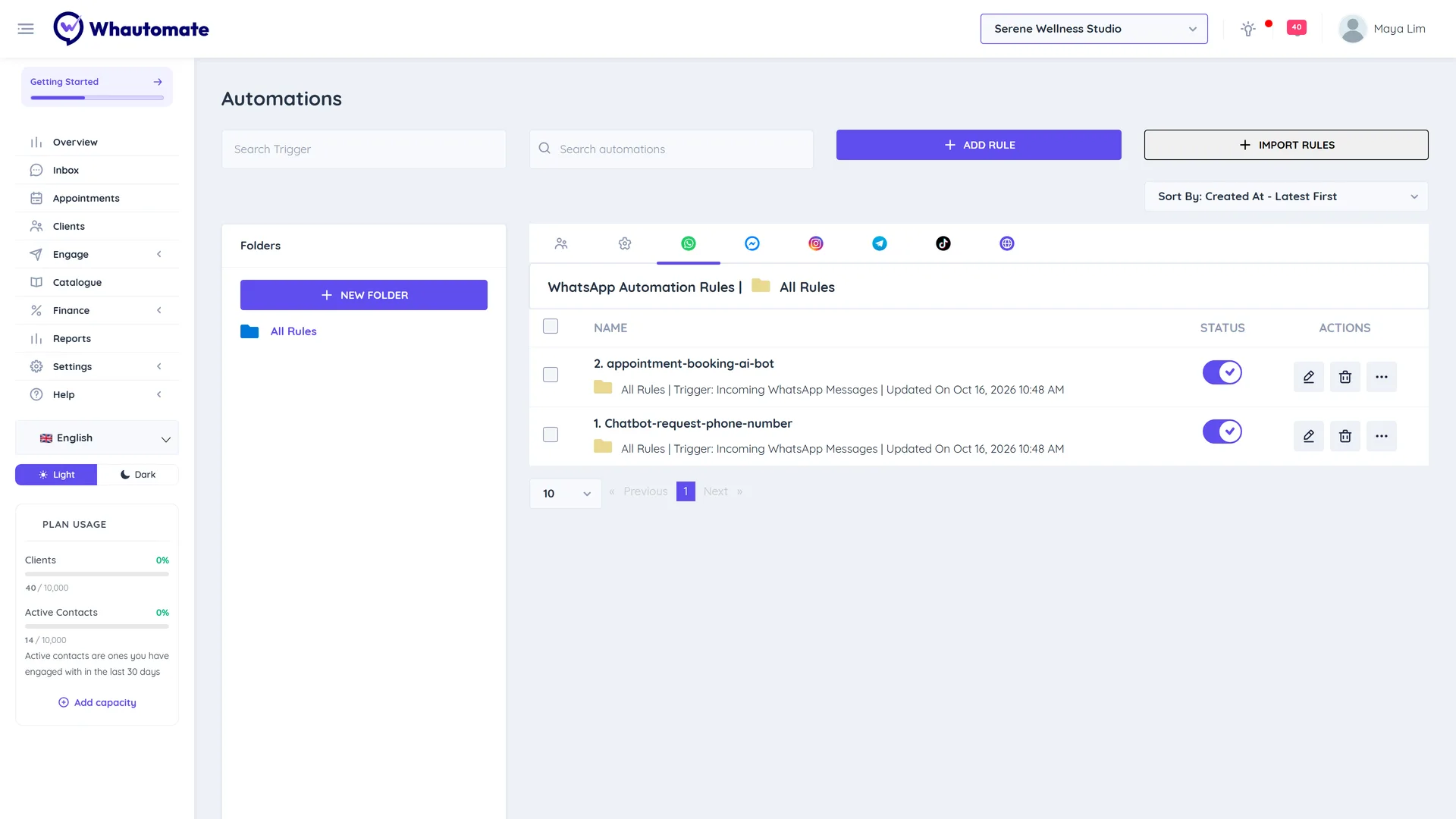
Only one WhatsApp chatbot can be installed at a time. If the Install Rule buttons are greyed out, a rule on the WhatsApp tab is already on. Turn off or delete those rules first. See Rule templates.
Test it
- From a personal WhatsApp number (not the one connected to Whautomate), send "Hi" to your business number.
- Try the main paths: ask a question, start a booking, ask for a person.
- Watch the conversation in the Team Inbox.
If the bot does not answer, check that the conversation is not Open with a team member. Chatbots stay quiet while a person is handling the chat. Close the conversation and try again.
Hand over to your team
All chatbot templates can pass the chat to a person: the customer picks "talk to staff" (Flow bots) or the AI decides it cannot help (AI bots). The chat moves to the unassigned queue, or to a team member if you turned on round robin. When your team closes the conversation, the bot answers again the next time the customer writes.
Customise it
The installed rules are normal automation rules. Open any of them to change the wording, add conditions or actions, or switch steps off. See Create an automation rule.