Automate Reviews & Surveys
Happy customers rarely leave a review unless you ask. These automations ask at the right moment: the day after an appointment, a class or a completed order. Use review requests to build your online reputation and surveys to learn what to improve.
Appointment and class templates need Bookings; order templates need Sales.
Before you start
- For reviews: create a WhatsApp template with your review link (for example your Google review link) and get it approved. See WhatsApp Message Templates.
- For surveys: create the survey as a web form.
- Make sure appointments are marked Visited, classes are marked visited and orders are marked Completed: the automations start from that status.
Install a template
- Go to Engage > Automations and click Add Rule.
- Set the filter to Appointment, Class or Order and click Install Rule on the one you want:
| Template | What it does |
|---|---|
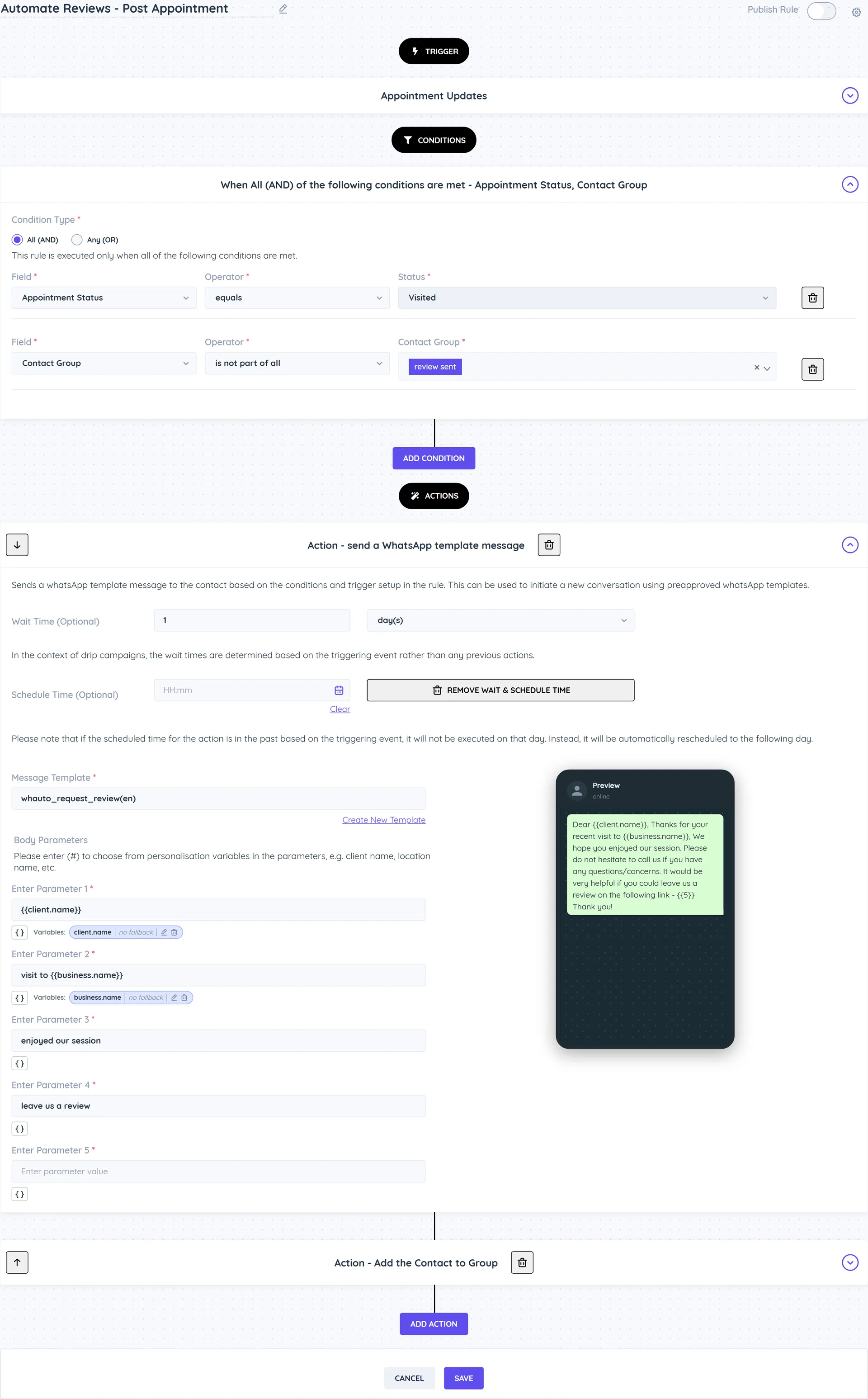
| Automate Reviews - Post Appointment | 1 day after an appointment is marked Visited, sends a WhatsApp template asking for a review, then adds the contact to the "review sent" group so they are only asked once. |
| Automate surveys - Post Appointment | 1 day after a visit, assigns a survey form to the client and sends it on WhatsApp. |
| Automate follow ups - Post Appointment | Checks in after the appointment to see if the client is happy. |
| Automate Reviews - Post Class, Automate surveys - Post Class, Automate follow ups - Post Class | The same, after a class. |
| Automate Reviews - Order Completion, Automate Surveys - Order Completion | The same, when an order is marked Completed. |
- The rule opens in the editor. It is installed switched off so you can finish it first.
- For a review rule, open Send a WhatsApp Template Message, choose your review template under Message Template and check the Body Parameters. With the default review template, parameter 5 is the review link and starts empty: paste the link to your review page, for example your Google review link.
- For a survey rule, open Assign a Form and Request Form to Be Filled and choose your survey form.
- Turn on Publish Rule and click Save.
Tips
- Change the wait time to match your service. For a massage, the next day works well; for a course of treatment, wait until the last session.
- Use an Appointment Service condition to send a different review link or survey per service.
- See survey answers on the client record, and react to them with the When a Client Completes a Form trigger.
- For a quick rating inside the chat instead of a form, use Send Customer Satisfaction Survey (CSAT). See CSAT score.