AI Conversation
AI Conversation is an automation action that replies to customers with AI. It reads the conversation, looks up answers in your own documents, and can update the contact, book appointments or call your own systems. You use it on incoming message triggers for WhatsApp, Messenger, Instagram, Telegram, TikTok and website live chat.
AI Conversation is part of every plan. You bring your own AI provider account and pay the provider for usage. Booking and class tools work with Bookings data.
Before you start
- Create an account with one of the supported providers and get an API key: OpenAI, Google Gemini, xAI (Grok) or Anthropic (Claude).
- In Whautomate, go to Integrations, open the provider and paste the key on the Configuration tab.
- Upload your business information (price lists, FAQs, policies) on the provider's Vector Stores/Datasets tab to create a knowledge base. Each provider has a walkthrough: OpenAI, Google Gemini, xAI (Grok) and Anthropic (Claude). To pick one, see AI providers.
Provider notes:
- xAI (Grok) needs a second key, the Management API Key (for knowledge bases), to create and use knowledge bases. Without it the assistant still replies but cannot use a knowledge base.
- Anthropic (Claude) does not search documents: every file in the knowledge base is sent with each message, so keep it small and focused.
- Voice notes can be understood with OpenAI and Google Gemini only.
Add the action
The quickest start is a template such as Customer Service GPT for your business - AI Chatbot (WhatsApp). See Rule templates. To add it yourself:
- Create or open a rule with an incoming message trigger, for example Incoming WhatsApp Messages.
- Optionally add conditions, for example Message Type is part of any Text, Audio and Image.
- Click Add Action and choose AI Conversation.
- Fill in the tabs below, then Save the rule.
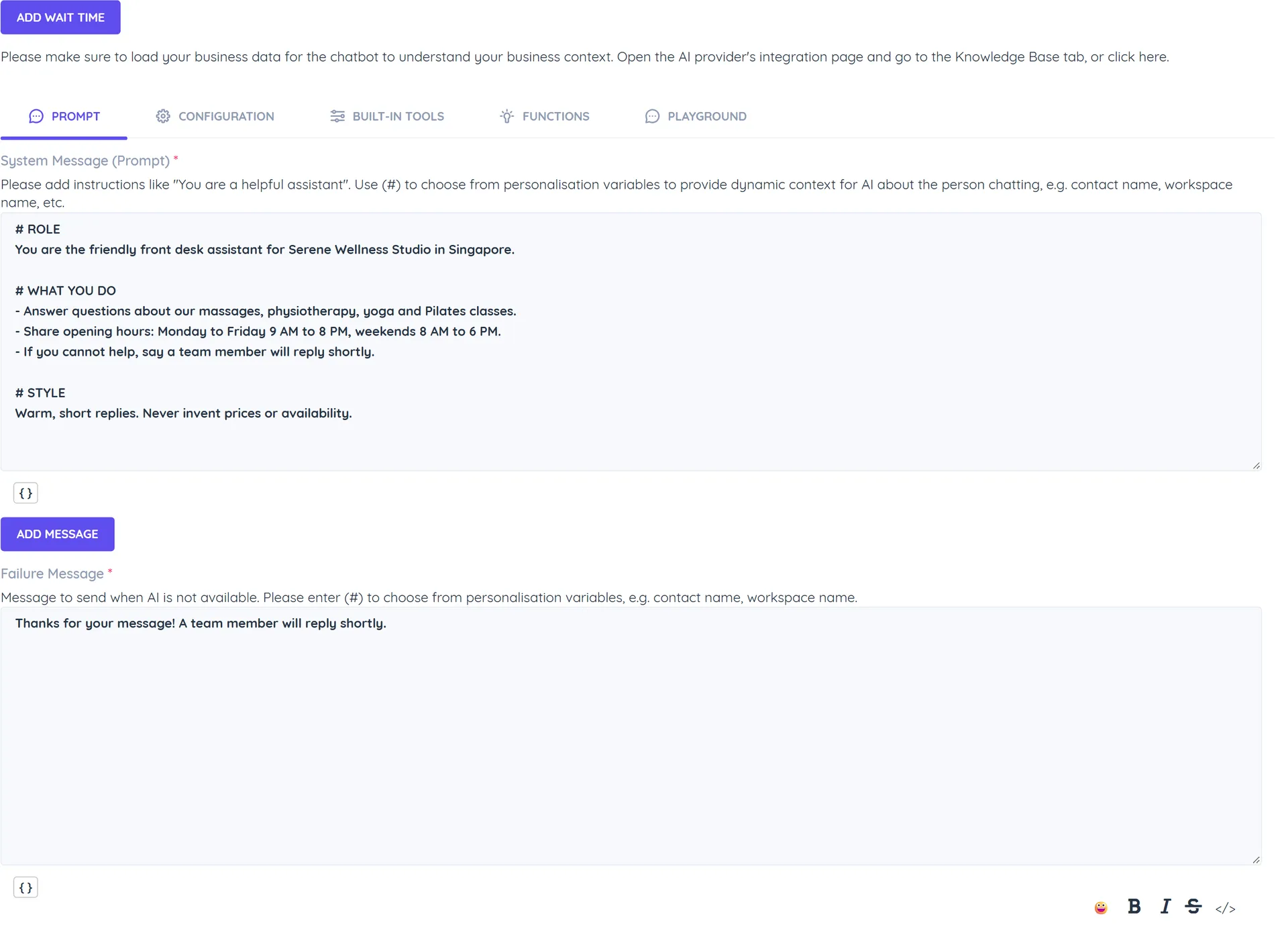
Prompt
- System Message (Prompt): instructions for the assistant: who it is, what it may answer, tone, language and when to hand over to a person. Type # to insert variables such as the contact's name or your business name.
- Add Message: optional example exchanges, each with a Role (User or Assistant) and a Message. Up to 10.
- Failure Message: sent when the AI is not available, for example "I will transfer the chat to my colleague. Please hold on."
Configuration
- AI Provider: providers without a key show "no API key"; set them up under Integrations first.
- Model: pick one of the provider's models.
- Reasoning Model: switches on automatically for reasoning models. It replaces Temperature and Top P with Reasoning Effort (Default (medium), Minimal, Low, Medium or High). Lower effort is faster and uses fewer tokens.
- Temperature and Top P (0 to 1): lower values give more predictable answers. For customer service, around 0.2 works well.
- Max Tokens: the longest reply the assistant may write.
- Conversation History Limit: how many recent messages the assistant reads to keep track of the conversation.
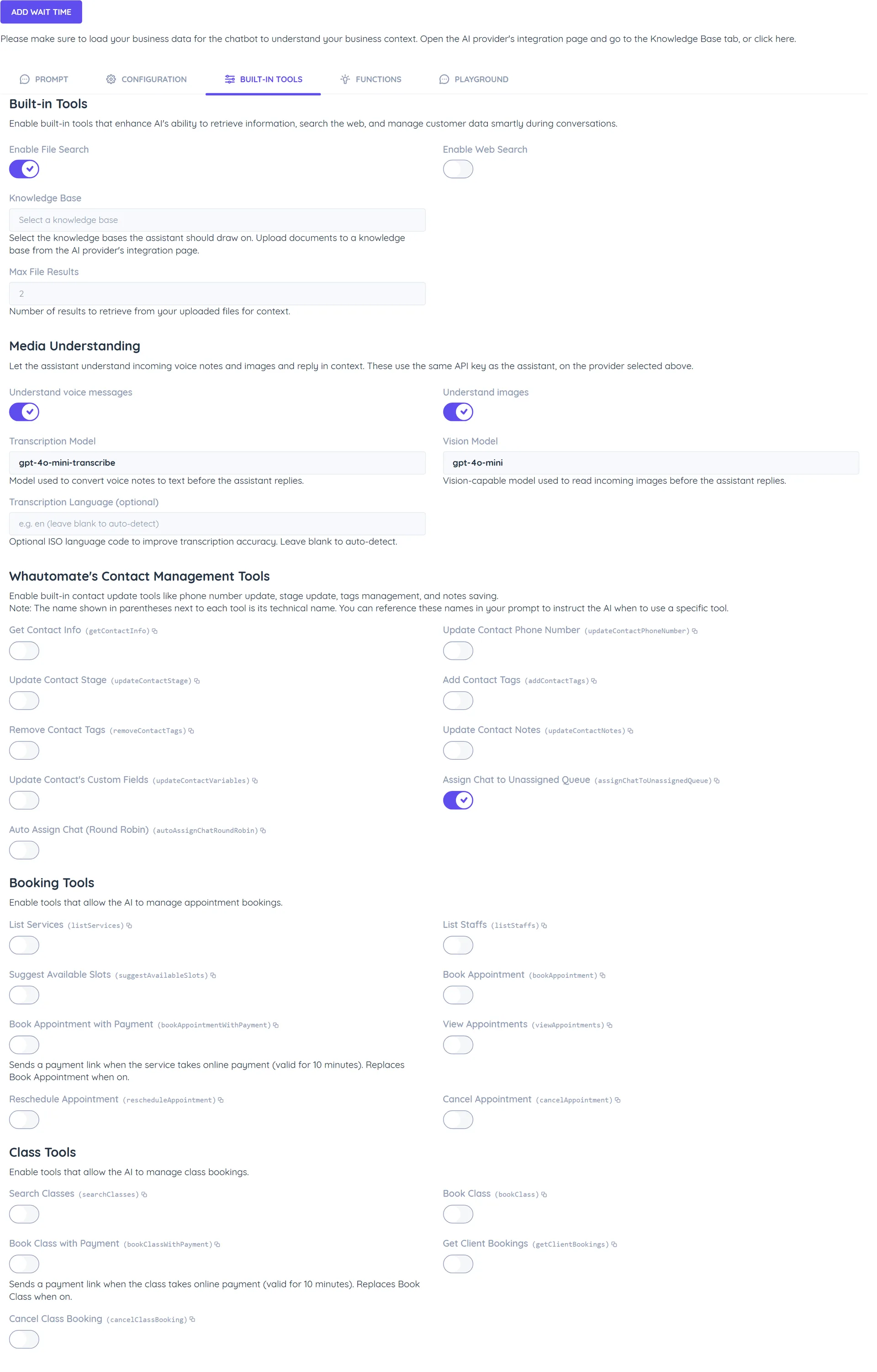
Built-in Tools
- Enable File Search: answer from your Knowledge Base. Choose one or more knowledge bases and Max File Results (how many matching passages to read).
- Enable Web Search: search the web for current information. User Timezone (for example Asia/Singapore) localises results; with OpenAI you can also set Search Context Size.
- Media Understanding: Understand voice messages (with a Transcription Model and optional Transcription Language) and Understand images (with a Vision Model). These use the same API key as the assistant.
Whautomate's Contact Management Tools let the AI act on the contact during the chat: Get Contact Info, Update Contact Phone Number, Update Contact Stage, Add Contact Tags, Remove Contact Tags, Update Contact Notes, Update Contact's Custom Fields, Assign Chat to Unassigned Queue and Auto Assign Chat (Round Robin). Turn on at least one assign tool so the AI can hand over to your team.
Booking Tools let the AI manage appointments: List Services, List Staffs, Suggest Available Slots, Book Appointment and Book Appointment with Payment (sends a payment link valid for 10 minutes when the service takes online payment). On WhatsApp you also get View Appointments, Reschedule Appointment and Cancel Appointment.
Class Tools (WhatsApp): Search Classes, Book Class, Book Class with Payment, Get Client Bookings and Cancel Class Booking.
Each tool shows its technical name in brackets, for example (bookAppointment). Click it to copy, and use it in your prompt to tell the AI when to use that tool.
Functions
Let the AI call your own systems, for example to check an order status:
- Click Add Function.
- Enter a Function Name, the Server URL (must be HTTPS; you can pass arguments as {{parameter_name}}), the HTTP Method and any Headers (for example an API key).
- Paste the Function Definition as JSON, with a clear description and default values for parameters.
Playground
Use the Playground tab to chat with the assistant using your current settings before you publish. Type a message and press Enter; Clear Chat starts over.
Example prompt
You are Clara, the assistant for Serene Wellness Studio.
Answer only from the knowledge base. Keep replies under 80 words.
If you do not know the answer, or the customer asks for a person,
say you are connecting them to the team and use assignChatToUnassignedQueue.
Related actions
- Smart AI Follow-Up: writes a follow-up from the conversation if the contact has not replied within the wait time.
- Clear AI Conversation History: clears what the AI remembers, for example when a chat is closed.
Good to know
- AI replies follow the same rules as other messages: while a team member has the chat Open, the rule does not run unless Override Human Agent is on.
- If your provider account runs out of credit, the Failure Message is sent instead and a warning appears in Whautomate. Top up with the provider.
- AI can make mistakes. Keep the prompt specific, give it a good knowledge base, and test in the Playground.