Rule Templates
Rule templates are ready-made automations you install with one click: chatbots, AI assistants, review requests, surveys, birthday wishes and more. A template creates one or more normal rules that you can then edit like any other.
Install a template
- Go to Engage > Automations and click Add Rule. The Create Automation Rule page opens with all templates.
- Narrow the list with Search templates or the filter: All, WhatsApp, Messenger, Instagram, Telegram, TikTok, Website, Appointment, Class, Order or Client.
- Read the card and click Install Rule.
- You see "Great! The automation rules have been created. Please complete the setup and enjoy!". A template with one rule opens in the editor; a template with several rules takes you to its tab on the Automations page.
- Finish the setup: most templates need you to pick your own WhatsApp template, form or knowledge base, and some are installed switched off. Open each rule, complete it, turn on Publish Rule and click Save.
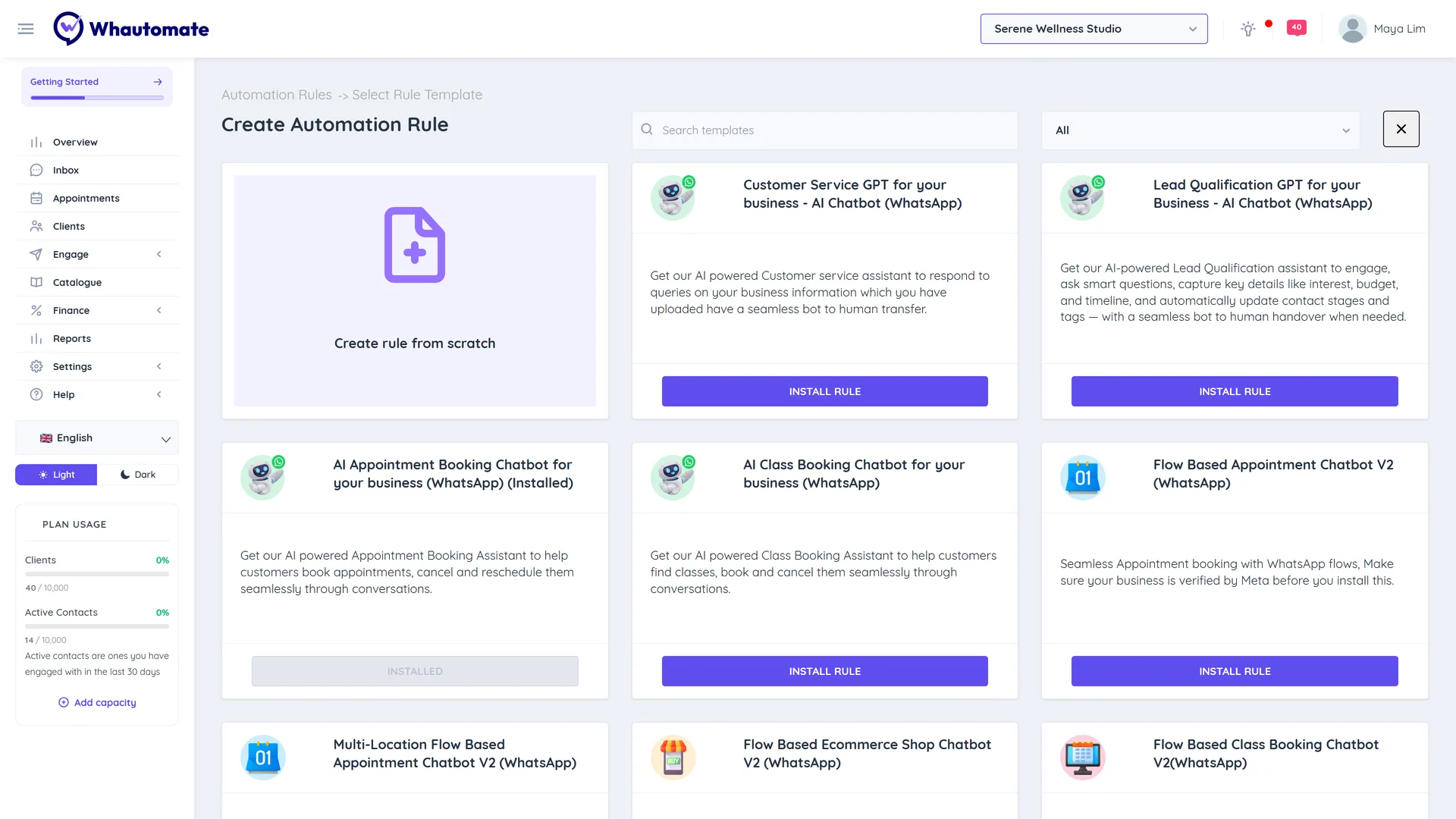
To build your own rule instead, click Create rule from scratch. See Create an automation rule.
One chatbot per channel
Chatbot templates answer every incoming message on their channel, so only one can run at a time. While any rule on a channel's tab (for example WhatsApp) is turned on, the chatbot templates for that channel cannot be installed, and the active one shows (Installed).
To switch chatbots, turn off or delete the rules on that channel's tab first, then install the new template.
Chatbot templates
| Template | What it does | Needs |
|---|---|---|
| Customer Service GPT for your business - AI Chatbot (WhatsApp, Messenger, Instagram, Telegram, Website, TikTok) | An AI assistant that answers questions from your business information (knowledge base) and hands the chat to your team when it cannot help. | Engage |
| Lead Qualification GPT for your Business - AI Chatbot (all channels) | An AI assistant that asks qualifying questions (interest, budget, timeline), updates the contact stage and tags, and hands over to your team. | Engage |
| AI Appointment Booking Chatbot for your business (WhatsApp, Messenger, Instagram, Telegram, TikTok) | Books appointments in conversation; on WhatsApp it can also reschedule and cancel. | Bookings |
| AI Class Booking Chatbot for your business (WhatsApp) | Finds classes, books and cancels them in conversation. | Bookings |
| Flow Based Appointment Chatbot V2 (WhatsApp) | A menu-driven booking bot that uses WhatsApp Flows forms. | Bookings |
| Multi-Location Flow Based Appointment Chatbot V2 (WhatsApp) | The same, letting clients choose between your locations. | Bookings |
| Flow Based Class Booking Chatbot V2(WhatsApp) | A menu-driven class booking bot with WhatsApp Flows. | Bookings |
| Multi-Location Flow Based Class Booking Chatbot V2(WhatsApp) | The same, across several locations. | Bookings |
| Flow Based Event Booking Chatbot(WhatsApp) | Event booking with WhatsApp Flows. | Bookings |
| Flow Based Ecommerce Shop Chatbot V2 (WhatsApp) | Browse products, check out and view orders in WhatsApp. | Sales |
The AI templates use the AI Conversation action. After installing one, open the rule, choose your AI provider and knowledge base, and test it in the Playground tab.
The Flow based templates need your business to be verified by Meta before you install them. See Meta business verification.
WhatsApp chatbot templates start with a rule that asks for the person's phone number if they message from a WhatsApp username. The rest of the bot waits until the number is shared.
Customer experience templates
| Template | What it does | Needs |
|---|---|---|
| Automate Reviews - Post Appointment | 1 day after an appointment is marked Visited, sends a WhatsApp template asking for a review. Clients are asked only once. | Bookings |
| Automate surveys - Post Appointment | 1 day after a visit, sends a survey form. | Bookings |
| Automate follow ups - Post Appointment | Checks in with the client after their appointment. | Bookings |
| Automate Reviews - Post Class, Automate surveys - Post Class, Automate follow ups - Post Class | The same for classes. | Bookings |
| Automate Order Updates | Sends order status updates to the customer. | Sales |
| Automate Reviews - Order Completion, Automate Surveys - Order Completion | Asks for a review or survey when an order is completed. | Sales |
| Automate Birthday wishes Campaign | Sends a WhatsApp template and an email on the client's birthday. | CRM Suite |
| Automate Anniversary Wishes Campaign | Thanks clients on the anniversary of joining. | CRM Suite |
| New Client Welcome Campaign | Welcomes new clients by WhatsApp and email. | CRM Suite |
| Client Tag Added Drip Campaign, Client Tag Removed Drip Campaign | Starting points for tag-based drip sequences. | CRM Suite |
| Managing Marketing Opt-Out Requests | When a contact replies "stop", confirms, tags them "unsubscribe" and adds them to the suppression list; "resubscribe" reverses it. | Engage |
Shopify and WooCommerce rule sets are installed from their integration pages. See Shopify automations and WooCommerce automations.
Locked templates
Templates that need a module your plan does not include show an Add-on badge and an Unlock with ... button instead of Install Rule. Clicking it opens the upgrade page for that module. On the Engage plan, for example, the AI booking chatbots show Unlock with Bookings and the birthday campaign shows Unlock with CRM Suite.
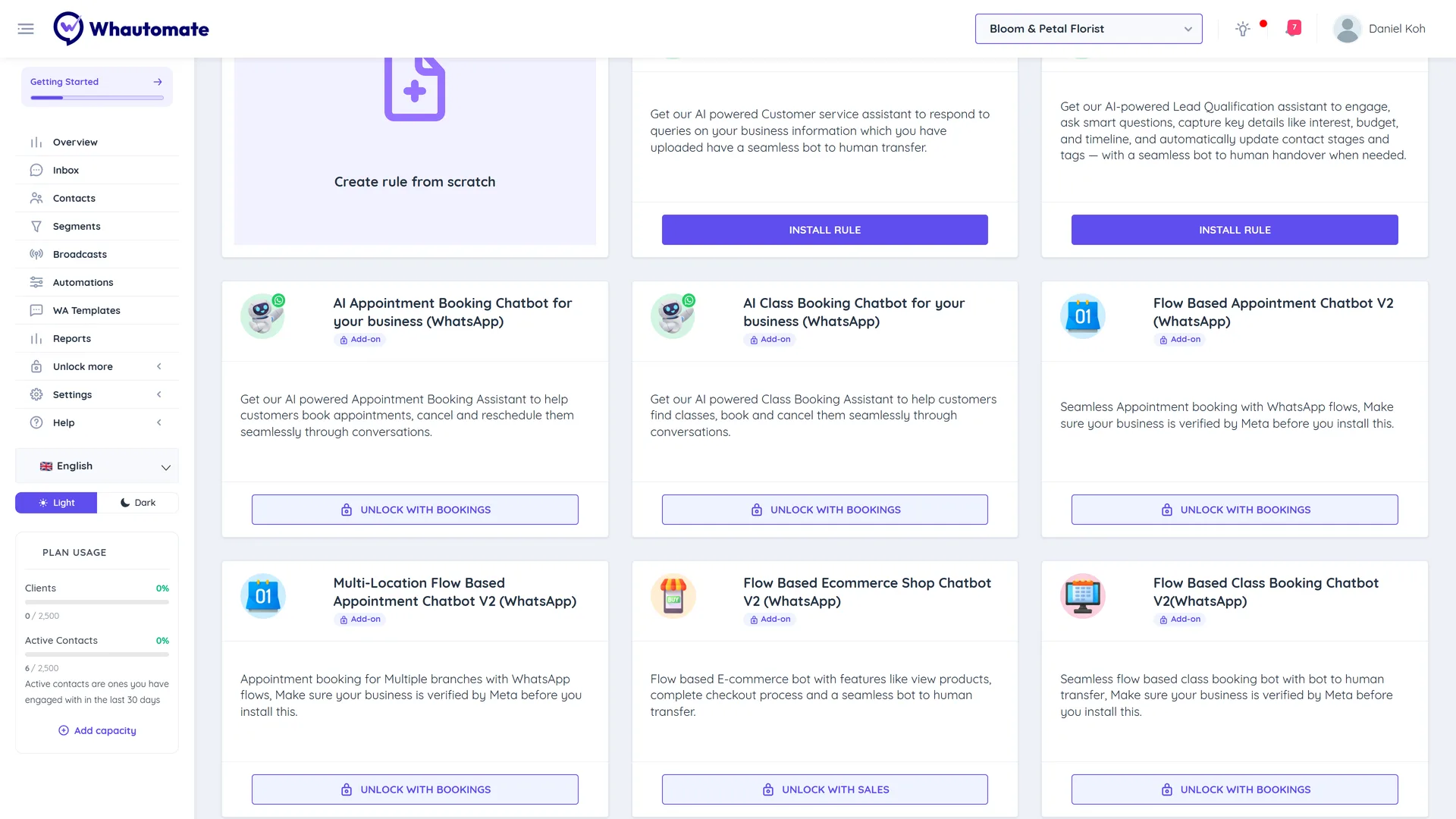
See Plan modules.