AI assistants (MCP)
MCP is in beta. It works with the real data in your account, so check what the assistant proposes before you approve it. Tell us what you would like it to do next.
Connect an AI assistant such as Claude or ChatGPT to Whautomate and ask it to do things in plain words: "What does Alex's day look like tomorrow?", "Book John Tan for a massage next Tuesday afternoon" or "Draft a reply to Sarah's last WhatsApp message". The assistant connects through MCP (Model Context Protocol), an open standard that lets AI assistants use other apps safely.
Before you start
- You need a Whautomate login. Each team member connects with their own login, and the assistant can only see and do what that person's role allows, in the locations they can open.
- You need an AI assistant that supports custom MCP connectors, such as Claude, ChatGPT (with developer mode) or a code editor like Claude Code, Cursor or VS Code. Custom connectors depend on your plan with that assistant.
- The Developers page is shown to owners and admins. Anyone else can connect with the same server URL (ask an admin for it).
Step 1: Copy the server URL
- Click Developers in the side menu. The MCP tab opens.
- Under Connect your assistant, click Copy next to Server URL.
The server URL is the same for every account: https://mcp.whautomate.com/mcp
Step 2: Add Whautomate to your assistant
Menu names in Claude and ChatGPT can change; if a step does not match, look for "connectors" in the assistant's settings.
Claude
-
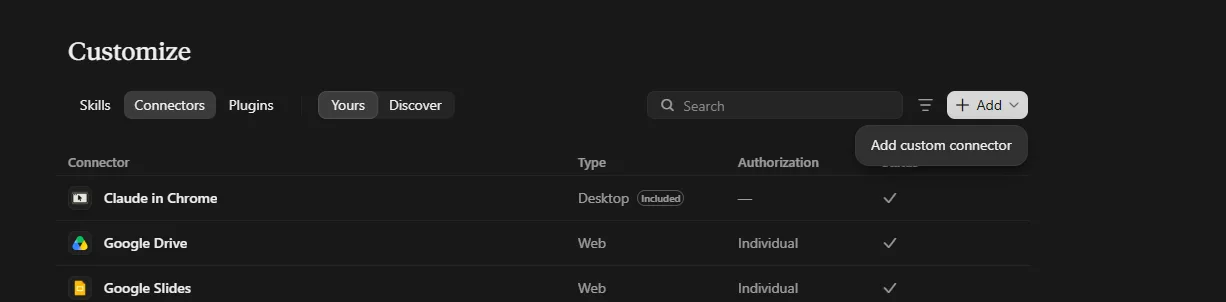
In Claude (web or desktop app), open Customize > Connectors, click Add and choose Add custom connector.
-
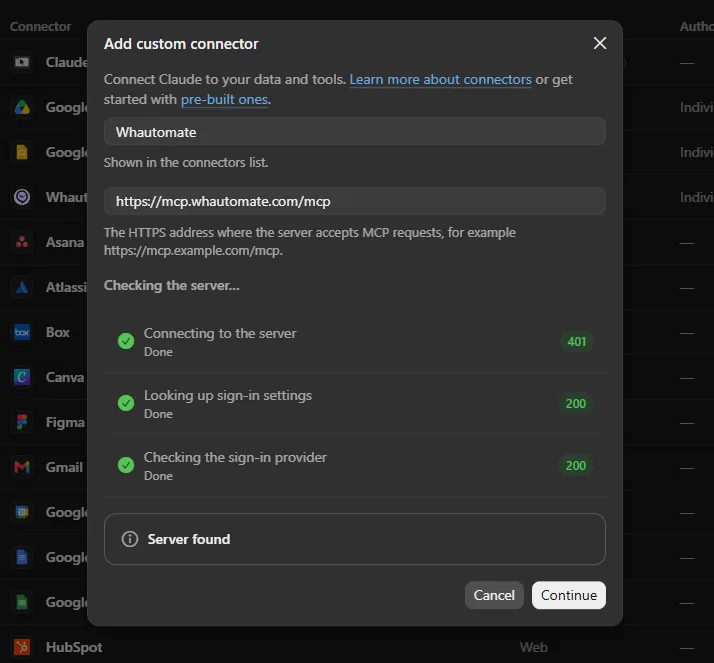
Name it Whautomate and paste the server URL. Claude checks the server and shows Server found. Click Continue.
-
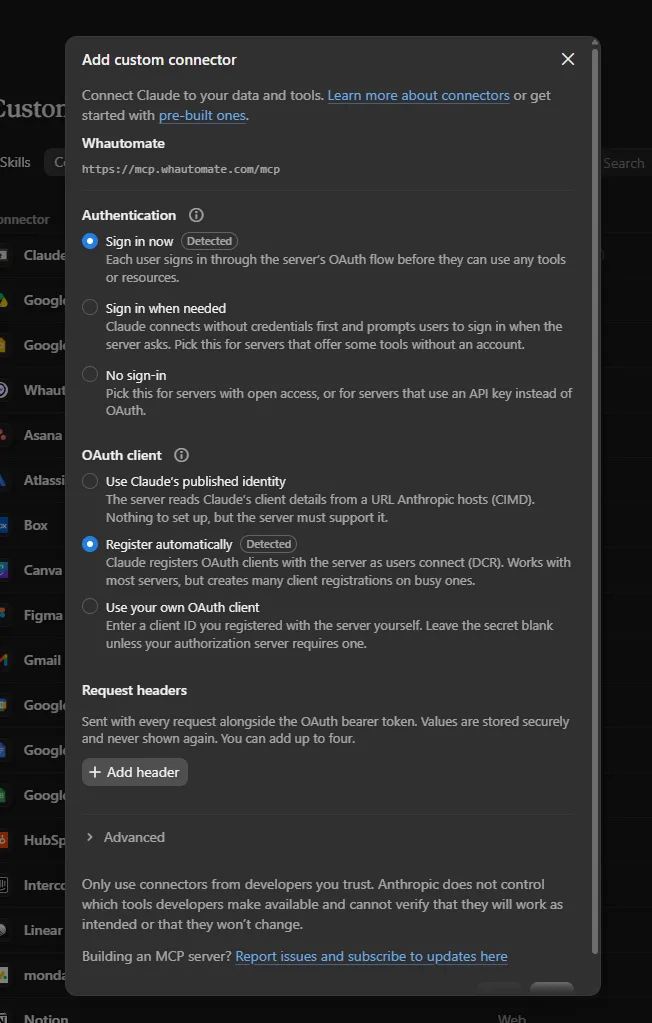
Keep the detected settings: Sign in now under Authentication and Register automatically under OAuth client. You do not need any request headers. Confirm at the bottom of the dialog.
-
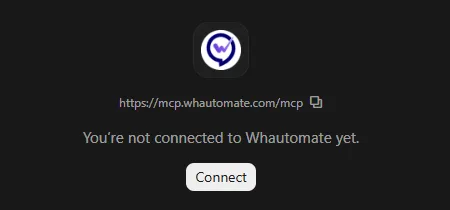
On the Whautomate connector page, click Connect.
-
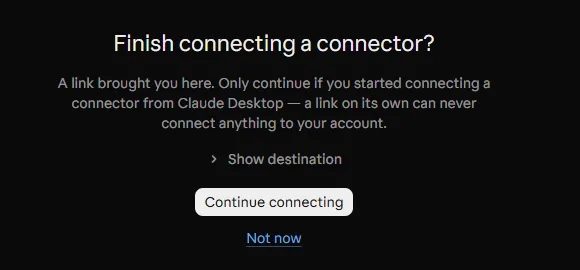
In the Claude desktop app, a browser page may ask Finish connecting a connector?. Click Continue connecting. The Whautomate sign-in page opens (see Step 3).
ChatGPT
- In ChatGPT, open Settings > Apps & Connectors > Advanced settings and turn on Developer mode.
- Select Create, name it Whautomate, paste the server URL and choose OAuth sign-in.
- Sign in to Whautomate when asked, then turn the connector on in a chat.
Code editors
In Claude Code, run:
claude mcp add --transport http whautomate https://mcp.whautomate.com/mcp
In Cursor, VS Code or another MCP client, add a remote (HTTP) MCP server with the server URL. Your browser opens to sign in to Whautomate the first time the assistant uses it.
Step 3: Sign in and choose what the assistant may use
-
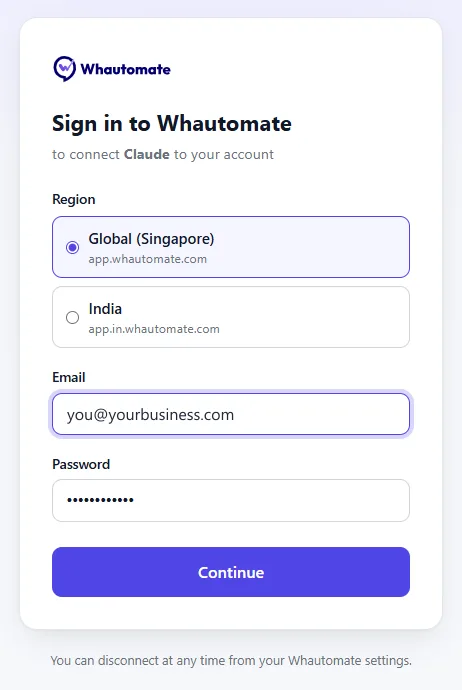
On the Whautomate sign-in page, choose your region (the app address you use, for example app.whautomate.com) and sign in with your Whautomate email and password. If you use two-step verification, enter the code.
-
Choose which parts of Whautomate the assistant may use, for example only appointments and clients. Fewer tools help the assistant pick the right one.
-
Confirm. You are back in your assistant and can start asking.
To change your choice later, disconnect and connect again.
What you can ask
The Ideas to try section on the MCP tab shows examples for your plan. Click one to copy it, paste it into your assistant and change the names to your own.
| Area | Examples |
|---|---|
| Get set up | "Add Alex and Priya as bookable staff and set their hours to Monday to Friday, 9 AM to 6 PM." "Create our services from this price list, with the name, duration and price of each." "Import the clients in this spreadsheet. Show me how many you will add and a few examples before you start." "Import next month's appointments from this file from my old booking system, without messaging clients." |
| Inbox and messaging (every plan) | "Summarise my latest WhatsApp chat with Sarah Lee and tell me what she is asking for." "Draft a friendly reply to Sarah offering a time on Saturday morning, and show it to me before sending." "Create a WhatsApp template to follow up with customers after a visit and submit it for approval." |
| Clients and forms (CRM Suite) | "Add a new client, John Tan, phone +65 9123 4567, and note that he prefers morning visits." "Send our intake form to John Tan on WhatsApp." "Show this week's responses to our feedback form and list any complaints." |
| Bookings | "What does Alex's day look like tomorrow?" "Find a free 60 minute massage slot next Tuesday afternoon and book it for John Tan." "Move Sarah Lee's appointment on Friday to the same time next week." "Block Alex's calendar next Friday from 2 PM to 5 PM for training." |
| Classes (Bookings) | "Schedule a beginner yoga class every Monday at 7 PM for the next 8 weeks, taught by Alex, with 12 places." "Add John Tan to Saturday's 9 AM pilates class." "Who is booked into tomorrow's morning yoga class?" "Mark attendance for this morning's yoga class: everyone came except Sarah Lee." |
| Sales | "Create an invoice for John Tan's appointment today and send him a payment link." "List unpaid invoices from last month with the amount due on each." "How many session credits does Sarah Lee have left?" "Add a new product, Lavender massage oil, priced at 25 with 40 in stock." |
Imports
Attach a spreadsheet or paste a list and the assistant brings it in: clients and contacts, services, products, past orders, upcoming appointments and class bookings. It shows you the counts and a few sample rows first and waits for your yes. Imported appointments and class bookings send no messages to clients. Owners and admins on a paid plan can import appointments and class bookings, up to 1,000 rows a day.
The assistant only offers what your plan includes. See https://www.whautomate.com/pricing for the modules.
In Claude you can schedule a task such as "Every weekday at 8am, show me my appointments for the day" to get your agenda each morning.
Good to know
- You approve every message. Messages, emails and WhatsApp templates are drafted first and shown to you. They only go out after you say yes in the chat.
- Same rules as the app. The assistant follows your role: a team member who cannot see finance in Whautomate cannot see it through the assistant either. Messaging rules still apply, for example WhatsApp needs an approved template outside the 24-hour window.
- Clear source. Bookings and orders made by an assistant show AI Assistant (MCP) as their source in the app and in reports.
- Not yet available: automations and campaigns cannot be managed through MCP yet. Connecting WhatsApp, payment gateways and other integrations is always done in the app.
- Limits: to protect your account, the number of messages and files an assistant can send per hour and per day is capped, with lower limits during a free trial.
See and disconnect assistants
The Connected assistants list at the bottom of the MCP tab shows each assistant, who connected it, when, and when it was last used. Owners and admins see every connection in the account; other team members see their own.
To disconnect one, click Disconnect and confirm. It loses access within a minute. Removing the connector in Claude or ChatGPT stops it on that side too.