Activity Log
The Activity Log records changes made in your account: who did it, in which workspace, from which IP address and when. Use it to answer questions like "who cancelled this appointment?" or "when was this setting changed?", or to check activity after a team member leaves. Changes that Whautomate made on its own, without a team member, show System as the user.
Who can see what
- Owners and Administrators see everyone's activity and can filter by team member.
- Other team members see only their own activity.
- The Scheduler role does not have the Activity Log.
Open the Activity Log
- Go to Settings > All Settings.
- Under Logs & Exports, click Activity Log.
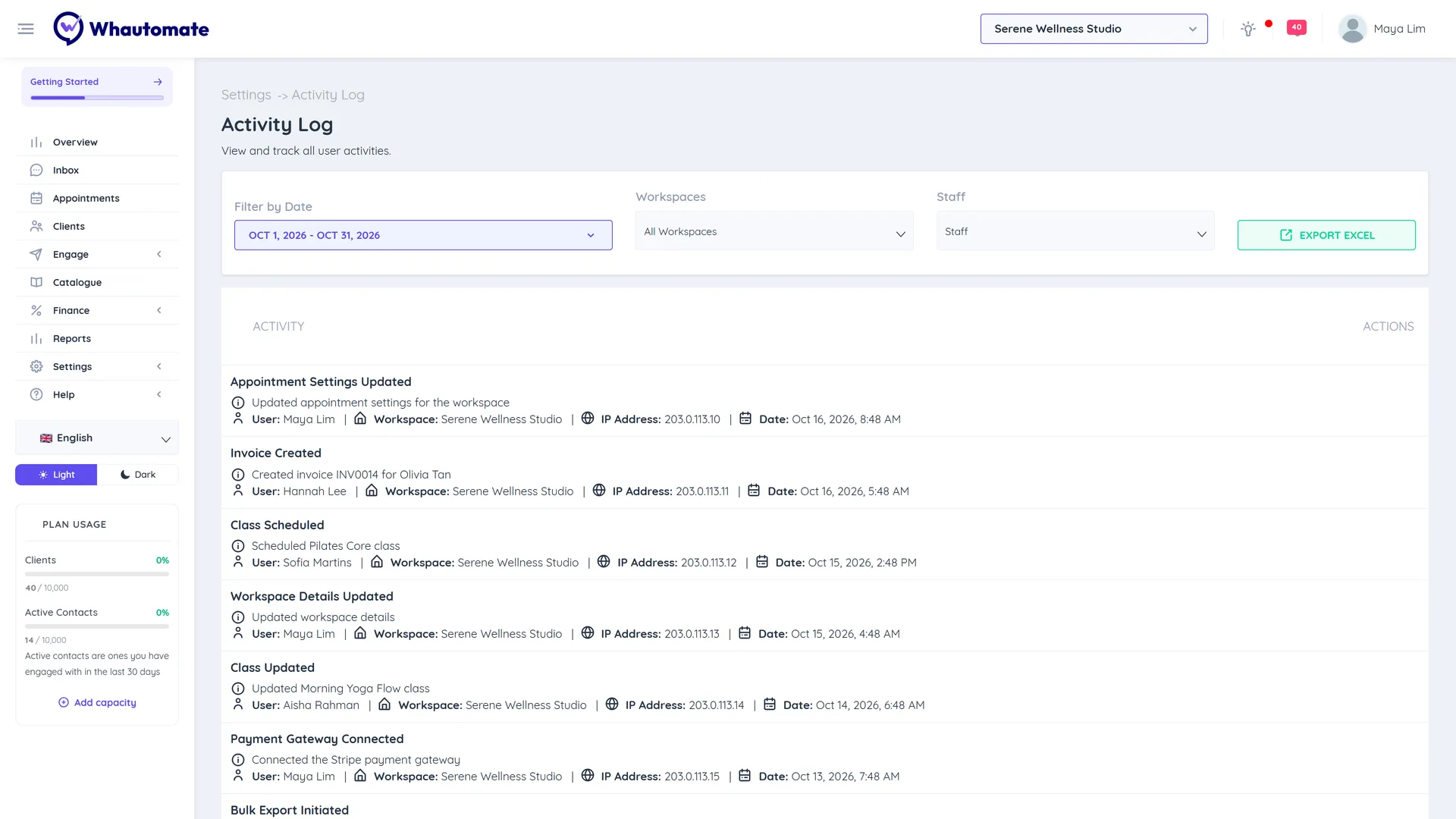
Filter the log
- Filter by Date: click the date button and choose This Month, Last Month, Last 3 Months or Last 6 Months, or pick a Start Date and End Date and click Select Date Range.
- Workspaces: choose one or more workspaces, or All Workspaces.
- Staff (owners and administrators): show one team member's activity.
Each entry shows the Activity, the User, the Workspace, the IP Address and the Date.
See the details of a change
Click the eye icon on an entry to open its details. Along with the Activity Type and Entity Type (for example an appointment or a client), it shows the extra information recorded with the change. Click Close when you are done.
Export the log
Click Export Excel to download the activities that match your filters as an Excel file (up to 10,000 entries). For bigger exports, narrow the date range and export in parts.