Rest API
The REST API lets developers connect Whautomate to other systems: create clients and contacts, book appointments, send WhatsApp messages and emails, run broadcasts and more. Each request is authenticated with an API key that you create here.
api.whautomate.comBefore you start
- You are the account Owner or an Administrator. Other team members cannot see, create or delete API keys.
- API keys work at the account level: one key works across all workspaces (locations) in your account.
- An account can have up to 10 API keys (3 during a free trial). Delete a key you no longer use to create another.
Create an API key
-
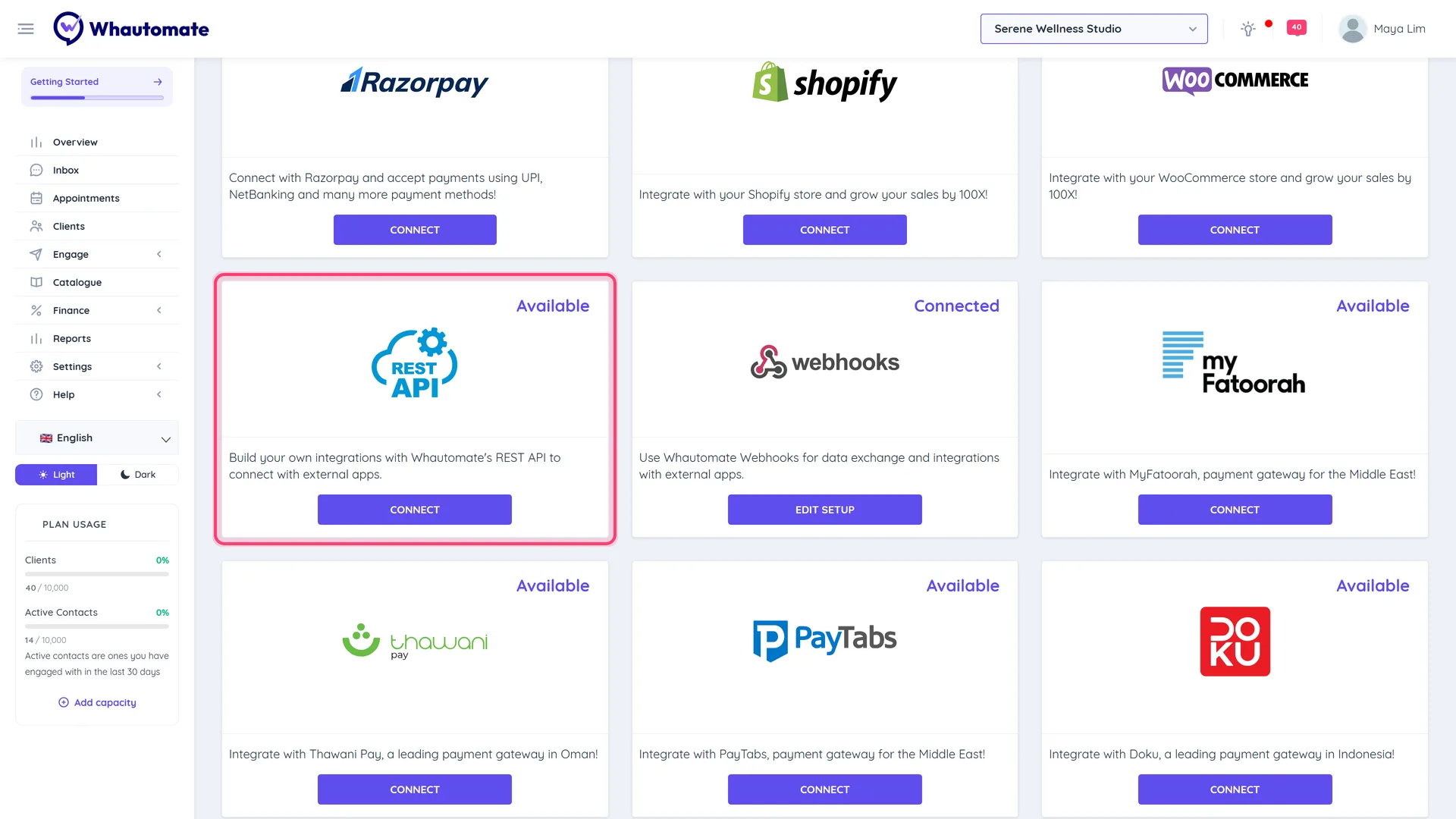
Go to Settings > Integrations and click Connect (or Edit Setup) on the REST API card. The API Keys page opens.
-
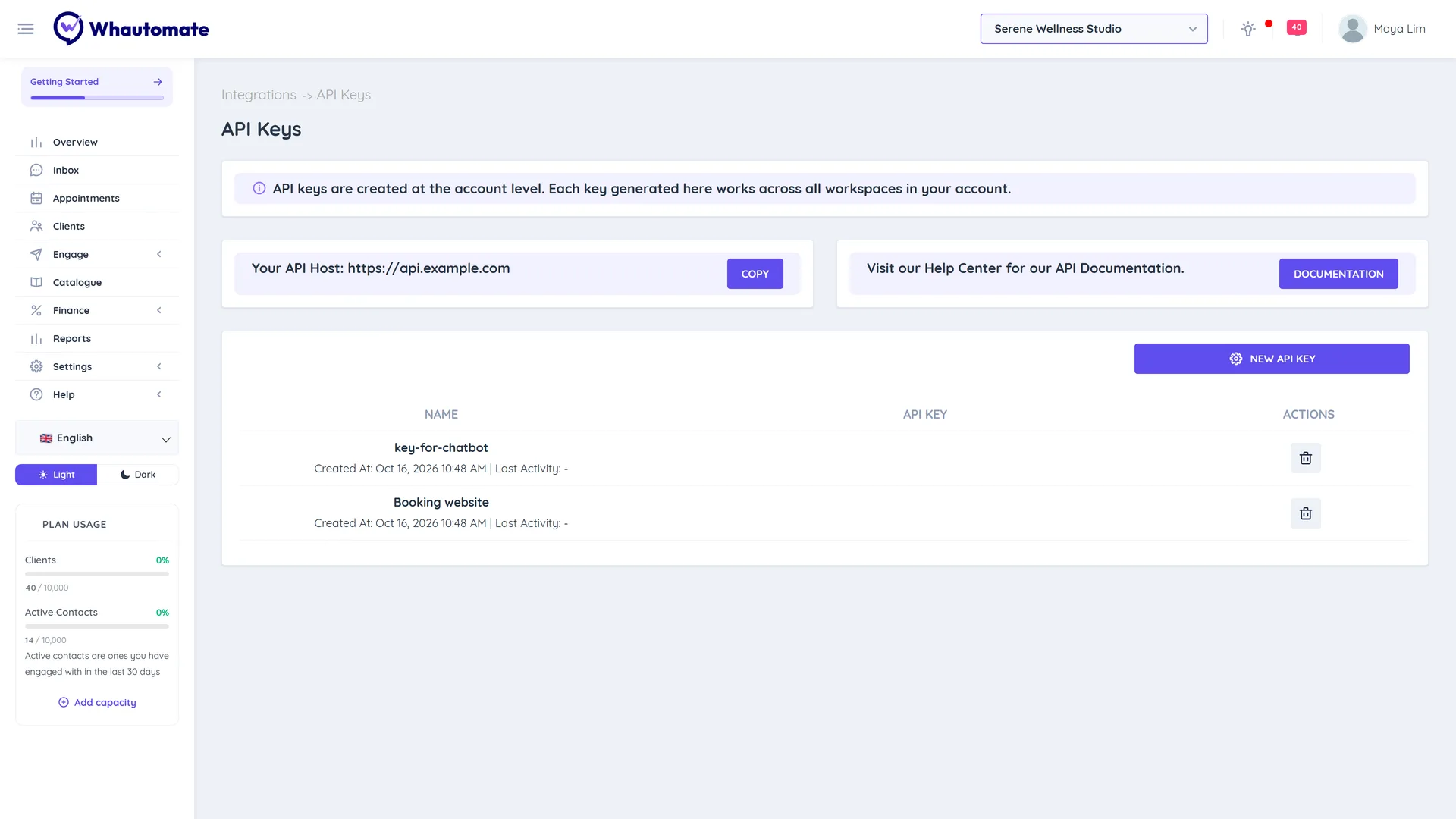
Note Your API Host, for example https://api.whautomate.com, and click Copy to copy it. Use this host for every request.
-
Click New API Key, enter a Name (optional) such as "Booking website" and click Generate.
-
Your new API key opens. Click Copy and store the key somewhere safe, such as a password manager. It is shown only this once: if you lose it, delete it and create a new one.
-
Click Close. The dialog only closes from this button, so you cannot lose the key by clicking outside it.
A new key becomes active within 60 seconds. Requests made before then may be refused.
Each key in the list shows when it was created (Created At) and last used (Last Activity). To revoke a key, click Delete API Key and confirm. Apps using that key stop working straight away.
Use the key
Send the key in the x-api-key header of every request:
curl -X GET "https://api.whautomate.com/v1/locations" \
  -H "x-api-key: YOUR_API_KEY"
See the Whautomate REST API reference for authentication, rate limits and every endpoint.
Tips
- Create a separate key for each app or partner, so you can revoke one without affecting the others.
- Never put an API key in a website's public code or share it in chat.
- Prefer no code? Zapier uses the same API keys.