Import and Export Automation Rules
Export your automation rules to a file to keep a backup, or to copy the same rules into another location. Import creates new rules from that file.
Export rules
- Go to Engage > Automations.
- Tick the rules you want to export (up to 100 at a time). Use the tabs and folders to find them.
- In the bar at the bottom, click Export Selected Rules.
- You see Automation rules export - processing. The file is prepared in the background, and you get a notification when it is ready.
- Click Go to Export, or go to Settings > Data Exports, and download the file.
The download is a ZIP file containing rules-export.json. Unzip it before you import.
Import rules
Importing needs a paid subscription; it is not available during the free trial.
- Switch to the location you want to copy the rules into.
- Go to Engage > Automations and click Import Rules.
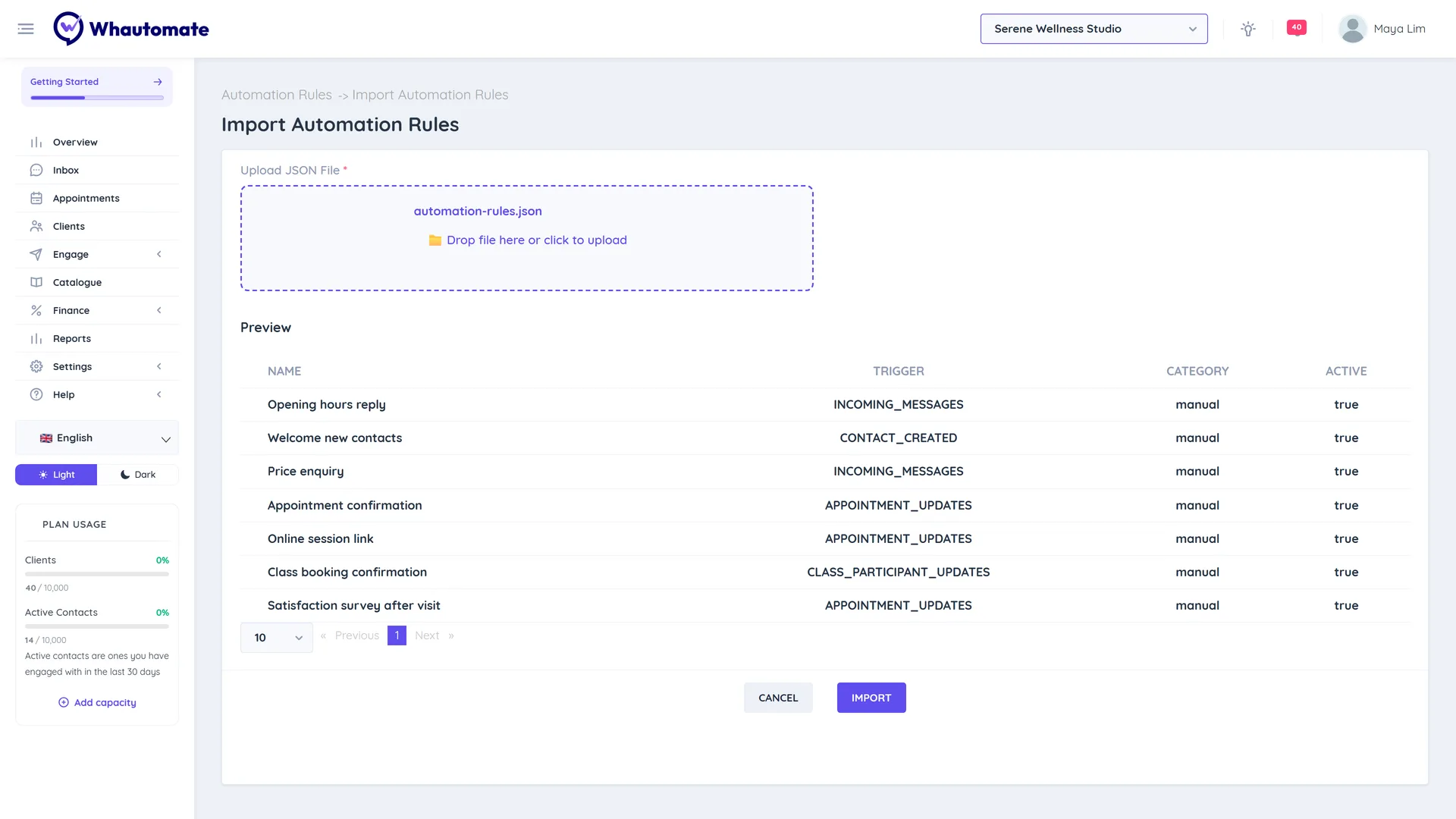
- Under Upload JSON File, choose the JSON file you unzipped, for example
rules-export.json(JSON only, up to 1 MB). - Check the Preview list: each rule's Name, Trigger, Category and whether it is Active.
- Click Import and confirm. You see "We are currently processing your import request. You will be notified when it is done!"
After importing
- Import always creates new rules. If you import the same file twice you get duplicates, so delete earlier copies first.
- Open each imported rule and check anything that belongs to the original location, such as WhatsApp templates, forms, contact groups, team members or knowledge bases. Pick the right ones for this location and save.
- Check whether each rule is on before relying on it.