Telegram chat linking
Telegram chat linking runs at each step of linking a Telegram chat to a client record: when the customer shares their phone number, picks their profile, says they are new or opens a client link. The linking itself is automatic; everything the bot says during it is a rule on this trigger, so you can change, translate or extend every message.
The Telegram rule templates install these rules for you. Edit them under Engage > Automations (the Telegram or Customer Experience tab) rather than starting from scratch. A chat is only linked to a client whose phone number is the one the customer shared from their own Telegram account.
Conditions
Conditions are optional. Click Add Condition, then pick a Field, an Operator and a value. Choose All (AND) or Any (OR) under Condition Type to decide whether every condition or just one must match.
| Condition | Operators | Values |
|---|---|---|
| Linking Step | is part of all, is part of any, is not part of all | Chat linked to the client, Several clients have this phone, No client has this phone yet, Customer chose "I am new", Client link opened (ask to confirm), Client link expired or invalid, Customer declined the client link, Shared a number that is not theirs, Client link opened before the phone was shared (ask for it), Client link opened from another phone number (not linked) |
| Contact Language | is part of all, is part of any, is not part of all | English, Arabic, Spanish, Portuguese (Brazil), Portuguese (Portugal), French, Chinese, Malay |
| Contact Tags | includes any, does not include all, is part of all, is part of any, is not part of all | Your contact tags |
| Contact Stage | equals, not equals | Subscriber, Lead, Engaged, Marketing qualified lead (MQL), Sales qualified lead (SQL), Opportunity, Follow-up Required, Customer, Evangelist, Other, Lost, Inactive |
| Contact Group | is part of all, is part of any, is not part of all | Your contact groups |
Linking Step is the moment in the flow, for example Several clients have this phone (send Send Telegram Client Picker) or Client link opened (ask to confirm) (send Send Telegram Link Confirmation). Add Contact Language to send a translated version of each message: one rule per language, plus one without the condition for everyone else.
Actions
Click Add Action and choose from Select Action. Actions run in order; use the arrows to reorder them. To delay an action, click Add wait time (or Add wait & Schedule time on template and email actions). Wait times count from the trigger event, not from the previous action.
Every action on this trigger can wait minutes to months.
| Action | What it does |
|---|---|
| Send Telegram Text Message | Sends a Telegram text reply. |
| Send Telegram Template Message | Sends a Telegram message with buttons. |
| Send Telegram Media | Sends an image, video or file on Telegram. |
| Send Telegram Client Picker | Sends your message with one button per client on the shared phone and a button for a new customer. The tapped client is linked to the chat. |
| Send Telegram Link Confirmation | Asks the customer to confirm the client link they opened, with a Yes and a No button. Use {{client.maskedName}} so a forwarded link never shows the full name. |
| Add Contact Tags | Adds tags to the contact. |
| Remove Contact Tags | Removes tags from the contact. |
| Add the Contact to Group | Adds the contact to a contact group, which you can check in later conditions. |
| Remove the Contact from Group | Removes the contact from a contact group, for example so a rule does not run twice. |
| Update Contact Stage | Moves the contact to a stage, such as Lead or Customer. |
| Assign Chat to Unassigned Queue | Moves the chat to the unassigned queue so a team member can pick it up (bot-to-human handover). |
| Add Contact Notes | Adds a note to the contact. |
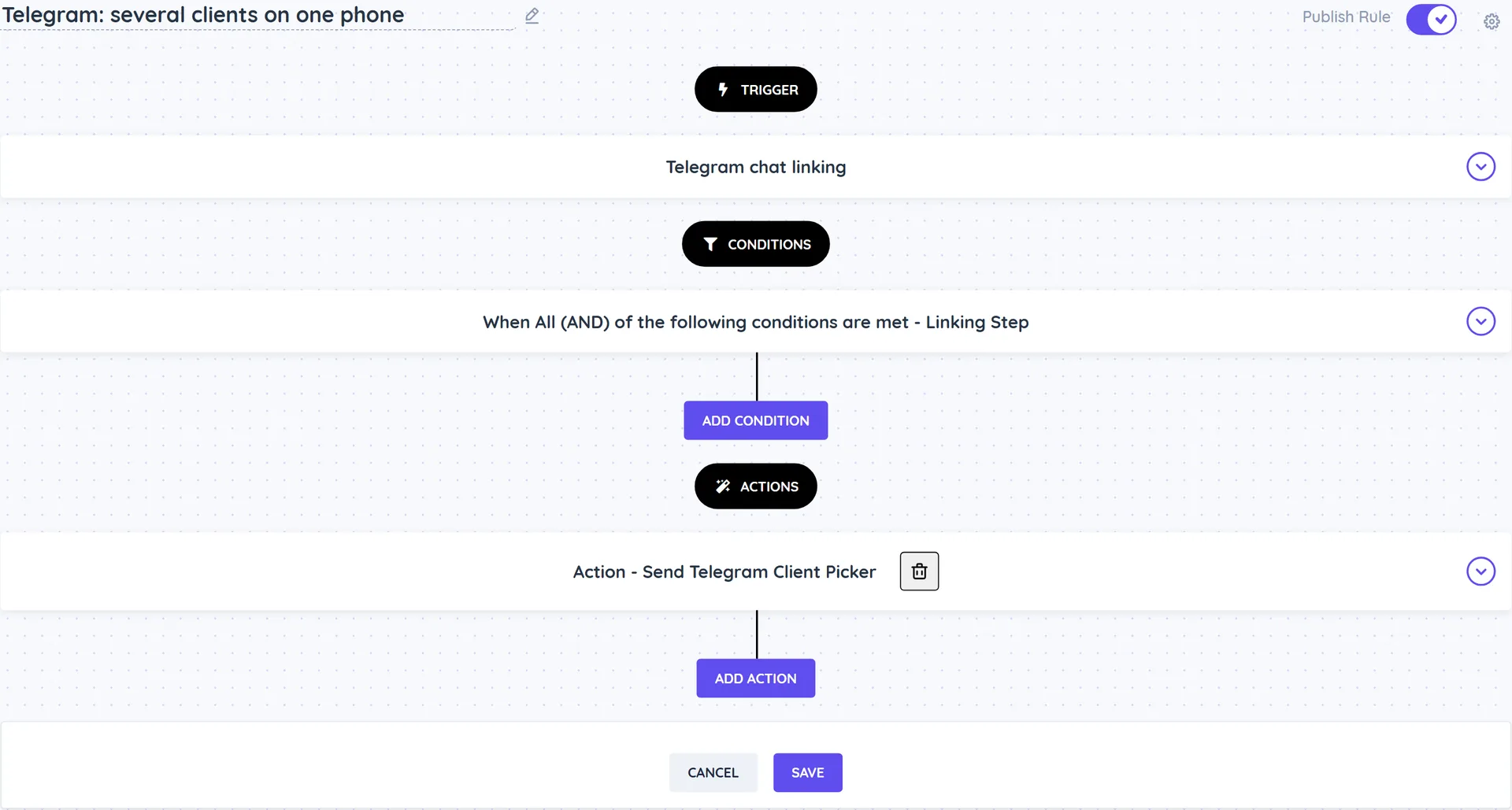
Example
Ask who is booking when several clients share a phone
- Go to Engage > Automations and open the rule for this step, or create one with the Telegram chat linking trigger.
- Add the condition Linking Step is part of any Several clients have this phone.
- Add the action Send Telegram Client Picker with a message such as "Who are you booking for? Pick a name below."
- Turn on Publish Rule and click Save.
Good to know
- Send Telegram Client Picker adds one button per client on the shared phone and a button for a new customer; the client tapped is linked to the chat. You can rename the buttons in the action.
- Send Telegram Link Confirmation asks the customer to confirm the client link they opened with a Yes and a No button. Use {{client.maskedName}} in the text so a forwarded link never shows the full name.
- Empty button texts fall back to built-in texts in the customer's language.
- Linking messages do not run Incoming Telegram Messages rules.