Telegram
Connect a Telegram bot so people who message it reach your Team Inbox, where your team and chatbots can reply. Telegram has no message templates or 24-hour limit, so you can message a chat at any time.
Once customers share their phone number with the bot, their chat is linked to their client profile. From then on reminders, booking updates and campaigns can reach them on Telegram, and the bot can open your booking site inside Telegram as a mini app.
Before you start
- A Telegram account on your phone or computer.
- You need to be an admin in Whautomate.
Create a bot with BotFather
- In Telegram, open a chat with @BotFather (the official bot with a blue tick).
- Send /newbot.
- Enter a display name for the bot, for example "Serene Wellness Studio".
- Enter a username that ends in bot, for example serenewellness_bot.
- BotFather replies with an HTTP API token. Copy it and keep it private: anyone with the token can control your bot.
Connect the bot
-
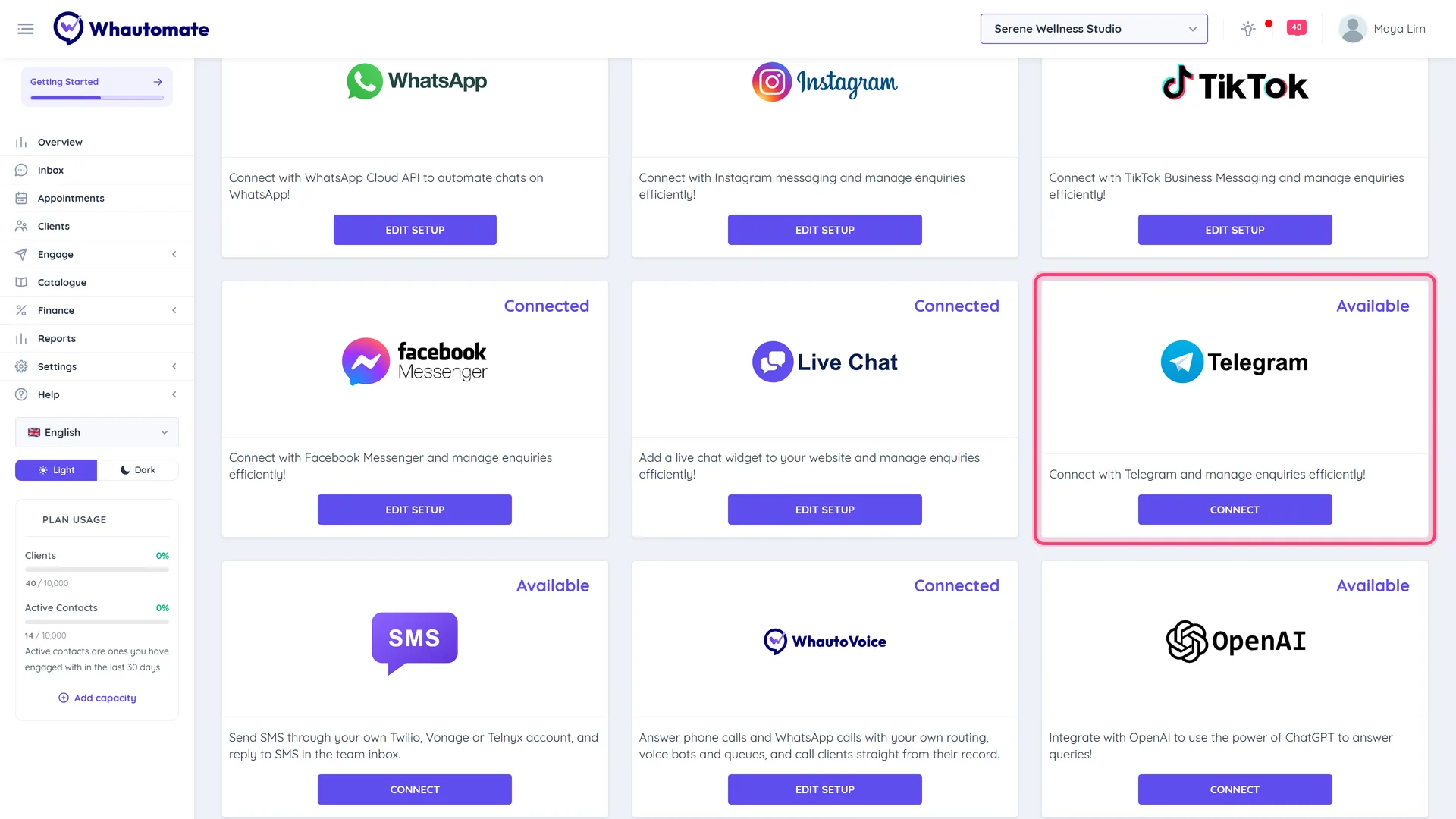
Go to Settings > Integrations and click Connect on the Telegram card.
-
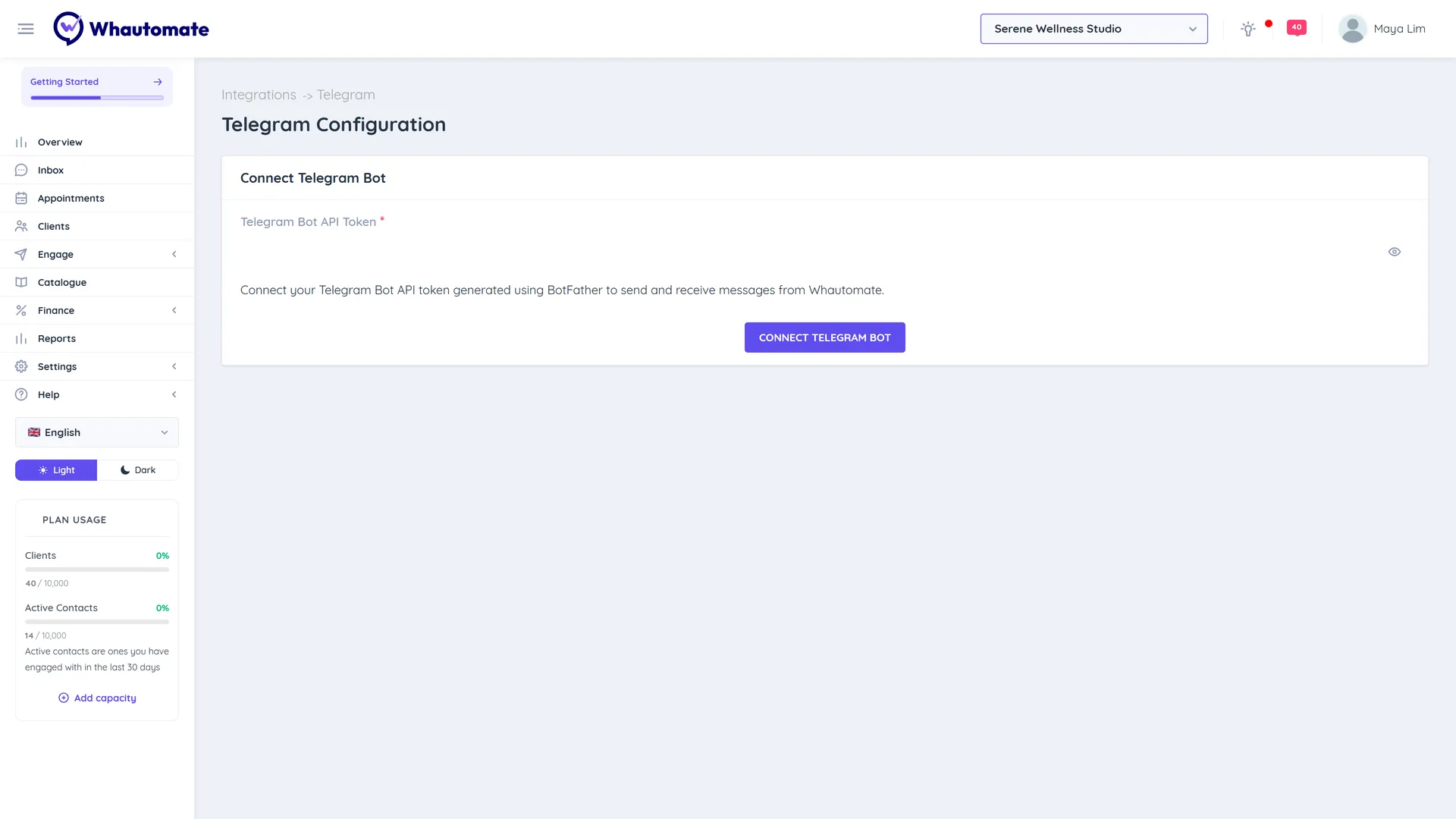
Under Connect Telegram Bot, paste the token into Telegram Bot API Token.
-
Click Connect Telegram Bot. You see Telegram successfully connected!
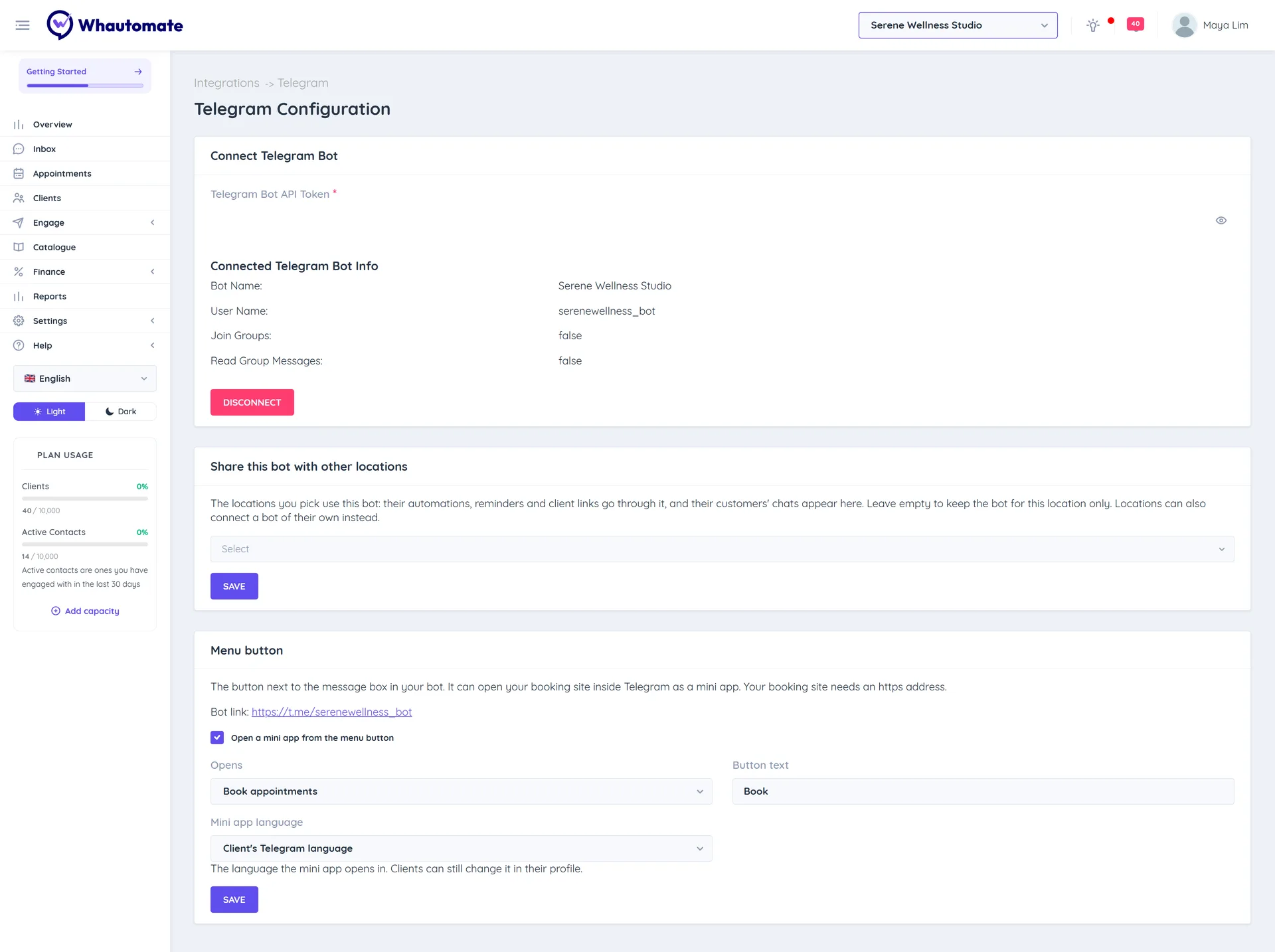
The page then shows Connected Telegram Bot Info: the Bot Name, User Name, and whether the bot can Join Groups and Read Group Messages. If you have not written the bot's About text and description in BotFather, they are set to "Official (your business name) Telegram Account Powered by Whautomate". Anything you write in BotFather is never overwritten.
Share your bot link (https://t.me/ followed by the bot username) on your website or social profiles so customers can find it.
Use one bot for several locations
A bot can be connected at one location only. To let other locations of your account use it, open the location that connected the bot and, under Share this bot with other locations, pick the locations and click Save.
The locations you pick use this bot: their automations, reminders and client links go through it, and their customers' chats appear in the Team Inbox of the location that connected the bot. A location using a shared bot sees which bot it uses on its own Telegram page. To give a location its own bot instead, connect a bot there; it then stops using the shared one.
Menu button
The Menu button is the button next to the message box in your bot. Tick Open a mini app from the menu button to make it open your booking site inside Telegram:
- Opens: what the button opens, for example Book appointments, Book classes, Online store or My bookings.
- Button text: up to 30 characters, for example "Book".
- Mini app language: leave it on Client's Telegram language, or pick a language.
Click Save. Your booking site needs an https address. See Telegram mini app.
Link Telegram chats to clients
A Telegram chat starts as a contact. Whautomate links it to a client so client automations, reminders and campaigns can reach that client on Telegram:
- The customer shares their phone: the bot asks for it with the Request Telegram Phone Number automation action (the mini app chatbot templates do this first). Telegram only lets people share their own number, so the number is verified. The chat is then matched to the clients with that mobile number, like WhatsApp: a parent and children on one phone all get their updates in that chat.
- You send a Telegram link: on the client's profile, open Contact Channels and click Create Telegram link. Send the link to the client. When they open it in Telegram and confirm, their chat is linked to this client. The link works for 7 days, and only for a chat whose shared phone is the client's own.
- After a mini app booking: a booking made in the mini app links the chat to the client it was made for.
The Contact Channels tab shows each linked chat and how it was linked (Client opened their link, Client shared their phone, Linked by your team or Confirmed after booking), and Blocked the bot when the customer blocked it. Click Unlink to stop automations reaching the client on that chat. See Contact channels, where clients also choose to receive updates on Telegram.
What the bot says while linking
Everything the bot says during linking ("Welcome back", "Who is this?", "Link this chat to ...?", "Please share your own number" and so on) is an automation rule you can edit and translate. The rules use the Telegram chat linking trigger, with one rule per Linking Step. The mini app chatbot templates include them; for any other Telegram bot, install the Telegram client linking messages template. See Rule templates.
Telegram automations
- Incoming Telegram Messages and Outgoing Telegram Messages run on Telegram conversations. See Incoming Telegram messages.
- Client, booking and sales triggers offer Send Telegram Text Message, Send Telegram Template Message (with buttons, including Open mini app), Send Telegram Media and Send Telegram Audio. They go to the client's linked Telegram chat, at any time (there is no 24-hour window). A client with no linked chat, or who blocked the bot, is skipped with a "Skipped:" reason in the rule's log.
- Use the Client Receives Updates On condition to send on Telegram only to clients who chose it.
- Appointment Booked From, Class Participant Booked From and Ordered From can be set to Telegram for rules that only apply to mini app bookings and orders.
Merge tags {{client.telegramLink}} and {{business.telegramBotLink}} insert the client's personal link and your bot link into any message. See Create an automation rule.
Chatbot templates for Telegram (AI chatbots and the mini app booking chatbots) are under Telegram in the template gallery. See Telegram AI chatbot.
Telegram campaigns
Once a bot is connected, Telegram appears as a Channel in Engage > Broadcasts. Send a message, a file and up to 3 buttons (including Open mini app) to Telegram contacts, linked clients or class participants. See Telegram broadcasts.
Disconnect
Click Disconnect. You will no longer send or receive Telegram messages in Whautomate, and the locations you shared the bot with can no longer send through it. The bot itself stays in Telegram.