Telegram Broadcasts
A Telegram broadcast sends one message from your Telegram bot to many people at once, for example a new timetable, an offer or a reminder to book. Each person gets it as a private chat message from your bot, and their replies arrive in your Team Inbox.
Unlike WhatsApp, Telegram needs no approved template: you write the message yourself. Your bot can only message people who have started a chat with it.
Before you start
- Connect a Telegram bot to the location. See Telegram. The Telegram channel only appears once a bot is connected.
- To reach clients, their Telegram chat must be linked to their client record. See Telegram.
- To reach contacts, create a Telegram contact segment.
Create a Telegram broadcast
-
Go to Engage > Broadcasts and click + Add Broadcast.
-
Campaign: enter a Broadcast Name and choose Telegram as the Channel.
-
Recipients: choose the Recipient Type:
- Contact: Telegram contact segments (people who chat with your bot).
- Client: client segments (CRM Suite). Only clients whose Telegram chat is linked are reached.
- Class: participants of a class (CRM Suite and Bookings), again only those with a linked chat.
- Retarget: people from an earlier Telegram campaign. See Retarget.
Recipients Count counts only the chats your bot can reach.
-
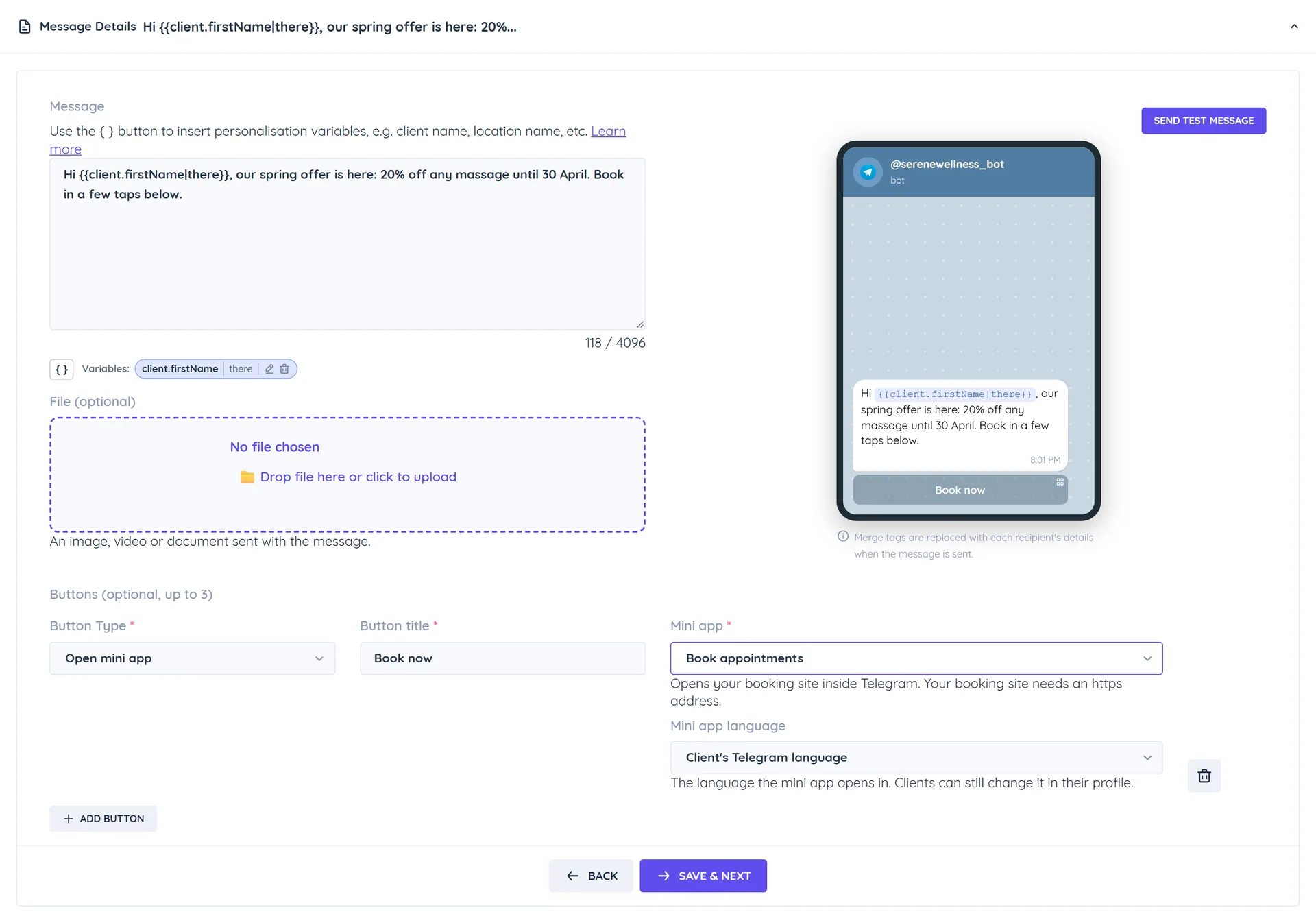
Message Details:
- Write the Message, up to 4096 characters. Click { } to insert a variable such as the first name.
- Add an optional File: an image, video or document sent with the message.
- Add up to 3 Buttons (titles up to 40 characters):
- Web URL opens a link that starts with http:// or https://.
- Post Back sends a reply to your inbox when tapped. Leave the payload empty to use the button title.
- Open mini app opens a page of your Telegram mini app: Book appointments, Book classes, Book events, Online store, Memberships, My bookings, My orders or Profile. Only pages your plan includes are offered.
A message needs text or a file. Click Send Test Message and pick one of your own Telegram chats to see it on your phone.
-
Schedule & Send: choose a date and time, or leave it empty to send now. Check the summary and click Save & Schedule, or Save Draft to finish later.
Track results and retarget
Open the broadcast from Engage > Broadcasts to see its results, as for WhatsApp broadcasts.
- Telegram has no delivery or read receipts. A message Telegram accepts counts as sent and delivered, and Messages Read stays at 0.
- Replies are recorded, so you can filter the recipient list by who replied.
- People who blocked your bot are skipped.
- To Retarget, choose sent, replied, not replied or failed recipients of an earlier Telegram campaign. All Read Recipients is not offered.
Stopping, cloning, editing and deleting work as for WhatsApp broadcasts.