Mobile Team Inbox App
The Whautomate Business app puts your Team Inbox on your phone. Your team can answer WhatsApp, Instagram, Messenger, Telegram, TikTok, live chat and SMS messages, assign and close chats, send templates, photos and voice notes, and get a notification the moment a customer writes. Depending on your plan, the app also shows your clients, calendar, orders and invoices.
Install the app
- iPhone and iPad: Whautomate Business on the App Store
- Android: Whautomate Business on Google Play
Team members sign in with the same email and password they use on the web. New accounts are created on the web, not in the app.
Sign in
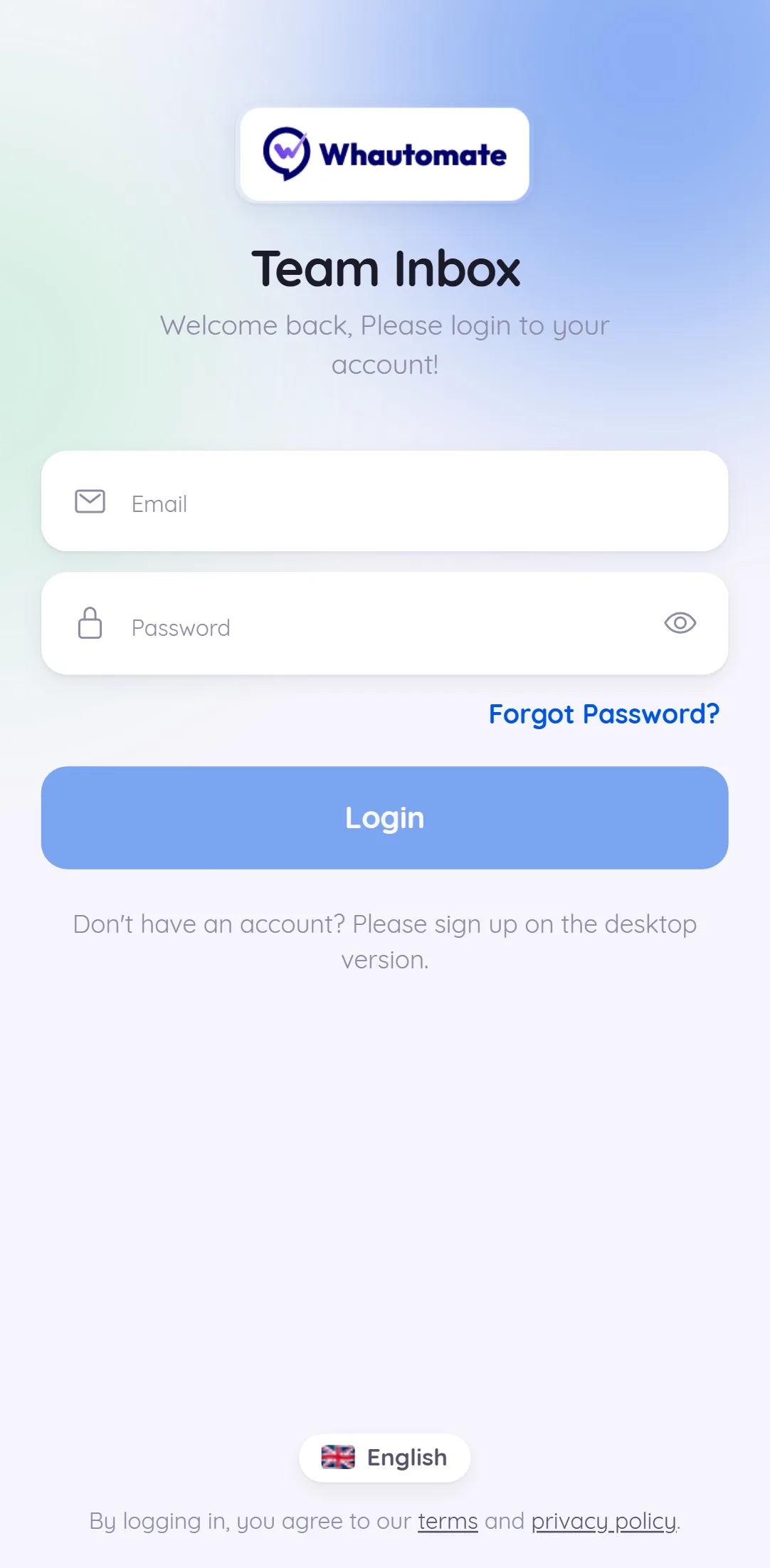
- Open the app and enter your Email and Password.
- Tap Login.
- If two-factor authentication is on for your account, enter the 6 digit code from your authenticator app.
Forgot your password? Tap Forgot Password?, enter your Email and tap Submit. A reset link is sent to your email.
You can change the app language from the language chip at the bottom of the login screen. If your account is hosted in the India region, tap the region chip (when shown) and choose India Region before you sign in.
Choose a workspace
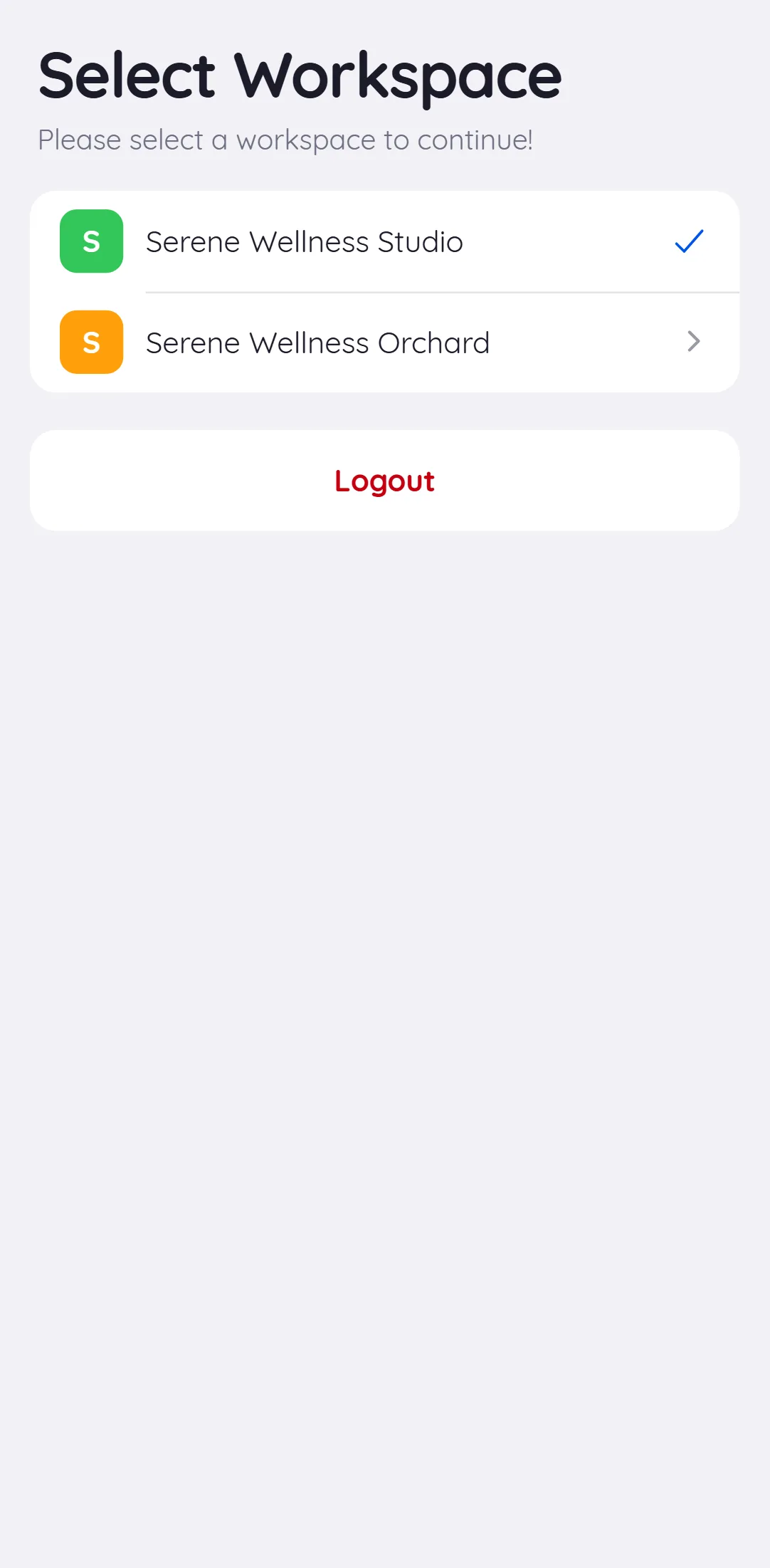
After you sign in, Select Workspace lists the workspaces you have access to. Tap one to open its inbox. The app remembers your choice.
To switch later, tap the building icon at the top left of the inbox, or go to Menu > Switch Workspace. If you tap a notification from another workspace, the app switches for you.
Find conversations
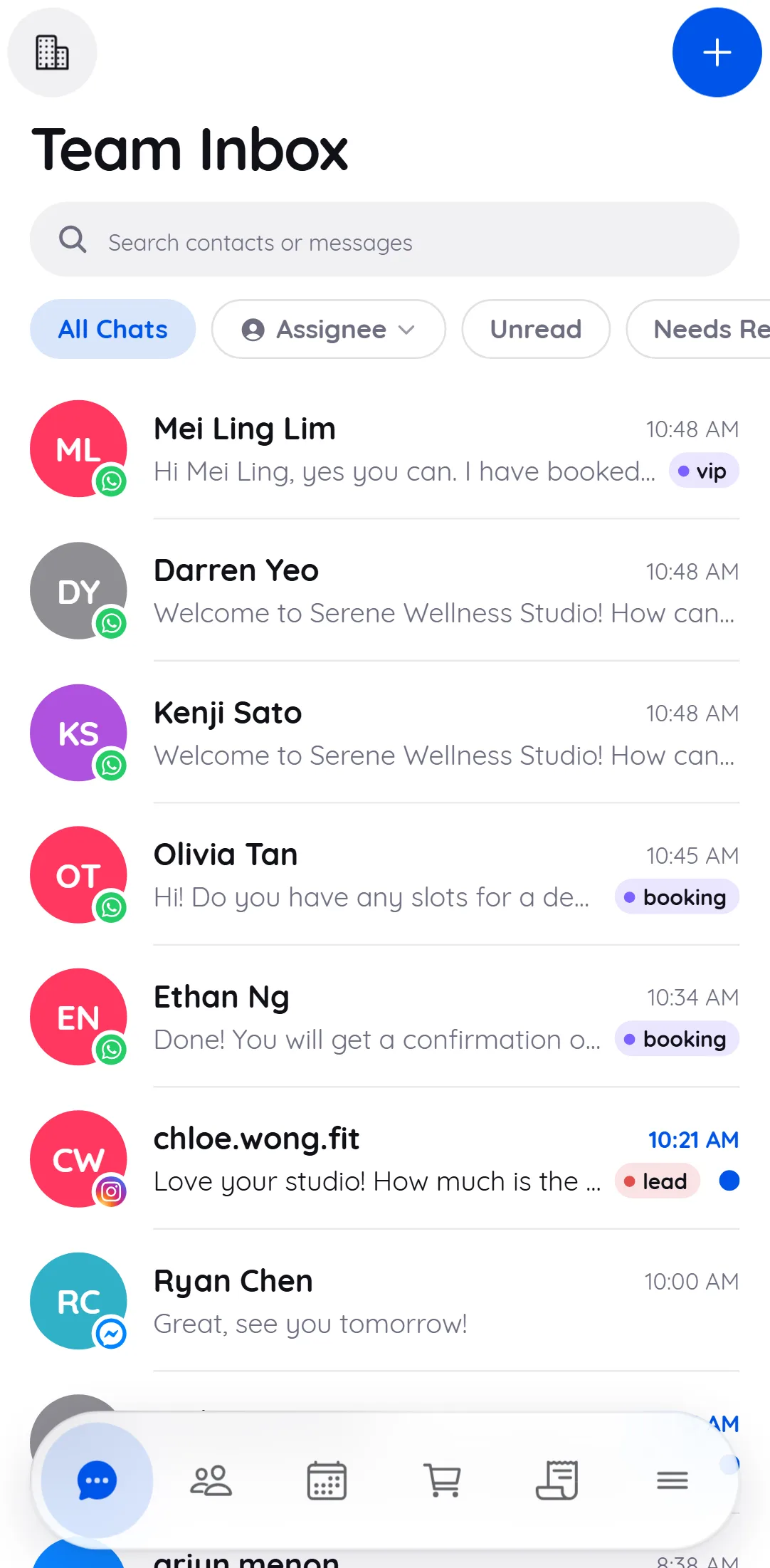
The inbox is the first tab in the bar at the bottom.
- Use the chips at the top to switch between All Chats, Unread, Needs Reply, Unassigned, Open, Closed and your custom inboxes. Admins also get an Assignee chip to filter by team member.
- Tap the search bar to search contacts or messages.
- Pull down to refresh.
Which chips appear is set by your admin in Team Inbox Settings. Team members who are not admins see their own chats and unassigned chats.
To start a new conversation, tap +, enter the Name and phone number with country code, and tap Save.
Reply to a customer
- Tap a conversation.
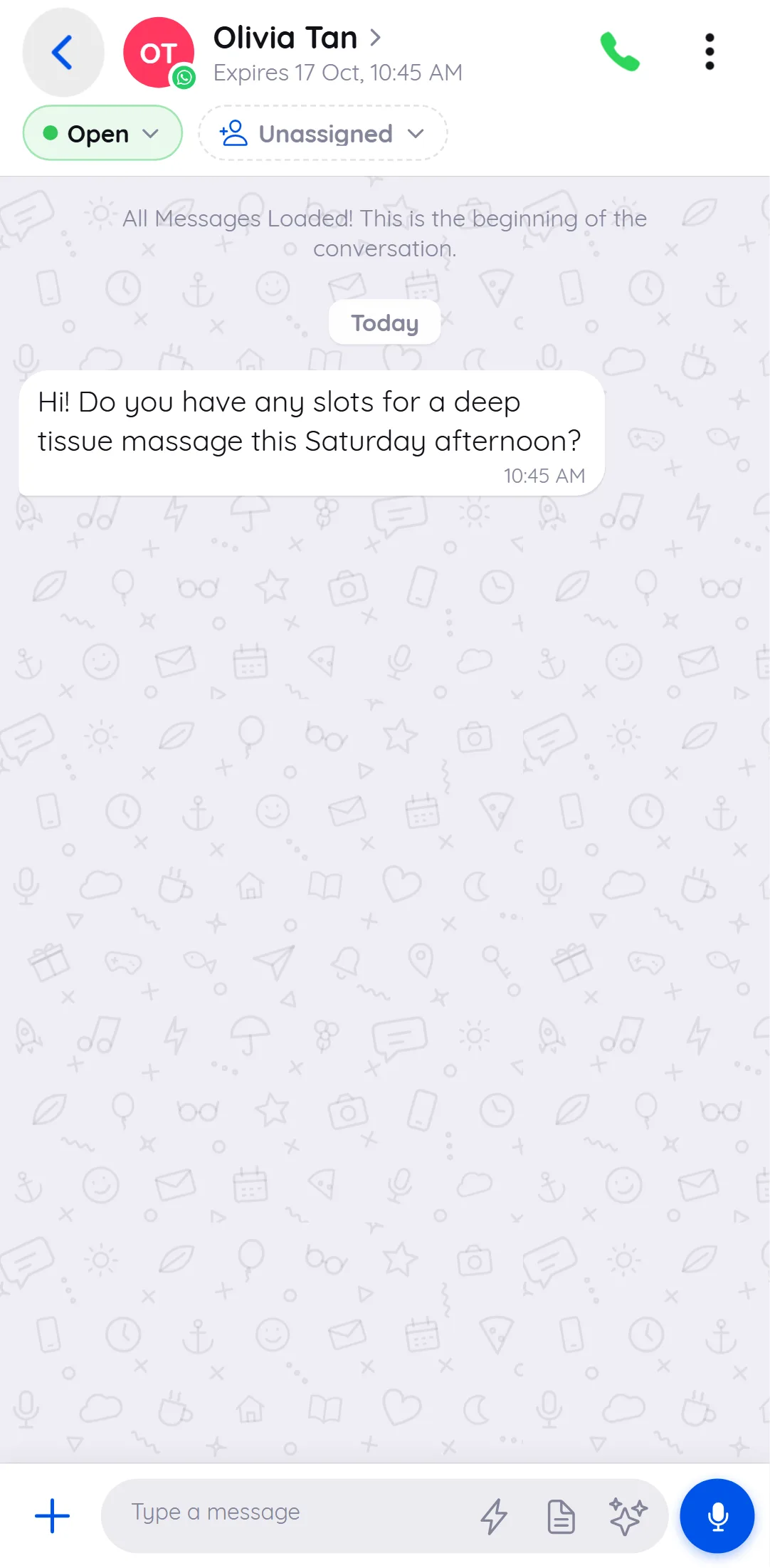
- Type in the message box and tap send. When the box is empty, tap the microphone to record a voice note, stop, then send.
- Use the icons in the message box for Canned responses (or type #), Template Message and Write with AI.
- Tap the attach button to Take Photo, Choose from Library, add Videos, Select Document, send a Template Message or a WhatsApp Flow.
Press and hold a message to Reply, Copy, Translate, Transcribe a voice note, Copy link or Share.
On WhatsApp, the header shows when the 24 hour window expires. After it expires, you see Session expired. Send a template to re-engage. and a Send Template Message button.
Assign, open and close chats
Below the header, tap the status pill to switch between Open and Closed, and tap the assignee pill (or Unassigned) to choose a team member. The ⋮ menu has the same options: Open Chat or Close Chat, Assign Chat and View Contact Info.
Contact info and media
Tap the contact's name to open their details:
- Info: phone number (tap to copy), contact owner, channel, stage, Notes, Tags, call permission and Block Contact.
- Clients: the matching client records with appointments, classes and orders (needs an add-on).
- Media: every photo, video, voice note and document in the conversation. Filter by Images, Videos, Audio or Docs and tap an item to view it full screen.
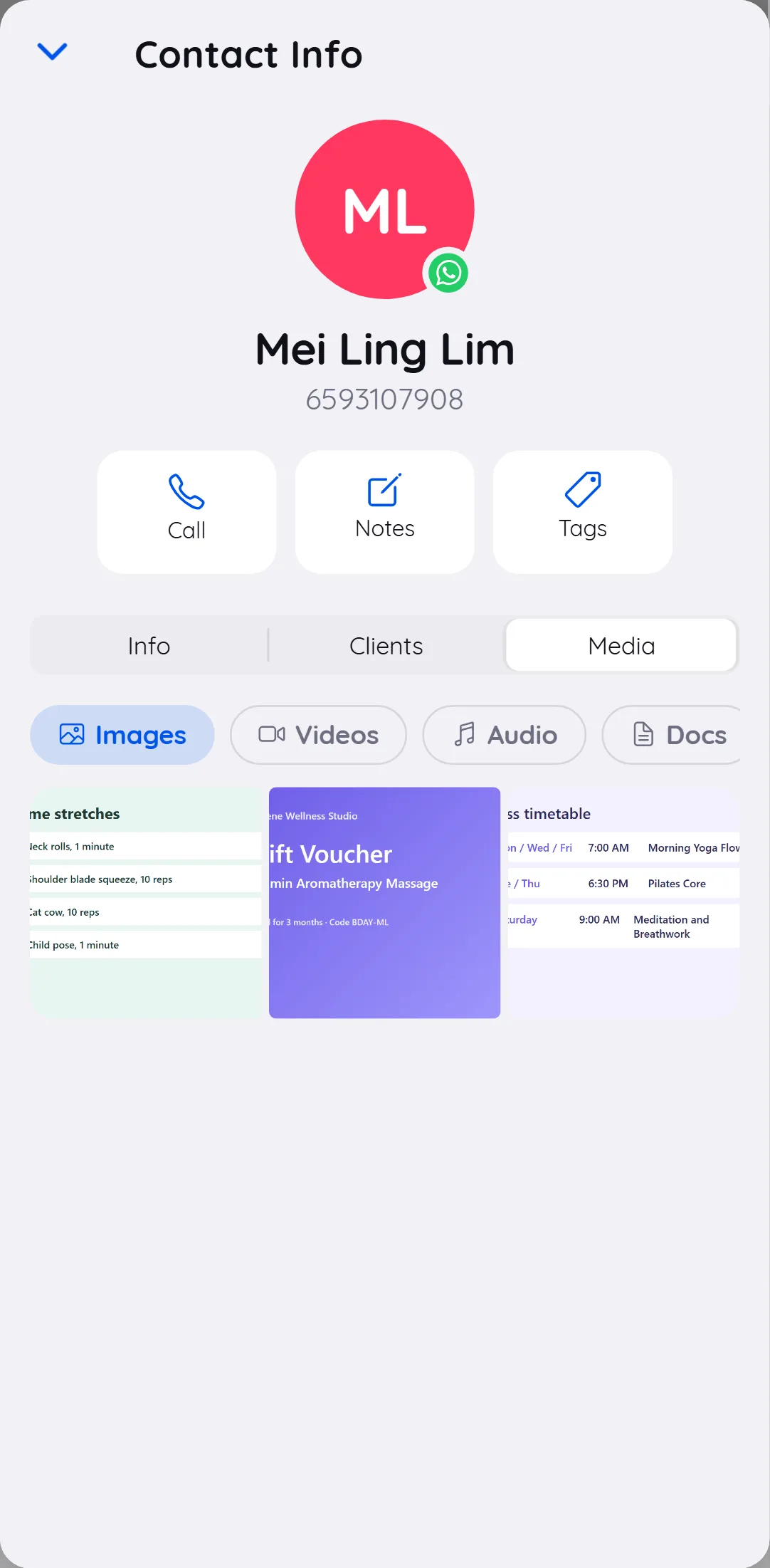
If your workspace uses WhatsApp calling, the chat header and contact info have a Call button.
Push notifications
The first time you open the app, it asks to send notifications. Tap Turn on notifications and allow them when your phone asks.
To change notifications later, go to Menu > Notifications:
- Push Notifications turns notifications on or off on this phone.
- Notification Settings lets you choose which events notify you. Under Team Inbox: New Conversation, Chat Unassigned, Chat Assigned and Chat Reply. Depending on your plan, there are also sections for Appointments, Classes, Invoice and Order. For each, choose Web and/or Mobile, then tap Save.
Notification settings are saved for you and the current workspace. You do not get a notification for the chat you have open.
Menu and settings
The Menu tab has:
- Switch Workspace.
- Appearance: Light Mode, Dark Mode or System Default.
- Language: English, Arabic, Spanish, Portuguese (Brazil), Portuguese (Portugal), French, Chinese and Malay.
- Time Format: 12-hour or 24-hour.
- Notifications.
- About, Terms and Conditions and Privacy Policy.
- Logout.
What you see depends on your plan and role
- The inbox is available on every plan.
- Clients needs CRM Suite, the Calendar needs Bookings, and Orders and Invoices need Sales. Tabs your plan does not include are hidden.
- Team members without access to communication, clients or finance do not see those tabs.
Troubleshooting
- Your user account doesn't have access to this platform: ask your account owner to check your team member access.
- No notifications: check Push Notifications in Menu > Notifications, the event settings in Notification Settings, and that notifications are allowed for the app in your phone's settings.
- Oops! No Internet Connection: check your connection and tap Refresh.