WhatsApp Broadcasts
A WhatsApp broadcast sends one approved WhatsApp template to many people at once, for example a monthly offer, a new class timetable or a holiday closing notice. Each person receives it as a private message, and their replies arrive in your Team Inbox. Broadcasts to contact segments are part of every plan.
Sending to client segments or class participants needs CRM Suite (classes also need Bookings).
Choose a channel
Every campaign starts with a Channel. This page covers WhatsApp; the steps are the same for the others:
| Channel | Message | Audiences | Details |
|---|---|---|---|
| An approved template | Contact (WhatsApp segments), Client, Class, Retarget | This page | |
| A designed email, from the sender you choose | Client, Class, Retarget | Email broadcasts | |
| Telegram | Free text, an optional file and up to 3 buttons | Contact (Telegram segments), Client, Class, Retarget | Telegram broadcasts |
| SMS | Plain text, sent through your SMS provider | Contact (SMS segments), Client, Class, Retarget | SMS broadcasts |
Telegram shows only when a Telegram bot is connected. SMS is always shown; without an SMS provider the form says SMS is not set up and the campaign cannot be scheduled. A contact segment only works with campaigns on its own channel. See Contact segments.
Before you start
- Connect WhatsApp. See WhatsApp Cloud API.
- Create a WhatsApp template and wait for Meta to approve it. Only approved templates can be broadcast. See WhatsApp Message Templates.
- Create a segment for the people you want to reach.
Create a broadcast
Go to Engage > Broadcasts and click + Add Broadcast. The form has five steps. Click Save & Next to move on; your broadcast is saved as a draft after the first step.
-
Campaign: enter a Broadcast Name and choose WhatsApp as the Channel.
-
Recipients: choose the Recipient Type:
- Contact: choose one or more contact segments under Recipients.
- Client: choose one or more client segments (CRM Suite).
- Class: choose a Class and a Class Participant Status (CRM Suite and Bookings).
- Retarget: send to people from an earlier broadcast. See Retarget a broadcast.
Click Recipients Count to see how many people will receive it. Click Create Segment if you need a new one.
-
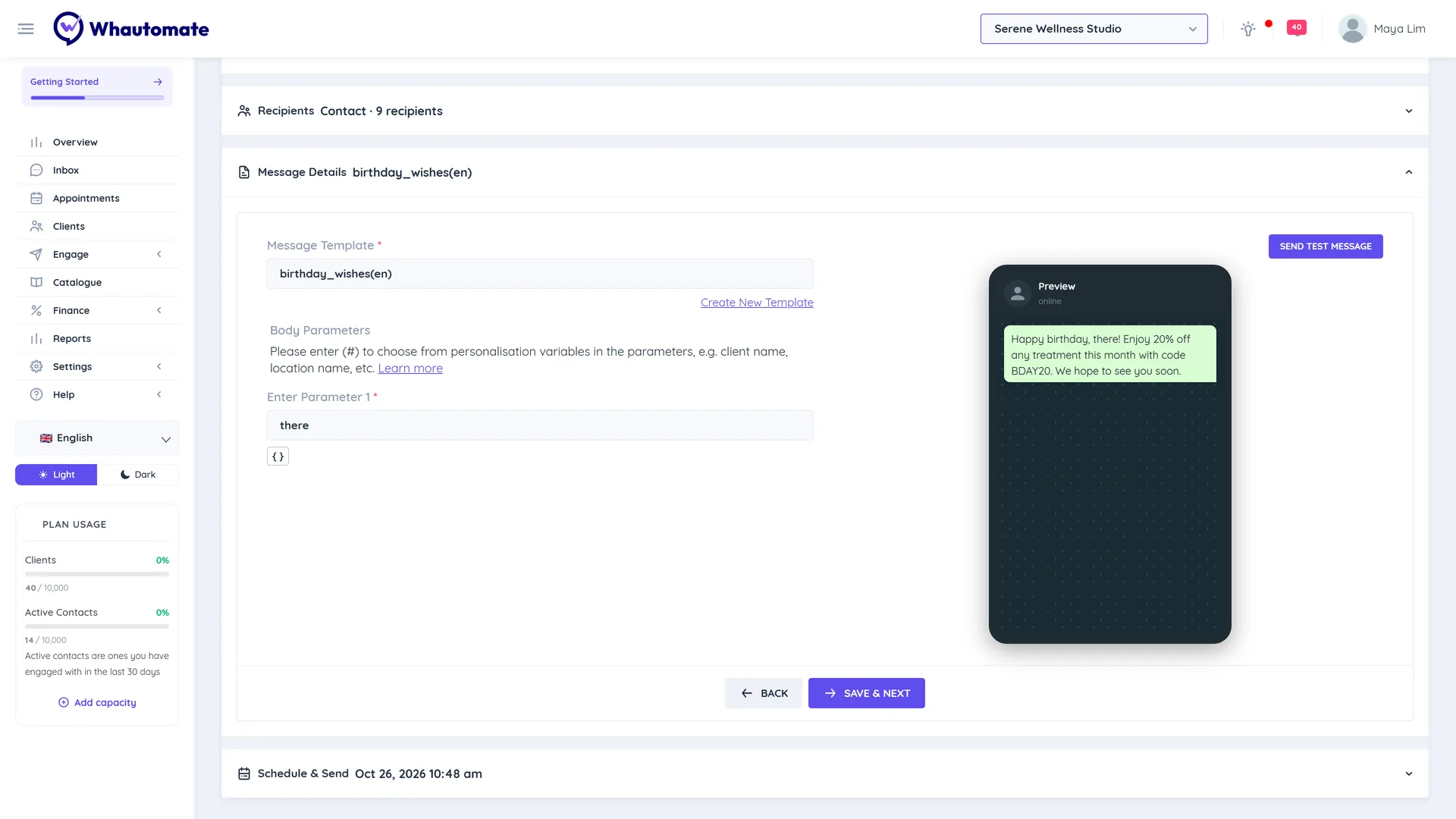
Message Details: search and pick an approved template under Message Template.
- If the template has an image, video or document header, choose Upload Media or Paste Media URL. Images must be PNG or JPEG and videos MP4.
- Fill in the Header Parameters, Body Parameters and URL Parameters. Click { } next to a parameter to open Insert variable and pick a personalisation variable such as the contact's name, with an optional fallback. See Personalisation variables.
- Check the phone preview, then click Send Test Message, enter your Phone Number with country code and send. Personalisation variables are not filled in on test messages.
-
Schedule & Send: under Broadcast Schedule, choose a date and time, or leave it empty to send immediately.
-
Check the Campaign Summary and click Save & Schedule. Confirm the number of recipients in the warning. You see Broadcast saved successfully!
To finish later, click Save Draft at any point. Drafts are never sent.
Track results
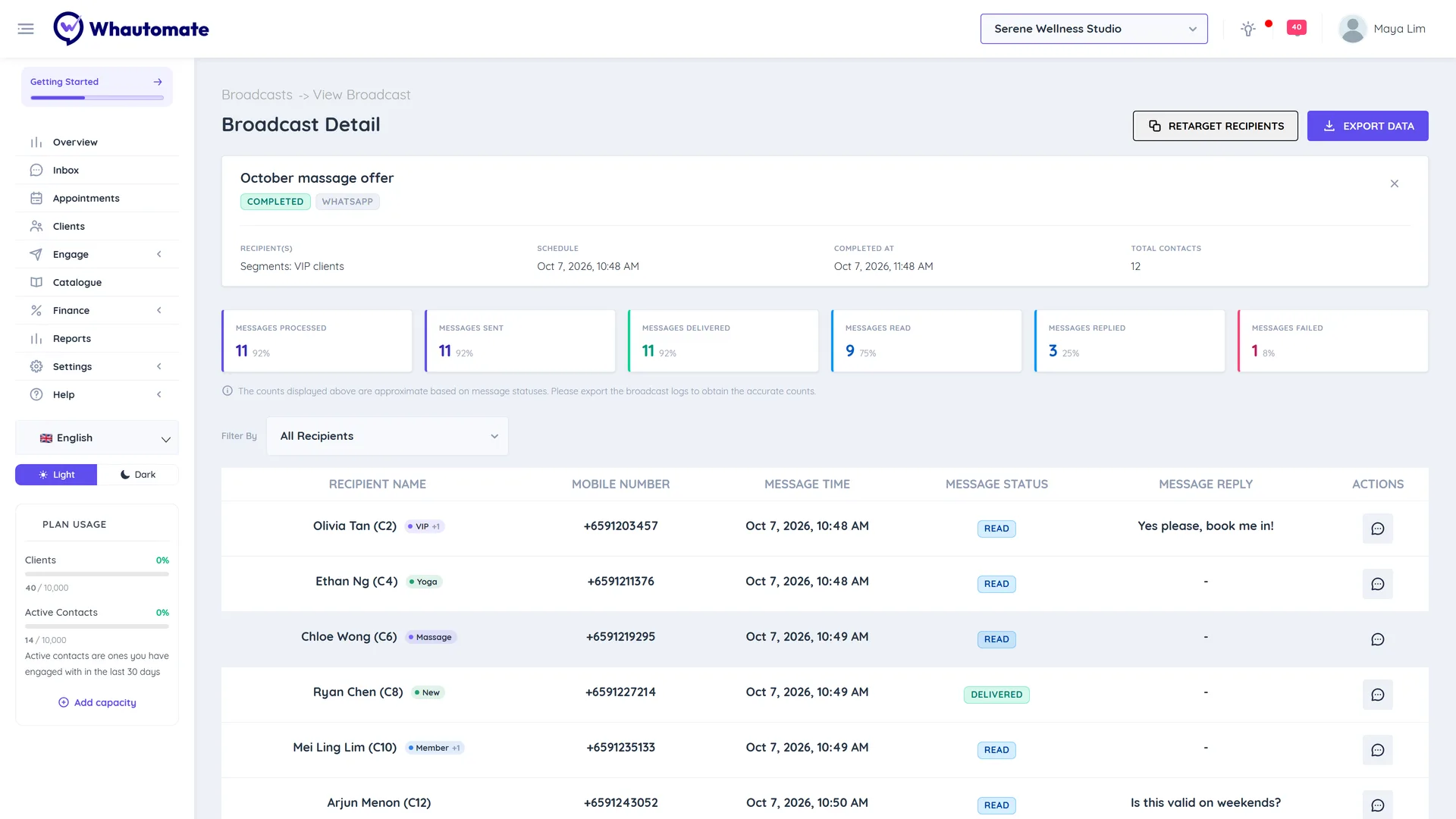
On the Broadcasts page, each broadcast shows its channel, template, schedule, recipients and status (for example PENDING, RUNNING, COMPLETED or STOPPED). Click View Analytics (or the broadcast name) to open the Broadcast Detail page:
- Messages Processed, Messages Sent, Messages Delivered, Messages Read, Messages Replied and Messages Failed, with counts and percentages.
- A recipient list with Message Status and Message Reply. Use Filter By to see, for example, everyone who replied or everyone whose message failed. Click Start Chat to follow up with someone.
- Export Data prepares a full report in the background. Download it from Settings > Data Exports.
The counts are approximate while messages are still being delivered. Export the report for exact figures.
Manage broadcasts
From the actions on the Broadcasts page you can:
- Edit Broadcast or Delete Broadcast while it is a draft or scheduled and has not started.
- Stop Broadcast while it is sending. Messages already sent stay sent; pending messages are cancelled.
- Clone Broadcast to reuse a finished broadcast. The copy is named with "(Clone)".
- Preview Campaign to see the message.
Retarget a broadcast
After a broadcast has finished, click Retarget Recipients on its detail page, or create a broadcast with the Retarget recipient type. Choose the Retarget Broadcast (an earlier campaign on the same channel) and the Retarget Engagement Type, for example All Read Recipients, All Replied Recipients, All Sent But Not Replied Recipients or All Failed Recipients. For replied recipients, you can also filter by what they replied with Retarget Reply Filter.
Telegram and SMS have no read receipts, so All Read Recipients is not offered for them, and Telegram has no delivery receipts either (an accepted message counts as delivered).
Limits and good practice
- Messaging limits: Meta limits how many people your number can message in 24 hours (your messaging tier). A broadcast is capped at your current tier. During a free trial, broadcasts reach up to 100 recipients. See How to check my WhatsApp quality rating and messaging limits.
- Paused accounts: if Meta has paused or restricted your WhatsApp account, Save & Schedule is disabled.
- Opt-outs: numbers on the WhatsApp Suppressions list in Contacts do not receive broadcasts. Exclude the Unsubscribe tag in your segments. See Marketing opt-out management.
- Meta charges per template message. See the WhatsApp pricing calculator.
- If your plan no longer includes the module a saved broadcast needs, it shows This campaign's audience or channel needs the CRM Suite add-on. and will not be sent until you upgrade.