Email Activity and Suppressions
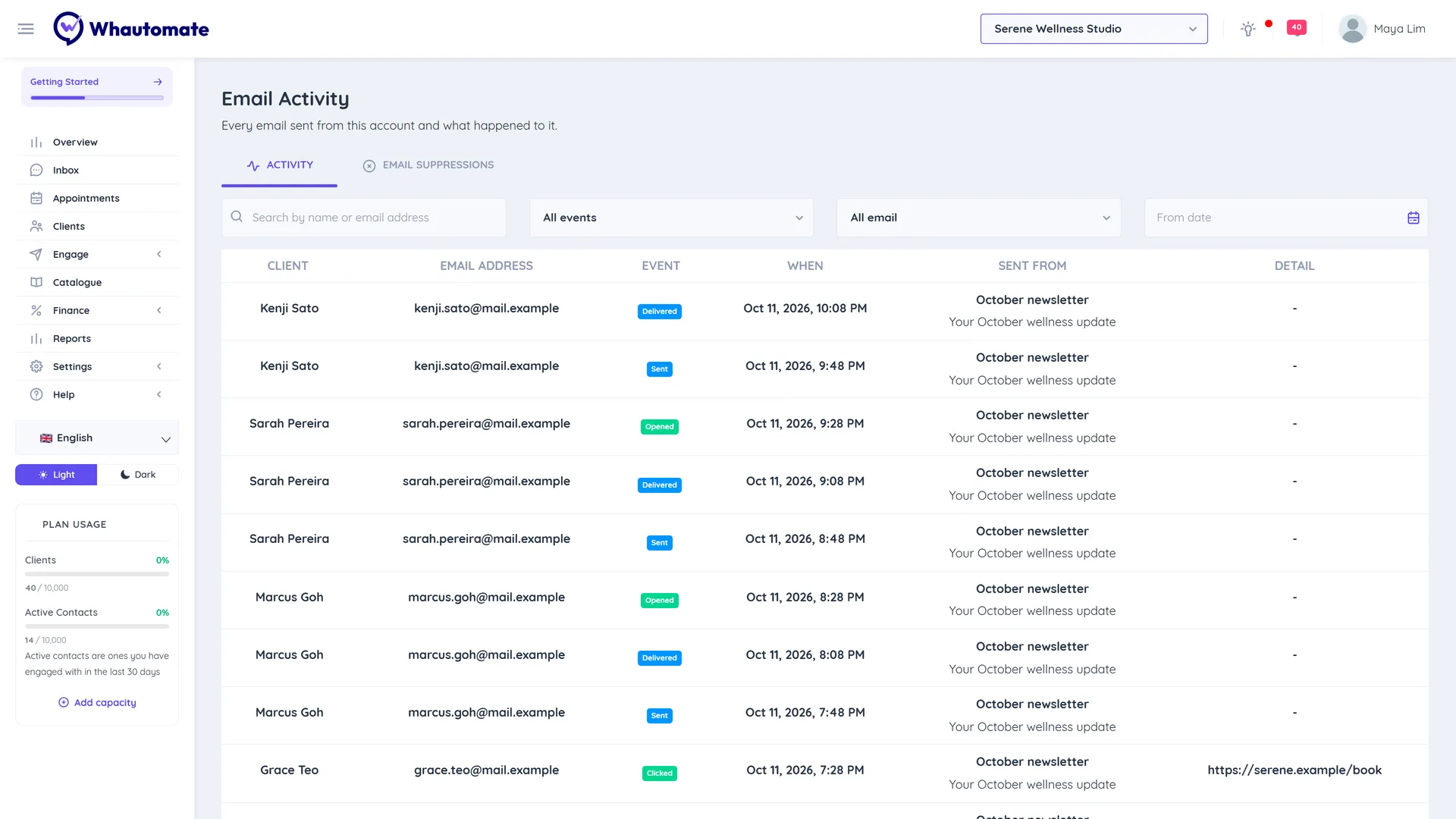
Email Activity lists every email sent from your account, campaigns as well as receipts, reminders and automation emails, and what happened to each one. Use it to answer "did my client get the email?", to see who clicked a link, and to manage the Email Suppressions list: the addresses that will not receive email from you.
Before you start
You need permission to send broadcasts. Without CRM Suite, Email Activity is not shown in the menu.
Check what happened to an email
- Go to Engage > Email Activity. The Activity tab opens.
- Search by name or email address, or filter:
- Event: Sent, Delivered, Opened, Clicked, Bounced, Spam, Unsubscribed or Failed.
- Type of email: Campaigns or Receipts & reminders.
- From date.
- Each row shows the Client, Email Address, Event, When, Sent From (the campaign, or a source such as an invoice, payment receipt or automation) and Detail (for example the link clicked or why an email bounced).
The do-not-send list
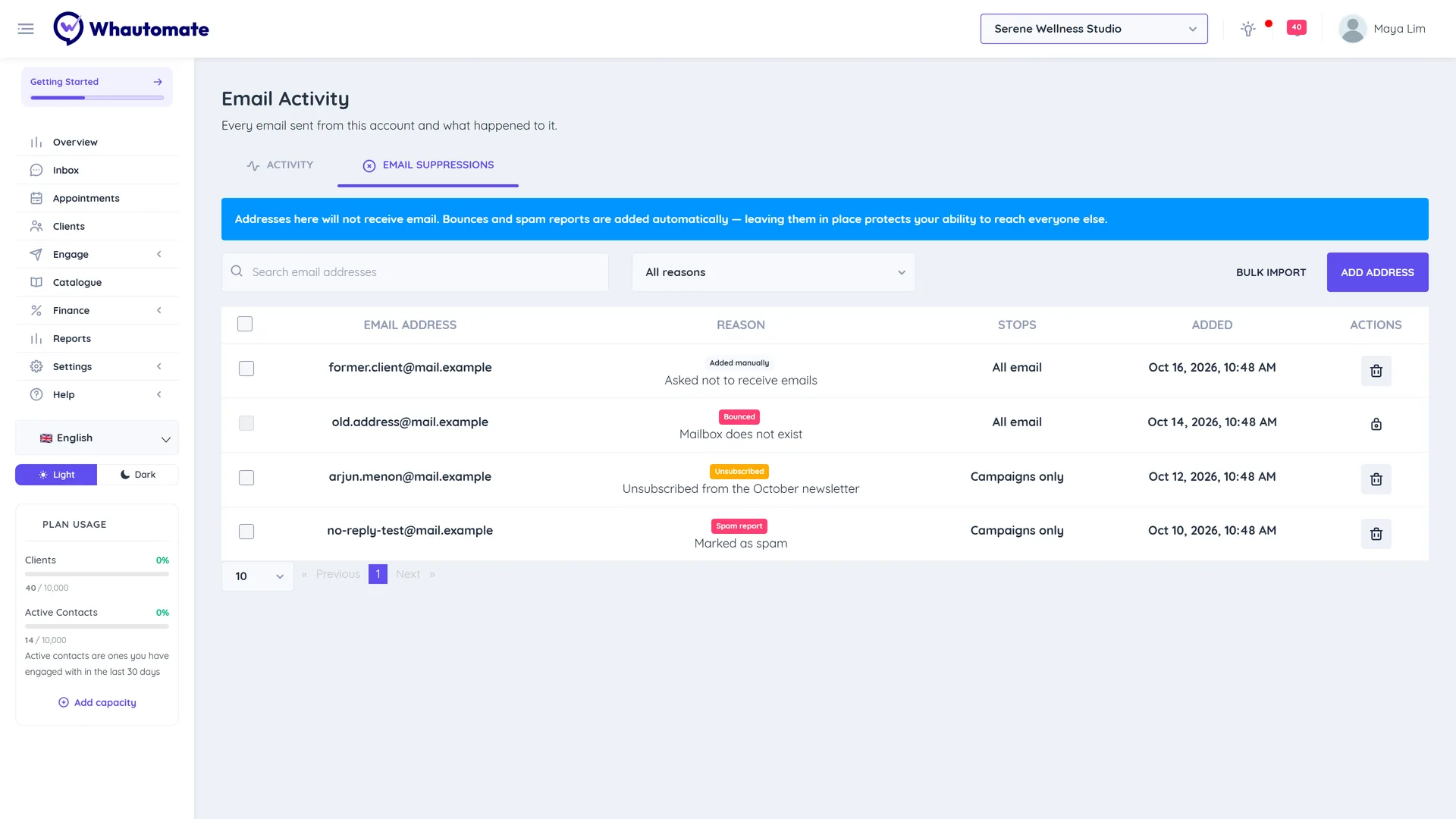
Open the Email Suppressions tab. Addresses here do not receive email. Bounces and spam reports are added automatically. Leaving them in place protects your ability to reach everyone else.
| Reason | Added when | Stops |
|---|---|---|
| Bounced | The address does not exist or permanently rejects mail | All email |
| Spam report | The person marked your email as spam | Campaigns only |
| Unsubscribed | The person clicked Unsubscribe in a campaign | Campaigns only |
| Added manually | You added it | All email |
"Campaigns only" means the person still receives receipts, booking reminders and other transactional emails.
Add addresses
- Click Add Address.
- Enter the Email Address and an optional reason.
- Save.
To add many at once, click Bulk Import, download the sample CSV, fill it in and upload it. Files must be CSV under 2 MB with up to 10,000 addresses, and one import runs at a time.
Remove addresses
Click Remove from list next to an address, or tick several and click Remove selected, then confirm. Addresses that bounced permanently show a lock and cannot be removed.
Tips
- If a client says they did not get an email, search their address on the Activity tab first, then check Email Suppressions.
- WhatsApp numbers that should not receive messages are managed separately, on the WhatsApp Suppressions tab in Contacts.