Team Inbox Settings
Team Inbox Settings lets you simplify the inbox for your team by choosing which views appear under Inbox on the left of the Team Inbox. For example, a small team that does not use assignment can hide Unassigned and Open. The settings apply to everyone in the workspace, on the web and in the mobile app.
Before you start
You need to be an account Owner or Administrator.
Change the inbox views
- Go to Settings > All Settings, and under Messaging & Inbox click Team Inbox Settings.
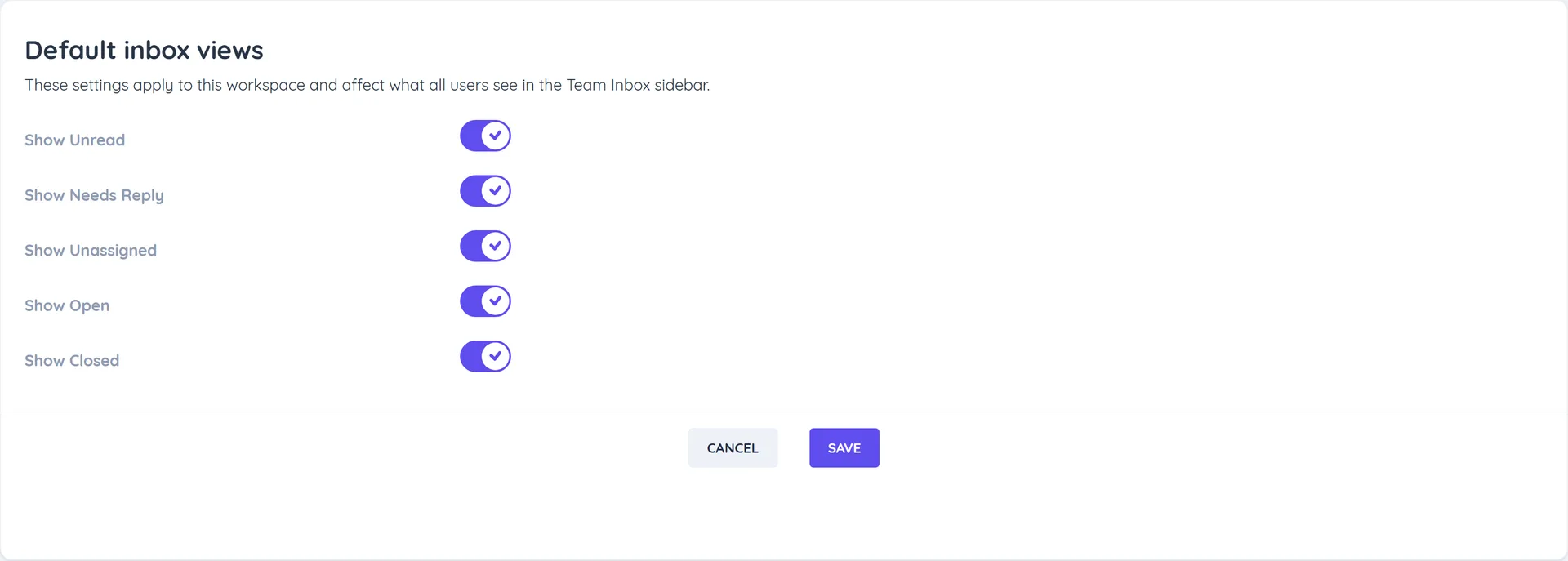
- Under Default inbox views, turn each view on or off:
- Show Unread
- Show Needs Reply
- Show Unassigned
- Show Open
- Show Closed
- Click Save. You see Team Inbox settings saved successfully.
Good to know
- All views are on by default.
- All Chats is always shown and cannot be hidden.
- Hiding a view only hides the shortcut. Conversations are not changed, and bots and assignment work as before. You can still build a custom inbox with the same filter.
- If someone was looking at a view you hide, their inbox switches back to All Chats.