WhatsApp Calling with WhautoVoice
With WhautoVoice connected, customers can tap the call button in a WhatsApp chat with your business and reach your team, just like a phone call. Calls can be answered by a voice bot, sent to a queue, a person or an IVR menu, and are recorded with transcripts and summaries. Your team can also call clients and contacts straight from the inbox. WhautoVoice is a separate product with its own account; connecting it is covered in WhautoVoice.
Before you start
- Connect a WhatsApp number. See WhatsApp Cloud API.
- You need to be an account Owner or Administrator.
Step 1: Connect WhautoVoice
Connect WhautoVoice to this location: go to Settings > Integrations, click Connect on the WhautoVoice card and approve the connection in WhautoVoice. If WhautoVoice is not connected yet, the WhatsApp Calling tab shows Answer WhatsApp calls with WhautoVoice with a Connect WhautoVoice button that takes you there. See WhautoVoice for the full steps, the storage region and disconnecting.
Step 2: Turn on WhatsApp calling
Calling for your WhatsApp number is switched on, and its routing set up, in WhautoVoice:
- Click Open WhautoVoice (or WhatsApp calling on the WhautoVoice page).
- Turn calling on for your WhatsApp number and choose whether calls go to a voice bot, a queue or a person.
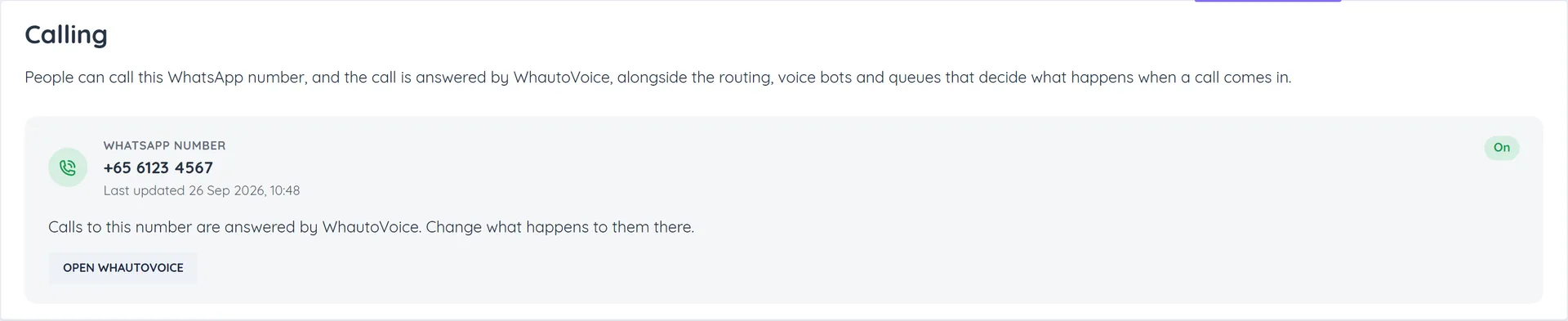
To check the status in Whautomate, go to Settings > Integrations > WhatsApp and open the Calling tab. It shows your WhatsApp number, whether Calling is On or Off, and when it was Last updated. Changes made in WhatsApp Manager also show here.
Call a contact
Once WhautoVoice is connected, contacts and clients with a phone number get a green Call button:
- In the Team Inbox conversation header.
- In Contact Info in the inbox.
- On the client's record.
- In the mobile team inbox app, in the chat header and contact info.
Clicking Call opens WhautoVoice, where the call is placed, recorded and logged. For WhatsApp contacts who have agreed to calls, a WhatsApp call button appears in Contact Info.
Calls show in the conversation as Incoming call or Outgoing call with the duration, or as Missed call, No answer or Busy.
Ask permission to call on WhatsApp
WhatsApp requires a customer to agree before a business can call them. They can allow calls permanently or for 7 days.
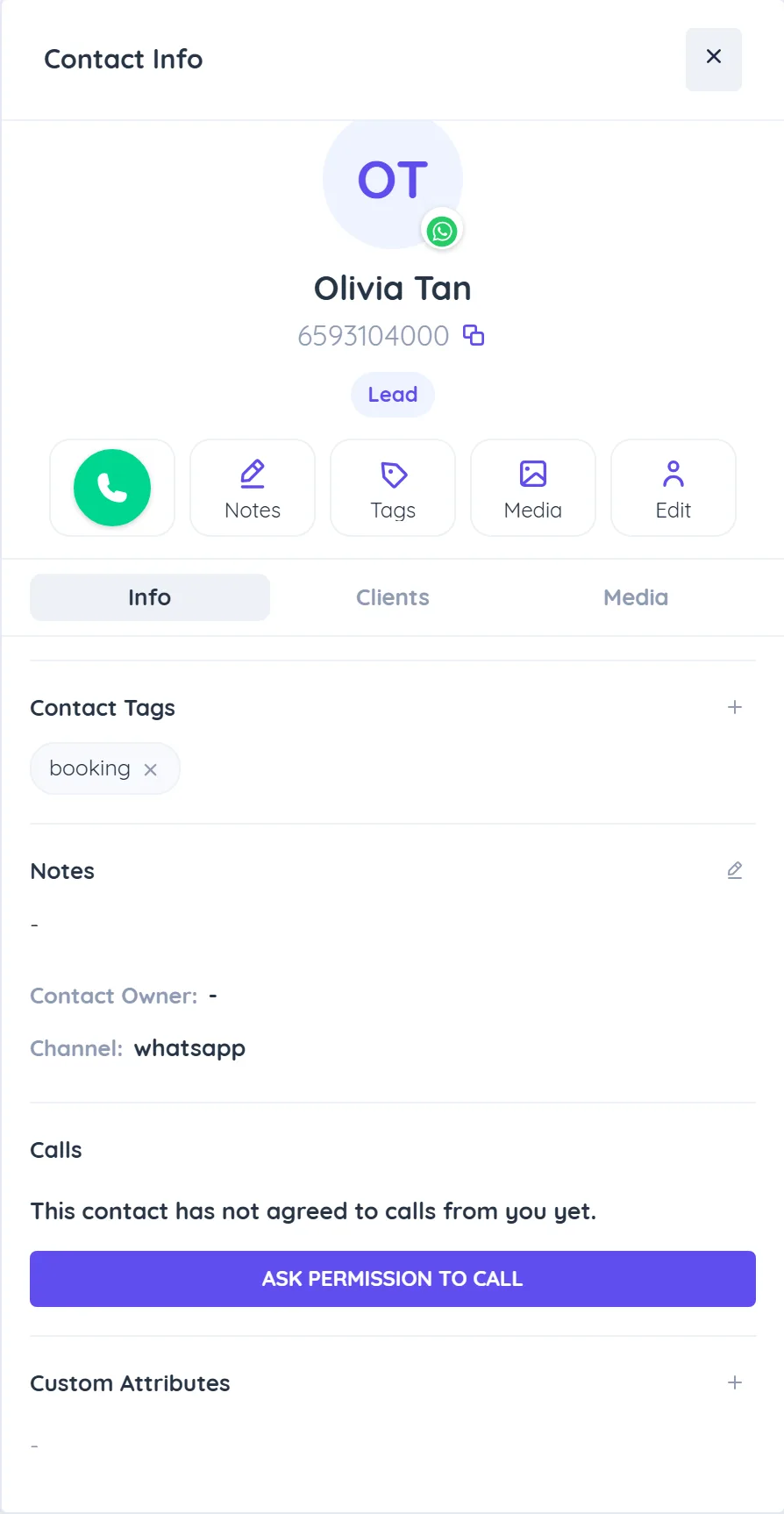
- Open the WhatsApp conversation and open Contact Info.
- Under Calls, check the status:
- This contact has agreed to calls from you.
- This contact has agreed to calls from you until a date.
- This contact has not agreed to calls from you yet.
- If they have not agreed, click Ask permission to call. You see Request sent.
The customer receives a message asking to allow calls. The status is read live from WhatsApp; if WhatsApp cannot be reached, you see WhatsApp could not be reached, so this may be out of date.
Limits
- You can ask once every 24 hours, and twice every 7 days.
- Ask permission to call works while the 24 hour window is open. Outside it, the request has to go as an approved template that asks for permission to call. When you create a Marketing or Utility template, tick Ask for permission to call. Such a template cannot have its own buttons. You can send it from a broadcast or an automation.
- To ask automatically, use the automation action Request Permission to Call on WhatsApp. It is skipped for contacts who have already agreed.
- Meta does not send an update when a 7 day permission ends. Check the status in Contact Info before you call.