Facebook Messenger
Connect your Facebook Page so Messenger conversations arrive in the Team Inbox with your other channels, where your team and chatbots can reply.
Before you start
- A Facebook Page for your business, where you are an admin.
- You need to be an admin in Whautomate.
Connect Messenger
-
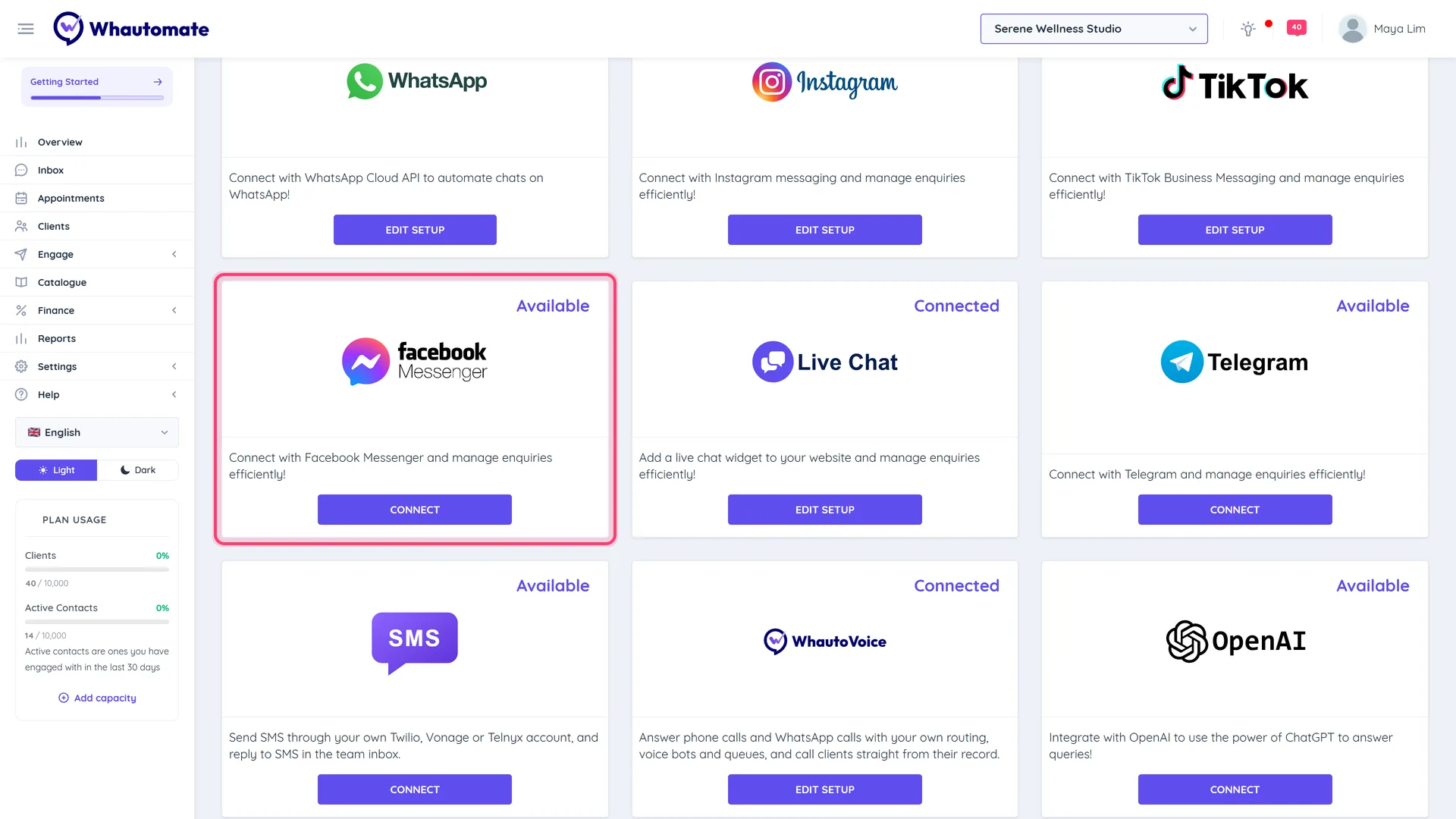
Go to Settings > Integrations and click Connect on the Messenger card.
-
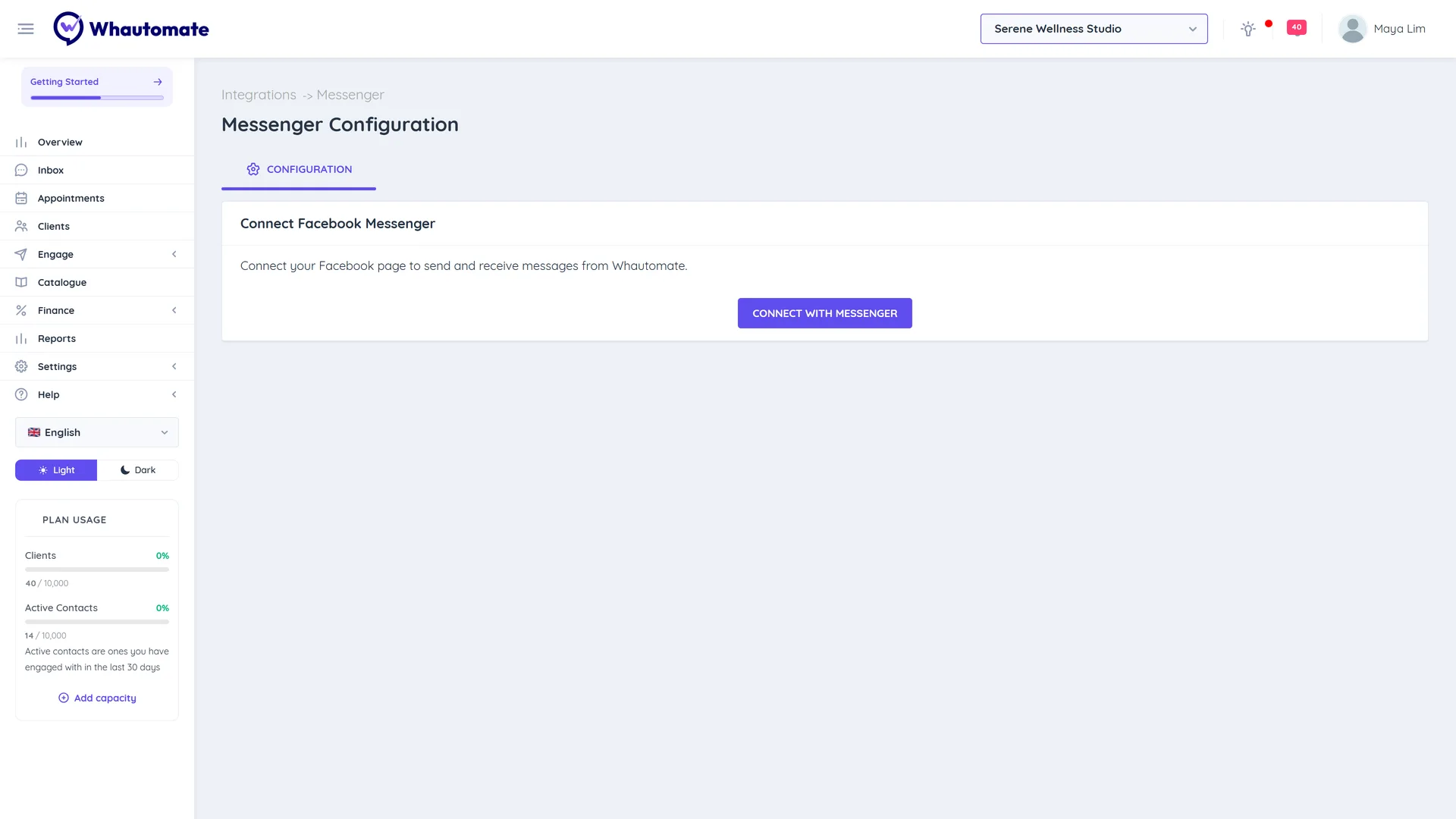
Under Connect Facebook Messenger, click Connect with Messenger.
-
Log in with Facebook in the window that opens and allow access to your Page.
-
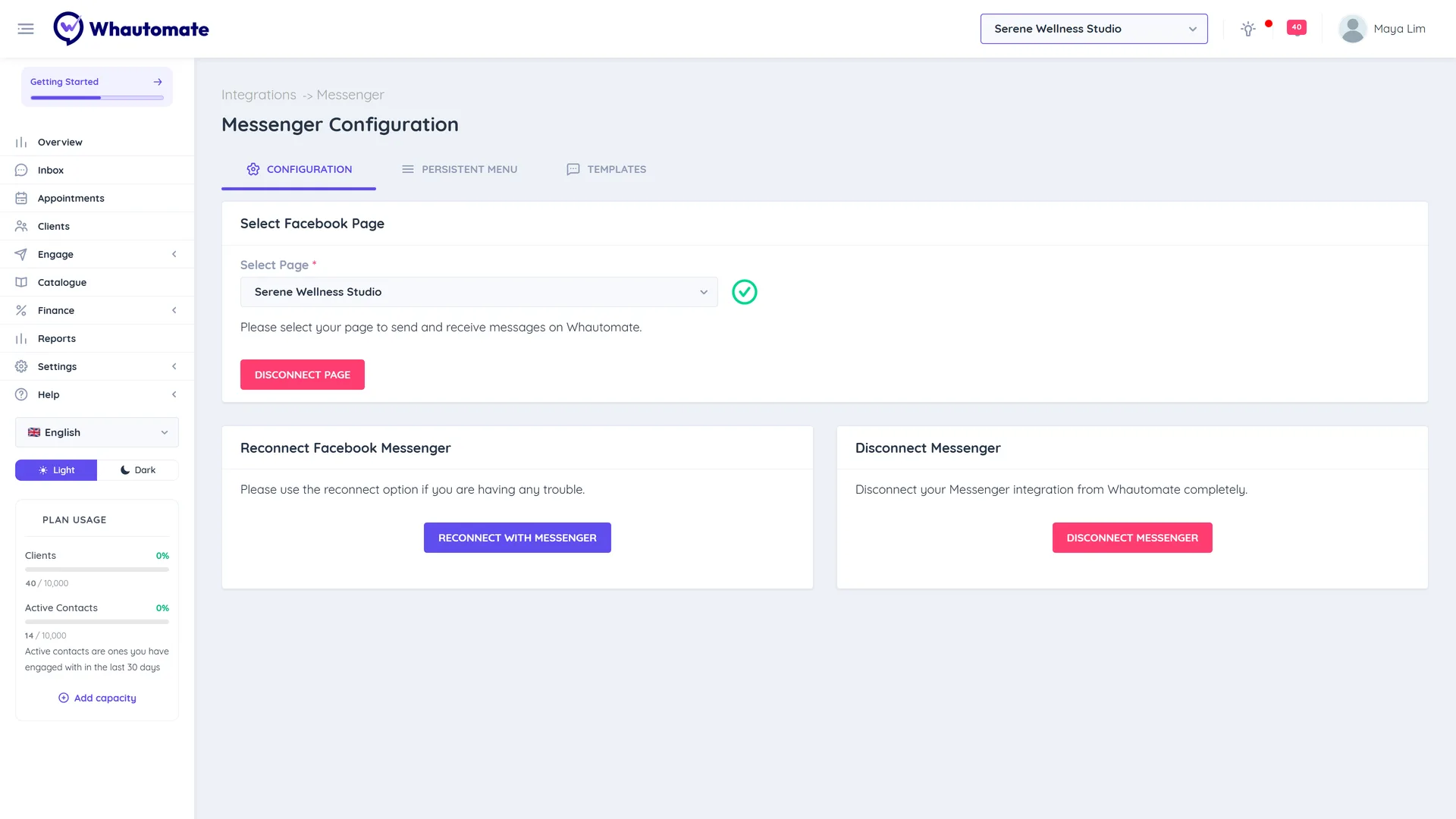
Under Select Facebook Page, choose the Page in Select Page and click Connect Page. You see Your Facebook page is connected successfully!
Send a message to your Page from another Facebook account to check it arrives in the Team Inbox.
Persistent menu
On the Persistent Menu tab you can set:
- Getting Started Button: the payload sent when someone taps Get Started for the first time.
- Menu: buttons that are always available in the conversation, per Locale (for example en_US). Each button is a Web URL or a Postback. Click Add New Localised Menu for other languages.
Click Save, or Delete Persistent Menu to remove it.
Messenger templates
Messenger only lets businesses send normal messages within 24 hours of the customer's last message. To follow up later with a transactional update (an order, appointment or account notification), use a utility template.
- Open the Templates tab and click Add Template.
- Choose Create your own (reviewed automatically, usually approved within seconds) or Use a Meta template (pre-approved, approved instantly).
- Enter the Template name, Language, optional Header, body and buttons, and save.
Marketing or promotional content is not allowed in Messenger templates and is rejected by Meta. Templates cannot be changed after they are created: click Clone template to make a revised copy, then delete the original. Click Sync Templates to pull the latest status from Meta.
Reconnect or disconnect
- Reconnect with Messenger: use this if messages stop arriving.
- Disconnect Page: stops using the selected Page.
- Disconnect Messenger: removes the connection completely. Type CONFIRM and click Yes, Disconnect.