WhautoVoice
WhautoVoice is a separate voice calling product with its own account. Connect it to a location and your team can call clients and contacts from their record, and customers who tap the call button in a WhatsApp chat with your business can be answered by a voice bot, a queue, a person or an IVR menu. Calls are placed, recorded, transcribed and logged in WhautoVoice.
One connection covers both kinds of call:
- Voice calls: clients and contacts with a phone number get a call button on their record.
- WhatsApp calls: you can turn calling on for the location's WhatsApp number, so WhatsApp calls are answered with the same routing, bots and queues. See WhatsApp Calling.
Before you start
- A WhautoVoice account. If you do not have one, click Create a free account under New to WhautoVoice? on the WhautoVoice page, then come back to connect it.
- You need to be an account Owner or Administrator.
- For WhatsApp calls: a connected WhatsApp number. See WhatsApp Cloud API.
Connect WhautoVoice
-
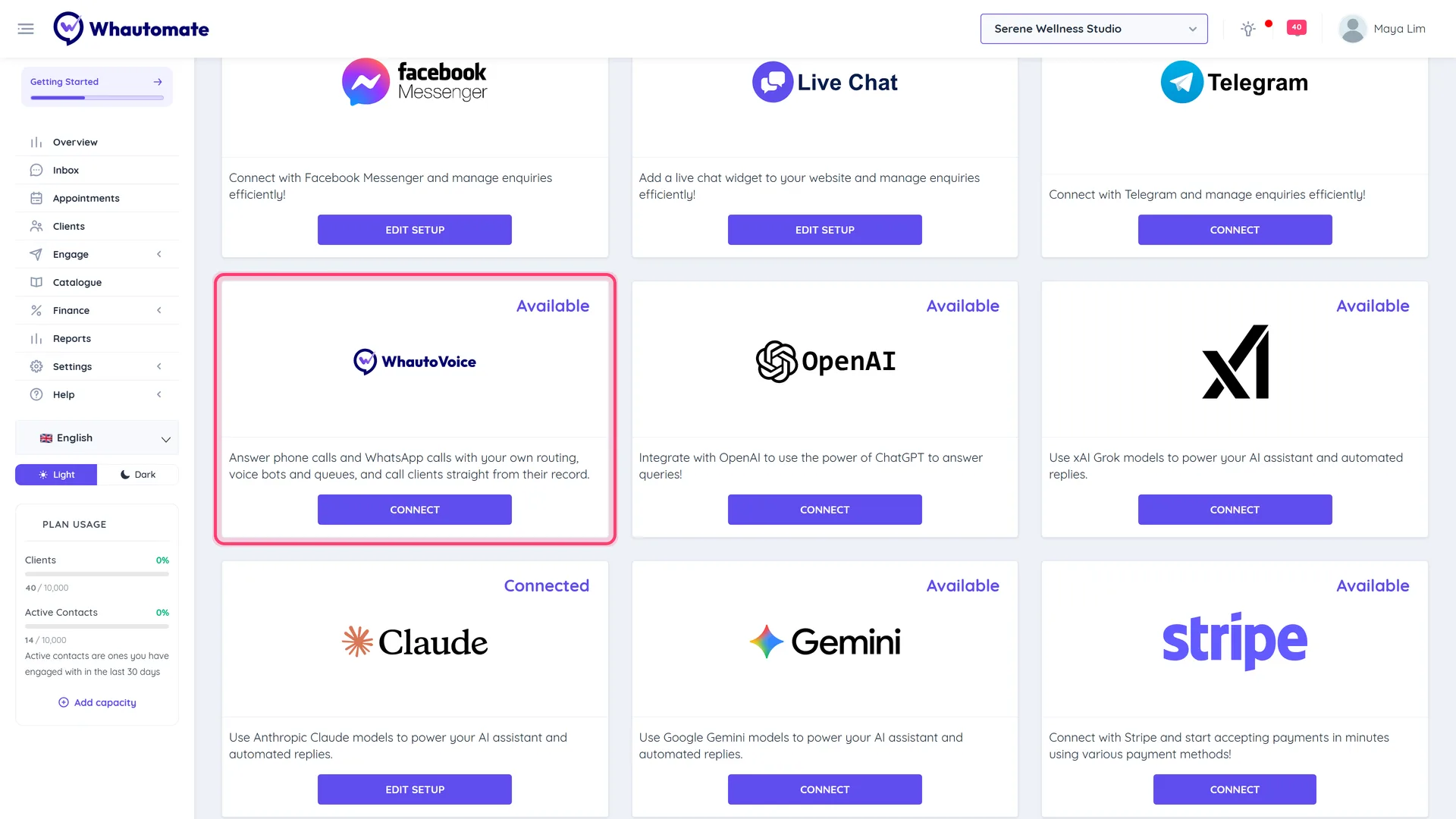
Go to Settings > Integrations and click Connect on the WhautoVoice card. (You can also click Connect WhautoVoice on the Calling tab of the WhatsApp integration.)
-
If you are asked Where your calls are stored, choose a region. Your numbers, call history and recordings stay in that region, and it cannot be changed later without setting up the connection again. When only one region is available, this question does not appear.
-
Click Connect. You are taken to WhautoVoice: sign in if needed and approve the connection. There is no key to copy.
-
You come back to Whautomate and see Connected: WhautoVoice is connected. You can now call clients from their record, and turn WhatsApp calling on for this location's number. Click Go to WhautoVoice to return to the integration page.
The connection is for the current location. Repeat these steps in each location that should place or answer calls.
Manage the connection
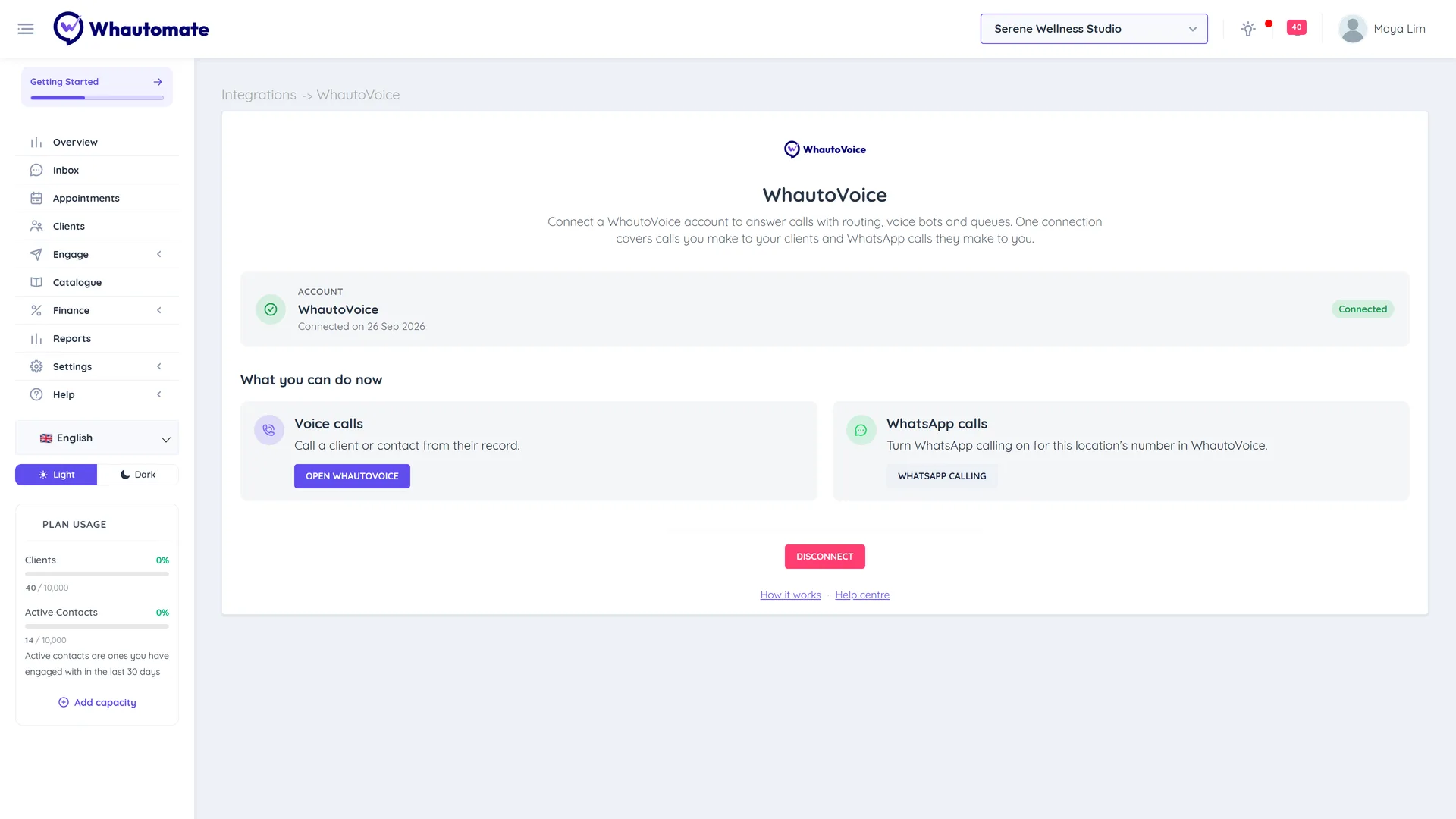
Once connected, the WhautoVoice page shows the Account you connected, its Status (Connected) and the date it was Connected on. Under What you can do now:
- Voice calls: Open WhautoVoice to set up numbers, routing, voice bots and queues. These are configured in WhautoVoice, not in Whautomate; see the WhautoVoice help centre.
- WhatsApp calls: WhatsApp calling opens the WhatsApp integration, where the Calling tab shows whether calling is on for your number.
What your team sees
As soon as WhautoVoice is connected, every client and contact with a phone number gets a green Call button: on the client record, in the Team Inbox conversation header and Contact Info, and in the mobile team inbox app. Clicking it opens WhautoVoice, where the call is placed. WhatsApp contacts who have agreed to calls also get a WhatsApp call button in Contact Info, and calls appear in the conversation as call entries. See Call a contact for details.
WhatsApp calling
WhatsApp calling is turned on, and its routing chosen, in WhautoVoice. Whautomate shows the result on the Calling tab of the WhatsApp integration, and lets your team ask customers for permission to be called on WhatsApp. Follow WhatsApp Calling to turn it on, check the Calling tab and ask for call permission.
Disconnect
- On the WhautoVoice page, click Disconnect.
- Type CONFIRM and click Disconnect.
This location stops reaching WhautoVoice and the Call buttons disappear. Calls already set up in WhautoVoice, including WhatsApp calling on your number, keep running until someone turns them off in WhautoVoice.
Limits and good to know
- One connection per location. Each location connects to one WhautoVoice account.
- The storage region is fixed. Changing it means disconnecting and connecting again.
- No API key to manage. Connecting creates a key that WhautoVoice uses to reach your account. It is not listed on the REST API keys page, cannot be deleted there, and is removed when you disconnect.
- Calls live in WhautoVoice. Recordings, transcripts and call summaries are stored and played in WhautoVoice.
- WhatsApp call permission has limits set by Meta: you can ask a contact once every 24 hours and twice every 7 days. See Limits.
Troubleshooting
- "Could not start the connection". Try again. If the message says this server is not set up to connect to WhautoVoice yet, contact support.
- "Not connected" after approving in WhautoVoice. The approval did not complete. Go back to the WhautoVoice page and click Connect again.
- "The connection is still completing. Refresh this page in a moment." Wait a few seconds and refresh.
- No Call button on a contact. The contact needs a phone number, and WhautoVoice must be connected in the location you are working in.