Stripe
Stripe lets your clients pay by card and wallets such as Apple Pay, Google Pay and GrabPay, depending on your country. You connect by signing in to Stripe from Whautomate; there are no API keys or webhooks to copy. Payments go straight to your Stripe account.
Before you start
- You need the Administrator or Owner role.
- Have your business and bank details ready. Stripe asks for them during onboarding.
Connect Stripe
-
Go to Settings > Finance > Payment Gateways.
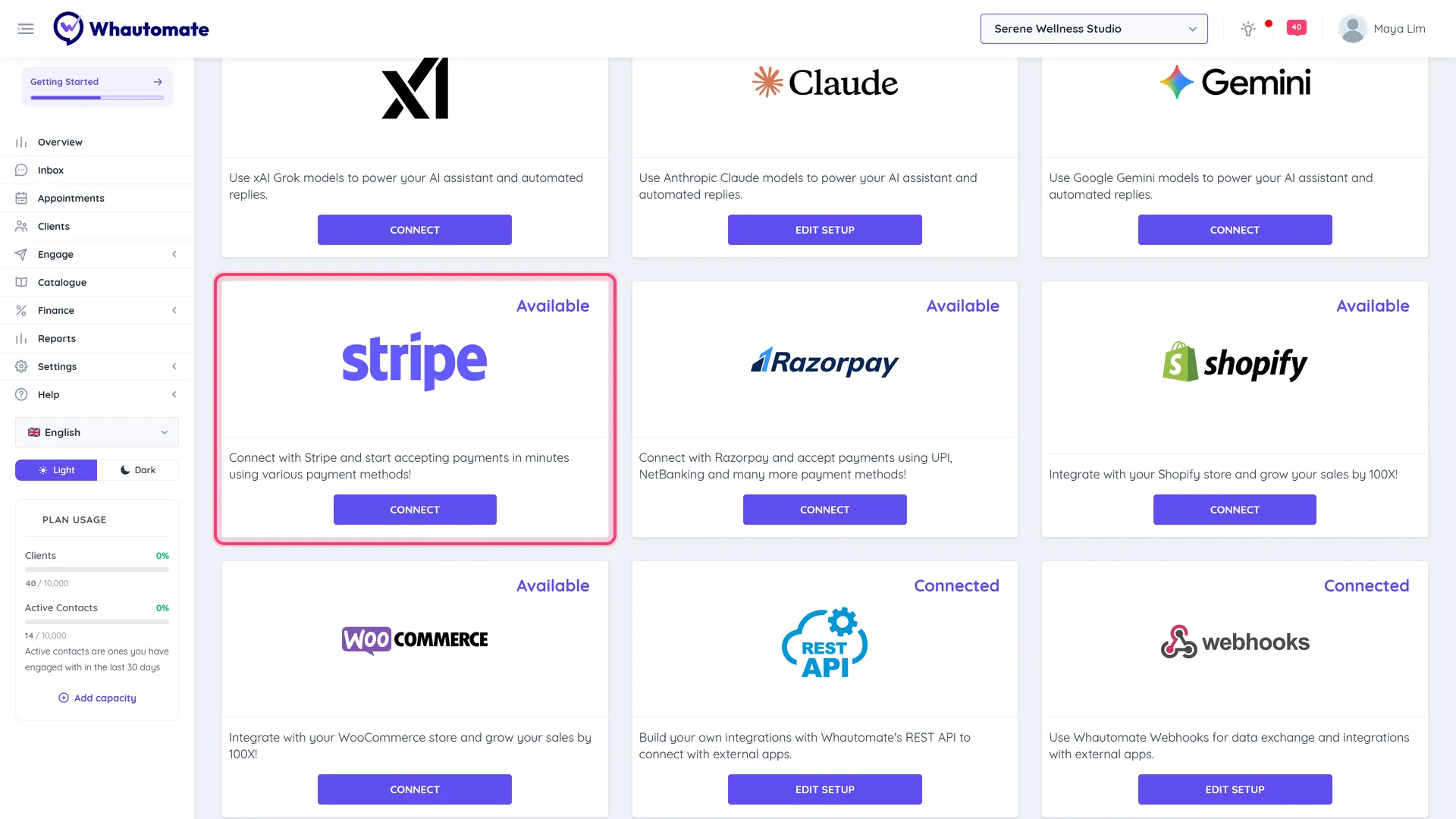
You can also click Connect on the Stripe card in Settings > Integrations.
-
On the Stripe row, click Connect with Stripe.
-
You are taken to Stripe. Sign in or create an account and complete the onboarding steps.
-
Stripe sends you back to Whautomate with the message "It will take a few minutes to confirm activation to start accepting payments."

Stripe is shown as connected once Stripe confirms your account can take payments. Until then the button still reads Connect with Stripe; click it again to finish any steps Stripe still needs.
Test it
Send yourself a small invoice with Request payment via WhatsApp and pay it. See Setup Payment Gateway.
Disconnect
Click Disconnect Stripe and confirm. You can no longer accept payments with Stripe until you reconnect.
Good to know
- Refunds recorded on an invoice do not refund the card. Refund the payment in your Stripe dashboard too.
- Stripe fees appear in the FEE column on Finance > Payments.