Setup Payment Gateway
A payment gateway lets your clients pay you online by card, wallet, UPI or local payment methods. Once a gateway is connected, every invoice payment link, online booking that needs payment, plan purchase and store order can be paid online, and the money goes straight to your own gateway account. Connect a gateway before you send your first payment request.
Which gateway to choose
| Gateway | Best for | How you connect |
|---|---|---|
| Stripe | Most countries; cards, Apple Pay, Google Pay, GrabPay | Sign in to Stripe (no keys to copy) |
| Razorpay | India; UPI, NetBanking, cards | Sign in to Razorpay (no keys to copy) |
| MyFatoorah | Kuwait, Saudi Arabia, Bahrain, UAE, Qatar, Oman, Jordan, Egypt | API key, country and webhook key |
| Thawani Pay | Oman | Public key, secret key and webhook secret |
| PayTabs | Middle East and global | Server key, profile ID and country |
| DOKU | Indonesia | Client ID, secret key and notification URL |
Before you start
- You need the Administrator or Owner role.
- Have a live account with the gateway, with your business verified by the gateway.
- Gateway settings are saved per business location. Connect each location separately.
Open Payment Gateways
- Go to Settings and, under Finance, click Payment Gateways. You can also open Integrations and click Connect on a gateway card.
- Each gateway has its own row. Click Connect with Stripe, Connect with Razorpay, Configure MyFatoorah, Configure Thawani Pay, Configure PayTabs or Configure Doku.
- Follow the guide for your gateway (links in the table above).
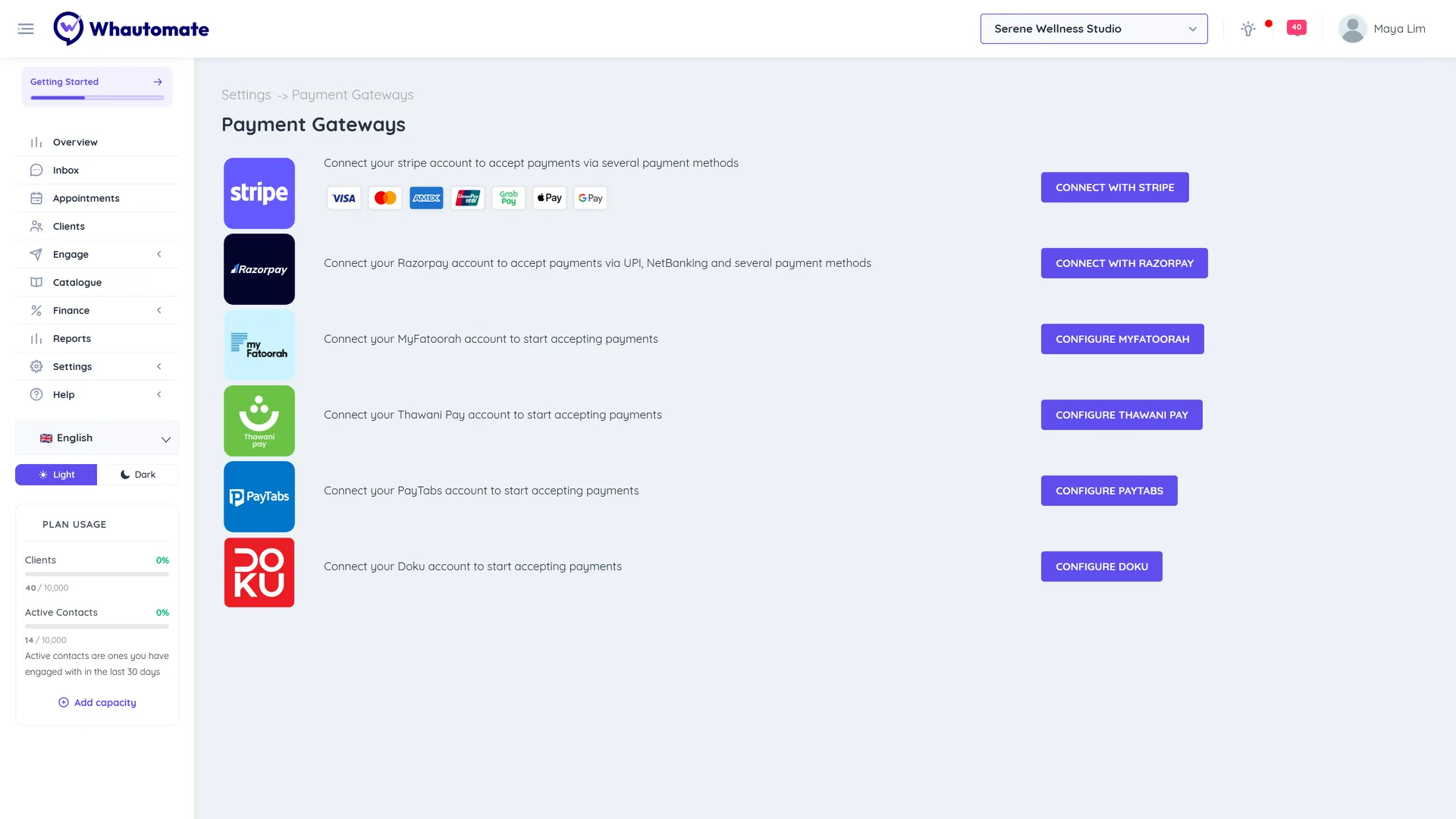
Once connected, the row shows Edit Configuration and a red Disconnect button instead.
Using more than one gateway
You can connect several gateways at the same time. When a client opens a payment link, they see Select payment provider and can pick any connected gateway. If no gateway is connected, payment links cannot be paid online, so record offline payments with Record Payment instead.
Test your setup
- Create a small invoice for yourself as the client. See Invoice & Payments.
- Tick Request payment via WhatsApp and click Save and Send.
- Open the message, tap the payment button and pay.
- Check that the invoice shows Paid and the payment appears in Finance > Payments.
Good to know
- Refunds recorded in Whautomate do not send money back through the gateway. Refund the client in your gateway dashboard as well.
- Disconnecting a gateway stops new online payments through it. Past payments stay in your records.