Payments
The Payments page lists every payment your business received: online payments through a payment link, booking or store checkout, and payments your team recorded by hand. Use it to check what came in, see gateway fees and net amounts, send a receipt, or add money to a client's available funds when they pay in advance.
Before you start
- Online payments appear here only after you connect a payment gateway. See Setup Payment Gateway.
View payments
- Go to Finance > Payments.
- Each row shows REFERENCE ID, PAYMENT (the payment mode), DATE, CLIENT, AMOUNT, FEE, NET TOTAL and FUNDS DEDUCTED. Hover over a fee to see the platform fee and gateway fee.
- Filter with Search Reference ID, Payment Method, Staff and Filter by Date (Date Range), and change the order with Sort By.
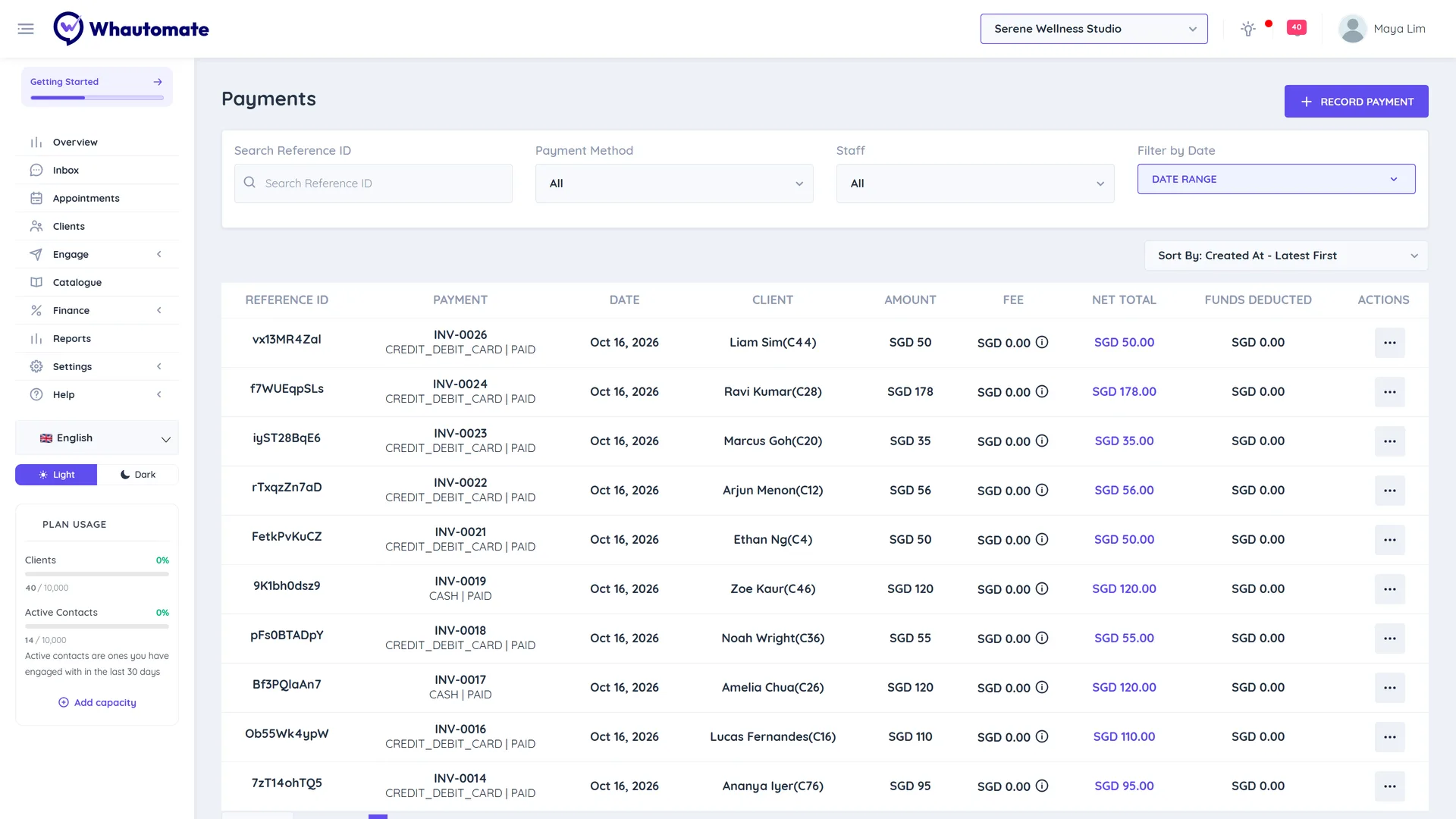
FUNDS DEDUCTED shows how much of a payment was covered by the client's available funds rather than new money.
Record a payment to available funds
Use this when a client pays in advance or leaves a deposit that is not tied to an invoice yet.
- On Finance > Payments, click Record Payment.
- In Record Payment for Client, search and select the Client.
- Enter the Payment Amount. The amount will be added to the client's available funds.
- Set the Payment Date, the Payment Mode and optional Notes.
- Click Save.
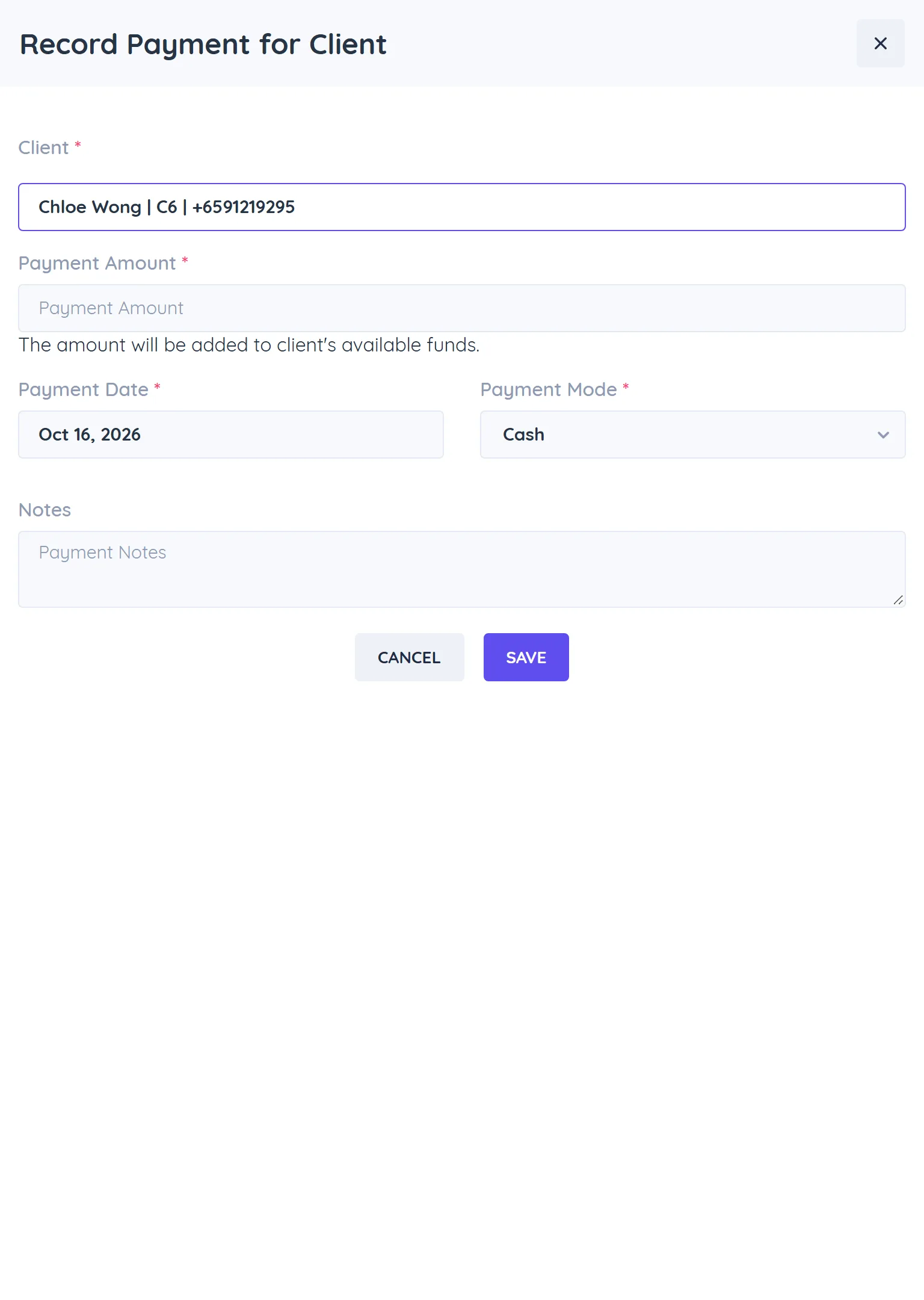
The next time you create an invoice or record an invoice payment for that client, the form shows Client's available funds so you can use them.
You can choose Cash, Credit/Debit Card, EFTPOS, Cheque, Bank Transfer or Other as the payment mode. There is no separate reference field, so put a transfer or cheque number in Notes.
To record a payment against a specific invoice, use Record Payment on the invoice instead. See Invoice & Payments.
Send, print or download a receipt
Click More Actions on a payment and choose:
- Send Receipt, then pick Send receipt via Email, Send receipt via SMS or Send receipt via WhatsApp and click Send.
- Print or Download for the receipt PDF.
Tips
- For a summary by date range and staff with an Excel export, use the Sales & Payments report under Reports.
- A refund recorded on an invoice shows here as a negative payment. It does not return money through the gateway.