Invoice & Payments
Invoices are how you bill a client for services, products or plans and collect the money. You can send an invoice on WhatsApp, email or SMS with a secure payment link, share the link or its QR code yourself, or record a payment you received in cash, by card or by bank transfer. Use invoices whenever a client owes you money outside an online booking or store checkout, for example after a walk-in session or for a custom package.
Before you start
- Add your services and products in Catalogue so you can pick them as invoice items. See Products and inventory.
- Set your invoice title, numbering and default notes in Invoice settings.
- To let clients pay online, connect a payment gateway. See Setup Payment Gateway.
- Optional: add taxes and coupons.
Find your invoices
Go to Finance > Invoices. The list shows INVOICE #, CLIENT, STAFF, INVOICE AMT, PAID AMT and Status for each invoice, with the invoice date and due date under the number. Use Search, the Status filter, Date Range and Sort By to narrow the list.
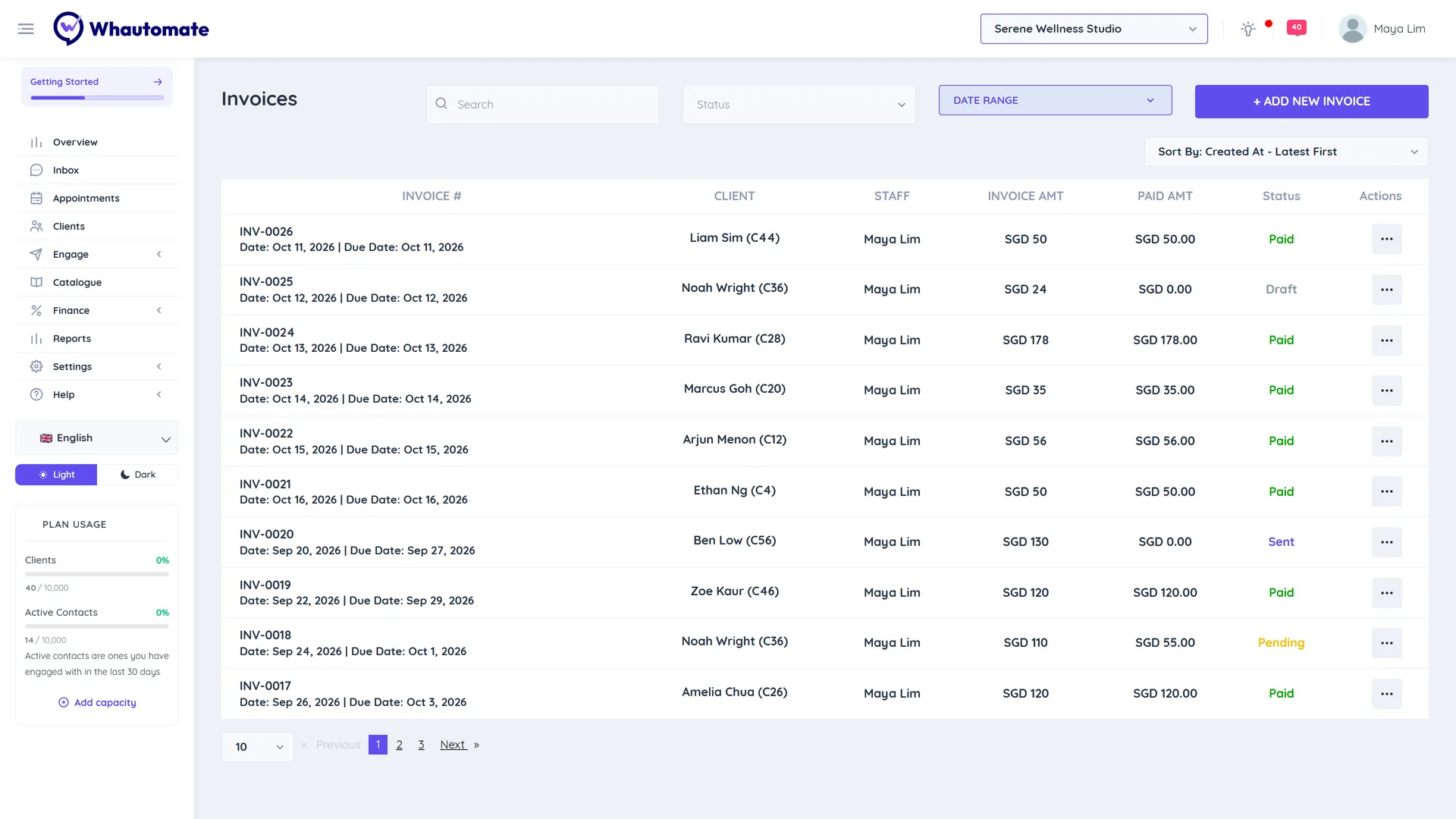
Invoice statuses
| Status | What it means |
|---|---|
| Draft | Saved but not sent. You can still edit or delete it. Stock is not deducted yet. |
| Sent | Sent to the client or a payment link was generated. Nothing has been paid. |
| Pending | Partly paid. Some money was received and a balance is still due. |
| Paid | Fully paid. |
| Void | Cancelled before any payment. A void cannot be undone. |
| Refunded | The full amount was refunded. |
| Partial Refund | Part of the amount was refunded. |
Product stock is deducted when an invoice leaves Draft (sent, generated link, or paid), and returned to stock when the invoice is voided.
Create an invoice
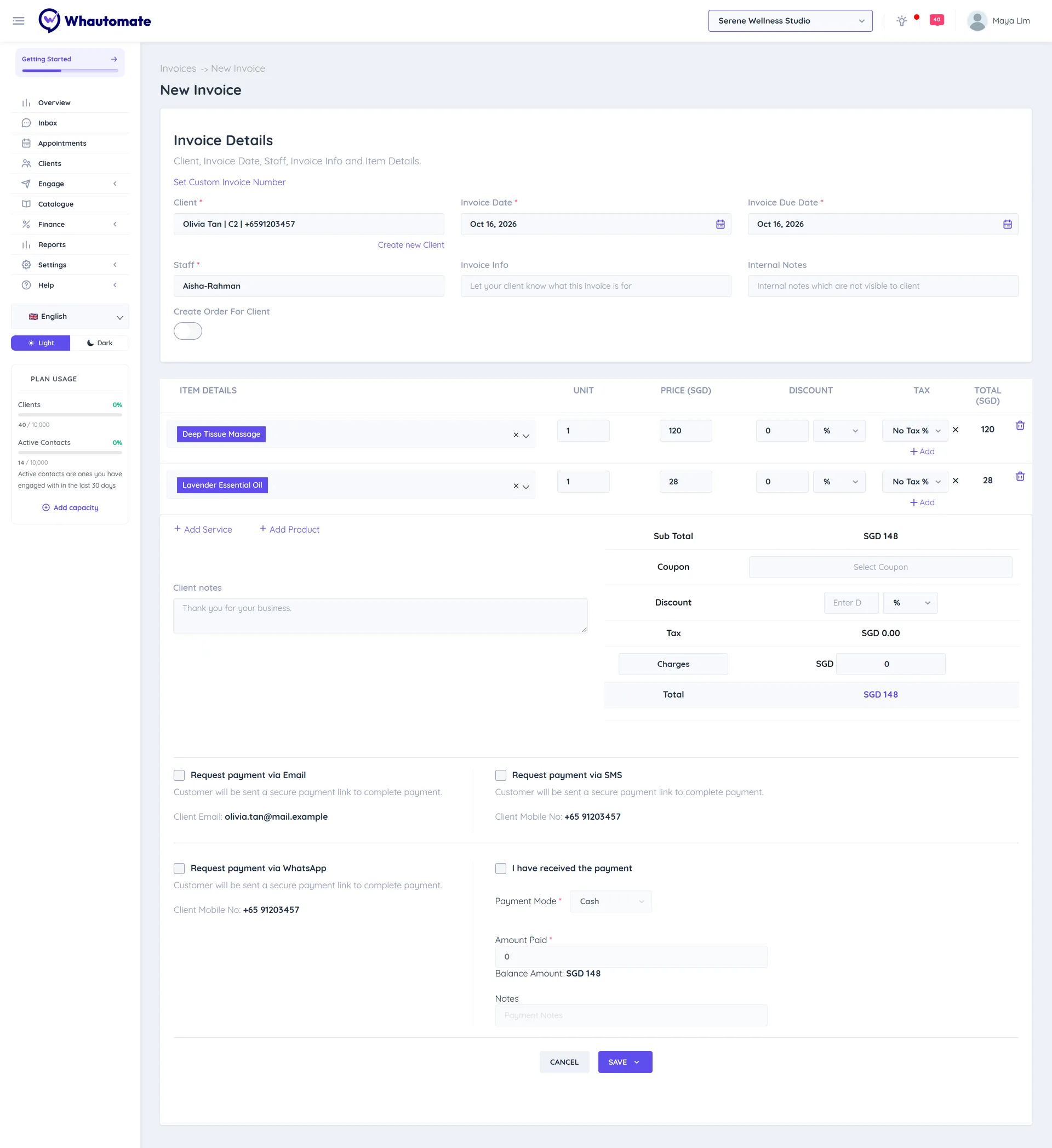
- Go to Finance > Invoices and click + Add New Invoice.
- Under Invoice Details, search for the client in Client (Search & Select Client). If they are new, click Create new Client and enter First Name, Last Name, Country Code and Contact Number.
- Set the Invoice Date and Invoice Due Date, and choose the Staff member the sale belongs to.
- Optional: write Invoice Info (what the invoice is for, shown to the client) and Internal Notes (only your team sees these). Click Set Custom Invoice Number if you need a number other than the next one in your sequence.
- Add items with Add Service and Add Product. For each line set Unit, Price, Discount and Tax. The form warns Not enough stock if a product does not have enough units.
- If you are shipping products, turn on Create Order For Client and pick a Shipping Address. When shipping is enabled, choose a Shipping option under the totals.
- Check the summary: Sub Total, Coupon (Select Coupon), Discount, Tax and Total. If charges are enabled in invoice settings, you can add a charge line too.
- Choose how the client pays:
- Tick Request payment via WhatsApp, Request payment via Email or Request payment via SMS to send a secure payment link.
- Or tick I have received the payment and fill in Payment Mode, Amount Paid and Notes if the client already paid. If the client has available funds, the form shows them and you can use them for this invoice.
- Open the save menu and pick Save (keeps a draft), Save and Send or Save and Print.
When you use Save and Send with a payment request ticked, a confirmation shows Invoice & payment link sent successfully! with the payment link and a QR code you can copy or open.
Send an invoice or request payment
From the invoice list, click More Actions (the three dots) on a row:
- Request Payment opens a dialog with the payment link and QR code (click Generate Payment link if it is not shown yet) and the options Request payment via Email, Request payment via SMS and Request payment via WhatsApp. Click Send.
- Send Invoice sends the invoice PDF only, with Send Invoice via Email, Send Invoice via SMS or Send Invoice via WhatsApp.
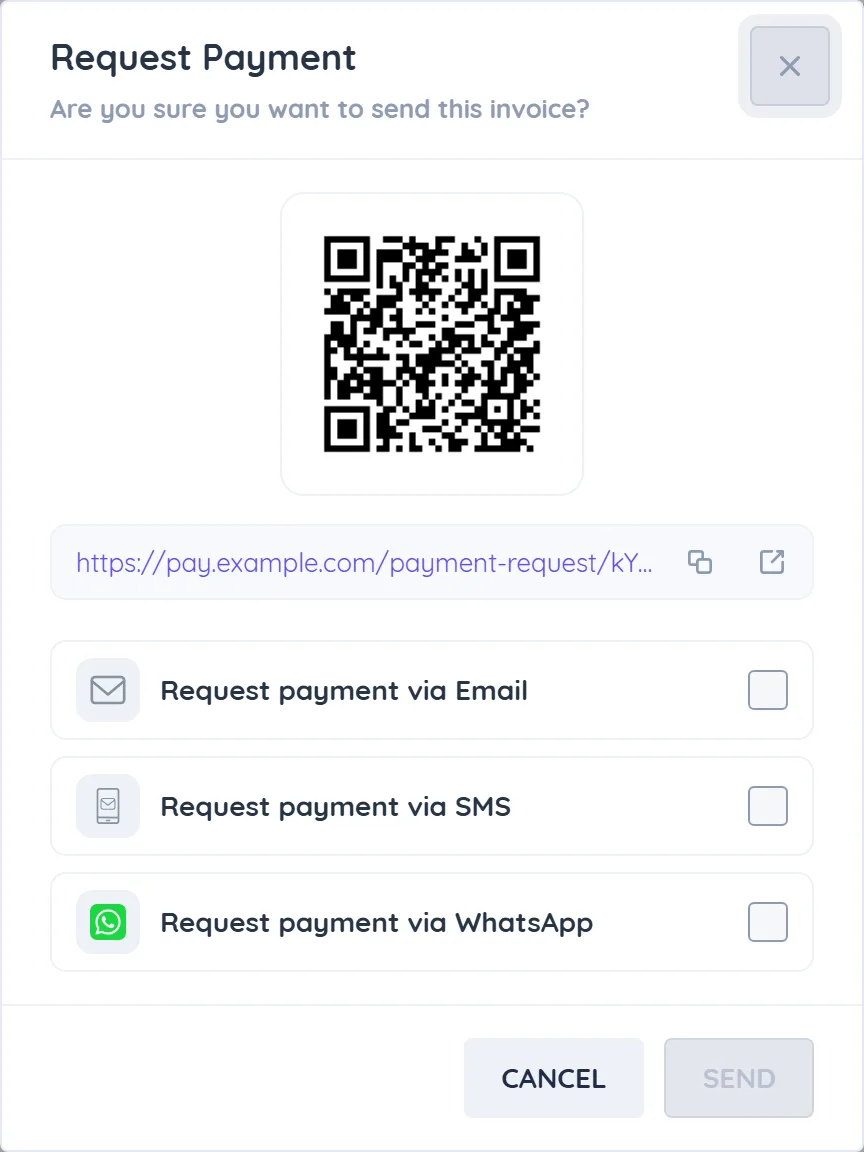
Email is disabled when the client has no email address, and SMS and WhatsApp are disabled when there is no phone number. The message text comes from your default templates. See Invoice Request Payment templates and Send Invoice PDF templates.
What the client sees
The payment link opens a secure page that says You are paying with the amount, a See invoice button and the date the request expires. If you have more than one gateway connected, the client chooses one under Select payment provider, then clicks Pay. When the payment succeeds, the invoice updates to Paid on its own and the payment appears in Payments.
Record a payment (full or partial)
Use this when the client pays you outside the payment link, for example in cash or by bank transfer.
- In Finance > Invoices, click More Actions on the invoice and choose Record Payment.
- The Payment for panel shows the Total Amount and any Previous Payments.
- Enter the Payment Amount. To take a partial payment, enter less than the balance; the panel shows the Balance Amount still due.
- Set the Payment Date, the Payment Mode (Cash, Credit/Debit Card, EFTPOS, Cheque, Bank Transfer or Other) and optional Notes, for example a transfer reference.
- If the client has available funds, tick Client's available funds to use them for this invoice.
- Click Save.
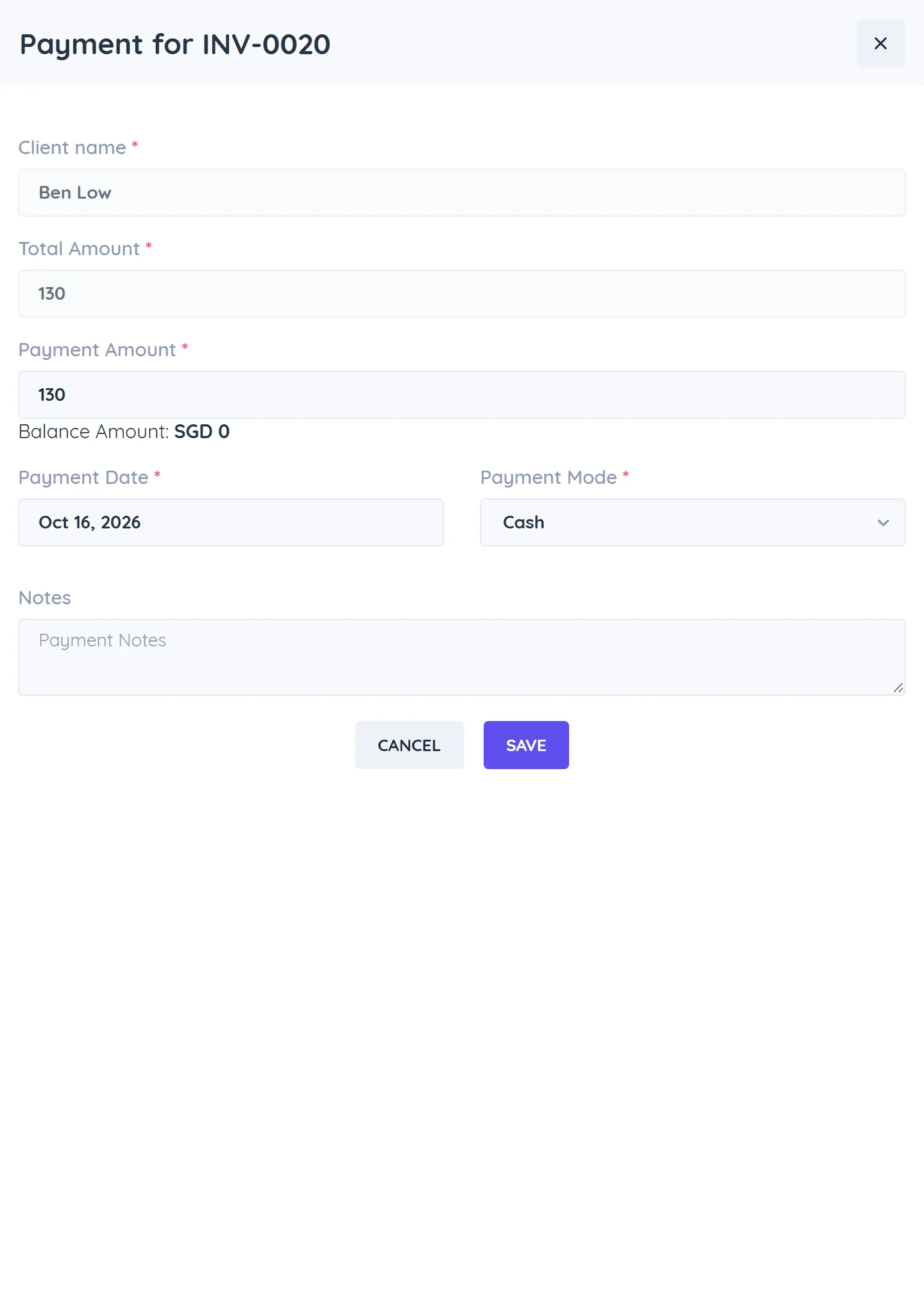
A partial payment moves the invoice to Pending. Record further payments the same way until it is Paid. If you enter more than the balance, the extra is added to the client's available funds.
Available funds
Available funds is a credit balance on the client. It grows when a client overpays, when you refund to funds, or when you use Record Payment on the Payments page without an invoice. When you create an invoice or record a payment for that client, the form shows Client's available funds and you can apply them. Funds used show in the FUNDS DEDUCTED column on the Payments page.
Refund an invoice
Refunds are available on Paid and Pending invoices.
- Click More Actions on the invoice and choose Refund Invoice.
- Enter the Refund Amount. It cannot be more than the amount paid.
- Optional: tick Add to Available Funds to keep the amount as client credit instead of returning it.
- Add Notes and click Save.
A refund here only records the refund for your accounts. It does not send money back through the payment gateway. If the client paid online, also refund them in your Stripe, Razorpay or other gateway dashboard.
The invoice becomes Refunded or Partial Refund.
Edit, void or delete
- Edit Invoice: available on Draft, Pending and Paid invoices. When you edit a non-draft invoice, you must give a Reason for editing. The change is logged, and on save the invoice is reconciled: if the new total is higher it goes back to Pending with the balance due, and if it is lower the surplus is added to the client's available funds.
- Revert to Draft & Edit: on Sent invoices. Enter a Reason for moving to draft, then edit.
- Void Invoice: on Draft and Sent invoices (no payments yet). Products return to stock and any linked order is cancelled. This cannot be reverted.
- Delete Invoice: removes the invoice.
- Print, Download and Regenerate Invoice PDF give you the PDF.
Tips
- Set up automatic payment reminders for Sent and Pending invoices in Invoice settings.
- The invoice PDF uses the business details from Update Business Settings.
- Each paid or partly paid invoice can be grouped into a client statement.