Confirm Guest Contact Details
Guests can book on your portal without an account, which also means anyone can type in someone else's phone number. Turn on contact verification and guests confirm their phone number, their email, or both with a one-time code before they can book or pay. Fake and mistyped numbers stop at the form instead of reaching your calendar and your WhatsApp.
- You are the account Owner or an Administrator.
- For phone codes: a location with WhatsApp connected, or with an SMS provider. See WhatsApp Cloud API. Email codes need nothing else.
What it covers
The setting applies to guests (customers who are not logged in) on your booking portal when they:
- book an appointment,
- book a class,
- check out in your online store,
- buy a plan or membership online.
Logged-in customers with a verified phone are not asked again, and neither are customers booking through your Telegram mini app, where Telegram has already confirmed the phone. Public forms have their own setting: see Web Forms.
Turn it on
- Go to Settings > All Settings. Under Website & Booking Portal, click Online Booking & Store.
- On the Manage Sections tab, find Confirm guest contact details and choose:
- Off (the default),
- Phone number (WhatsApp, SMS as backup),
- Email address,
- Phone number and email.
- If you have several locations, choose the location in Send verification codes from. With one location, the page says which one sends the codes.
- Optional, when that location has an SMS provider: turn on Allow SMS codes to other countries. When off, SMS codes only go to mobile numbers in that location's country, which protects your SMS provider from fraud. WhatsApp codes go to any country.
- Click Save.
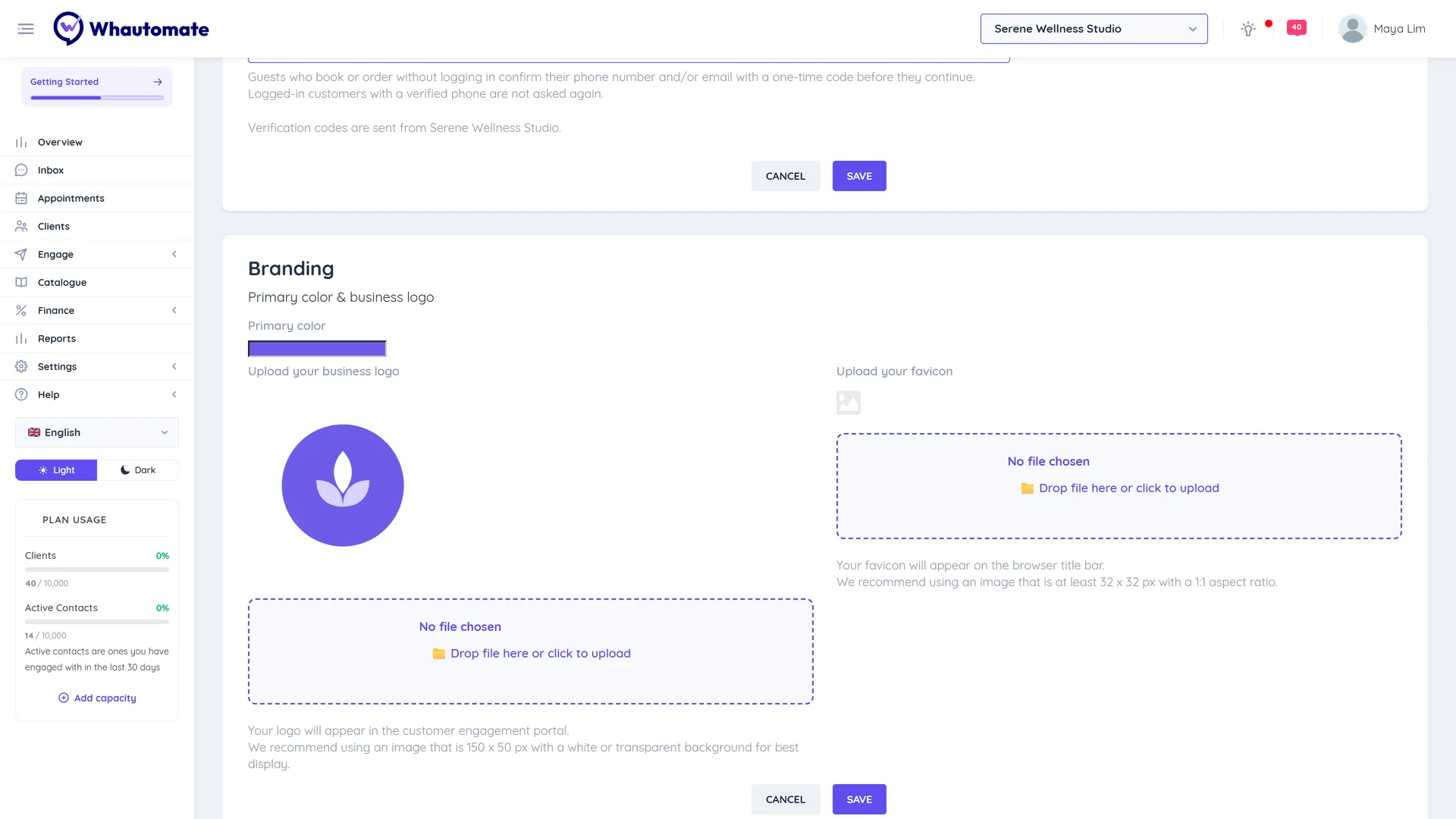
The same Send verification codes from location also sends the login codes of your client portal. WhatsApp and SMS costs go to that location's WhatsApp number or SMS provider.
If the page says the WhatsApp template for verification codes is not approved yet, phone codes go by SMS until it is, and only when that location has an SMS provider.
What guests see
- Next to the phone or email field, the guest taps Verify.
- A code row opens under the field: "Enter the 6-digit code we sent on WhatsApp to ..." (or by SMS, or to their email).
- They enter the code. The field shows Verified and they continue with the booking or checkout.
They can tap Resend code after a short wait, Send by SMS instead when WhatsApp does not arrive, or Wrong number? to correct it. A code is valid for 10 minutes, and a confirmed number or email is remembered on that device for 30 days. Email codes come from Whautomate's mail service with your business name as the sender, and do not use your email credits.
When codes cannot be sent
If every channel fails at the provider (for example WhatsApp is disconnected and there is no SMS provider), the guest is not blocked. The booking or order goes through and is marked Contact not verified, and Administrators get a notification. The badge shows:
- on the appointment's details,
- next to the participant on the Class Detail page,
- on form responses, for forms that ask for verification.
Check your WhatsApp number and SMS provider when you see it.
Good to know
- Requests for codes are rate limited per phone, email and network, so the setting cannot be used to flood someone with messages. If the whole account sends an unusual number of codes in 24 hours, new codes pause for a while and Administrators get a notification.
- Your team never needs codes: bookings made in Whautomate are not checked.
- Turning the setting off takes effect at once. Bookings made before it was on are not affected.