AI Booking Chatbot
The AI booking chatbot talks to clients in their own words. A client can write "Can I get a massage with Aisha on Friday afternoon?" and the AI checks your services and team, suggests free times, books the appointment and confirms it. It can also show their bookings, reschedule and cancel. It uses your real services, working hours and booking rules, so it never offers a time that is not free.
- A connected channel (WhatsApp, Instagram, Messenger, Telegram or TikTok) and an AI provider connected with your own API key. The chatbot's replies are billed by that provider, not taken from Whautomate AI credits.
- Services with Allow Online Appointment on. The AI only offers those services.
Option 1: install a template
- Go to Engage > Automations and click Add Rule.
- Install one of these with Install Rule:
- AI Appointment Booking Chatbot for your business (WhatsApp): book, reschedule and cancel appointments.
- AI Class Booking Chatbot for your business (WhatsApp): find, book and cancel classes.
- AI Appointment Booking Chatbot for your business for Messenger, Instagram, Telegram or TikTok.
- Open the installed rule to add your business details to the AI's instructions, then save.
- Test it from another phone or account.
Only one chatbot template can be installed per channel. See Setup Appointment Chatbot.
Option 2: add booking tools to your own AI rule
If you already use an AI chatbot for customer service, give it booking skills:
- Open your rule with the AI Conversation action.
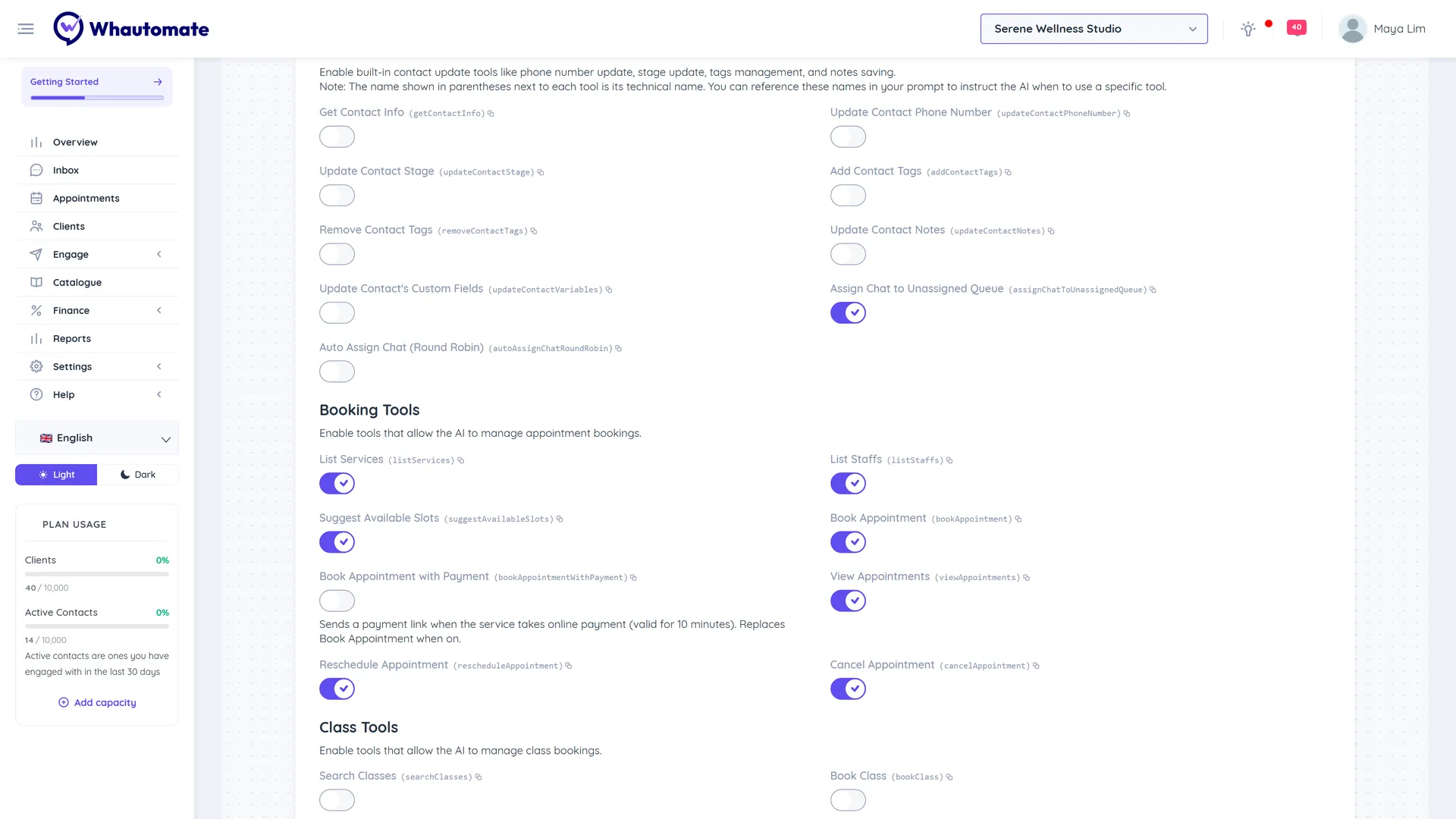
- On the Built-in Tools tab, in Booking Tools ("Enable tools that allow the AI to manage appointment bookings."), turn on the tools you want:
- Appointments: List Services, List Staffs, Suggest Available Slots, Book Appointment, Book Appointment with Payment, View Appointments, Reschedule Appointment, Cancel Appointment.
- Classes: Search Classes, Book Class, Book Class with Payment, Get Client Bookings, Cancel Class Booking.
- Click Save.
Payments
With Book Appointment with Payment or Book Class with Payment, the AI sends a payment link when the service has Accept Payment Online and the client has no credits that apply. The slot is held for about 10 minutes and the booking is confirmed once paid. See Online Payment at Booking.
Good to know
- Bookings made by the AI appear on the Appointments calendar like any other booking.
- Cancellations and reschedules follow the deadlines in Appointment Settings.
- Test a few conversations, including a full day and a cancellation after the deadline, before you switch it on for all clients.