Service Pricing
A service does not have to have one fixed price. You can sell it in several lengths, put it on sale, charge more for a senior team member, add a weekend or holiday rate and choose whether prices are shown with tax. Every price is worked out the same way on your booking portal, WhatsApp chatbots, the AI chatbot, the forms your team uses and the invoice, so what the client sees is what they pay.
- The service exists and has its team members. See Setup Services.
- For After hours rules and holiday prices, set your opening hours and holidays first. See Business Hours and Holidays.
How a booking price is worked out
- Variant: the variant the client picks, or the first (default) variant.
- Staff price: if the team member has their own price for that variant, it replaces the variant price.
- Peak pricing: if a rule matches the start time of the booking, it changes that price. Rules never add up: when several match, the one that gives the highest price applies.
- Add-ons, coupons and tax are added as usual.
The price is fixed when the booking is made. Changing a price or a rule later does not change bookings that already exist.
Variants
Variants let one service come in several lengths or prices, for example "30 min" and "60 min". Clients choose one when they book.
- Go to Catalogue > Services and open the service (or click Add Service).
- In the Duration and price card, turn on Variants. Your current duration and price become the first row.
- For each row enter the Name, Duration (min) and Price. Turn on On sale and enter a Sale price to discount one variant.
- Click Add variant for more rows (up to 20). The trash icon (Remove variant) deletes a row.
- Click Save (or Update).
The first variant is the default one. It is used when nobody picks a variant, for example in plans and treatment plans.
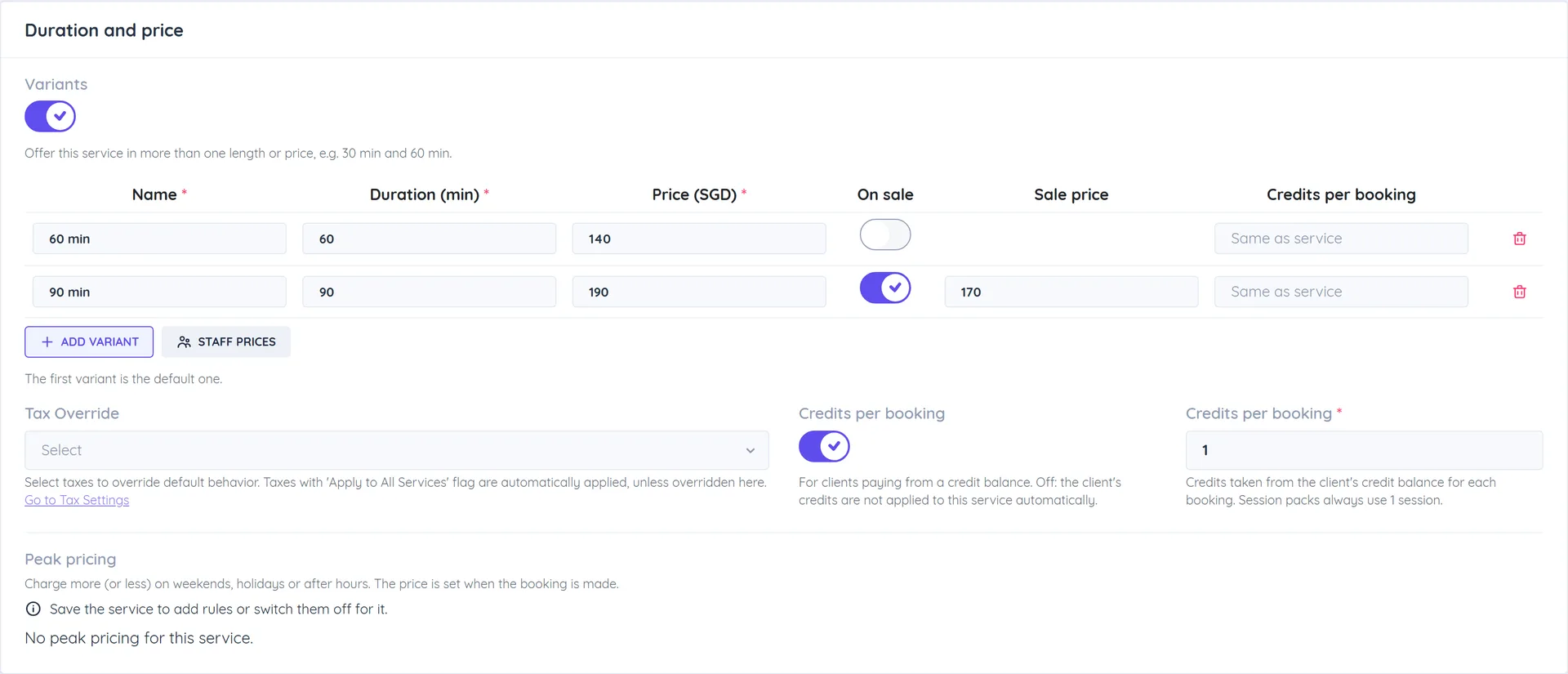
Where variants show:
- Booking portal: the service shows "from" the lowest price and the duration range, and clients Choose an option before picking a time.
- WhatsApp Flow chatbots: each variant is its own row in the service list.
- Add Appointment and Add new Class: a Variant choice that sets the duration and the price. See Book Appointments - Admin.
- Invoices: service lines have a variant choice and use the team member's price.
- Plans and treatment plans: a credit line can be limited to one variant, and plan items use the default variant price.
Sale price
To show a discount, turn on On sale and enter the Sale Price (or the Sale price of a variant). Clients pay the sale price and see the regular price struck through on the portal, in WhatsApp and on the forms your team uses. The sale price must be lower than the regular price.
Staff prices
Charge a different price when the booking is with a particular team member, for example a senior therapist.
- Turn on Variants (a service with one price can have a single variant).
- Click Staff prices. The dialog lists every team member assigned to the service, with one column per variant.
- Each cell starts at the variant price. Change it to charge this team member a different price. It replaces the variant price, it is not added to it.
- If Credits per booking is on, set how many credits a booking with this team member takes, too.
- Click Save in the dialog, then save the service.
The button shows how many staff prices are set. Assign the team members in Staff and location first.
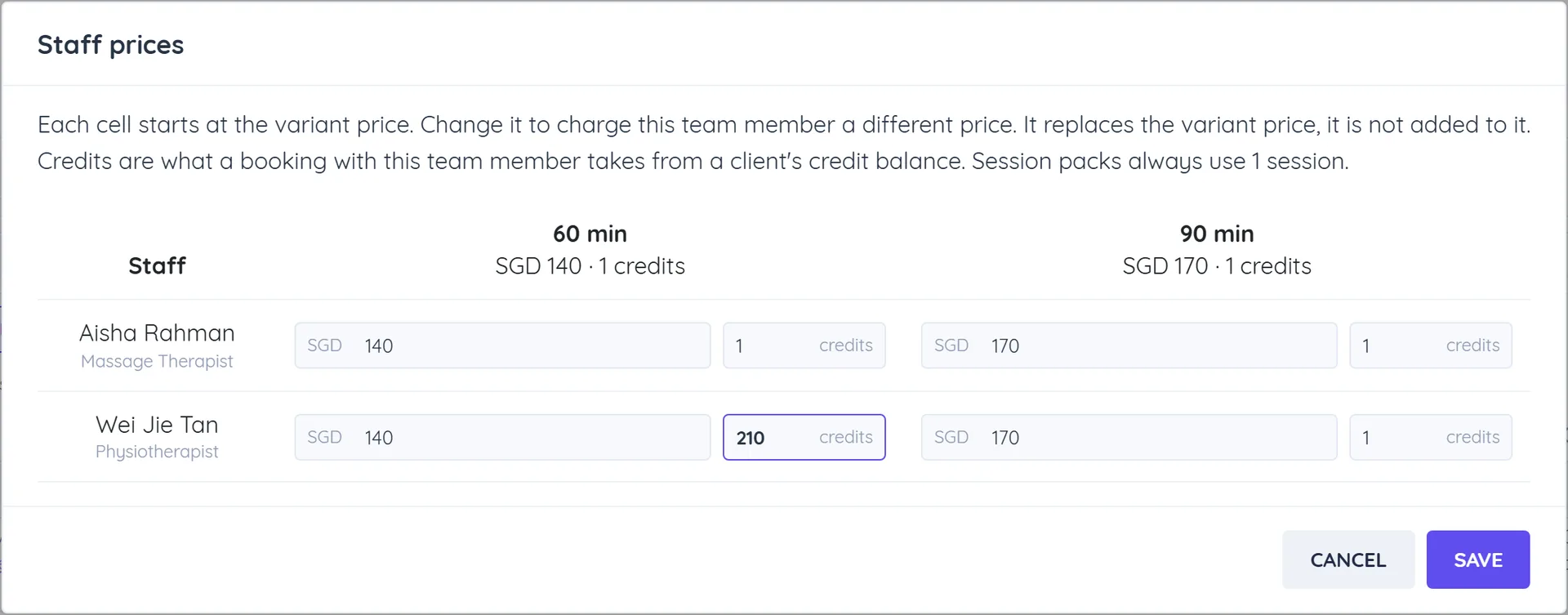
When a client picks Any Staff available on the portal, the variant price is shown, and the final price follows the team member who gets the booking.
Credits per booking
Turn on Credits per booking and set the number to let clients with a credit balance pay with credits. Variants and staff prices can each take a different number of credits. Session packs always use 1 session per booking. See Setup Services.
Peak pricing
Peak pricing rules charge more, or less, at certain times: weekends, holidays, after hours or any days and times you choose.
- Open a saved service. In the Duration and price card, find Peak pricing.
- Click Add a rule.
- Use for: This service only, or All services (every service at this location, new ones included).
- Pick the Type:
- Weekend: pick the Days.
- Holiday: turn on Use business holidays to use the holidays in Business hours, and add Extra dates (optional). Holidays marked Open, holiday prices stay bookable and get this price.
- After hours: outside your business hours, closed days included. It never applies until the location has business hours.
- Custom: any Days, Dates and a From / To time. A range can cross midnight, for example 20:00 to 02:00.
- Enter a Name. Clients see it next to the price.
- Price change: + % or + fixed amount, and the Amount. Use a negative number for a discount, for example -10.
- Optional: Extra credits added to the credits per booking for clients who pay from a credit balance.
- Click Save. Each rule is saved on its own, not with the service form.
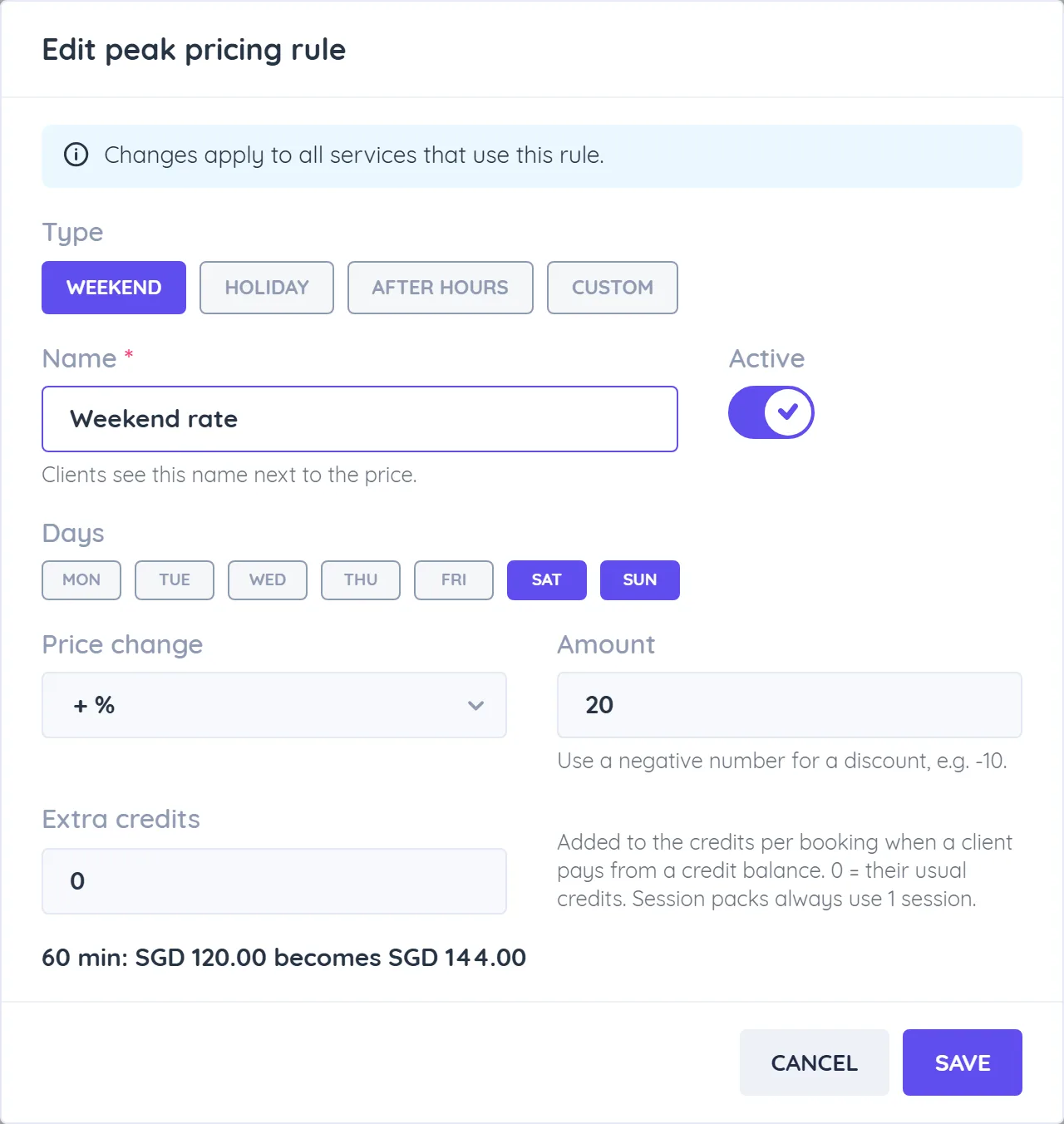
Rules shared with all services show on every service. Switch Use for this service off to leave one service out. Editing a shared rule changes it for every service that uses it. A location can have up to 20 rules, and only the Owner and Administrators can change them.
Price check under the rules shows what a booking costs for a variant, team member, date and time, step by step. Save the service first to check new prices.
What clients see: on the booking portal, times inside a rule show the rule name and their price, and the service page says "Price may vary by time". Times are matched in the location's timezone.
Show prices with tax
- Go to Settings > All Settings > Digital Appointment.
- On the Appointment tab, set Show service prices to Excluding tax or Including tax.
- Click Save.
Including tax adds the service's taxes to the prices shown on booking pages and in WhatsApp, marked "incl. tax". It only changes how prices are shown: the amount charged stays the same.
Prices on staff forms
Add Appointment, Edit Appointment, Add new Class and Edit Class show a Price line with the price for the chosen variant, team member and time, the rule name when one applies, and the tax.
When an edit changes the service, team member or variant of a booking, the price is worked out again. A message tells you what happened: the invoice is updated (with the new balance due, or the difference added to the client's funds), credits are taken or returned, or the invoice was already closed and was not changed. Moving a booking to another time keeps its price.