Booking Fields
Booking fields are the details clients enter when they book online or in a WhatsApp booking flow: name, phone number, email, date of birth and so on. Ask only for what you need so booking stays quick, and make the important ones required. The answers are saved on the client record.
Prerequisites
You are the account Owner or an Administrator. Booking fields apply to every location in your account.
Choose your fields
- Go to Settings > All Settings > Digital Appointment.
- Open the Booking Fields tab.
- Turn each field on or off with its toggle, and turn on Required for fields clients must fill in.
- To rename a field, click Edit label, type the Field label, and use Add translations to set it in other languages. Leave a language blank to use the default label.
- Click Save.
Click Restore defaults to go back to the standard set.
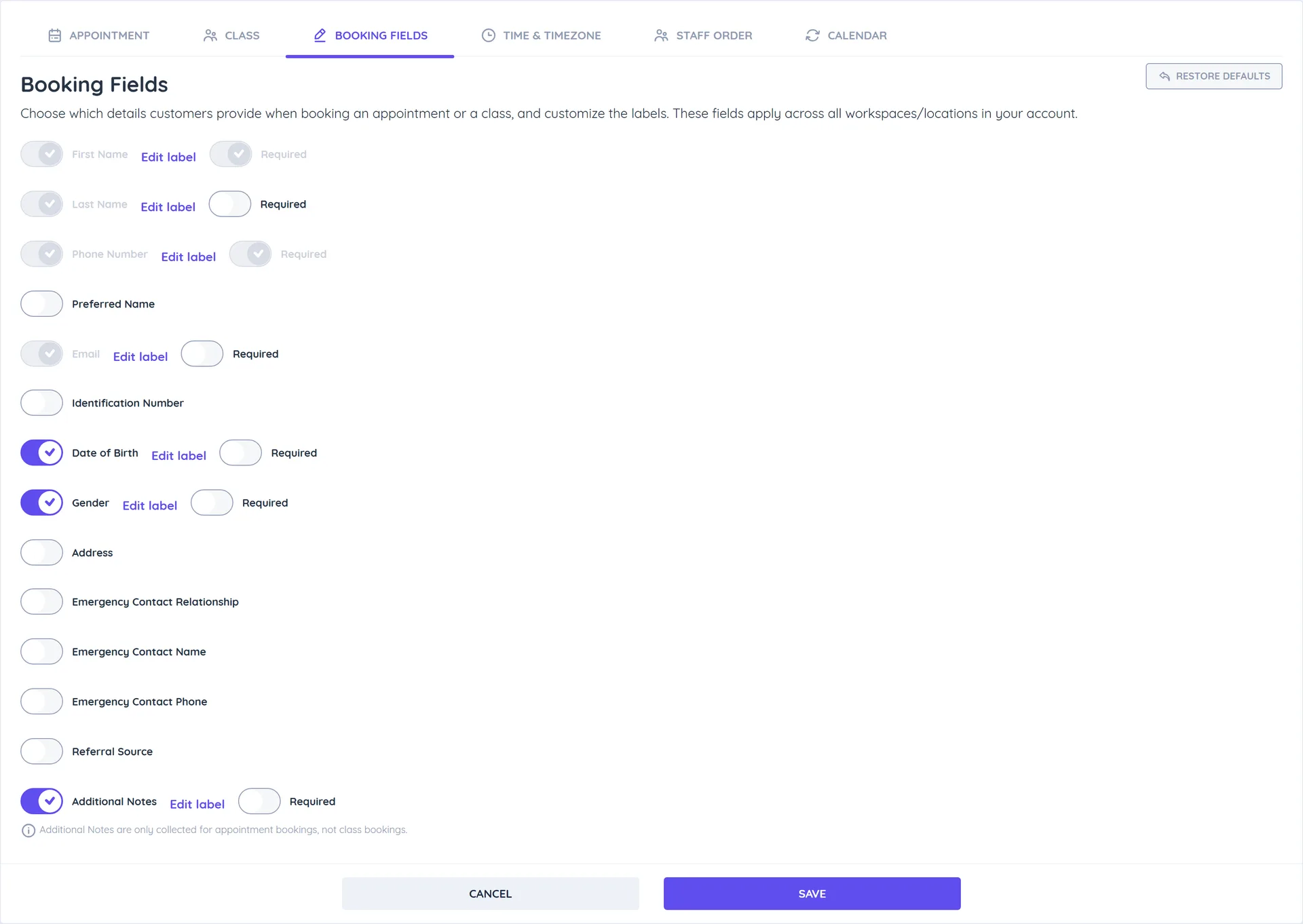
Available fields
| Field | Default | Notes |
|---|---|---|
| First Name | On, required | Always on |
| Last Name | On | Always on |
| Phone Number | On, required | Always on |
| On | Always on | |
| Preferred Name | Off | |
| Identification Number | Off | |
| Date of Birth | On | |
| Gender | On | |
| Address | Off | |
| Emergency Contact Relationship, Name and Phone | Off | |
| Referral Source | Off | |
| Additional Notes | On | Appointments only, not classes |
Tips
- The same fields are used on the booking page and in WhatsApp Flow booking chatbots. After changing them, make a test booking in both.
- Keep required fields to a minimum: every extra field is one more reason to give up on booking.