Appointment Settings
Appointment settings decide how clients book with this location: how close to the start time they can still book or cancel, how far ahead they can book, whether they pick a service or a team member first, who can book online, and how times are shown. The rules apply to your booking page, WhatsApp chatbots and the AI chatbot. Your own team can still book outside these limits.
You are the account Owner or an Administrator.
Open the settings
- Go to Settings > All Settings.
- Under Schedule, click Digital Appointment. The Appointment Settings page opens.
- Change what you need on each tab and click Save.
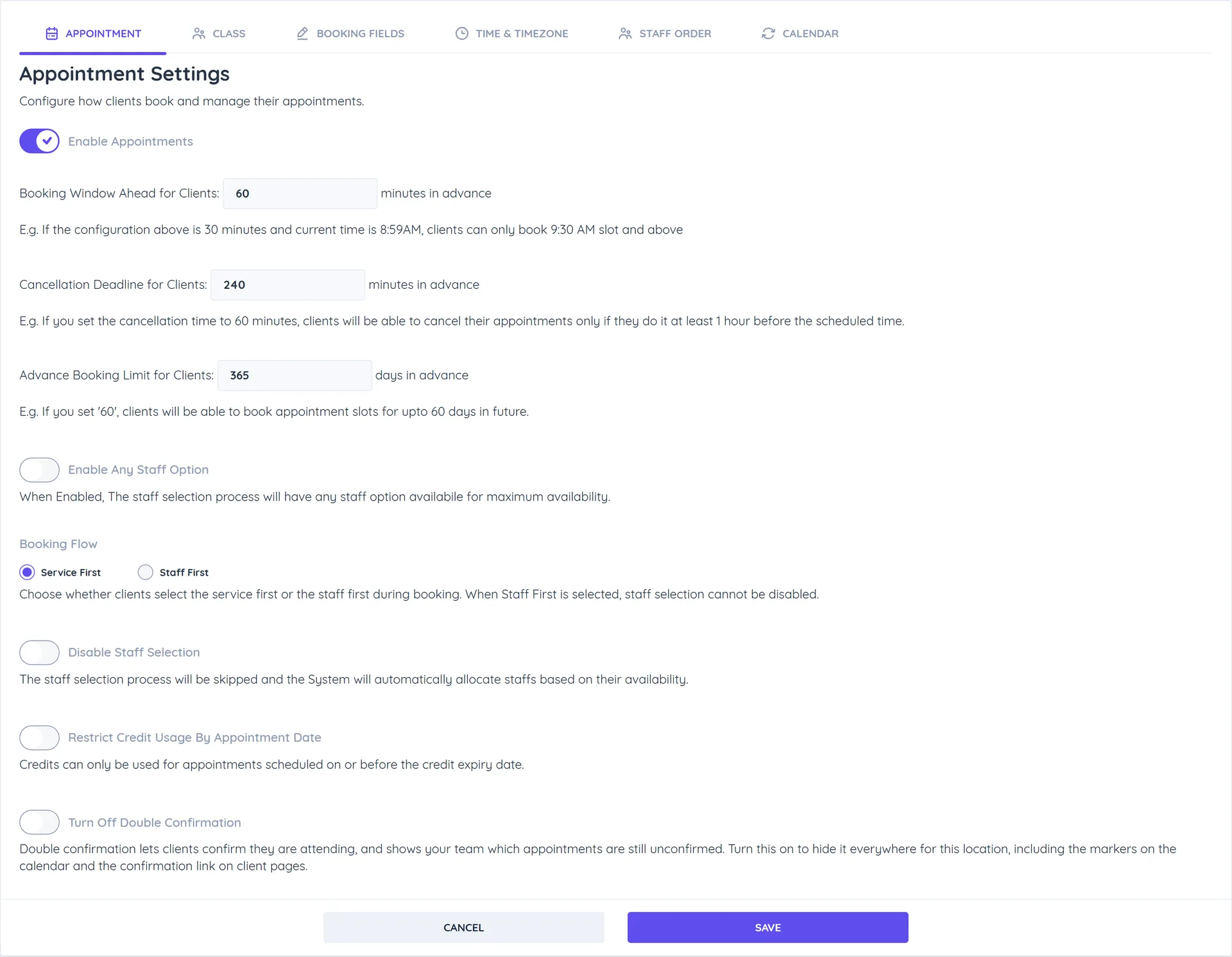
Appointment tab
| Setting | What it does |
|---|---|
| Enable Appointments | Turns online appointment booking on or off for this location. |
| Booking Window Ahead for Clients | How many minutes before the start time clients can still book. With 30 minutes, at 8:59 AM the earliest bookable slot is 9:30 AM. A longer notice also reaches into the next days: with 1440 minutes (one day), at 6 PM nothing before 6 PM tomorrow can be booked. |
| Cancellation Deadline for Clients | How many minutes before the start time clients can still cancel or reschedule themselves. After that, Reschedule and Cancel are hidden on the client's booking and they are asked to contact you. |
| Advance Booking Limit for Clients | How many days ahead clients can book. A service can set its own limit. |
| Enable Any Staff Option | Lets clients choose "Any Staff available" instead of a named team member. |
| Booking Flow | Service First (pick a service, then a team member) or Staff First (pick a team member, then one of their services). |
| Disable Staff Selection | Hides the team member step; Whautomate assigns someone who is free. Not available with Staff First. |
| Book With Credits Only | Clients can book appointments online only with credits or a session pack that covers the service; no online payment or add-ons. See Who can book online. |
| Existing Clients Only | Only clients already in your client list can book appointments and classes online, and customers cannot add new profiles. One setting for both tabs. See Who can book online. |
| Restrict Credit Usage By Appointment Date | Credits can only be used for appointments on or before the credit expiry date. |
| Turn Off Double Confirmation | Hides the double confirmation markers and link for this location. See Appointment Double Confirmation. |
| Show service prices | Excluding tax or Including tax. Only changes how prices are shown on booking pages and WhatsApp; the amount charged stays the same. See Service Pricing. |
Class tab
| Setting | What it does |
|---|---|
| Display Remaining Slots Available | Shows clients how many spots are left. |
| Enable Waitlist for Classes | When a class is full, new bookings join the waitlist instead of being refused. |
| Booking Window Ahead for Clients | Minutes before the class when registration closes. A class can override this. |
| Cancellation Deadline for Clients | Minutes before the class when clients can still cancel. A class can override this. |
| Book With Credits Only | Clients can book classes online only with credits or a session pack that covers the class; no online payment. |
| Existing Clients Only | The same setting as on the Appointment tab. |
| Restrict Credit Usage By Class Date | Credits can only be used for classes on or before the credit expiry date. |
| Hide Staff Name For Class | Hides the instructor's name from clients. |
Who can book online
Two switches decide who can book online at this location. They apply to your booking site, the Telegram mini app and the WhatsApp booking bots. Your team can still book anyone from the calendar, and bookings through the REST API and the AI chatbot are not affected.
- Existing Clients Only: only clients already in your client list can book, and customers cannot add a new profile. Use it when you sign clients up yourself, for example when memberships are sold in another system. One setting for appointments and classes: it shows on both tabs and changes on both.
- Book With Credits Only: a booking needs credits or a session pack that covers the service or class. Set it separately on the Appointment and Class tabs.
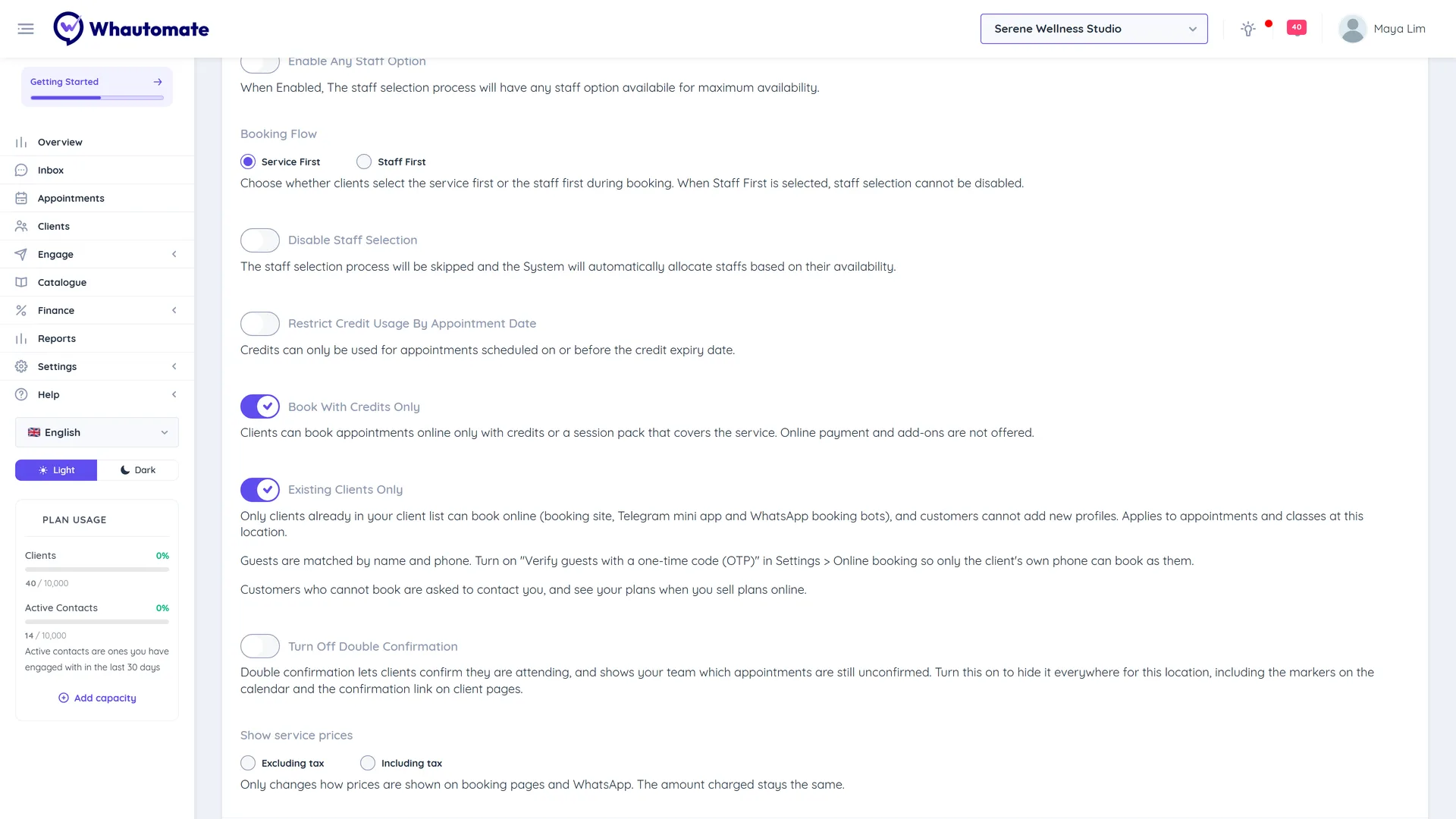
Each location has its own switches. All are off unless you turn them on. Bookings made before you turned one on stay as they are.
Who counts as an existing client
A customer is an existing client when their phone number matches a client in your account's client list:
- Logged in on the booking site, or in the Telegram mini app: the phone they verified is used. They can book for any client profile on that phone, but cannot add a new one.
- Guests (not logged in): with Verify guests with a one-time code (OTP) on, the guest enters a code sent to their phone, and then books as the client on that phone (or picks one when several share the number). Without it, guests are matched by name and phone when they book, so anyone who knows a client's name and number can book as them. Turn on guest verification when that matters.
To let a new customer book, add them as a client first. See Client CRM.
Booking with credits only
A client can book only when one of their credits or session packs covers that service or class. On the booking site there is no payment step, coupon, deposit or add-ons, and the booking uses the client's credits. Clients with no usable credits are refused before anything is reserved. If you sell plans online, they can buy a plan and come back to book. See Sell plans and memberships online.
What customers see
When someone may not book, they see one message instead of the booking steps: Browse our plans and buy one to start booking. with a View plans button when you sell plans online, otherwise Please reach out to the business to enable access for you.
- Booking site, logged in: on the first booking page, instead of the list of services, staff or classes.
- Booking site, guest: a short note, Online booking is for existing clients. or Online booking uses credits from your plan., with Log in to book and View plans. The list stays visible; the message shows when they try to book.
- Telegram mini app: instead of the booking steps, with View plans opening the memberships screen. New profile and booking for someone new are hidden.
- WhatsApp booking bots: the customer list has no Register new Customer option, clients whose credits do not cover the booking show (no credits), and when nobody on the number may book, the list has one row, Buy a plan to book or Contact business for access. Choosing one of these shows the full message in the flow.
Store and plan checkout are not affected, so customers can still buy plans and products. With Existing Clients Only on, a logged-in customer with no client profile cannot add one at checkout.
Booking Fields tab
Choose which details clients fill in when booking and rename the fields. See Booking Fields.
Time & Timezone tab
- Clock format: 12-hour (AM/PM) or 24-hour. This only changes how times are shown to clients.
- Default Timezone: the timezone the booking page starts in. Business timezone suits in-person visits; Client's device timezone suits online sessions with clients in other countries. Clients can still switch, and their choice is remembered on their device.
Staff Order tab
Drag team members into the order you want under Staff Display Order, then click Save on that tab. This order is used on the booking page and in WhatsApp flows. Only active team members available for appointments are listed.
Calendar tab
Click Get Calendar Feed and copy the Calendar Feed URL to see every appointment of this location in Google Calendar, Outlook or iPhone. See Sync with External Calendars.