Online Payment at Booking
Taking payment when clients book reduces no-shows and saves you chasing payments. Payment is switched on per service: when a client books that service online, on WhatsApp or through the AI chatbot, they pay on your payment gateway's secure page before the booking is confirmed. Each service takes either the full price or a deposit.
Prerequisites
- A payment gateway connected in Settings > Payment Gateways: Stripe, Razorpay, MyFatoorah, Thawani Pay, PayTabs or DOKU. See Setup Payment Gateway.
Turn on payment for a service
- Go to Catalogue > Services and open the service.
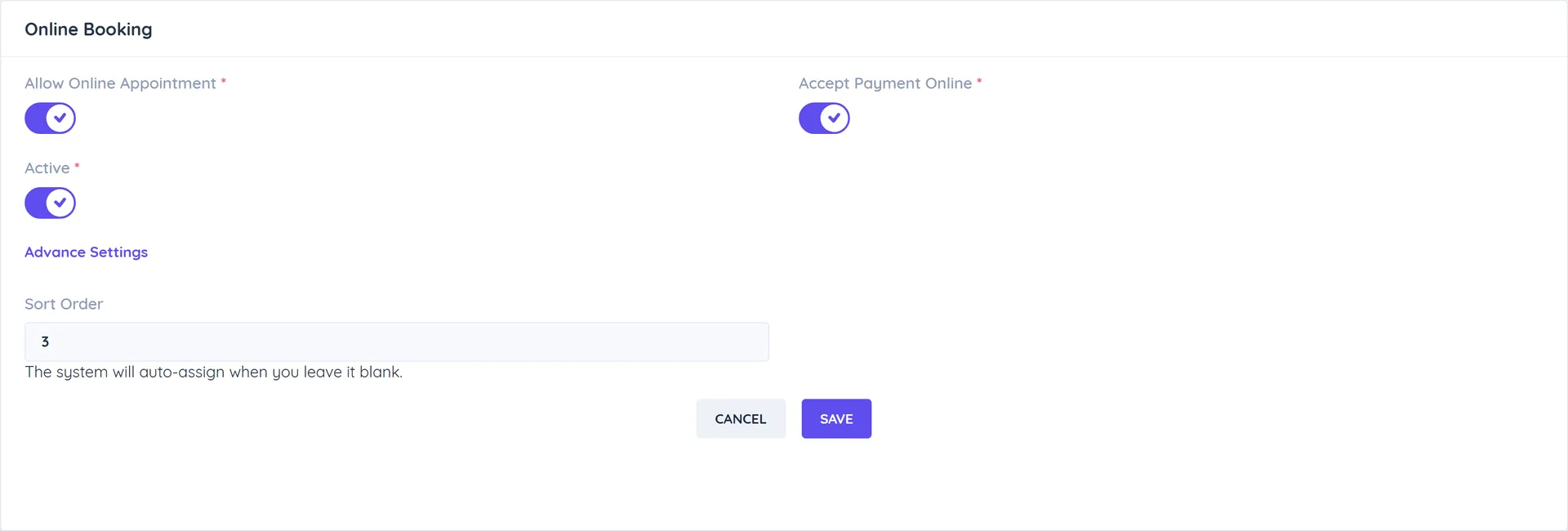
- In Online Booking, turn on Allow Online Appointment and Accept Payment Online.
- Under Collect online, choose Full payment or Deposit only (see Deposits).
- Click Update.
Repeat for each service (appointments and classes) that should be paid upfront.
Deposits
A deposit confirms the booking without charging the full price upfront.
- With Accept Payment Online on, choose Deposit only under Collect online.
- Choose the Deposit type: Percentage of the booking total, or a Fixed amount.
- Enter the Deposit (% of the total) or Deposit amount and click Update.
How it works:
- The deposit is taken from the final booking total, after variant, peak price, add-ons, coupon and tax. If the deposit is not below the total, the client pays the full amount.
- Booking portal: the Overview step shows Deposit required with the deposit and the balance, then Deposit due now and Balance due later. The button reads Pay Deposit and Book.
- WhatsApp Flow chatbots: the booking summary starts with "DEPOSIT REQUIRED", followed by the amount to pay now and the balance due later. The payment link message has a Pay Deposit button. You can change these texts in the chatbot's flow settings.
- AI chatbot: the payment link it sends charges the deposit.
- Every deposit booking gets an invoice for the full amount with the deposit recorded as paid. It stays Pending with the balance due, even without the Sales module. Collect the balance at the visit or send a payment link from the invoice.
Deposits work for appointments and classes.
What clients experience
- Booking portal: the Overview step shows Sub Total, tax and Total, with a coupon field. After Book Appointment they pay on a secure page, then see Booking confirmed. If they cancel payment, the slot is released.
- WhatsApp Flow chatbots: clients are asked to pay online before the booking is confirmed.
- AI chatbot: the Book Appointment with Payment and Book Class with Payment tools send a payment link. The slot is held for about 10 minutes and confirmed once paid.
Paid bookings show Paid Online in the Payment column of the Appointments list.
Good to know
- Credits come first: when the client has credits that apply, no payment is asked for.
- Clients pay the full price, or the deposit when the service takes one.
- When a client reschedules a paid booking to a time that costs more, they pay the difference before the move; a cheaper time adds the difference to their funds. See Customer Booking Portal.
- Appointments your team books are never charged online. Use Create Invoice on the appointment instead (needs the Sales module).
- Services without Accept Payment Online show "Please pay the fees at the business location when you visit."