Business Hours and Holidays
Business hours say when a location is open, and holidays say when it is closed or runs on holiday prices. Closed holidays stop online bookings for that day. Opening hours and holidays also drive After hours and Holiday prices and let your automations reply differently when a message arrives while you are closed. Booking and pricing parts need the Bookings module; away messages work on every plan.
You are the account Owner, an Administrator or a team member with full access. Each location has its own hours and holidays: switch to the location first.
Open the page
- Go to Settings > All Settings.
- Under Account & Team, click Business Hours. The Business hours page opens with two tabs: Opening hours and Holidays.
Set opening hours
- On the Opening hours tab, switch a day on to open it. Days that are off show Closed.
- Set the hours. Click Add hours for a second range on the same day, for example around a lunch break, or tick Open 24 hours.
- To reuse a day's hours, click the copy icon (Copy to all days).
- Click Save. Cancel throws away unsaved changes.
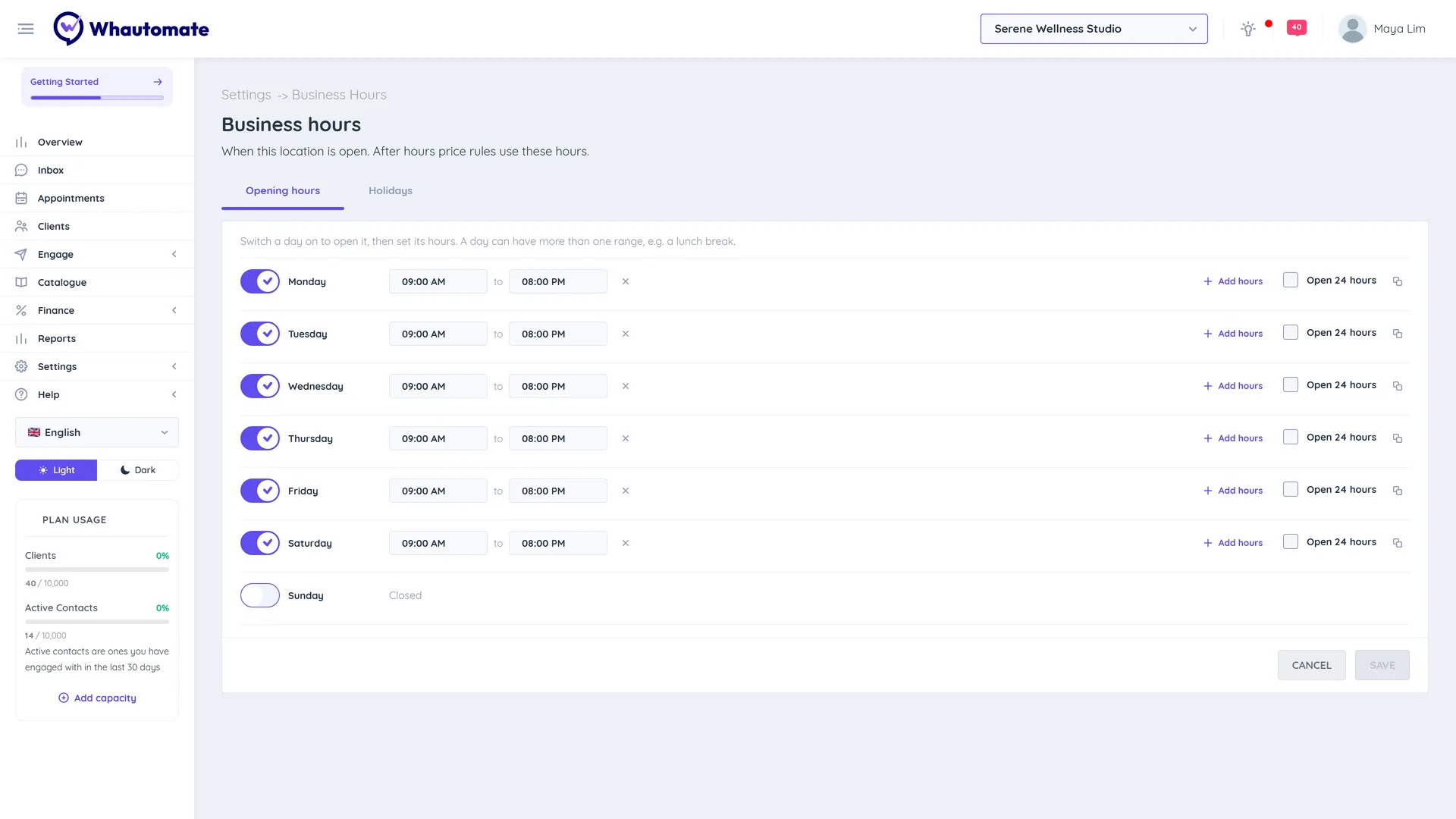
Opening hours do not decide when clients can book: team members' own working hours do (see Setup Team Member Profile). Opening hours are used by After hours price rules and by the Business hours automation condition.
Add a holiday
- Open the Holidays tab and click Add holiday.
- Pick the Date and enter a Name, for example "New Year".
- On this day:
- Closed: no one can book online that day. Leave All day on, or turn it off and set Closed from and To to close only part of the day.
- Open, holiday prices: bookings work as usual, and peak pricing rules that use business holidays apply.
- Optional: turn on Repeats every year for fixed-date holidays.
- Click Save. Each holiday is saved on its own.
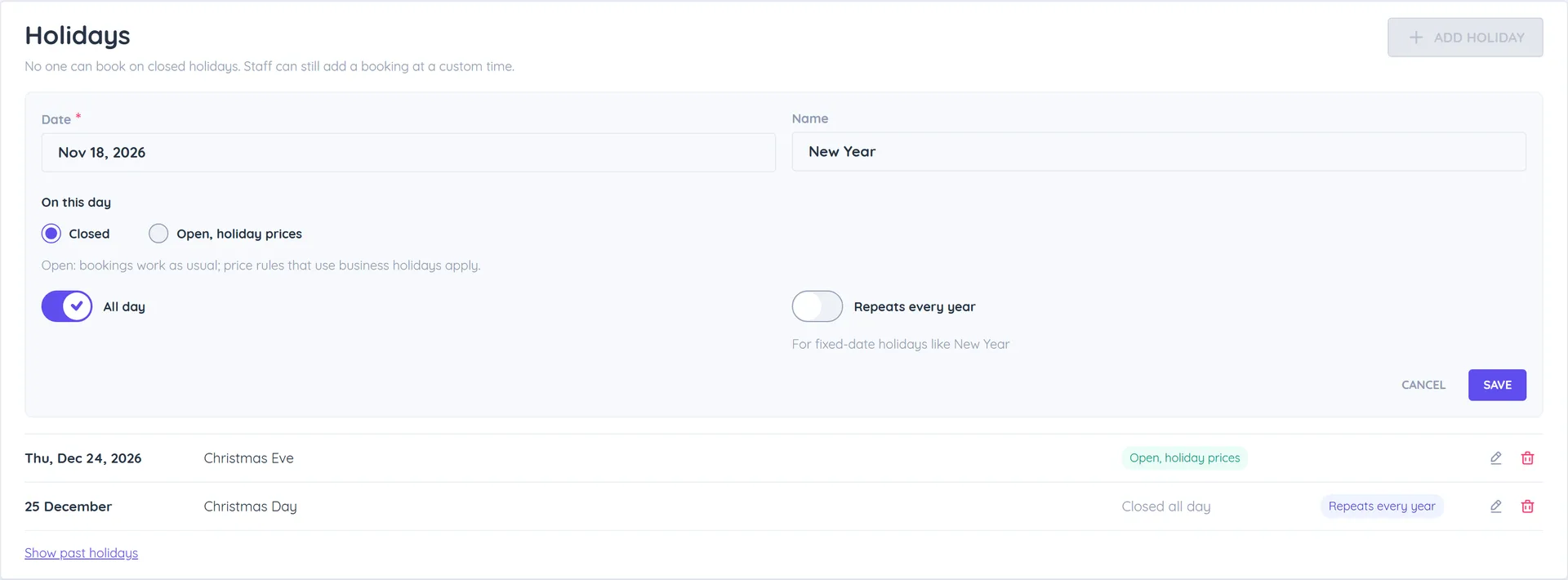
The list shows upcoming holidays with the edit (Edit holiday) and delete icons. Click Show past holidays to see earlier ones.
What holidays change
- Online booking: closed times give no free slots on your booking portal, WhatsApp chatbots or the AI chatbot.
- Add Appointment: the staff availability board marks a closed day Closed. Your team can still book at a custom time. See Book Appointments - Admin.
- Prices: a Holiday peak pricing rule with Use business holidays on applies on every holiday, open or closed. See Service Pricing.
Staff shifts past midnight
A team member's hours can run past midnight or around the clock:
- Set an end time earlier than the start time, for example 10:00 PM to 06:00 AM. The row says the shift "ends the next day".
- Tick Available 24 hours for a full-day shift.
This works in weekly hours and in date overrides. A day that overlaps the previous night's shift is flagged. See Setup Team Member Profile.
Away messages outside business hours
In automations, the field Message received time has four business hours checks, using this location's hours and holidays in its timezone:
- is within business hours
- is outside business hours (after hours or holiday)
- is after hours (not a holiday)
- is on a holiday
Two ready-made templates use them, for every chat channel: Away Message Outside Business Hours replies when a message arrives after hours or on a holiday, and After Hours and Holiday Messages sends one message after hours and a different one on holidays. Both queue the chat for your team and run beside your chatbot. See Rule Templates and Create an Automation Rule.