Client Portal
The client portal is the logged-in area of your online booking portal. Clients sign up with their email, then see their own profiles and history in one place: upcoming and past appointments and classes, credits, orders and memberships. Use it when you want clients to self-serve instead of messaging you to ask "when is my next class?" or "how many sessions do I have left?".
The portal is also available with Bookings. What a client sees depends on what your plan and settings turn on: bookings and credits with Bookings, orders and memberships with Sales and the online store.
Set up the client portal
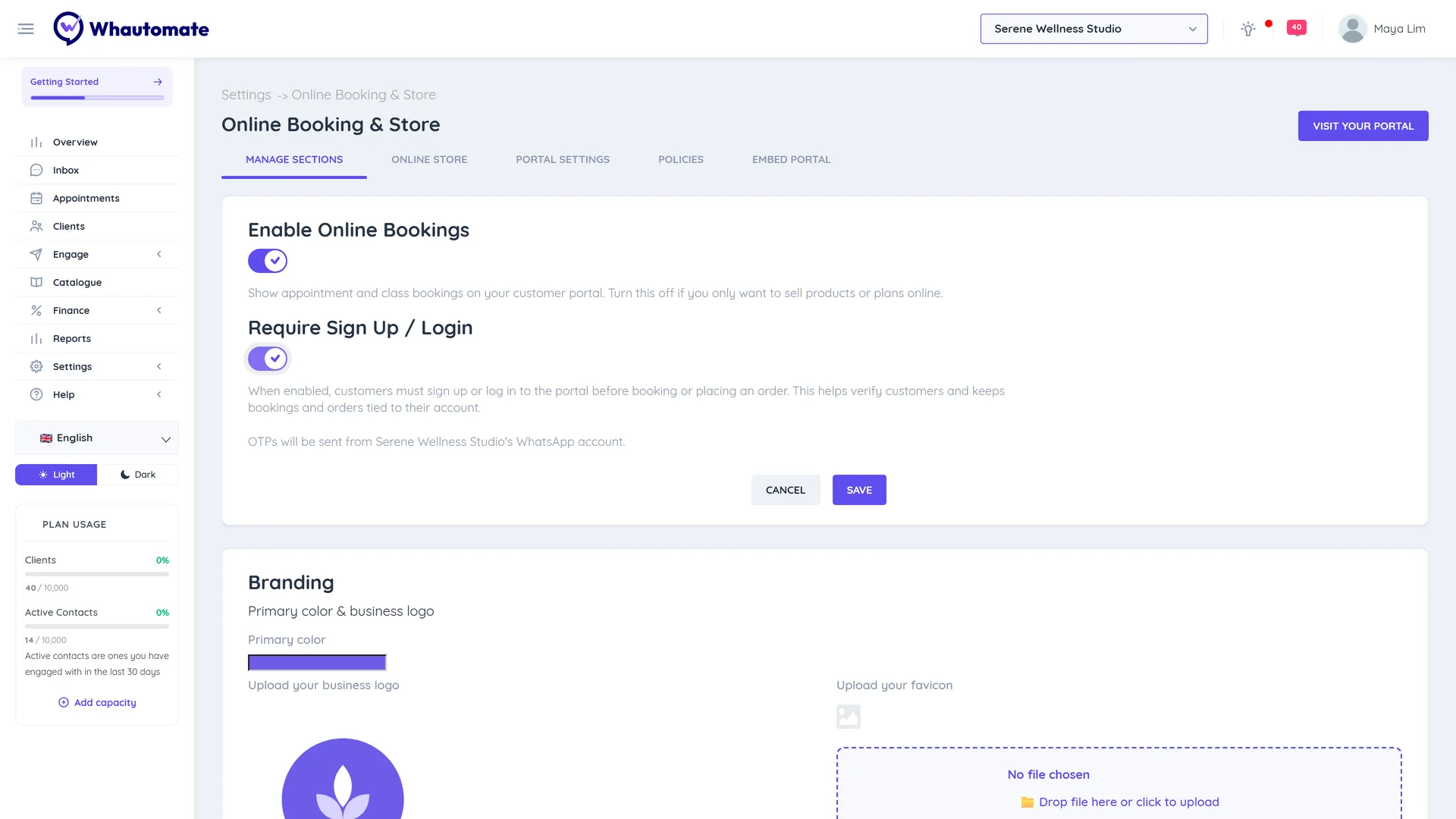
- Go to Settings > Online Booking & Store (under Website & Booking Portal).
- On the Manage Sections tab, turn on Require Sign Up / Login if customers must sign up or log in before they book or place an order. This keeps every booking and order tied to a verified account. Leave it off to let customers book as guests and log in only when they want to; you can still ask guests to confirm their phone or email with a code under Confirm guest contact details (see Confirm Guest Contact Details). Login codes are sent from the location chosen in Send verification codes from.
- Click Save, then click Visit Your Portal to check it.
What clients see
- The client opens your portal and chooses Log in or sign up.
- New clients sign up with their email and confirm it with an Email verification code.
- After logging in, My profiles lists the client and anyone they manage (for example family members). They can add a profile, edit details and use Book new.
- Opening a profile shows its appointments, classes, credits, orders and memberships.
Profiles in the portal are client records in your CRM, so anything a client changes shows on their client profile.
Reschedule and cancel
From an upcoming appointment, clients can tap Reschedule or Cancel; from a class booking, Cancel. These buttons only show before the cancellation deadline in Appointment Settings. Inside the deadline they are hidden, and the booking explains that the time to change it online has passed and asks the client to contact you.
When a client reschedules to a time that costs more or less (for example with weekend or holiday prices), the new times are marked and the price change is shown before they confirm:
- a dearer time on a booking paid in full online is paid before the move;
- a dearer time on a booking paid at your location, or with a deposit balance, adds the extra to the balance;
- a cheaper time on a paid booking adds the difference to the client's funds for future bookings;
- a booking paid from a credit balance can take more or fewer credits at the new time.
See Customer Booking Portal for the details.
Clients never see plan or upgrade wording. If a feature is not on your plan, it simply does not appear in the portal.