Manage Inventory & Link WhatsApp Catalog
Inventory is your list of physical products, such as oils, mats or gift sets. Each product has a price, an optional sale price, a stock count, and images. Products can be sold on invoices, in your online store and on WhatsApp. Stock goes down automatically when you sell, and you can add or remove stock with a reason so you always know why the count changed.
Before you start
- Optional: add your taxes first so you can apply them to products.
- To sell on WhatsApp, set up a WhatsApp catalog in Meta Commerce Manager.
Add a product
- Go to Catalogue and open the Inventory tab.
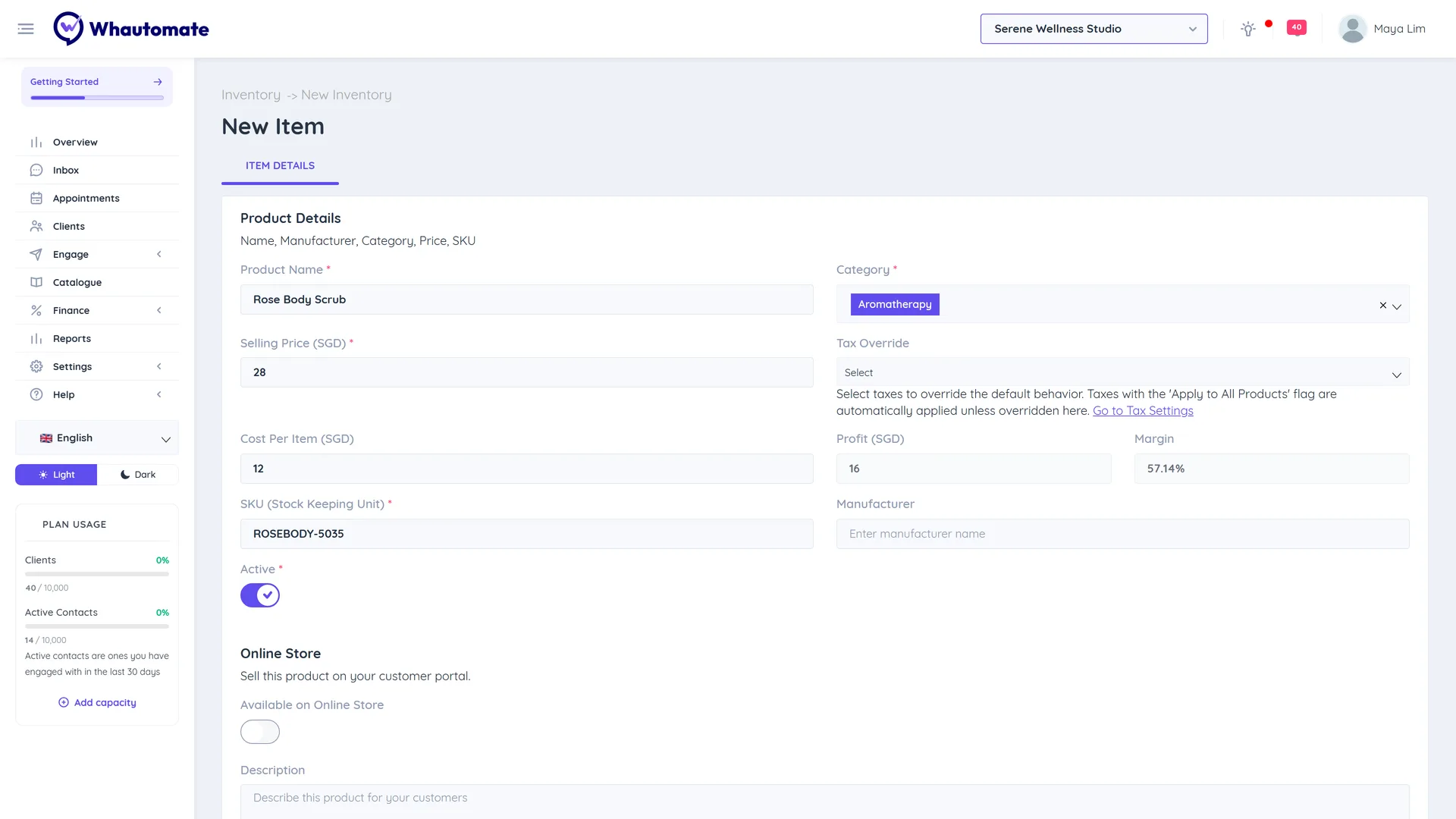
- Click Add New Product. The New Item page opens on the Item Details tab.
- Under Product Details:
- Product Name and Category (pick one or click Add new category).
- Selling Price.
- On sale: turn on to sell the product for less for a while, and enter the Sale Price. The sale price is what clients pay, in your online store and on invoices, and the online store shows the regular price struck through. The sale price must be lower than the selling price. Turn On sale off to end the sale.
- Tax Override: leave empty to use taxes set to Apply to All Products, or pick specific taxes for this product.
- SKU (Stock Keeping Unit), Manufacturer, and the Active switch.
- Under Online Store, turn on Available on Online Store to sell it on your customer portal, then add a Description and Product Images.
- Under Inventory, turn on Manage Stock to track stock and enter the Current Quantity.
- To link the product to WhatsApp, enter the Meta Catalogue Id and Meta Product Id from Meta Commerce Manager.
- Click Save.
View and find products
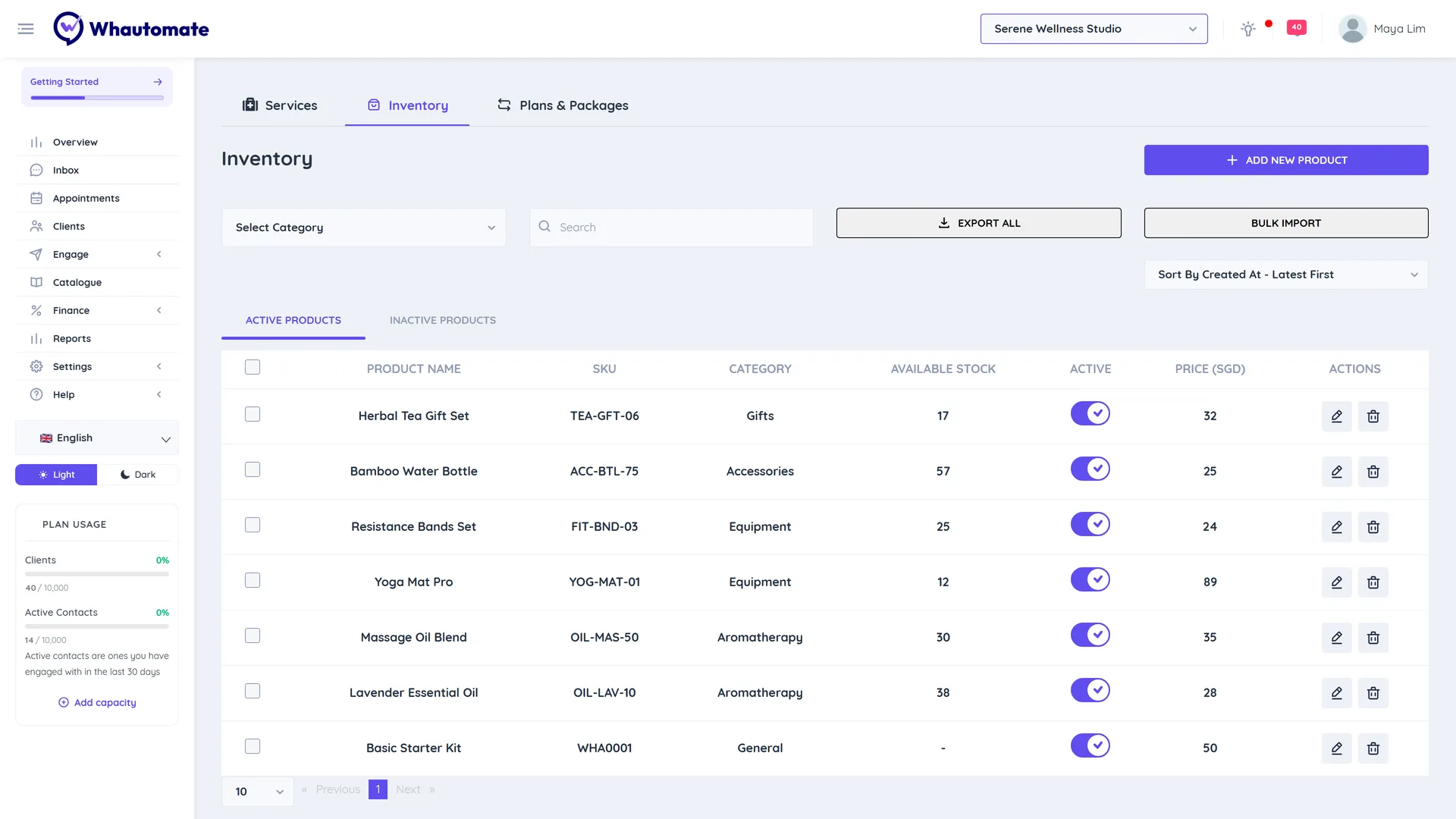
The Inventory tab shows Product Name, SKU, Category, Available Stock (with items left), Price (with the regular price struck through for products on sale) and Active on two tabs, Active Products and Inactive Products. Filter by Select Category, search, or change the order with Sort By. Click Edit Product or Delete Product on a row.
Adjust stock
Stock goes down when a product is sold on an invoice or order, and goes back up when the invoice is voided. To change stock for other reasons:
- Open the product and go to the Stock Adjustments tab.
- Click Adjust Stock.
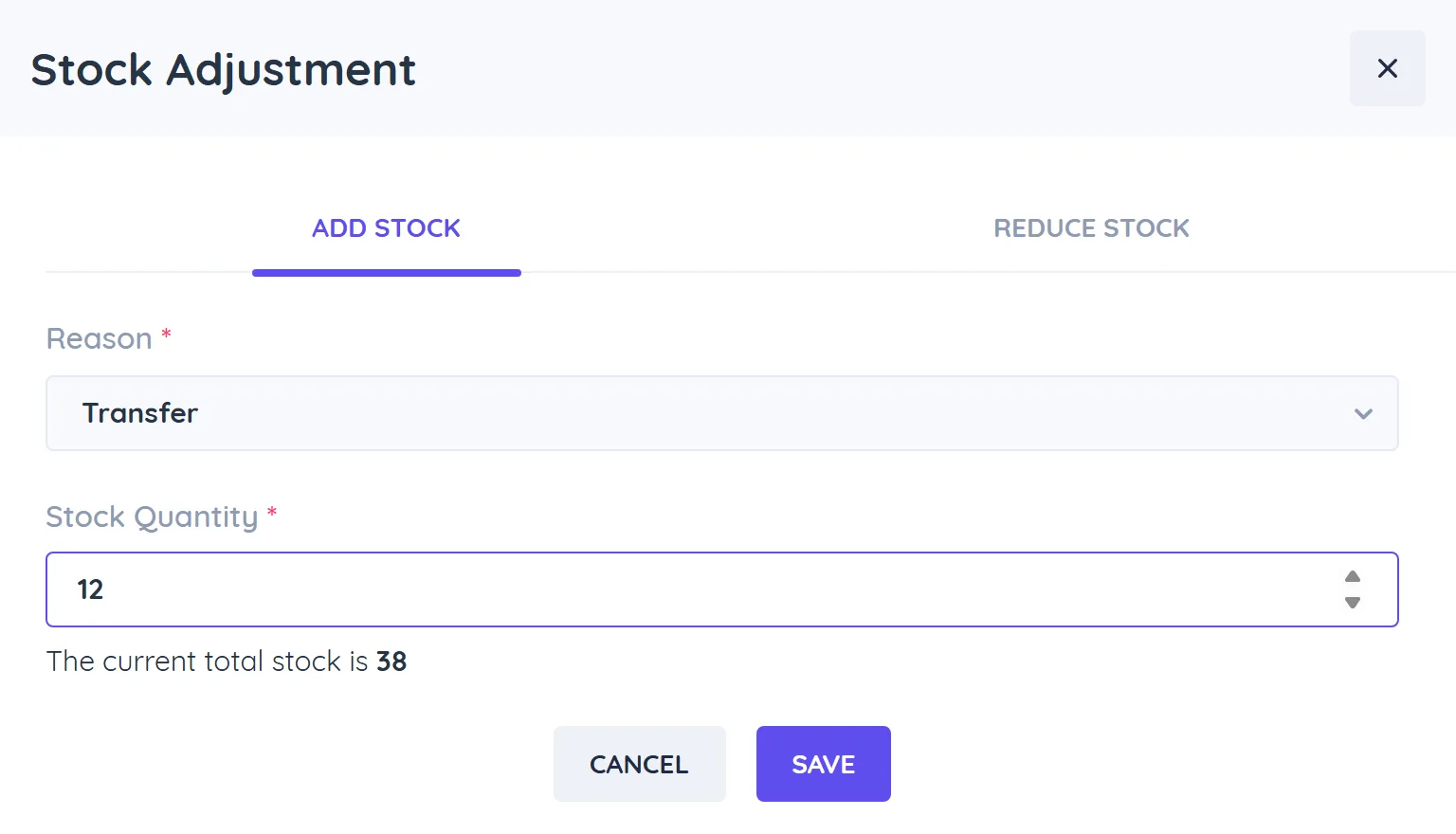
- In Stock Adjustment, choose ADD STOCK or REDUCE STOCK.
- Pick a Reason, for example New Stock, Returned or Transfer when adding, or Damaged, Out of Date, Sold or Internal Use when reducing.
- Enter the Stock Quantity and click Save.
The Stock Adjustments tab keeps a history with Adjustment Type, Quantity, Adjusted At and Adjusted By.
Import and export products
- Bulk Import: click Bulk Import, then Download sample file, fill it in and use Upload CSV. Check the Preview and click Import. Columns include Name, SKU, Category, Selling Price, Active, Manage Stock, Quantity, Manufacturer, Meta Catalogue Id and Meta Product Id. An optional last column, regularPrice, puts the product on sale when it is higher than the selling price (older files without it still import).
- Export: tick products and choose Export Product(s), or click Export All (once per week). The file appears in Settings > Data Exports and you get a notification when it is ready.
Link your WhatsApp catalog
When a product has a Meta Catalogue Id and Meta Product Id, orders placed from your WhatsApp catalog are matched to the right product in Whautomate, so stock and order totals stay correct. Find both IDs on the product in Meta Commerce Manager. The product content ID is the Meta Product Id.
Both IDs must match exactly and the product must be Active. A catalog item that does not match a product is left out of the order.
To create products from your catalog instead of typing them, go to Integrations > WhatsApp, open the Commerce tab, choose your Connected Catalog under Import Products from Catalog and click Import Products. Products that already exist are updated, and new ones are created with the IDs filled in.
Tips
- Turn Manage Stock off for products you never run out of. Invoices will not warn about stock for them.
- Use On sale for short promotions instead of changing the selling price: customers see the saving, and you switch it off when the sale ends.