Setup Subscriptions
A subscription is a plan sold to a specific client. It creates the client's invoices on schedule, charges or sends a payment link each cycle, and gives the client credits to book with. Use subscriptions to sell memberships and packages, and to see at a glance who is active, paused or overdue.
Before you start
- Create the plan first. See Setup Plans.
- For automatic card charges, connect Stripe.
Sell a plan to a client
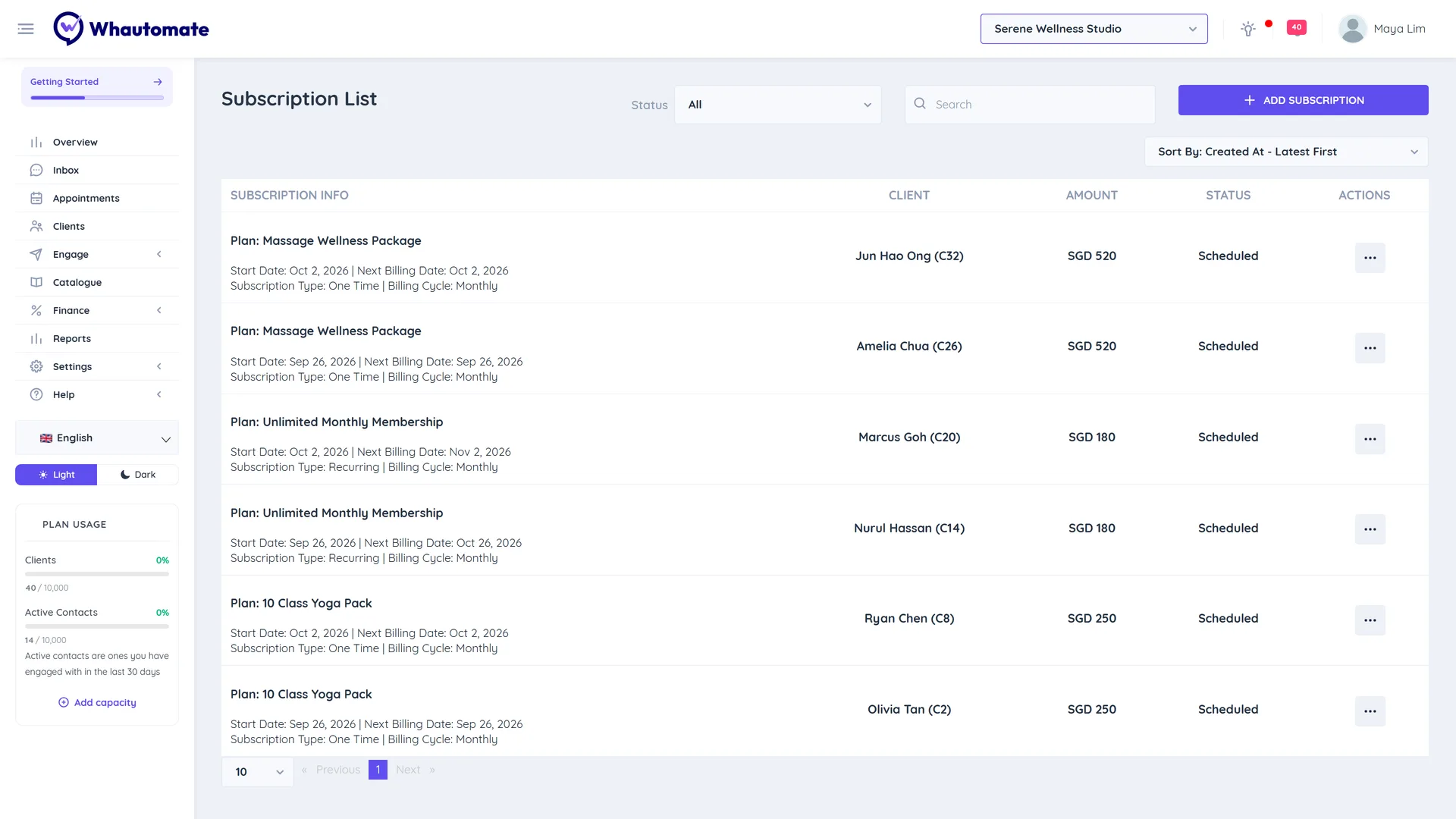
- Go to Finance > Subscriptions and click + Add Subscription. (You can also do this from the client's Subscriptions tab.)
- In New Subscription, pick the Client (or Create new Client) and the Plan.
- Set the Start Date and, if needed, the Staff.
- Open the save menu and choose Save, or Save and Send to share the subscription link with the client right away.
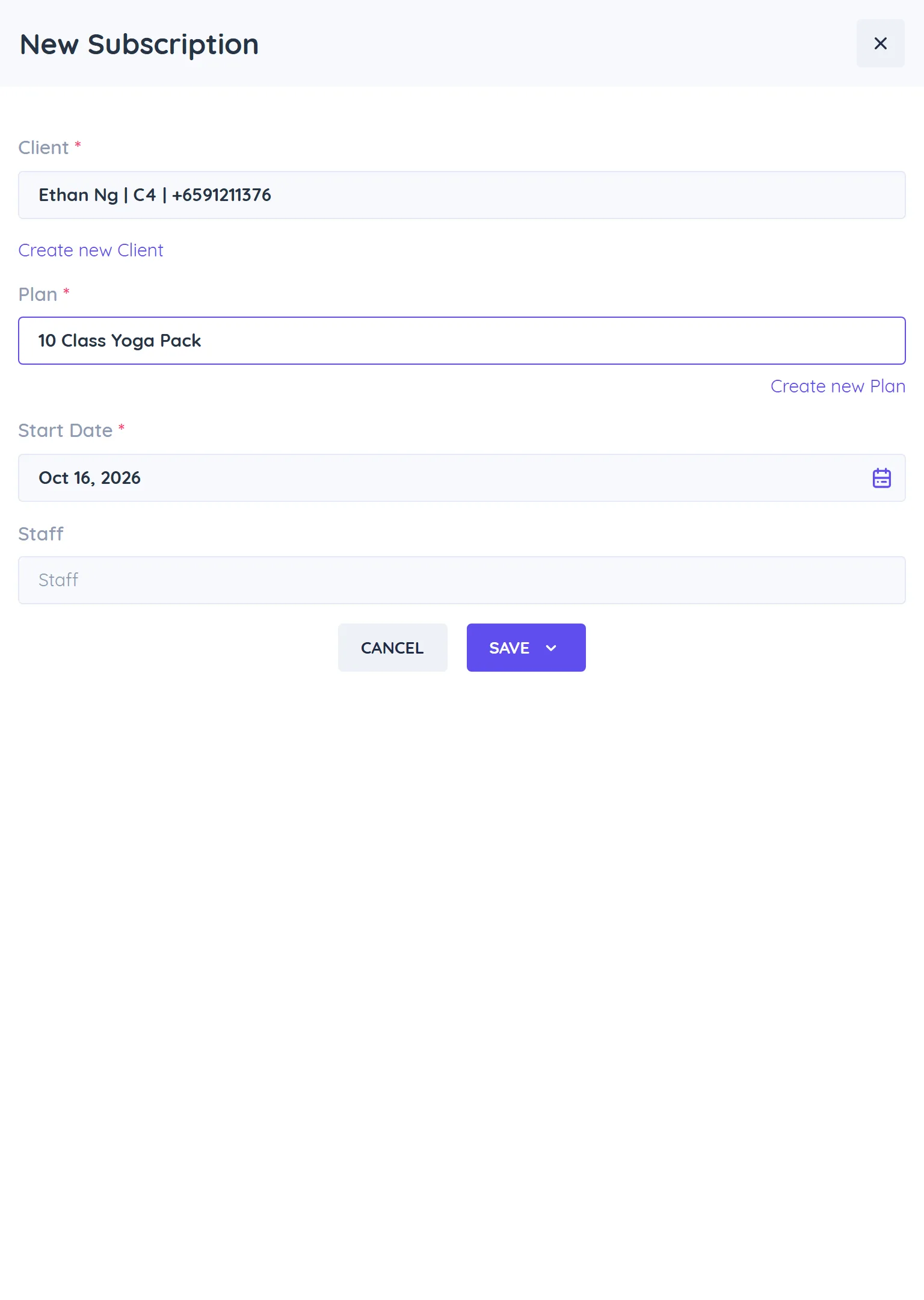
If the start date is today or earlier, the first invoice is created straight away. With Invoice & send payment link plans the client gets a payment link; with Save card & auto-charge (Stripe only) plans the client saves a card through the subscription link and is charged each cycle.
Clients can also buy a plan themselves through its checkout link or your online store.
Subscription statuses
| Status | What it means |
|---|---|
| Scheduled | Created; waiting for the start date or first payment. |
| Active | Paid and running. |
| Pending | A card payment needs the client to authorise it (for example 3-D Secure). |
| Paused | Paused until a resume date. |
| Suspended | A payment failed or an invoice is overdue. |
| Cancelled | Cancelled by you. |
| Ended | The last cycle has finished, or a one-time plan has been paid. |
View and manage subscriptions
The list shows Subscription Info (plan, start date, next billing date, type and billing cycle), Client, Amount and Status. Filter by Status or search. Click the ... menu on a subscription to:
- View Subscription: details, with Invoices and Credits tabs.
- Share Subscription Link: send it by email, SMS or WhatsApp, or copy it.
- Edit Notification Settings: reminders and channels.
- Pause Subscription: choose a Resume Date and optionally a new Subscription End Date.
- Adjust End Date.
- Edit Subscription Credits: changes apply from the next renewal.
- Cancel Subscription: Immediately, End of the current cycle or a Custom Date.
- Reactivate Subscription (on cancelled subscriptions): pick a Reactivation Date.
- Delete Subscription.
Credits
Each time a subscription invoice is paid, the client gets that cycle's credits. To see or change them, open View Subscription > Credits, or the client's Credits tab.
- The list shows each credit's Code, Plan, what is Remaining, and its status: Active, Expired or Completed (used up).
- Click + Add credits to give extra credits by hand, or Edit to change an existing batch.
When you book an appointment or class for the client, click Apply Credits and choose a credit. Online bookings and WhatsApp bookings use the oldest active credit automatically for services that have a credit value. Cancelling a booking returns the credit.
Automations
Use the triggers Subscription Updates, New Credits Assigned and Credits Usage Updates in Engage > Automations to message clients about renewals and remaining credits. Variables include {{subscription.planName}}, {{subscription.nextBillingDate}}, {{subscription.amount}}, {{subscription.status}} and {{subscription.url}}.