Sell Plans and Memberships Online
Studios, gyms, spas and coaches can sell class packs, memberships and packages on the Plans tab of their online store. Customers compare your plans, see the credits each one includes, and buy on the spot. The purchase becomes a membership in Whautomate, credits are issued when it is paid, and the customer can use them to book right away.
Before you start
- Create your plans. See Setup Plans.
- Connect a payment gateway. To charge memberships automatically every cycle, connect Stripe.
- Set up your portal address. See Setup the Booking Portal.
List your plans online
- Go to Catalogue and open the Plans & Packages tab.
- Open a plan with Edit Plan.
- Under E-Commerce, turn on Available on Online Store and add Plan Images. Add a Description under Plan/Package Details so customers know what they get.
- Click Save. Repeat for each plan you want to sell.
- Go to Settings > Online Booking & Store, open the Online Store tab, turn on Sell Plans Online and click Save.
Only active plans with Available on Online Store turned on are listed. A plan is sold at its own location, so in Storefront per location mode each location lists its own plans. See Storefront Mode.
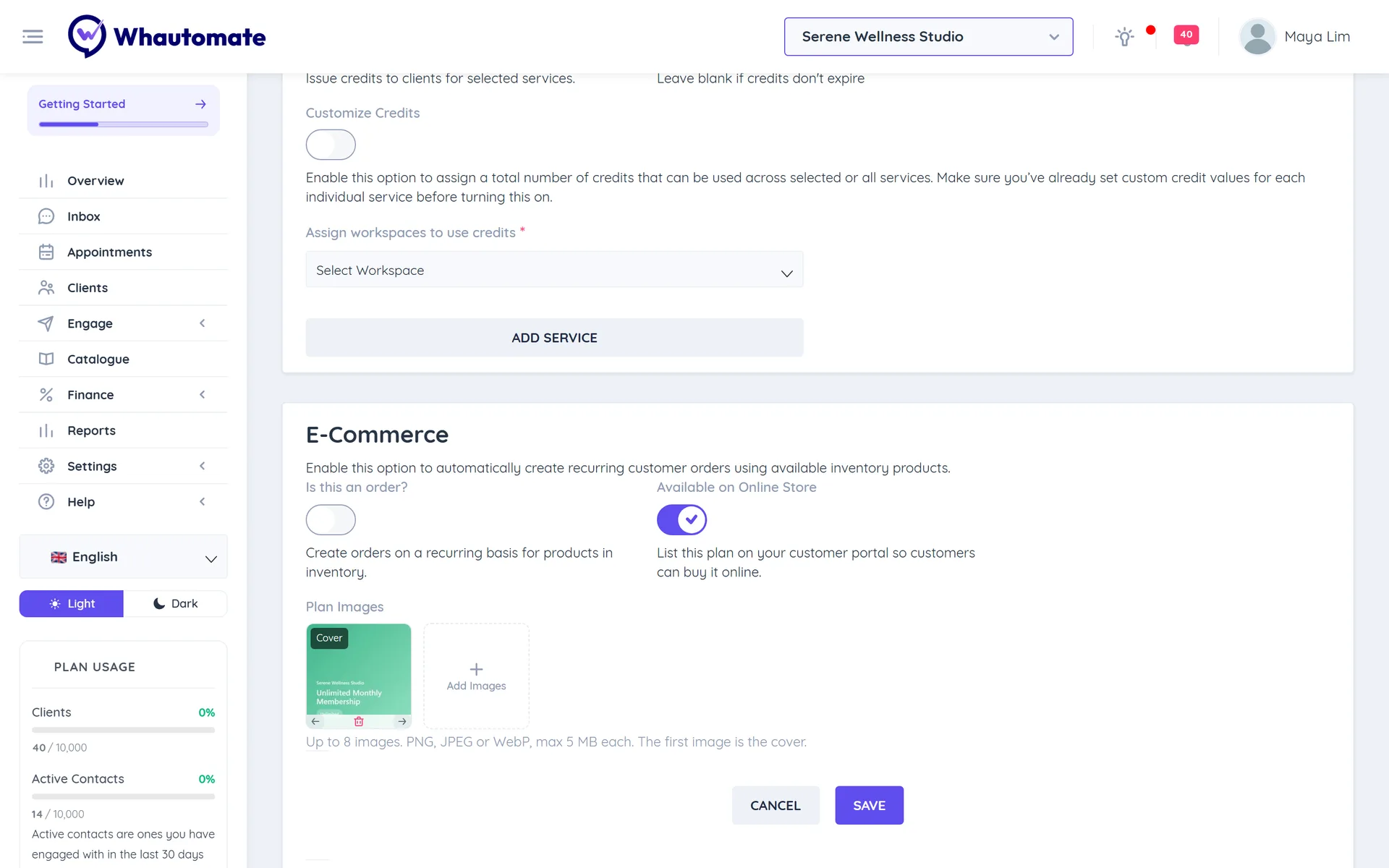
What customers see
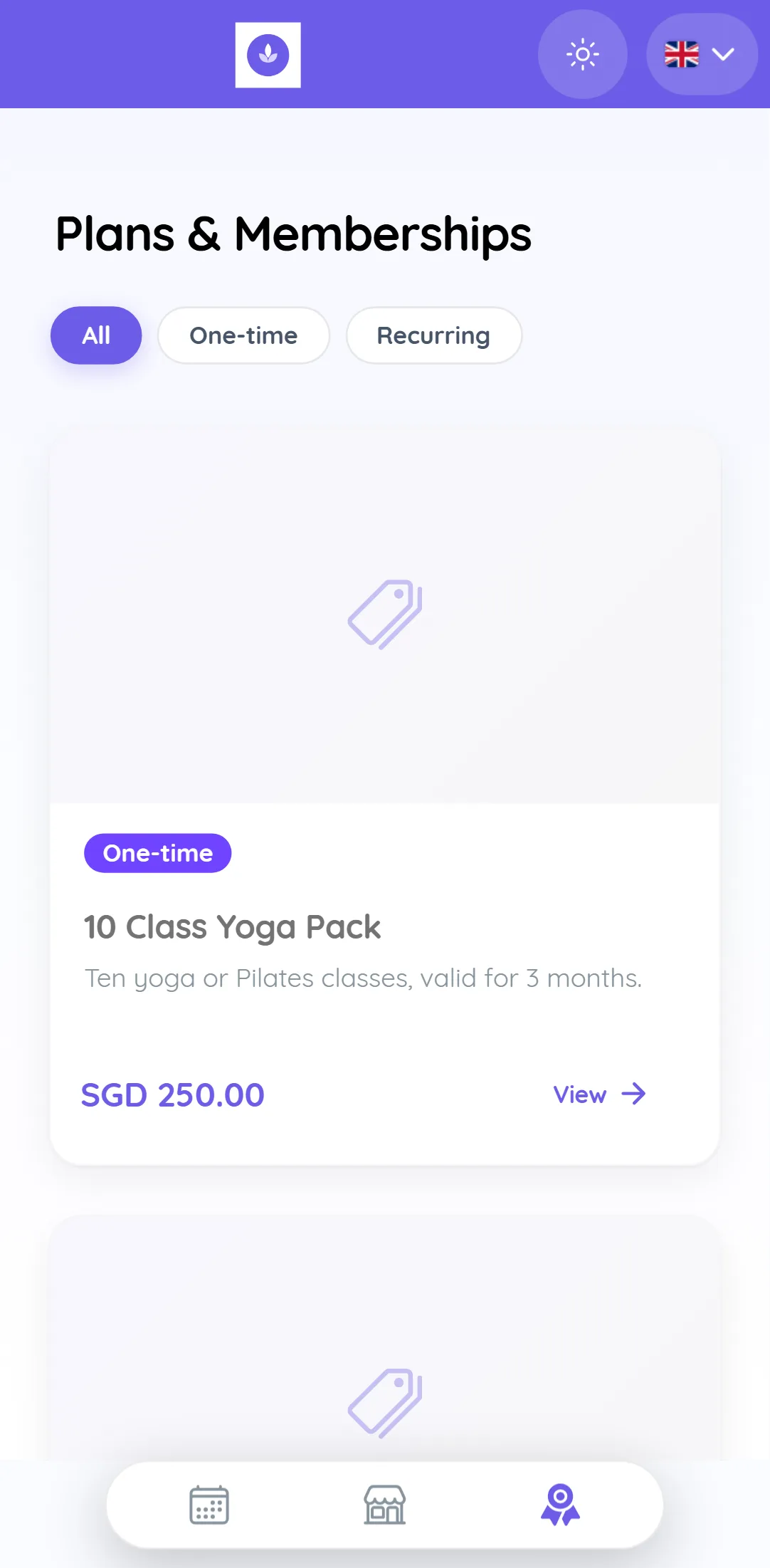
- Plans & Memberships: each plan shows its photo, a One-time or billing cycle badge, the description and the price. When you sell both one-time and recurring plans, customers can filter with All, One-time and Recurring.
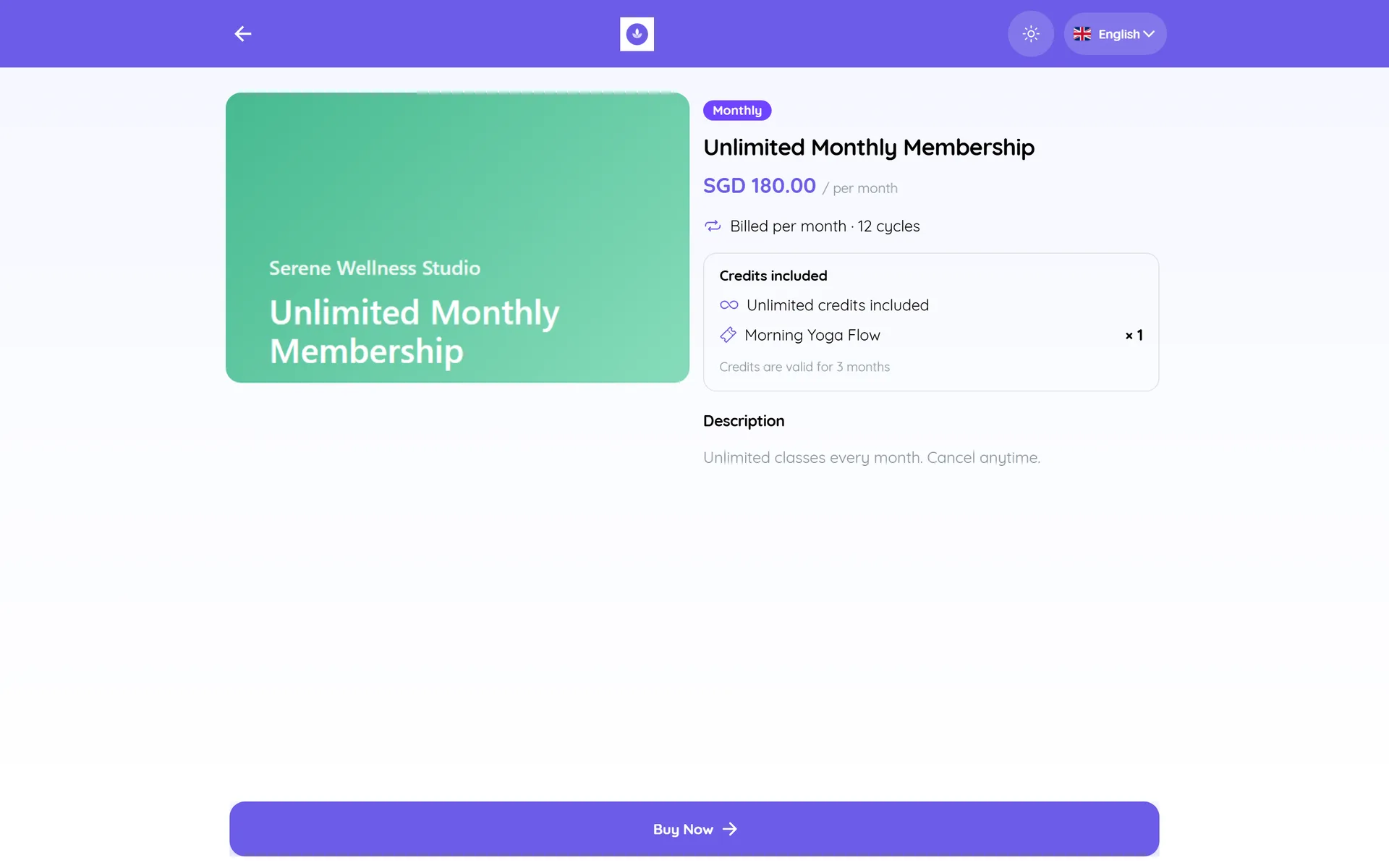
- Plan page: tapping View opens the plan with its images, price and billing (for example "Billed per month"), and what it includes:
- Credits included: the number of credits or "Unlimited credits included", the credit type ("Session pack: each booking uses 1 session." or "Credit balance: each booking uses the credits shown for that service."), which services they cover, where they can be used and how long they last;
- or What's included for plans without credits;
- and the Description.
- Buy Plan: tapping Buy Now opens checkout with the Plan Summary and Total. Recurring plans show "This is a recurring plan. Billing repeats each cycle until it ends or is cancelled." The customer enters their Contact Details, or logs in and chooses who they are Ordering for when Require Sign Up / Login is on.
- Payment: tapping Continue to Payment opens your secure payment page.
How payment works
What happens on the secure payment page depends on the plan's Charge Mode:
| Charge Mode | What the customer does | After that |
|---|---|---|
| Save card & auto-charge (Stripe only) | Enters their card on the secure page and saves it. | They return to your store and see Plan purchased!. Each cycle is charged to the saved card. |
| Invoice & send payment link | Sees a summary of the plan they bought. | Each cycle creates an invoice and sends a payment link on the plan's notification channels. |
A free plan is confirmed straight away with Plan purchased! and no payment step.
Credits are issued each time the plan's invoice is paid, so clients can book with them as soon as the payment comes in. See Setup Plans.
After the purchase
- The purchase is a membership on the client's profile, the same as one your team creates. See Setup Memberships.
- Logged-in customers see it under Memberships in their client portal, with Membership Details such as Started on, Next billing on and Amount, and their credits under Credits.
- Credits apply automatically when the client books a service the plan covers on your booking portal.
- To message clients when a membership or credits change, use the membership and credit automation triggers. See New Credits Assigned and Credits Usage Updates.
Hide memberships or credits from clients
If you sell plans but do not want clients to see their memberships or credits in the client portal and chat mini apps, go to Settings > Online Booking & Store, open the Online Store tab and turn off Show memberships to clients or Show credits to clients. Both are on by default. Billing and credit use on bookings carry on as before.
Tips
- Name plans the way customers search, for example "10 Class Yoga Pack" or "Unlimited Monthly Membership", and use the description for the key terms.
- Add a clear photo to every plan so the plan cards look even.
- Plans are bought one at a time and are not added to the product cart. Coupons and shipping do not apply at plan checkout.
- To share one plan directly, use View Checkout Link on the plan in Plans & Packages, or copy the plan page address from your store.