Credits Report
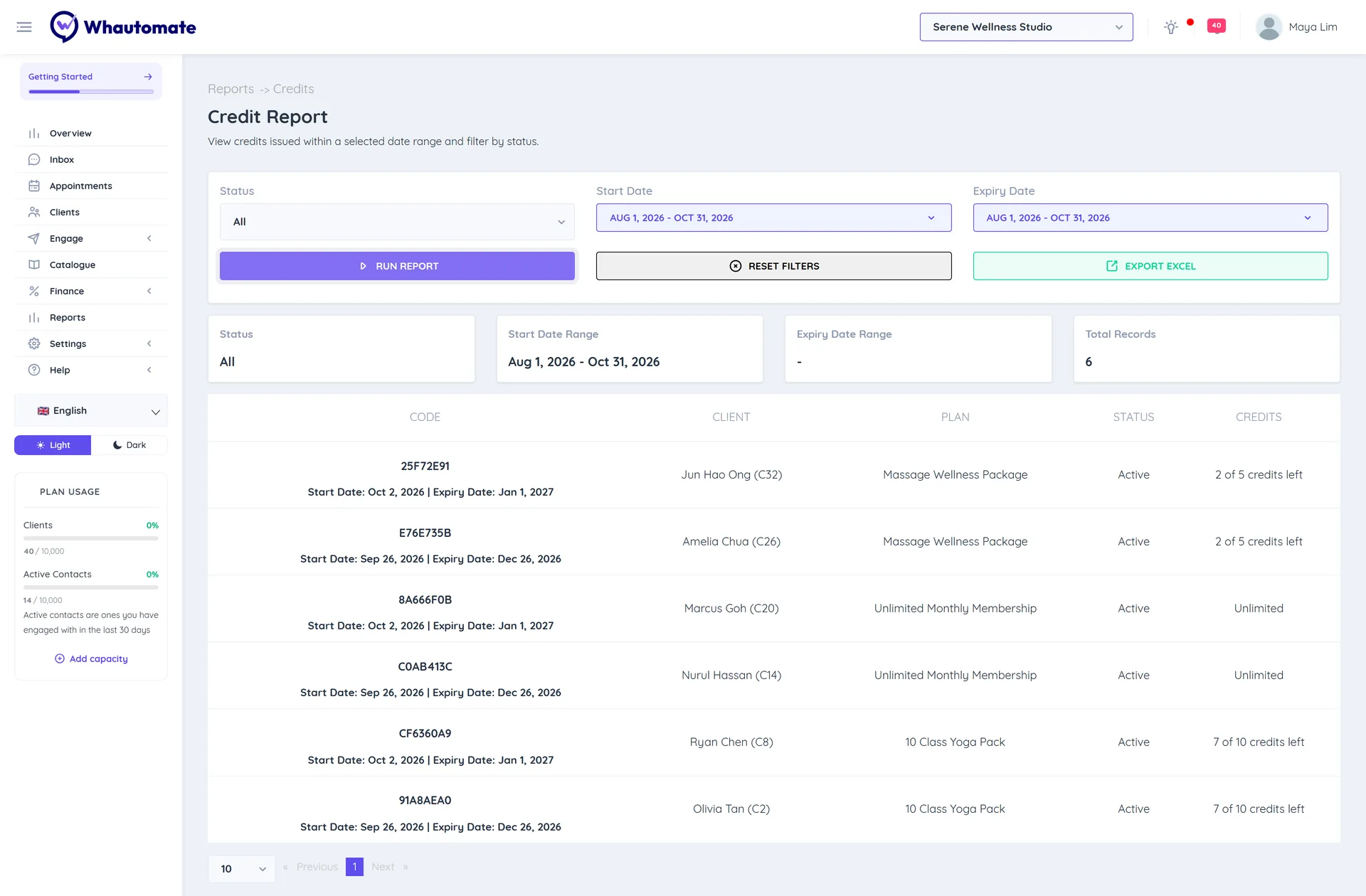
The Credit Report lists the credits your clients have from memberships, packages and manual top-ups, both session packs and credit balances: when they start, when they expire and how many are left. Use it to remind clients about credits that are about to expire, or to check how much prepaid service you still owe.
Before you start
You need access to Reports (Owner, Administrator or Accountant/Finance Manager). See Who can see reports.
Run the report
- In the sidebar, click Reports. Under Revenue, click Credits.
- Set the filters:
- Status: All, Active, Expired or Completed (all credits used).
- Start Date: credits that start in this range. It opens on this month.
- Expiry Date: credits that expire in this range. Leave it empty to ignore expiry.
- Click Run Report.
Read the report
The summary shows the Status, the Start Date Range and Expiry Date Range you chose, and the Total Records.
Each row shows the credit Code with its Start Date and Expiry Date (and the Workspaces it can be used in, when limited), the Client, the Plan it came from (Manual for credits added by hand), the Status and the Credits left.
A credit you disabled on the client's Credits tab is listed with its stored status here. To see which credits are disabled, filter the client's or membership's Credits tab by Disabled. See Credits.
Export to Excel
Click Export Excel to download the credits that match your filters, up to 2,500 rows.
Tips
- To find credits about to expire, set Status to Active and pick next month as the Expiry Date range. Then message those clients or set up an automation. See Credits Usage Updates.