Recall Reminders
Many clients need to come back on a regular cycle: a dental check-up every 6 months, a haircut every 4 weeks, a physio review every 2 weeks. Recall reminders track when each client is due back and message them to book. The reminders stop on their own as soon as the client has an upcoming booking, so nobody who already booked is asked again.
How it works
- A service has a Recall after time, for example 6 months.
- When an appointment for that service is marked Visited, the client gets a recall due 6 months after the appointment date. Staff can change or clear it at that moment.
- Each day, your Client Recall Due automations check which recalls reach a reminder day, for example 7 days before the due date, on the due date and 14 days after it, and send the reminder with a link to book that service.
- When the client books any upcoming appointment at that location, their open recalls are marked Booked and no more reminders go out. If that booking is cancelled or marked no-show, the recall opens again and the reminders carry on from the next step (steps already sent are never repeated).
A recall belongs to the client, not to the service. A client can have several open recalls at once, for example a check-up every 6 months and a hygiene visit every 3 months. Staff can also add a recall by hand on the client profile, with or without a service.
Recalls cover appointments only. Class bookings do not create recalls.
Set up recall reminders
Go to Settings > Recall reminders (owners and administrators). You can also get there from the Bring clients back banner on the Services list and the automation templates page.
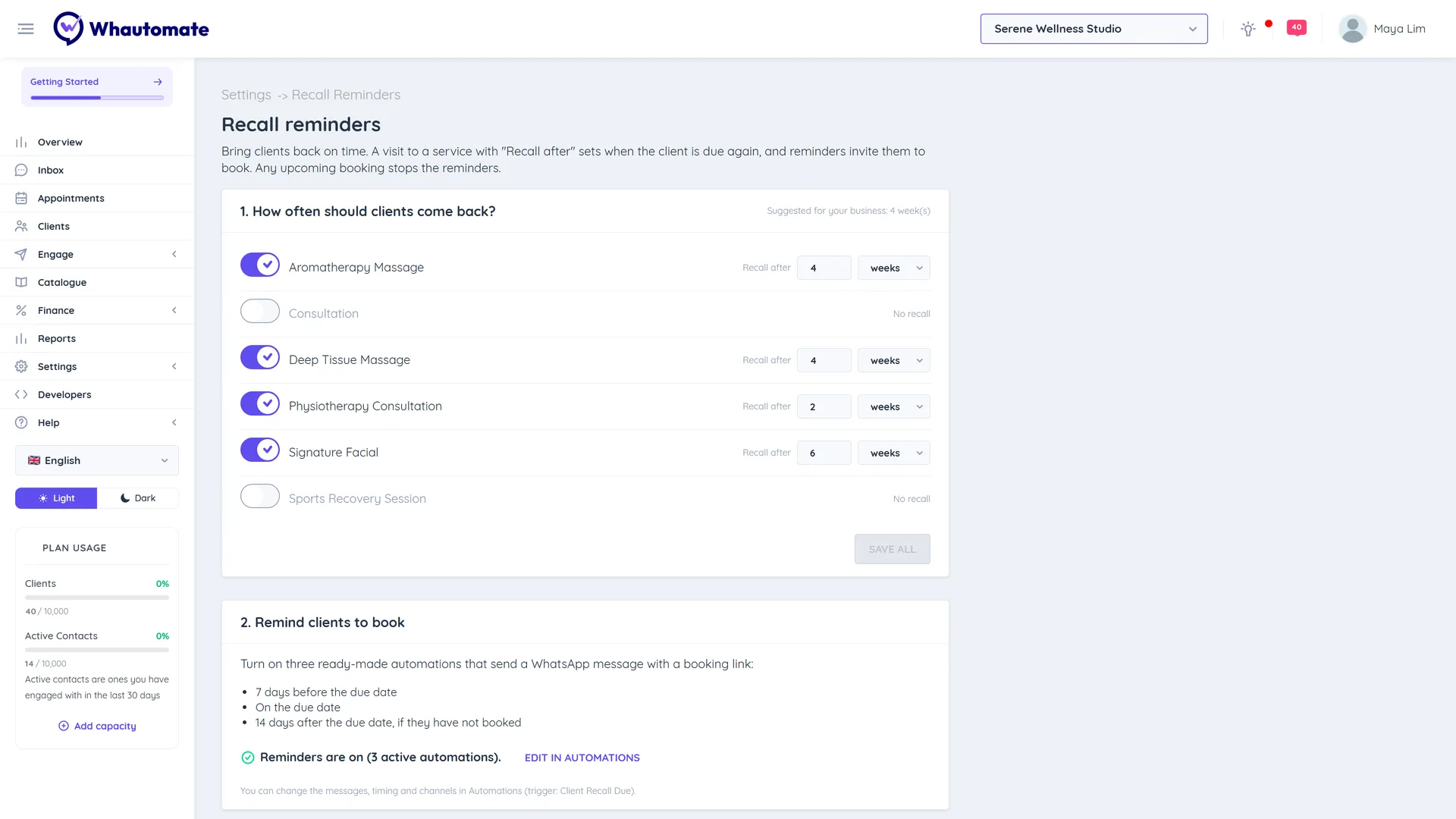
1. How often should clients come back?
Every appointment service is listed with a Recall after value. Values are prefilled with a suggestion for your type of business (shown at the top as Suggested for your business), for example 6 months for dental clinics or 4 weeks for salons.
- Change the number and unit (days, weeks or months) for each service.
- Set No recall for services clients do not need to repeat, such as a one-off consultation.
- Click Save all.
2. Remind clients to book
Click Turn on reminders. This installs three ready-made automations that send the WhatsApp template whauto_recall_reminder with a booking link at 10:00 AM:
| Automation | When it sends |
|---|---|
| Recall: coming up | 7 days before the due date |
| Recall: due today | On the due date |
| Recall: overdue | 14 days after the due date, if the client has not booked |
Once installed, the screen shows Reminders are on with the number of active automations, or a note when they are installed but switched off. Click Edit in Automations to change the messages, timing or channels.
- whauto_recall_reminder is one of the default WhatsApp templates added when you connect WhatsApp. Check it is Approved in your WhatsApp templates list.
- The booking link opens the service on your booking portal, so the service should be bookable online.
Set Recall after on a service
You can also set the default on each service. Open the service in Catalogue > Services and find the Recall reminders card (appointment services only):
- Turn on Recall clients after a visit.
- Enter Recall after as a whole number with days, weeks or months. The limits are 3650 days, 520 weeks or 120 months.
- Save the service.
Turning the switch off clears Recall after, so visits to that service create no recall. Changing the value never changes recalls clients already have; it only applies to visits marked Visited from then on.
To set it for many services at once, use the Recall After column in the services import. See Bulk import services.
Mark a visit and set the next recall
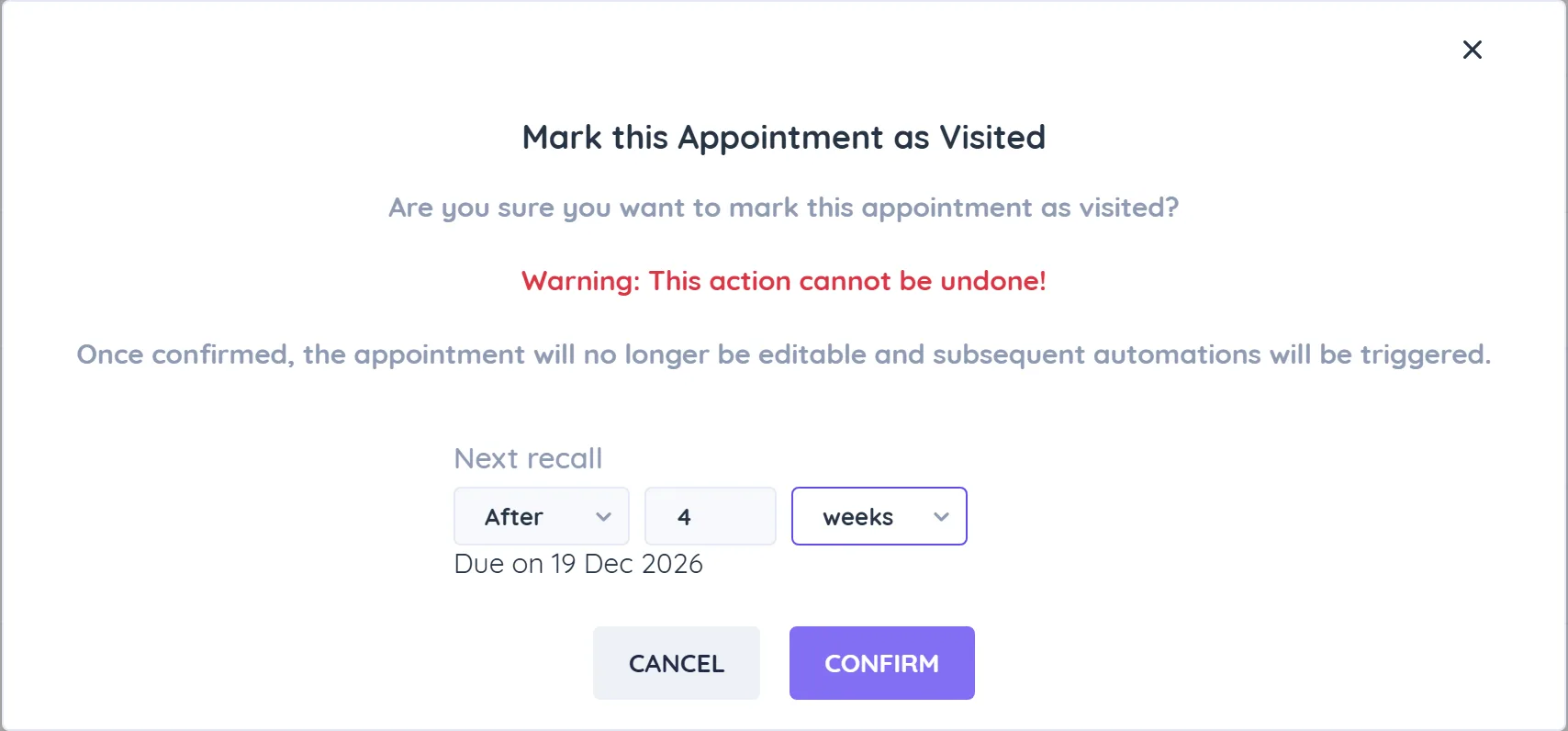
When you mark an appointment Visited (from the calendar, the Date Range list or the client's Appointments tab), the confirmation shows a Next recall field, prefilled from the service:
- After: a number and unit, for example 6 months. The field shows the due date (Due on ...).
- On a date: pick an exact due date.
- No recall: this visit creates no recall.
If you leave it as it is, the service's Recall after is used. A new recall for the same service replaces the client's open one (the old one shows as Replaced).
The Recalls list
Go to Appointments and open the Recalls tab to see every client's recall at the current location.
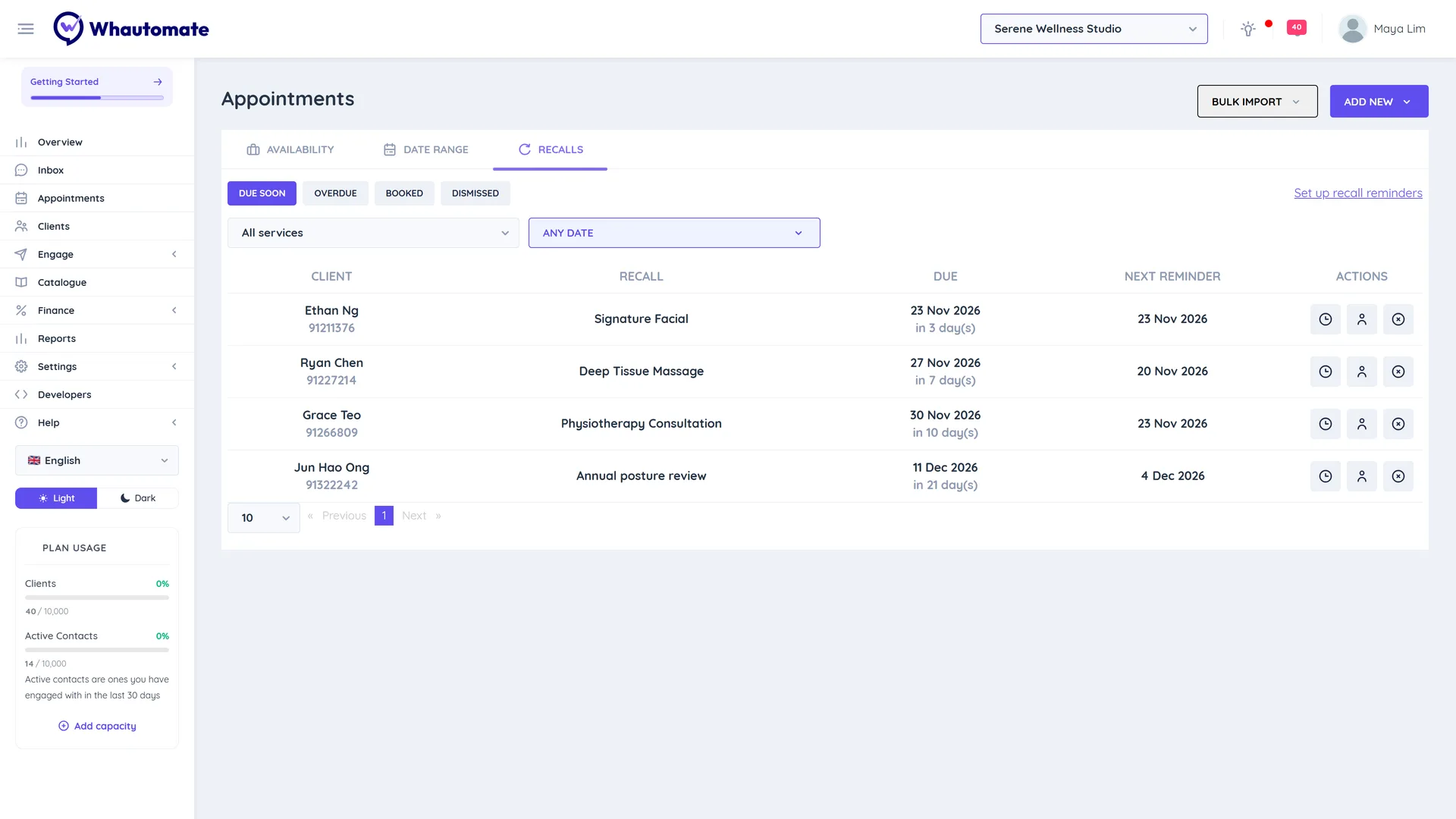
| Tab | Shows |
|---|---|
| Due soon | Open recalls due today or later |
| Overdue | Open recalls whose due date has passed |
| Booked | Recalls closed by a booking, with the booking time under Booked for |
| Dismissed | Recalls your team dismissed |
Filter by service (All services) or by due date (Any date, Due from, Due to); Clear filters resets them. Each row shows the Client, the Recall (service or name), when it is Due and the Next reminder: the date or time of the next message, or None planned when no reminder step is left.
Row actions:
- Open client opens the client profile, where you can book or message them.
- Reminder history lists each reminder for that recall (see below).
- Dismiss closes the recall. No more reminders are sent for it.
Reminder history
Reminder history shows each reminder step for one recall with its channel and status:
| Status | Meaning |
|---|---|
| Sent | The message went out. Open chat opens the conversation. |
| Scheduled | Waiting for its send time today. |
| Planned | A future reminder day. |
| Not sent | The send failed, with the reason. |
| Cancelled | Not sent because the client booked or the recall was closed. |
| Nothing sent | The automation ran, but its other conditions did not match this client. |
Recalls on the client profile
The client profile shows a Next recall tile with the client's next due date, and a Recalls tab with all their recalls, where it came From (Visit on a date, or Added by the team), its Status and Next reminder.
- Add recall: choose a Service (or No service and give it a Name, for example "Annual check-up"), set Due as After a time from today or On a date, and add an optional Note.
- Edit: change the due date or note. Reminder steps not yet sent move with the new date.
- Dismiss: close the recall.
If the client already has an upcoming booking at the location, a new recall is marked Booked straight away.
Customise the reminders
The reminders are normal automations on the Client Recall Due trigger, so you can edit them like any other rule:
- Timing: each rule sends once per recall, on the day set by its Days from due date condition: -7 for 7 days before, 0 for the due date, 14 for 14 days after. Add, remove or change rules to change the steps. The time of day comes from the action's schedule time.
- Message: use the recall variables in WhatsApp templates, emails, SMS or Telegram messages:
- {{recall.serviceName}}: the service or recall name
- {{recall.dueDate}}: the due date
- {{recall.bookURL}}: a link to book that service on your booking portal (your services list for a recall with no service)
- Channel: send by email, SMS or Telegram as well as WhatsApp, and use Client Receives Updates On to follow each client's choice.
- Who gets it: add conditions such as Recall Service or client tags.
Rule changes apply from the next daily check, because nothing is scheduled ahead of time.
How reminders are sent
- Reminders are checked once a day for each location, from 9:00 AM in your time zone. A step goes out at its action's schedule time (10:00 AM in the ready-made rules). If that time has already passed when the step is picked up, it goes out at that time the next day.
- If a day is missed (for example during maintenance), steps up to 3 days late are still sent. Older steps are skipped, never sent late.
- Just before sending, the client is checked again for an upcoming booking. If they have one, the recall is marked Booked instead.
- Imported visits and appointments saved with automations turned off do not create recalls, unless staff choose a Next recall when marking them Visited.
How to test
Try the whole flow on yourself before clients see it:
- Add yourself as a client with your own WhatsApp number.
- In Settings > Recall reminders, give a service a Recall after value, click Save all and Turn on reminders.
- Book that service for yourself at a past time, then mark it Visited. In Next recall, choose On a date and pick the date 7 days from today.
- Open Appointments > Recalls: your recall is under Due soon, and Next reminder shows today.
- Wait for the daily check (from 9:00 AM; the message goes at 10:00 AM, or at 10:00 AM the next day if you set this up after 10:00). You receive the Recall: coming up message, and Reminder history shows it as Sent.
- Tap the link and book the service for a future time. The recall moves to the Booked tab and no more reminders are sent.
- Cancel that booking: the recall is back under Due soon.
- Dismiss it from the list when you are done.
To see the due-today message instead, set the recall due today. For a quicker check of the wording, add a temporary rule with Days from due date equal to the days left until your test recall's due date.