Weekly Performance Report Email
Every week, Whautomate emails the account owner and administrators a short summary of how the business performed, compared with the week before. Weekly Performance Report is where you decide when it is sent and what it shows. The same metrics appear in the Performance Report page in the app.
By default the report is on and arrives on Monday at 8:00 in your account timezone, covering the week that just ended (Monday to Sunday).
Before you start
Only the account Owner and Administrators can change these settings.
Open the settings
Use either way:
- Go to Settings > All Settings and, under Schedule, click Weekly Performance Report.
- In Reports > Performance Report, click Report settings.
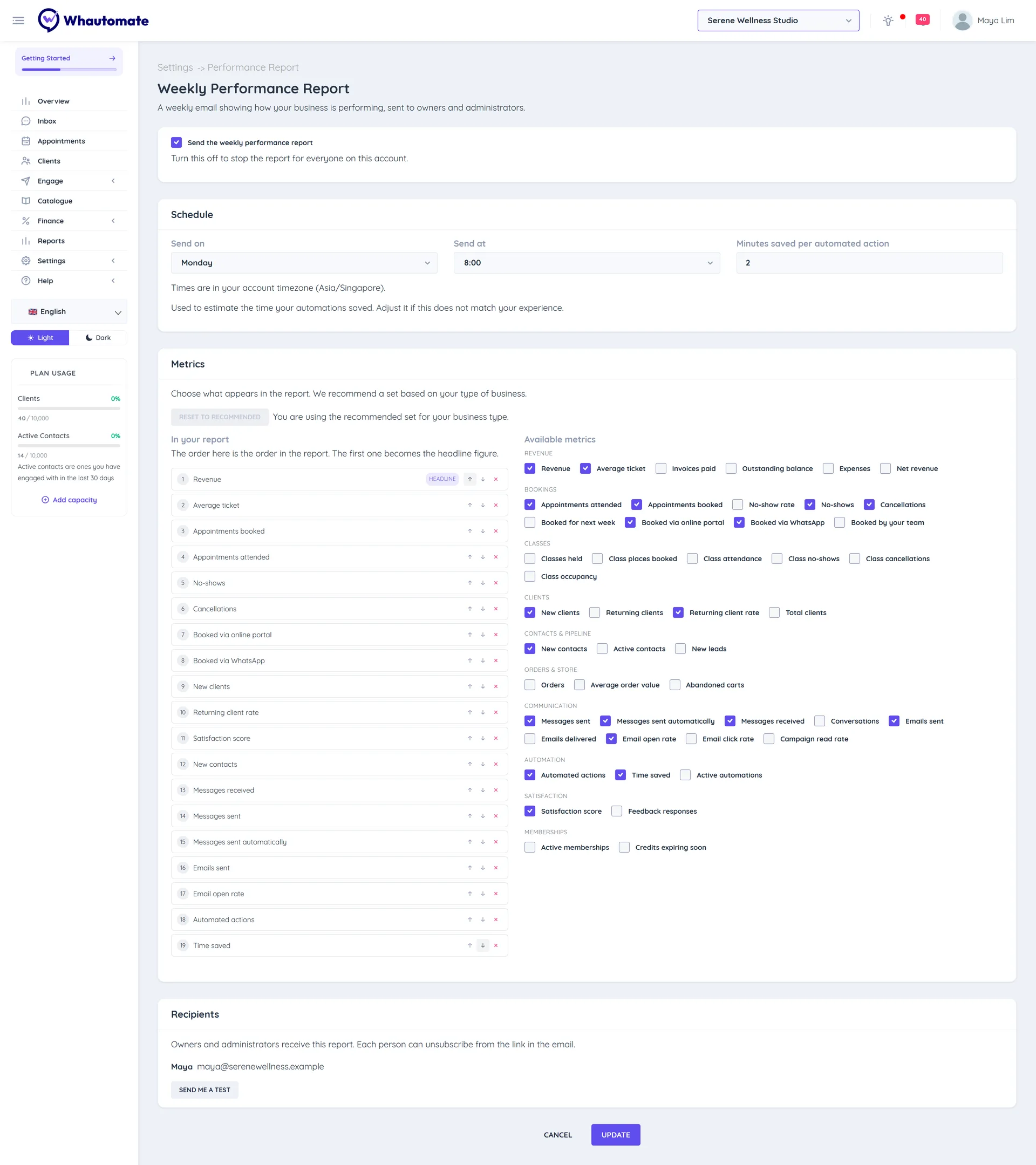
Set up the weekly email
- Make sure Send the weekly performance report is ticked. Unticking it stops the report for everyone on the account.
- Under Schedule, choose:
- Send on: the day of the week.
- Send at: the hour, in your account timezone.
- Minutes saved per automated action: used to estimate the time your automations saved (2 minutes by default). Change it if it does not match your experience.
- Under Metrics, choose what the report shows:
- In your report lists the metrics in the order they appear. The first one is the Headline. Use Move up, Move down and Remove to arrange them.
- Available metrics lists every metric your plan supports, grouped as Revenue, Bookings, Classes, Clients, Contacts & pipeline, Orders & store, Communication, Automation, Satisfaction and Memberships. Tick a metric to add it.
- Click Reset to recommended to go back to the set we recommend for your type of business.
- Click Update. You see Report settings updated successfully!
If you remove every metric and save, the recommended set comes back.
Metrics you can choose
| Group | Metrics |
|---|---|
| Revenue | Revenue, Average ticket, Invoices paid, Outstanding balance, Expenses, Net revenue |
| Bookings | Appointments attended, Appointments booked, No-show rate, No-shows, Cancellations, Booked for next week, Booked via online portal, Booked via WhatsApp, Booked by your team |
| Classes | Classes held, Class places booked, Class attendance, Class no-shows, Class cancellations, Class occupancy |
| Clients | New clients, Returning clients, Returning client rate, Total clients |
| Contacts & pipeline | New contacts, Active contacts, New leads |
| Orders & store | Orders, Average order value, Abandoned carts |
| Communication | Messages sent, Messages sent automatically, Messages received, Conversations, Emails sent, Emails delivered, Email open rate, Email click rate, Campaign read rate |
| Automation | Automated actions, Time saved, Active automations |
| Satisfaction | Satisfaction score, Feedback responses |
| Memberships | Active memberships, Credits expiring soon |
Revenue, orders and memberships metrics need Sales (revenue and average ticket also work with Bookings), bookings and classes metrics need Bookings, and client and email metrics need CRM Suite. See Plan Modules.
Recipients
The Recipients card lists who gets the email: the account owner and every administrator. Each person can unsubscribe with the link at the bottom of the email. If no one is listed, you see No one is currently set to receive this report.
Click Send me a test to get the report for the last week in your own inbox now. You see Test report sent to your email address. A test never replaces the real weekly email.